Quality literature doesn’t have to come at a cost. Explore these websites where you can legally download ebooks for free.
By Alexandra Arici – Oct 14, 2025
Want to read your favorite ebook, but aren’t sure what app to use? Check out the best ebook readers for all devices.
By Crystal Crowder – Nov 21, 2024
Looking for a better alternative to Audible and Kindle Unlimited? See why I use Everand for ebooks and audibooks.
By Crystal Crowder – Nov 13, 2024
Don’t like Audible and need something better? Try these Audible alternatives for all the audiobooks you could ever want.
By Crystal Crowder – Nov 9, 2024
Are you an Amazon Prime member who likes to read? Check out Prime Reading for unlimited reading and new titles monthly.
By Crystal Crowder – Jul 14, 2024
Love Kindle devices but don’t need Kindle ebooks or Amazon tracking you?
By Crystal Crowder – Oct 8, 2021
In this post, we discuss the ePUB format in detail and show you how to open an eBook using the .epub extension.
By Tom Rankin – Sep 13, 2021
Did you know that you don’t need a separate device to read ebooks? Let’s take a look at Kindle Cloud Reader and see what it’s all about.
By David Joz – Aug 21, 2021
Parents can get a little help with Reading Sidekick, an Alexa skill that reads with children, teaching them the value of reading for fun.
By Laura Tucker – Jun 30, 2021
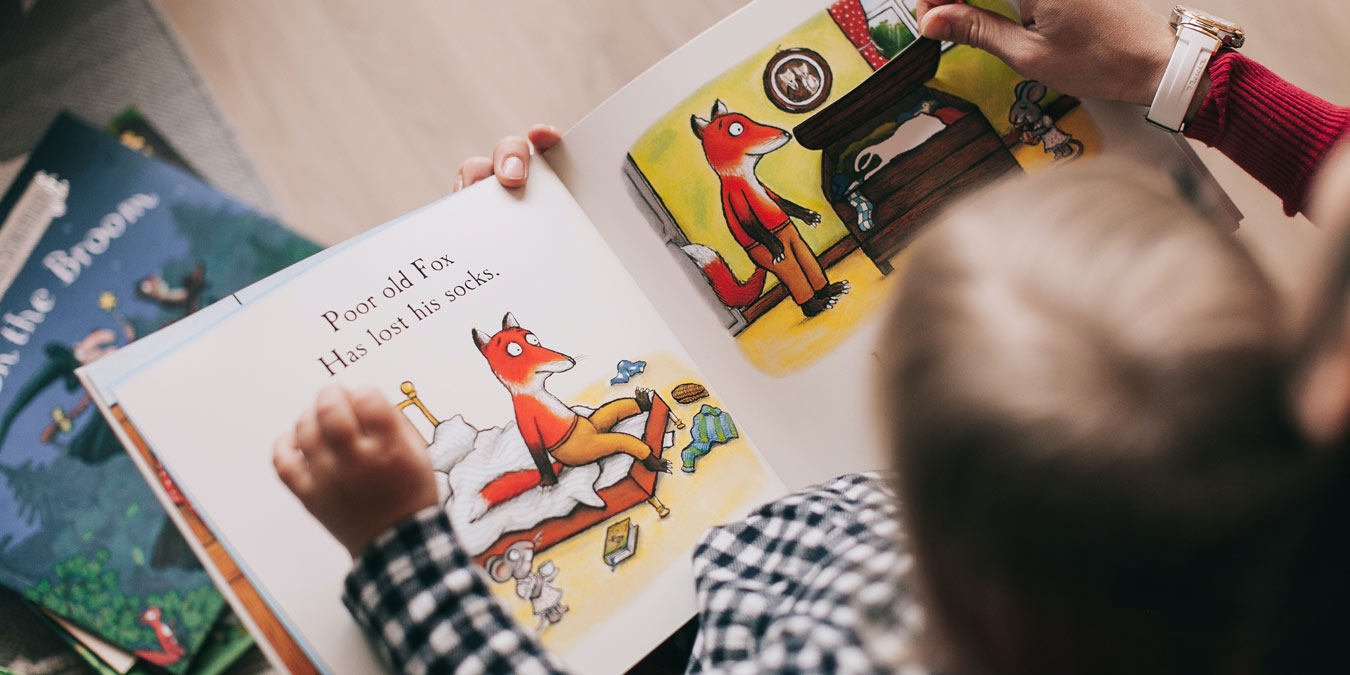
It is great to train your kids to start reading from a young age. These are some of the best sites for finding free online books for kids.
By Robert Zak – Jun 3, 2021
Calibre allows you to manage all of your ebooks together under one umbrella. Learn how you can better manage your ebook library with Calibre.
By William Elcock – Sep 5, 2020
Don’t have the time to sit down and read a book? Learn how you can connect Kindle and Audible to Alexa and listen to books on your Echo device.
By Jessica Thornsby – Aug 7, 2020
When you’re stuck at home, it’s good to try out a few new hobbies to pass the time. Here are a few hobbies you can learn for free at home using the Internet.
By Simon Batt – Apr 22, 2020
Even with a good ebook reader, you still need to have ebooks to read on it.
By Ada Ivanova – Jun 8, 2018
Are you a bookworm? Here are some tools for you to track your reading habits, get tailored recommendations and connect with other bibliophiles.
By Ivana Isadora Devcic – Mar 11, 2015
If you’re an avid reader and would like to update your e-books with beautiful book covers, here’s a step-by-step guide to add book cover in Calibre.
By Maria Krisette Capati – Aug 31, 2014
Creating an ebook is not as difficult as you think. This tutorial shows you how to make ebook using Calibre on Linux. It should work in Mac and Windows too.
By Gary Sims – Nov 25, 2013
Even though there’s a wealth of online information about Linux available on the Internet, one of the best ways to learn is still a good old-fashioned book. Well, not completely old-fashioned. Many of these Linux books are available in electronic formats. The following is a list of five Linux books that every enthusiast should read.
By David Delony – Jan 30, 2013
Affiliate Disclosure: Make Tech Easier may earn commission on products purchased through our links, which supports the work we do for our readers.