A browser, as its name implies, is meant for browsing the Web. It is not meant to be used as a text editor. That’s why you seldom find text-editing features like “Find and Replace Text” in the browser.
However, there are times where you are writing your blog post, typing a comment, composing emails or moderating forums, and find yourself wanting to replace a couple of words that appear multiple times throughout. This is where a “Find and Replace Text” function is useful. Let’s take a look at how you can add the find and replace feature to Google Chrome and Firefox.
Also read: 6 of the Best Google Chrome Extensions to Annotate Text on the Web
Find and Replace for Google Chrome
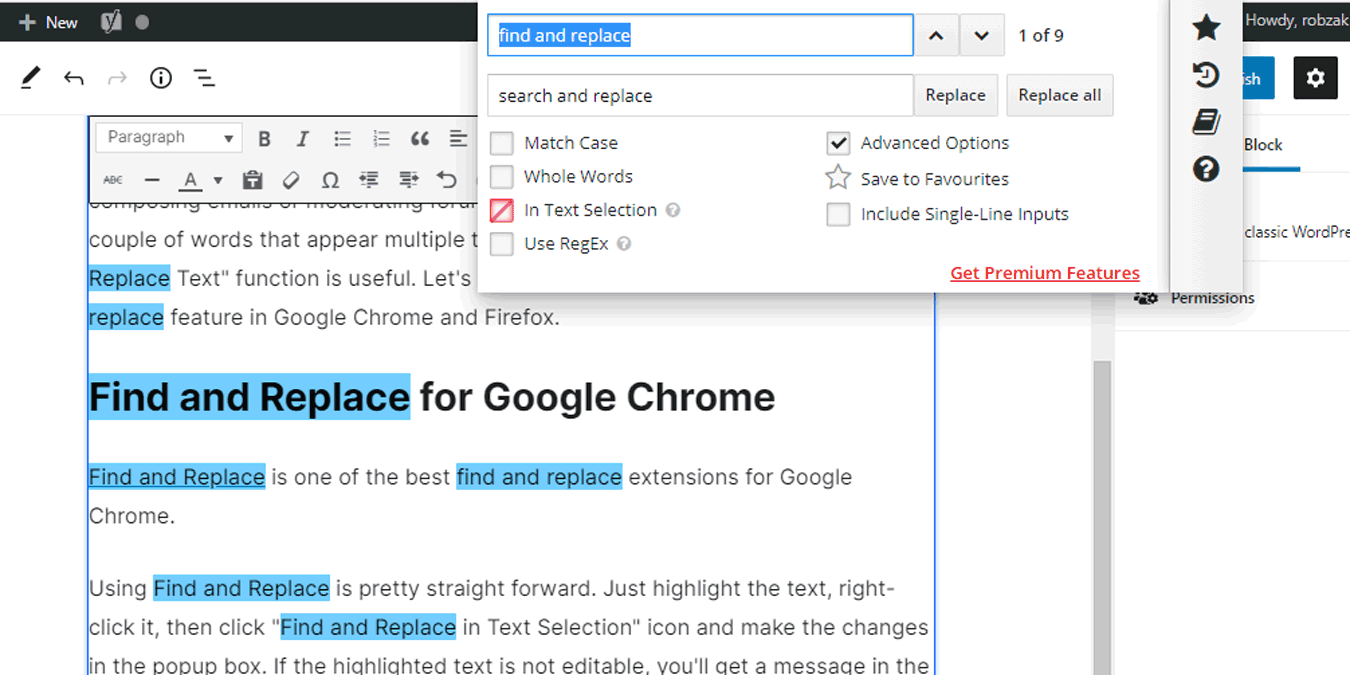
Find and Replace is one of the best find and replace extensions for Google Chrome.
Using Find and Replace is pretty straightforward. Go to the page you want to find and replace text in, press the keyboard shortcut Ctrl + Shift + F and enter the text you want to find into the top box. Next, fill in the “Replace with” field and click “Replace” or “Replace All.”
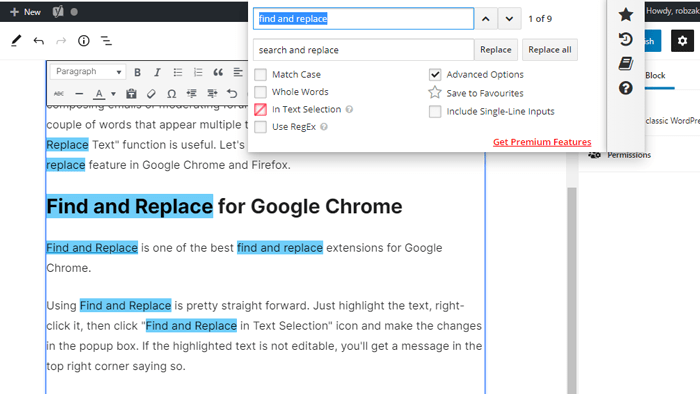
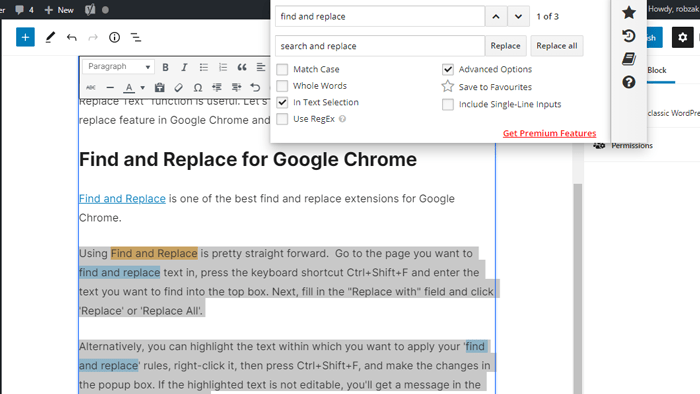
Alternatively, you can highlight the text where you want to apply your “find and replace” rules, right-click it, then press Ctrl + Shift + F, tick the “In Text Selection” box, then make the changes in the pop-up window. If the highlighted text is not editable, you’ll get a message in the top-right corner saying so.
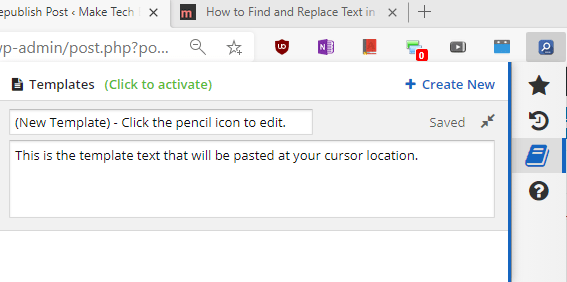
There are extra options in this extension as well. In the right side of the extension window you can click the book icon to create your own templates, which you can use for future “find and replace” scenarios.
There’s also a RegEx option for more advanced users.
Also read: 5 Online Diff Checker Tools to Compare Text in Two or More Files
FoxReplace for Firefox
FoxReplace is just like Search and Replace but for Firefox. Once installed, restart your Firefox browser and you are good to go. To start using FoxReplace, just press Ctrl + Shift + F9, and you will be presented with a small toolbar on the left of the browser. Select the text you want to modify, specify the words to find and replace and hit the button “Replace.” That’s all there is to do.

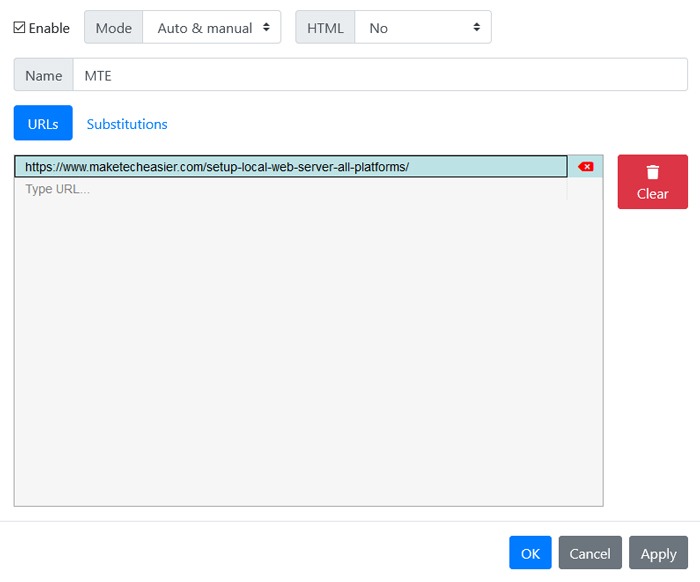
Apart from the regular find-and-replace functionality, you can also automate the work by preconfiguring FoxReplace from its menu. Of course, this is an advanced functionality and is pretty helpful for savvy users such as bloggers. Though this plugin lacks the support for regular expressions for now, FoxReplace supports over 15 languages, which is also useful.
Hopefully that helps. Do comment below to share your favorite find-and-replace add-ons and your thoughts on the above extensions.
Also read: How to Open a Magnet Link in Any Browser
Now you know how to find and replace text in Chrome and Firefox. You might also want to learn how to copy text from a blocked site in Chrome. If you want a non-Google controlled version of Chrome, then see how to install Chromium on Windows 10.