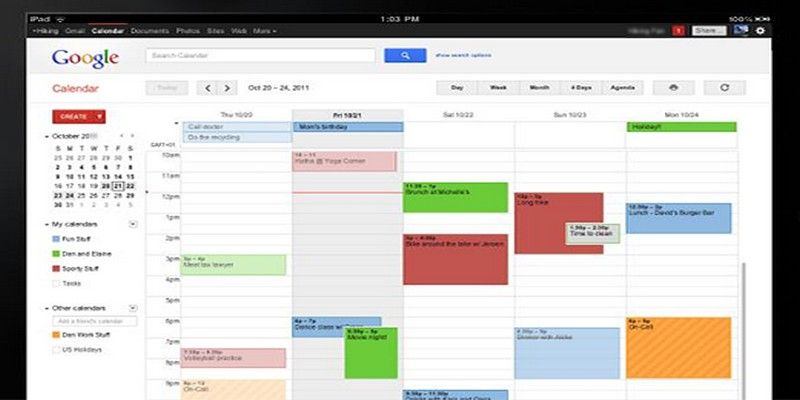
“Team meeting on Tuesday,” “Finish the project by Friday” and “Dinner with friends on Saturday.” Wasn’t your wedding anniversary this week. too? I’m sure you have a million things in your head, and if you try to remember them on your own, you’re going to forget more than half of them. Google has an app for just about anything, and that naturally includes a Calendar app. Even though Google Calendar is perfect for keeping your events in order, are you sure that you’re getting the most out of it?
1. Add a World Clock
Google Calendar has a Labs section where they keep their experimental features. There you’ll find the World Clock where you can easily see what time it is anywhere in the world. To add a World Clock, click on the cog wheel and select Settings.
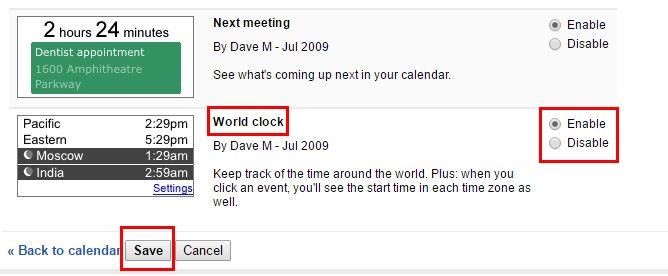
Select the Labs features and scroll all the way down to World Clock. Click on Enabled and save your choice. Don’t worry if you forget to save since Google Calendar will remind you to so that you won’t lose your changes. Once you’ve added it, you can click on the Clock to add the times for the country you want to track.
2. Add an Event Using the Google Search Bar
If you’re signed into your Google account, you can easily create an event by just typing it into the search bar. For example, you can add, “Make an appointment with Fabio tomorrow at 3pm.“
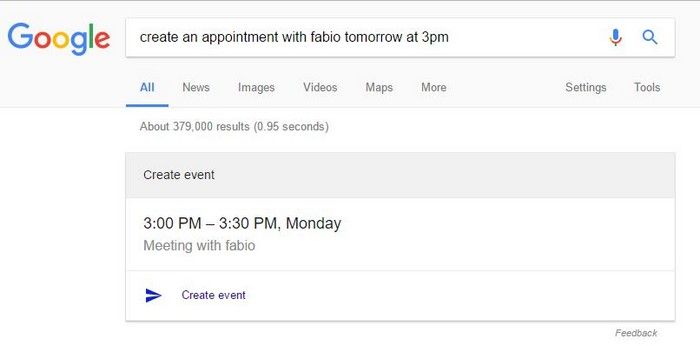
You’ll see a “Create Event” option right below the event. Click on it, and it’ll be added to your calendar. If you ever want to see your events, you can also type “Show my events.”
3. Get the Chrome Extension
If you want a one-click access to your Google Calendar, then installing the Chrome extension is a must. With the Chrome extension you can do things such as see your next appointments, add new ones, or see the time until your next event.
If you come across a site that has an event embedded in it, you can easily add it with a click. To get full access to your calendar, right-click on the icon.
4. Hide Hours with No Events
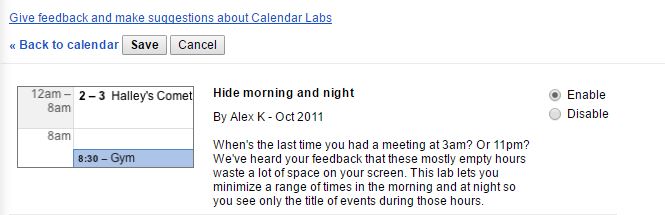
If you just can’t stand seeing that empty spaces between events, the good news is that you can easily get rid of them. To only see active hours on your Google Calendar, go to “Settings -> Labs -> Hide morning and night -> Enable -> Save.”
5. Save Time with Keyboard Shortcuts
When time is of the essence, keyboard shortcuts are a must, but they are not going to work if you don’t enable the option first. Go to “Settings -> General -> Scroll down to Enable keyboard shortcuts -> Save.”
Some keyboard shortcuts you can try include:
- K or P – Descriptions
- J or N – Next date range
- R – Refresh Calendar
- T – Jump to today’s date
- 1 or D – Day view
- 2 or W – Week view
- 3 or M – Month view
- 4 or X – Custom view
- 5 or A – Agenda view
- C – Create new event
- E – Show event details
- Backspace or Delete – Delete event
Receive Email Notifications
If you don’t check your Google calendar as much as you would like to, you can always get email notifications for the more important events. To set this up, go to “Settings -> Calendar Tab -> Edit Notifications.” Click on the box of what you want to be advised of.

Sync Your Calendar with Someone Else’s
Finding a day and time for you to meet with someone can almost be a mission impossible. Why go through all the hassle when Google Calendar can do it for you. First, you need to make sure that everyone that is going to attend is invited.
Once you’ve checked that, you should see a link to the right that says Suggested times. By clicking that, you’re going to see the times when everyone is free according to their Google Calendar.
To see everyone’s calendar side by side, go to the “Find a time” tab that’s next to Event details. You’re only going to see other users’ calendars if you’ve been invited to the event.
Conclusion
Google Calendar is an excellent way to stay on top of things, but it’s always a good idea to know how to take full advantage of it. Impress your friends and show them the Google Calendar master you’ve turned out to be. Did I miss your favorite tip? If so, share it below in the comments.