
If you’re making the difficult choice to switch music streaming services, the last thing you want is to have to start all your playlists over. Thanks to the new Spotify TuneMyMusic integration, it’s easier than ever to import playlists to Spotify without losing anything.
What is TuneMyMusic
TuneMyMusic is a well-known service helping you import songs and playlists between music services such as Spotify, Apple Music, Deezer, TIDAL, and YouTube Music.
Since there are quite a few music streaming services, Spotify didn’t want to create import tools for every service. Instead, Spotify partnered with TuneMyMusic to offer a direct in-app integration.
Typically, you can only transfer up to 500 songs for free with TuneMyMusic. But, thanks to Spotify’s new partnership, which is available to all users, you get access to unlimited transfers. This is perfect if you’re like me and have thousands of songs scattered across your playlists.
Which Services Can You Import From?
At the time of writing, Spotify TuneMyMusic import feature lets you import playlists to Spotify from 18 different services, along with entering artist names and song titles, uploading a playlist file, or via a URL. The website offers several more options, but they’re not currently part of the integration with Spotify.
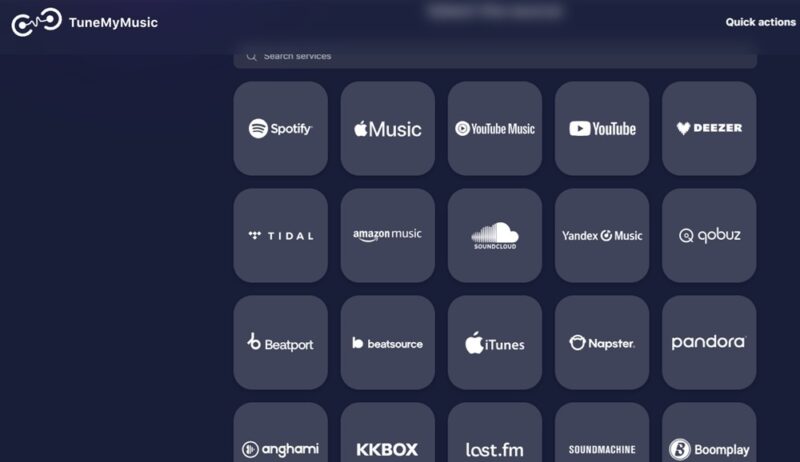
The services include:
- Apple Music
- YouTube Music
- YouTube
- Deezer
- TIDAL
- Amazon Music
- SoundCloud
- Pandora
- Qobuz
- Beatport
- Beatsource
- iTunes
- Napster
- Anghami
- KKBOX
- last.fm
- SoundMachine
- Boomplay
You’re not limited to importing playlists from just one service, either. Have lists scattered across Apple Music, Amazon Music, and YouTube Music? Import them all into Spotify.
Please note that importing playlists to Spotify won’t delete them from the current service. This only copies them over.
Import Playlists to Spotify
At launch, Spotify TuneMyMusic import feature is only available in the mobile app. Spotify does plan to add the functionality to the desktop and web versions later on.
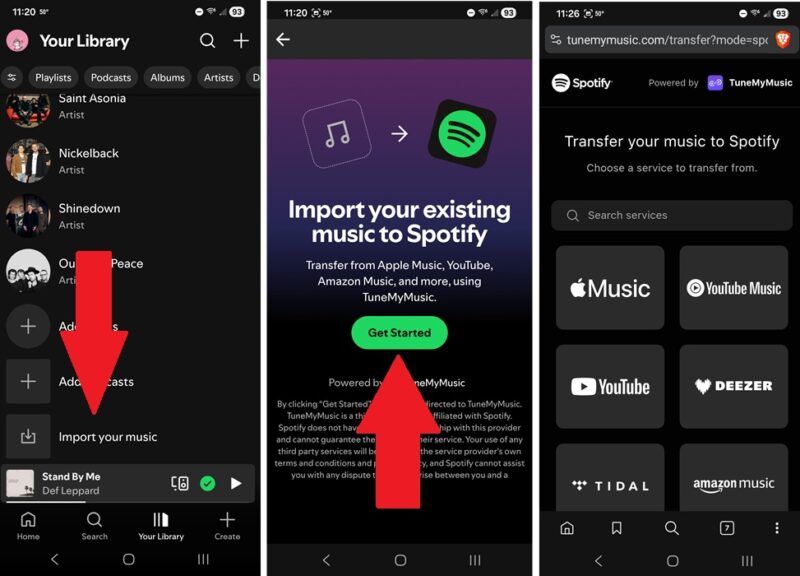
Start by updating to the latest version of the Spotify app. Then, open Spotify, tap Your Library and scroll all the way to the end of the list. If it’s a long list, use the arrows to the right to scroll significantly faster.
Tap Import your music. You’ll need the login details for the account you’re importing from. This is so TuneMyMusic can access the account.
Tap Get Started and choose your service. For an example, I’m importing a YouTube Music playlist to Spotify.
Check the playlists you want to import. Everything is checked by default. If there are any songs you want to exclude, expand the playlist and uncheck the songs. When you’re finished, tap Transfer to Spotify.
Tap Agree to confirm the transfer.
Don’t close the transfer window until the transfer is complete. Wait until you see the Transfer Complete! message. Tap Open Your Library in Spotify to view your imported playlists.
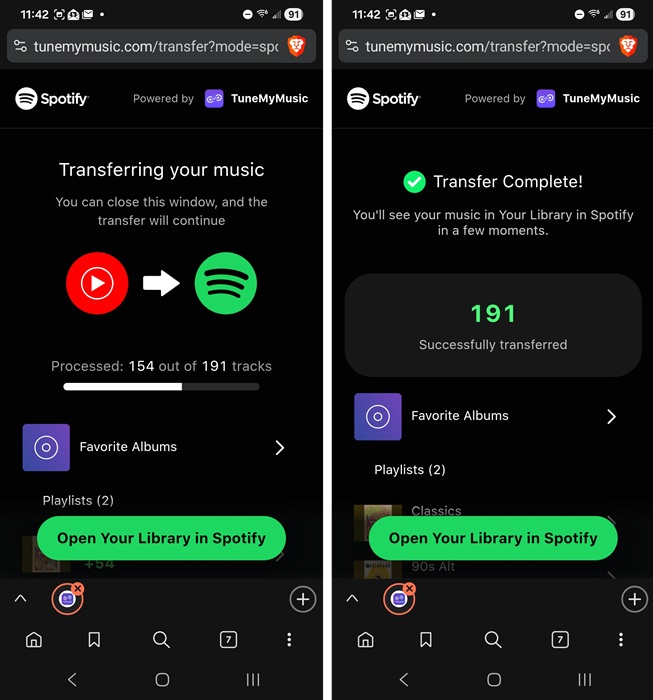
If you don’t see the imported playlists at the top of Your Library, close Spotify completely and reopen the app. At first, I thought I was missing one playlist, tried importing it again, only to relaunch Spotify and have two of the same playlist.
Don’t forget to share your new playlists once you’re done.
Using Spotify TuneMyMusic to Customize Spotify
If you are brand new to Spotify, importing playlists is a quick way to start customizing the service. Start listening to your imported playlists to help Spotify better understand your listening tastes.
You’ll start to see better recommendations for songs, artists, and playlists within a day or two.
If you’ve imported any playlists that you don’t want to affect what Spotify calls your “taste profile,” open the playlist, tap the three dot menu above the song list, and tap Exclude playlist from your taste profile.
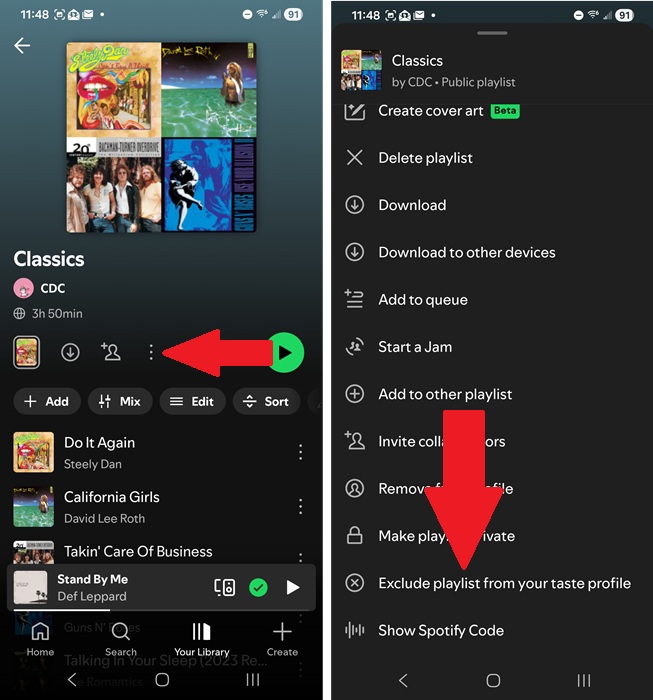
This is ideal if you have a few playlists that don’t fit your typical preferences. For instance, I have a playlist of lofi for focus, but I don’t want Spotify bombarding me with lofi in every suggested playlist.
Limitations When Importing Playlists
Spotify’s streaming library is immense, but that doesn’t mean the service has every song or artist. Some songs/artists are exclusive to specific platforms. If you try to import playlists to Spotify that contain songs Spotify doesn’t have, these won’t import.
You’ll either not see them listed at all, or they’ll be greyed out to show they’re not available.
Also, you don’t get every feature of TuneMyMusic Premium. You only get unlimited song and playlist transfers. If you make changes to a playlist on one service, it won’t sync to Spotify or vice versa. This is simply for helping you move from one service to another.
If any of your imported playlists may have duplicates in them, use these methods to quickly remove the duplicates.
Remove TuneMyMusic Access
The exact steps to remove TuneMyMusic access to any streaming service you imported from vary based on the service. For most, you’ll need to open your music streaming service’s account, look for privacy (or something similar), and then look for connected apps (or a variation).
Look for the TuneMyMusic service and revoke access. This ensures the service no long has access to your account details or playlists.
If you are moving away from Spotify, see how to transfer Spotify playlists to Apple Music. Or, transfer to YouTube Music.








