ChatGPT is navigating to the social sphere. One of its newest updates brings group chats into the mix, now allowing users to collaborate with others in a single, convenient space, making planning, discussing or problem-solving for teams or groups far easier. Here’s why group chats in ChatGPT is a feature you’ll want to explore.
Good to know: did you know that ChatGPT can run apps? Here’s how to take advantage of this superpower.
Why You Might Want to Use Group Chats in ChatGPT
After initially trialing the feature in select regions, OpenAI recently announced that group chats are now rolling out for all logged-in users, including Free, Go, Plus, and Pro.
The idea of integrating ChatGPT into your messaging workflow isn’t new. WhatsApp already lets you talk to the AI directly, in the same easy, familiar way you message anyone else. Still, you can’t add ChatGPT to a group chat.
But that’s changed. ChatGPT now offers the ability to create group chats, allowing you to invite people to join the conversation and, in the process, transforming the platform into something that feels much closer to a messaging app.
Think of group chats in ChatGPT as normal group chats, but with the AI chatbot also a participant. Now, instead of forwarding screenshots or copy-pasting replies from ChatGPT, you can bring others directly into the chat thread, giving them immediate access to the whole discussion and allowing them to participate too.
This can be useful in all kinds of situations. Say you and your friends are organizing a trip or planning an evening together. You can have ChatGPT assist you with the logistics while everyone shares their preferences in the same window without having to bounce between tabs and apps.
Likewise, a group of students collaborating on a paper can brainstorm together, get ChatGPT’s feedback on their ideas, and then divide the writing tasks between them.
In a more domestic scenario, you can set up a family group and build a shopping list collaboratively. Each member can add items as they think of them, and then ChatGPT can pull everything together into one unified list.
Since group chats are displayed separately, it’s also much easier to keep track of your ongoing tasks. Not to mention, you can switch between them seamlessly.
Transforming ChatGPT into Your Next-Level Collaboration App
If you want to give ChatGPT groups a try, here’s how to set up your first. You can do this either from the web version or the mobile app. All responses in a group chat are powered by ChatGPT 5.1 Auto. Depending on your plan, rate limits may apply, but only for ChatGPT responses to questions submitted by your account and not general messages between group participants.
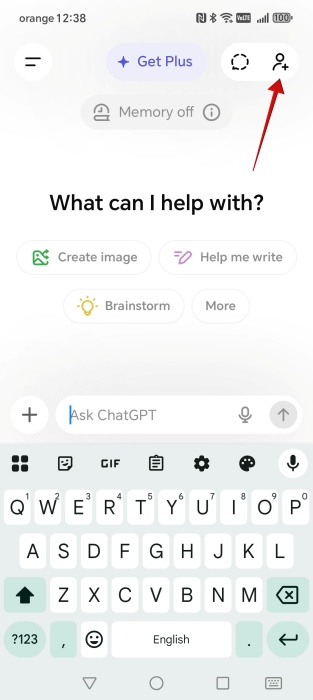
Open ChatGPT and tap the little person icon in the upper-right corner.
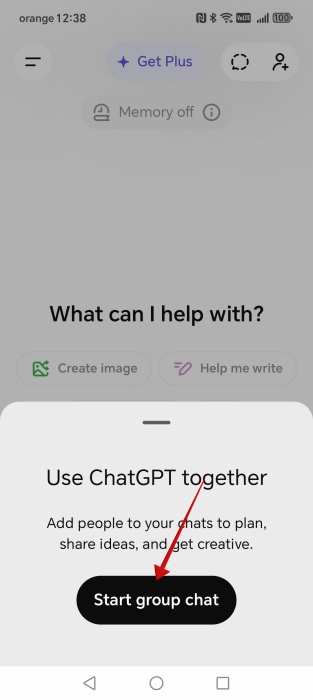
Tap on the Start group chat button.
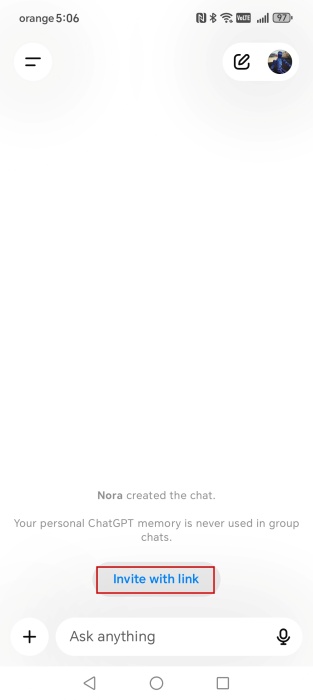
ChatGPT will immediately create your group chat for you. If you’re on PC, the group link will appear in a pop-up. On mobile, you have to press the Invite with link button to view the link and send it on its way.
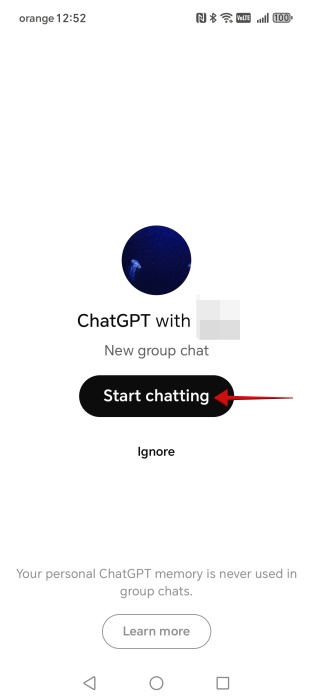
The other party will receive a notification that you’ve added them to a group. Once in the app, they will need to press Start chatting to accept the invitation. Or Ignore if they don’t wish to join.
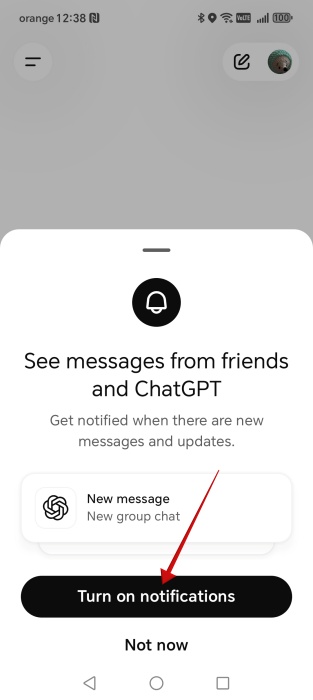
ChatGPT will ask you to allow notifications for the chat, which is a good idea if you want to remain up to date with what’s happening in the conversation.
You can add up to 20 participants to a group chat in ChatGPT, which is plenty in most scenarios. I’d also like to note that you can create a group chat with just yourself. It’s actually a good idea if you want to keep certain workflows separate. For instance, I’ve created a group where I write down all the books or movies I want to check out later. From there, I can ask ChatGPT where a show is available to stream or get details about a book’s author, and so on.
Sharing, Planning, and Deciding – All in One Place
Once you’ve created the group, you can kick-start the discussion just as you would in any other chat app. ChatGPT will scan each line of conversation, but will only intervene if the context demands it.
For instance, I was able to exchange some lines of greeting with my friends without ChatGPT interrupting us. Even so, there were moments when the chatbot jumped in on its own accord. Like with everything AI, mistakes will happen.
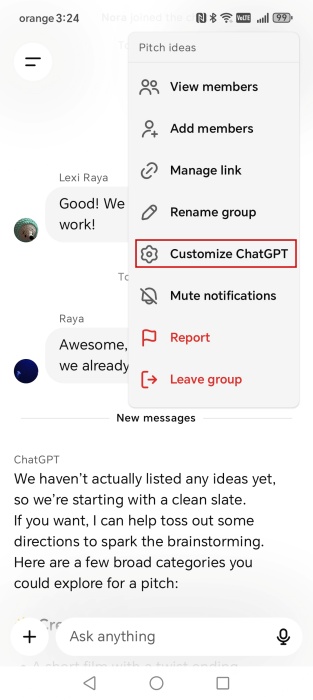
Fortunately, I discovered that you can take one precaution to avoid ChatGPT from intervening when it shouldn’t. Tap on the profile pictures in the upper right corner and select Customize ChatGPT.
Tap Respond and switch to When mentioned.
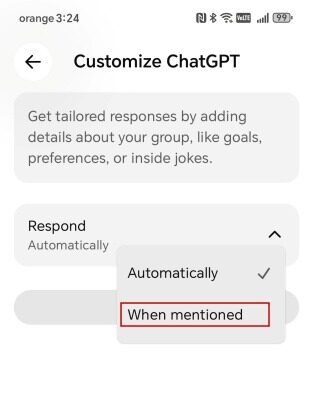
With this option on, you will have to use @ChatGPT in order to get a response from the chatbot. You can also prompt other chat members in the same way to ensure you get an answer.
Tip: from the same window, you can add details about your group to get more tailored responses from ChatGPT. For instance, if someone doesn’t appreciate being constantly asked follow-up questions.
Group chatting in ChatGPT supports sharing images and files, which is really helpful, because now I can, for example, ask my roommate to check my list of furniture items our apartment needs, but also ask ChatGPT to scan the list and suggest affordable options.
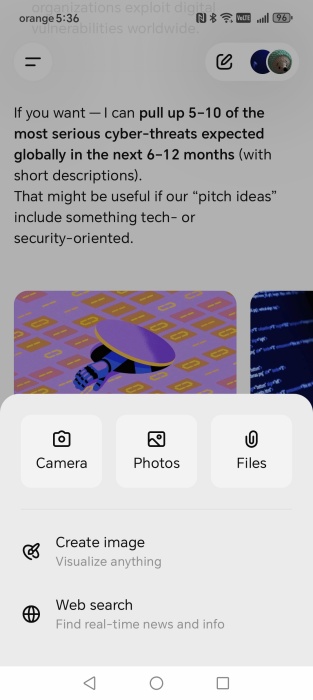
Any of the participants can request that the chatbot create images or perform a web search, and all can view the results and weigh in. You can also leave voice messages, a feature that I often use in other chats app to streamline my daily digital interactions with people, so it’s a welcome addition here.
Moreover, I appreciate that ChatGPT lets add reactions or reply directly to individual messages, just like in WhatsApp (which is the messaging app I normally use.)
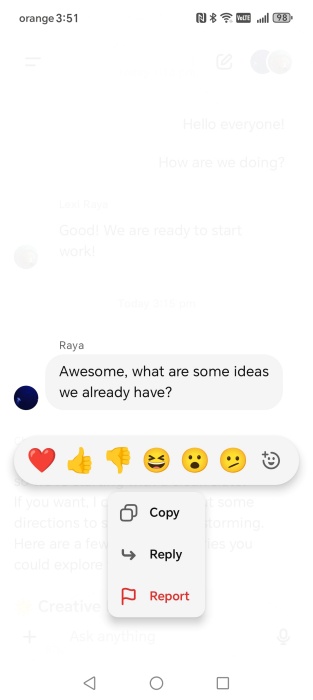
On the other hand, I’m not happy about the fact that you can’t edit messages like you would in a normal ChatGPT conversation. And while you can delete messages, the option is limited to the web version for now.
Tip: get up to speed with ways to use ChatGPT to stay safe online.
Keeping Your Privacy Intact While Collaborating
I was a little worried that ChatGPT might accidentally reveal personal details in a group chat, but OpenAI says that your ChatGPT memory won’t be used during these conversations. So far, I haven’t seen it slip up, and that reassures me.
I’ve also disliked how some messaging apps, including WhatsApp, let people add you to groups without asking. ChatGPT doesn’t do that. You have to manually accept any invitation before joining a group. If you at any time decide that you don’t want to be a part of the group, you can easily remove yourself.
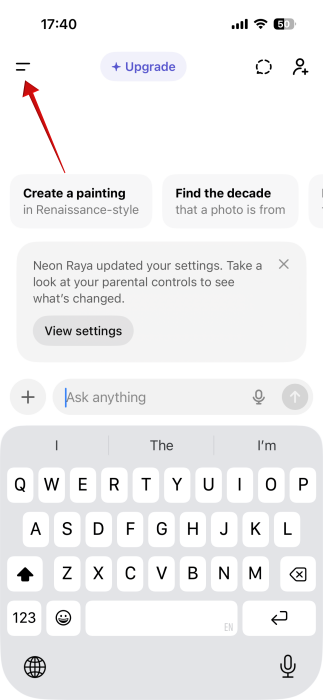
Tap the menu icon in the upper left corner in the app or click the ChatGPT icon in the web version.
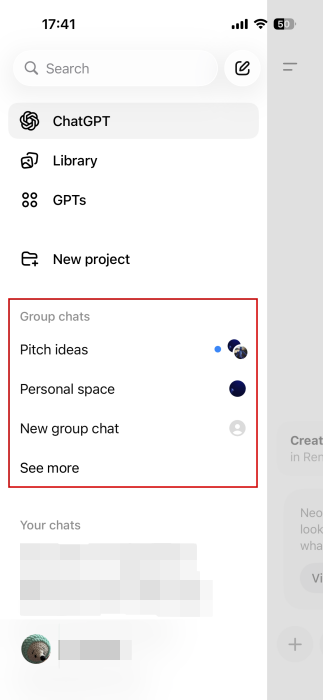
Find your conversation under Group chats.
Tap on the profile pictures in the upper right corner and select Leave group.
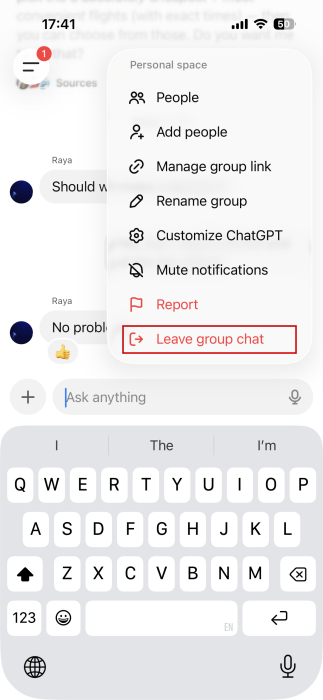
You can also remove a troublesome member from the group (except the creator). In the same menu, select People if you are on iOS, or View members on Android.
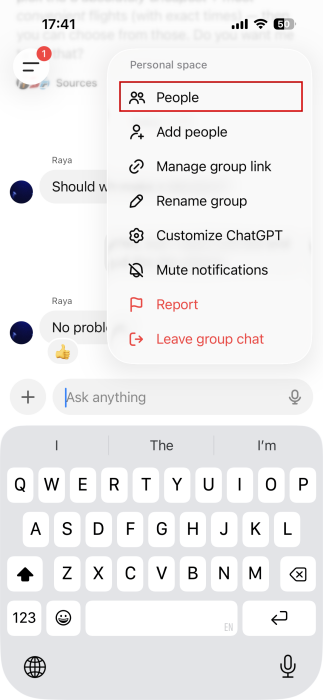
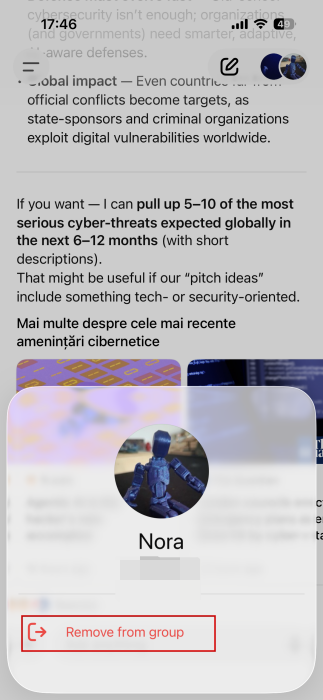
Select a member and then tap Remove from group.
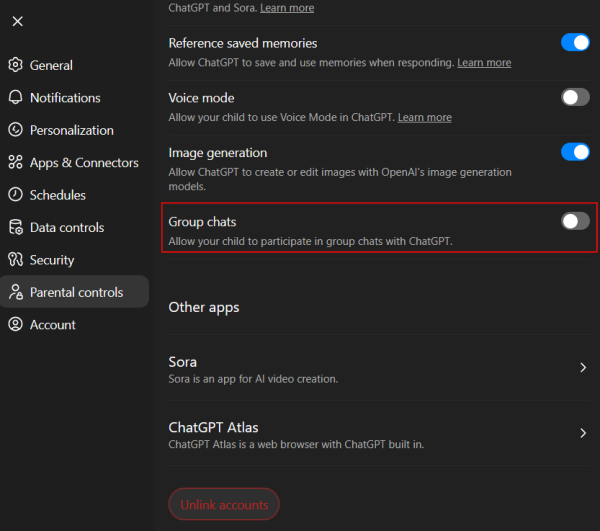
To protect minors’ privacy, ChatGPT allows parents to decide whether their children can join group chats on the app. Adults can disable group chatting from their Parental Controls dashboard in the app.
Another way to optimize your daily workflow is to start leveraging scheduled tasks in ChatGPT. Learn how to set one up by following our guide.








