

ChatGPT has evolved far beyond a simple Q&A tool and is carving out its place as an all-purpose digital assistant. One recent and particularly handy feature is the ability to set up scheduled tasks within ChatGPT itself. From setting up daily routines that support your workflow to sending out helpful reminders, it can be surprisingly useful. If you’re curious about how it works, here’s how to set up your very first scheduled task.
Good to know: access your AI assistant faster by making ChatGPT your default search engine.
Set Up a Scheduled Task in ChatGPT
Currently, scheduled tasks in ChatGPT are available only for paid subscribers. To upgrade, click your name inside ChatGPT and select Upgrade plan. Prices start at $19.99 for the Plus package.
To create a scheduled task in ChatGPT, whether on the web or in your mobile app, first create a prompt that includes the hour and the days when you want the task to run. For instance:
“Create a task that runs every day at 8 am and gives me the weather report for the day.“
Or use the following templates:
- Set important event reminders: Create a task that runs every day from today at 17:00 pm to remind me of my uncle’s birthday on 21 November
- Create meal plans: Every Sunday at 13:00 pm provide me with a weekly meal plan for two. Focus on vegetable-based dishes with a small amount of meat.
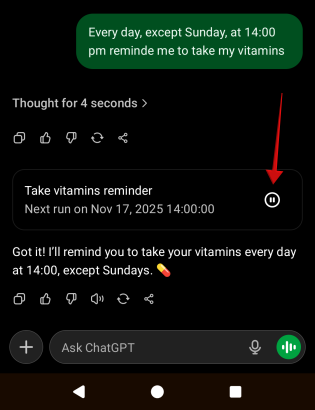
- Get help to keep a routine: Every day, except Sunday, at 14:00 pm remind me to take my vitamins
- Learn something new: Every day, at 16:00 pm provide me with an obscure word and provide the definition
- Stay updated with what matters: Show me stock prices for Samsung every day at 12:00 pm.
Make sure you explain as clearly as possible what you want ChatGPT to do and don’t shy away from adding all the details.
Next up, enter the prompt into ChatGPT, and the AI bot should recognize the specific command and respond by creating your task and providing you with an overview of what the task entails.
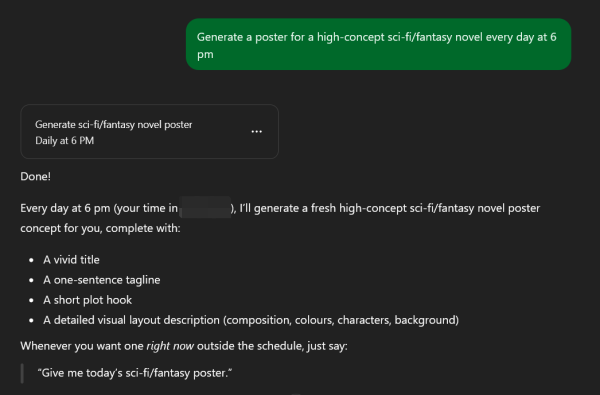
Note that Voice chats, file uploads are not supported for the creation of tasks.
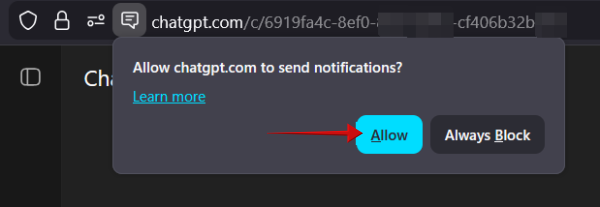
When you create your first task, ChatGPT will ask you whether it can send you notifications. You should enable the option to allow ChatGPT to send an alert whenever it performs the task.
Finally, we should note that ChatGPT will execute the scheduled tasks regardless of whether the user is online or not. You can view the results afterward, when you log in.
Tip: you can now run apps from inside ChatGPT. Here’s why that might be important.
Edit a Scheduled Task in ChatGPT
In some cases, after reviewing the task description, you might want to adjust it to get exactly what you want. You can do this by editing the task. Note that you can do this only from the web version and not the mobile one.
Press the three dots on the task card and select the option to Edit.
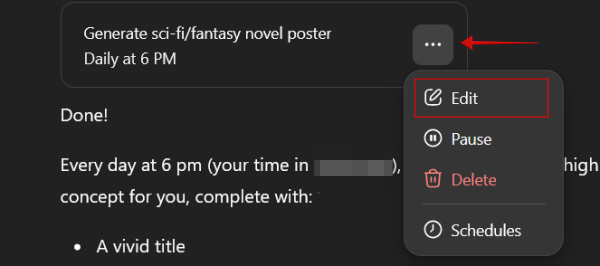
In the pop-up window, you can rename your task, then revise and modify your task. For instance, in this example, I wanted to clarify that I was looking for visual posters not written descriptions. You can also modify the hour or how often you want the task to run. Press Save when done.
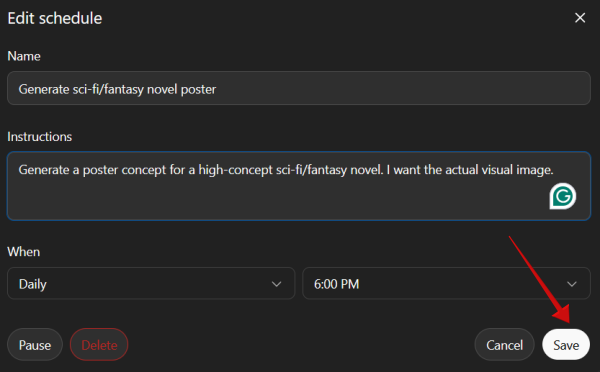
Alternatively, you can also Pause the task (the option is available in the mobile app as well) or Delete the task altogether.
FYI: you can use ChatGPT to stay safe online. Here’s how to put it to good use.
Manage Your Scheduled Tasks in ChatGPT
To view all your scheduled tasks, you’ll need to access ChatGPT from the web version.
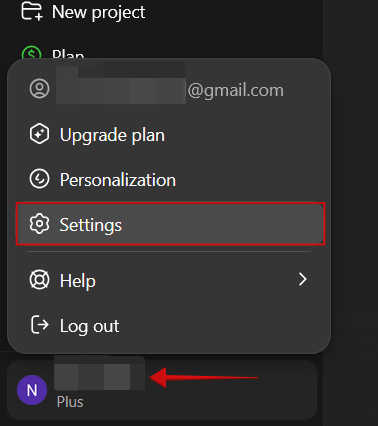
Click on your name in the lower right corner of the display and select Settings.
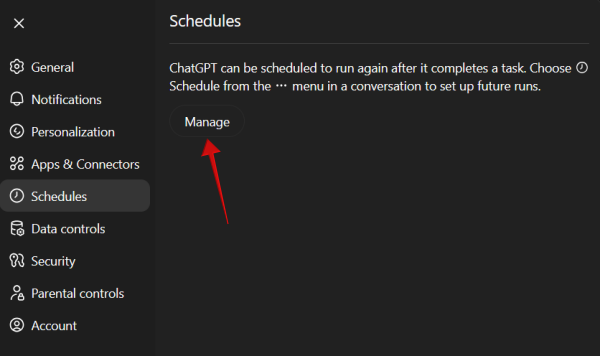
In the pop-up, you should see a Schedules option. Click it. Then select Manage.
You should see all your tasks listed there. Hover your mouse over a task to have the Edit option show up.
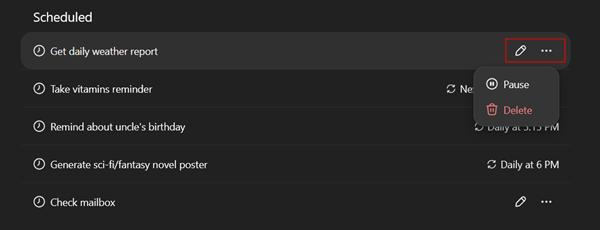
You can also click the three-dot icon and select to Pause or Delete the task.
Note that ChatGPT allows you to use up to 10 tasks at a given time. Once the limit has been reached, the AI assistant won’t be able to create anymore. In order to make room for a new one, the only solution is to delete an older one.
ChatGPT lets you set notifications for scheduled tasks when first creating a task, but if you skipped this step or you want to change the status, you can.
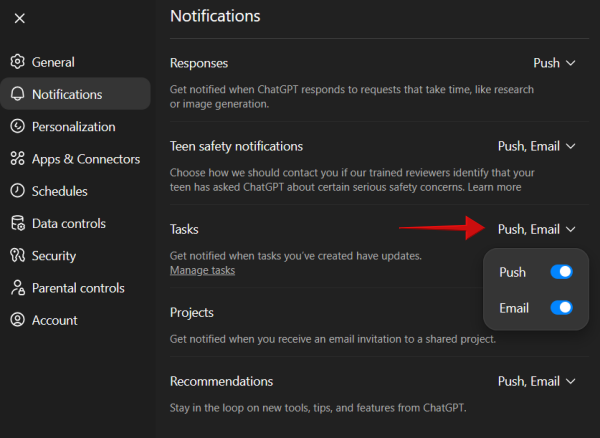
Go to Settings again and then select Notifications. Check Tasks to view your notifications settings. You can enable notifications to be sent via email as well.
Tasks in ChatGPT Not Working? Try This
If your tasks are not running in ChatGPT, try doing the following:
- Ask ChatGPT to verify that your scheduled tasks are active and notifications are turned on
- Check ChatGPT directly if you don’t receive any notifications/email to see if the task has run
- Close ChatGPT and reopen a new session
- Delete your browsers or app’s cache
- Log out of ChatGPT and sign up again with a paid account
Looking to further enhance your ChatGPT experience? Try these best Chrome extensions for ChatGPT and unlock new possibilities.