


The Anniversary update for Windows added support for extensions in the Edge browser. You can now install extensions directly from the Microsoft Store or by clicking on the “Extensions” option in the Edge browser’s main menu. However, if you are sharing your computer with others and don’t want them to install unnecessary extensions, you can disable and block extension support in Edge.
Disable Extension Support in Edge – Group Policy Method
Since the Edge browser doesn’t allow disabling extension support directly, we have to use the Group Policy Editor. To open the Group Policy Editor, search for “gpedit.msc” in the Start menu, and press the Enter button on your keyboard.
Also read: How to Install Extensions in Microsoft Edge Browser
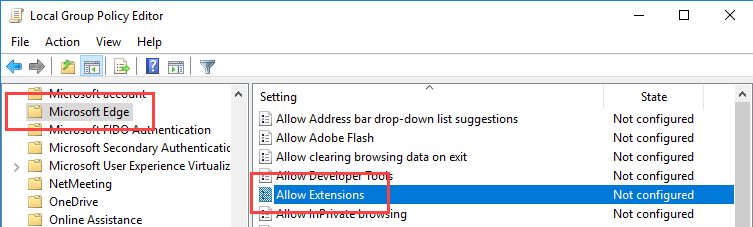
In the Group Policy Editor navigate to “Computer Configuration -> Administrative Templates -> Windows Components -> Microsoft Edge” appearing on the left panel. Find the option “Allow Extensions” on the right panel and double-click on it.
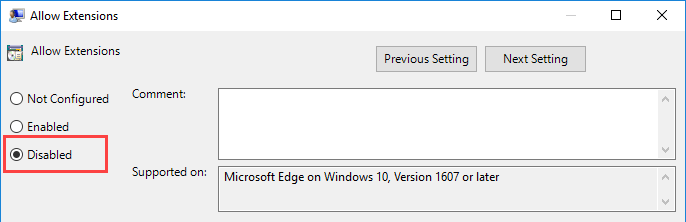
The above action will open the policy properties window. Select the “Disabled” radio button, and click on the “OK” button to save the changes.
To make the changes take effect, you have to force update Group Policy settings or restart your system. To force update Group Policy settings, open Command Prompt with admin rights and execute the following command:
gpupdate.exe /force
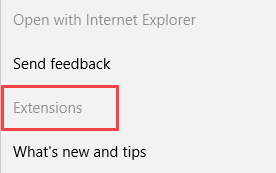
Once you are done with that, you can no longer install extensions in the Edge browser. In fact, if you open the Settings menu in the Edge browser, you will see the “Extensions” option greyed out and no longer active.
If you want to enable extension support in the future, then go back and select the option “Enabled” in the policy properties window.
Disable Extension Support in Edge – Registry Method
If you are using Windows 10 Home version and don’t have access to the Group Policy Editor, you can achieve the same result by editing the Registry. As a standard warning, please back up Windows Registry before making any changes to it.
Open Windows Registry by searching for “regedit” in the Start Menu.

Once the registry editor has been opened, navigate to the following location. You can also copy and paste the path into the address bar for quick navigation.
HKEY_LOCAL_MACHINE\SOFTWARE\Policies\Microsoft
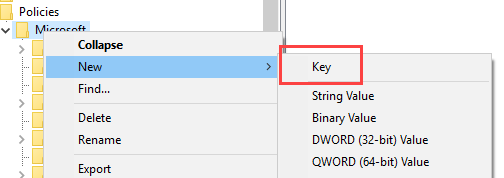
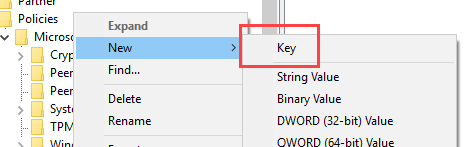
Here, right-click on the “Microsoft” key and select the option “New -> Key.”
Name the new key “MicrosoftEdge” and press the Enter button to confirm the new name.
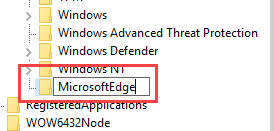
Again, right-click on the newly created key and select the option “New,” and then “Key.”
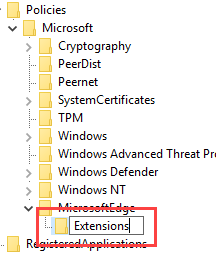
Name the new key “Extensions,” and press Enter to confirm the name.
Now, right-click on the right-panel and select the “New -> DWORD (32-bit) Value” option.
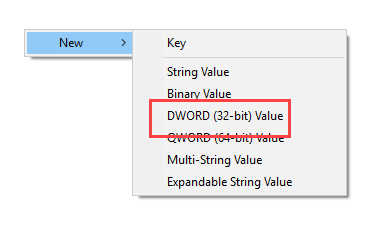
Name the new dword value “ExtensionsEnabled,” and press Enter to confirm the name change.
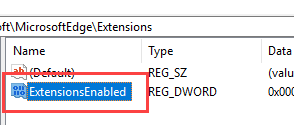
After creating the value, double-click on it and confirm that the value data is set to “0.” If it is, then close Windows Registry.
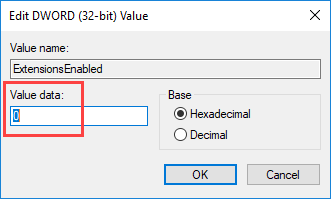
You’ve successfully disabled extension support in the Edge browser. If you want to enable extension support in the future, simply delete the dword value or change the value data from “0” to “1.”
Comment below sharing your thoughts and experiences regarding using the above method to disable extension support in the Edge browser.