

The Edge browser is one of the best things about Windows 10. As Microsoft claims this is especially true if you are looking to improve the battery backup of your laptop or notebook.
That being said, after a long wait with the Anniversary update, Windows 10 users got the extension support for the Edge browser. Compared to the early insider builds, Microsoft made it easy to install extensions on the Edge browser directly from the Windows Store. As of now, the store has quite a few extensions to play with. Moreover, the extensions are close to Chrome extensions. This makes it easy for the developers to port their extensions to the Edge browser.
The following is how to install extensions on the Edge browser in Windows 10.
Install Extensions from Windows Store
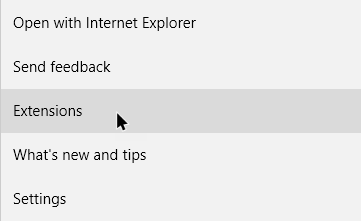
Installing extensions through the Windows store is the easiest way. To start, open the Edge browser and click on the Menu icon (three horizontal dots) appearing on the top-right corner. Now, select “Extensions” from the list of options.
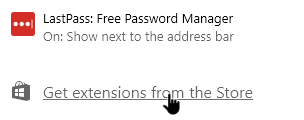
The above action will show you all the installed extensions. As you can see, I’ve already installed LastPass. To install a new extension, click on the link “Get Extensions from the Store.”
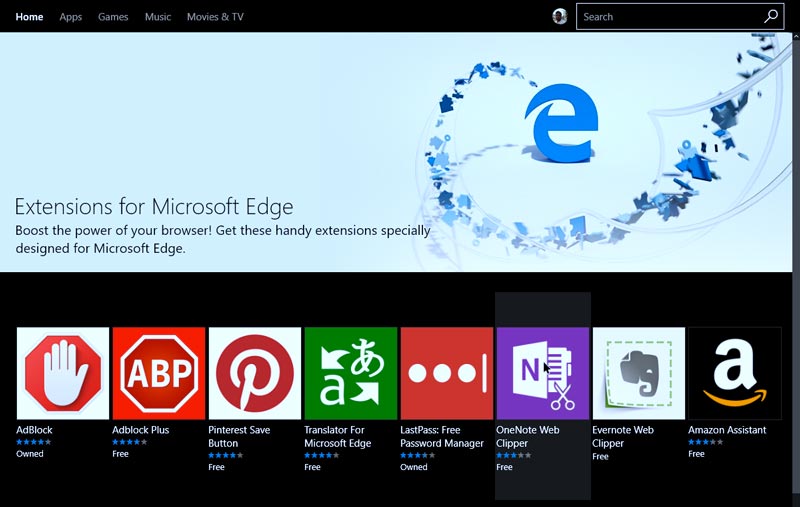
As soon as you click on the link, the Windows Store will be opened automatically and shows you all the available extensions. Just click on the extension you want to install. In my case I’m selecting the OneNote web clipper.
Here in this window click on the “Free” button.
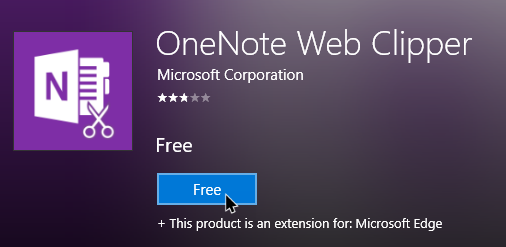
The above action will automatically download and install the Edge extension. After installing, the Edge browser will show you a prompt. Simply click on the “Turn it On” button to activate the installed extension.
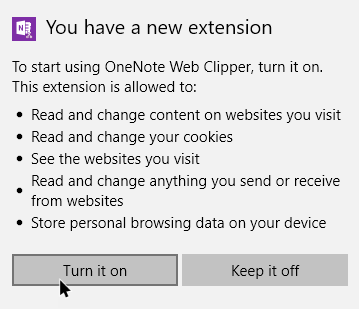
That’s all there is to do. You’ve successfully installed the extension.
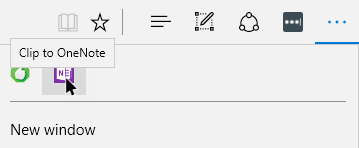
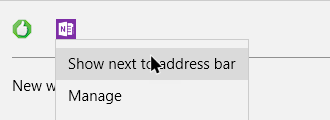
By default, the extensions are hidden from the address bar. If you want to show the extension in the address bar, simply right-click on the extension and select the option “Show next to address bar.”
Install Extensions Manually
If you have extensions that are not available in the Windows Store, you can also install them manually. Before you can do that, you need to enable the Extension Developer Options.
To do that enter about:flags in the address bar and press the Enter button. In the Settings page select the “Enable extension developer features” checkbox, and close the page.
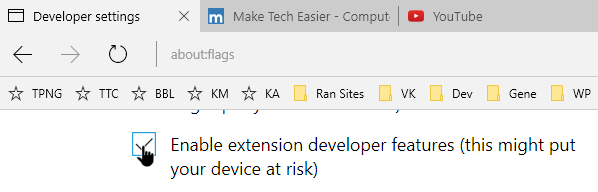
After enabling the extension developer options, download the extension you want to install manually, and extract the extension folder in it onto your desktop. In my case I’ve downloaded the Turn Off the Lights extension for Youtube.
Now, click on the Menu icon, select the “Extensions” option, and then click on the “Load extension” button.
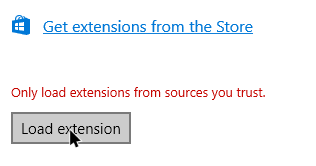
The above action will open the “Select Folder” window. Here, browse to the location where you’ve extracted the extension folder, select it and then click on the “Select Folder” button.
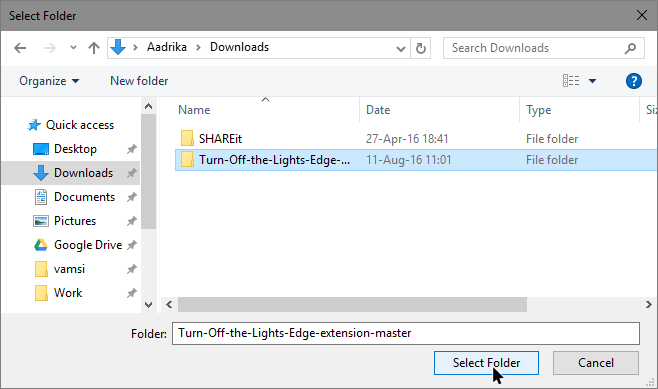
That’s it, you’ve installed and activated the extension.
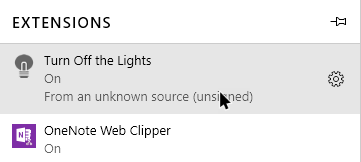
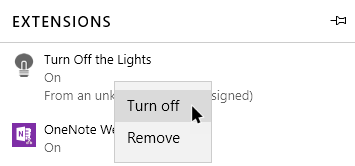
If you want to remove or turn off the extension, simply right-click on the extension and then select the appropriate option.
Do comment below sharing your thoughts and experiences about the extensions feature on the Edge browser.