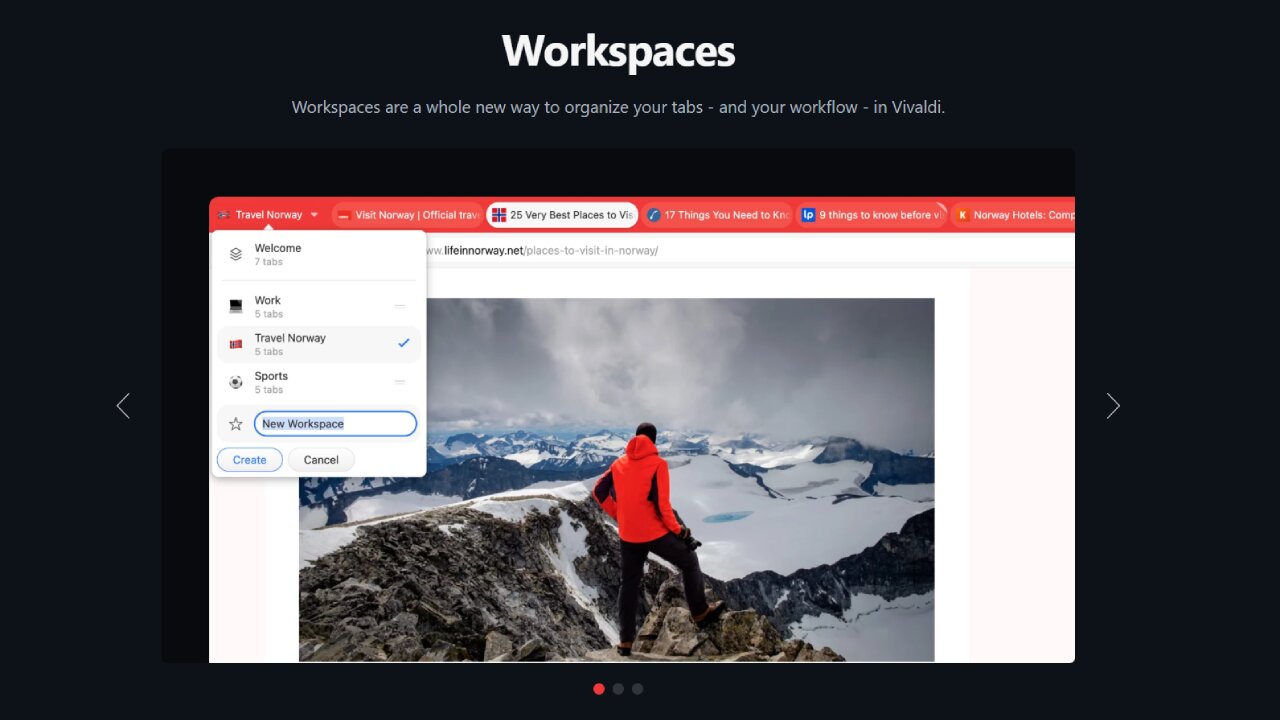
Are you having trouble juggling active tabs in your browser? Tab overload is very real, and it can destroy your productivity (and sanity) if you don’t take proper action. I was trying to tackle it by using tab groups and Chrome extensions, but nothing worked until I found Vivaldi Workspace.
What Vivaldi Workspaces Actually Do
The Workspaces feature is exactly what it sounds like – you pin a specific set of tabs and create a Workspace, where those pinned tabs live. Sounds simple enough, but it has tons of benefits if you work on multiple projects and don’t want tabs from those projects to get muddled up.
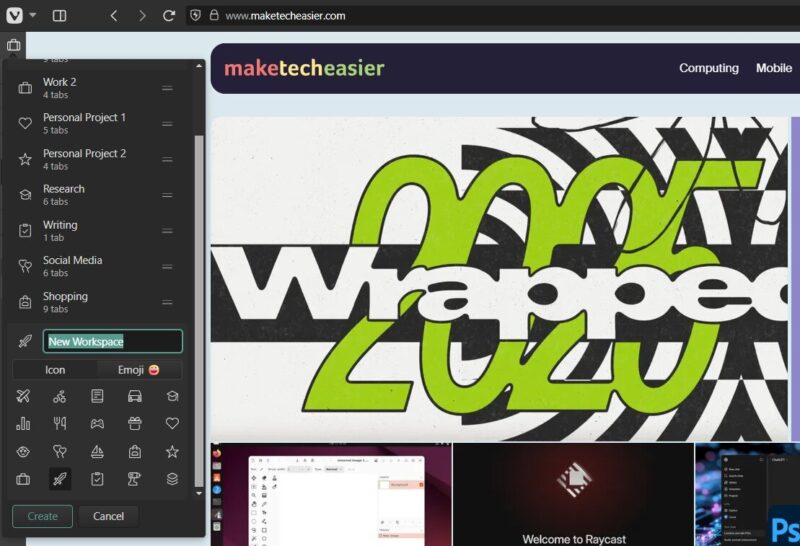
I write for multiple publications and have a bunch of personal passion projects in progress. So, as you can imagine, things got pretty messed up. I was literally feeling paralyzed looking at all those tabs, and so was my laptop, for that matter. I even tried creating different profiles in Chrome, but that separated things a little too much.
Vivaldi’s Workspaces fall right into that sweet spot in the middle of tab groups and profiles. You get a separate Workspace for each of your projects or activities, while having the ability to switch between them in super easy ways. You can even switch between your Workspaces without even touching your mouse (more on that below).
How I Organize My Tab Chaos Now
The way I approached Workspaces is quite simple. I created all my Workspaces by clicking on the Workspaces icon (just below the Vivaldi logo in the top-left corner) and then New Workspace. I gave all of them a name and, in each Workspace, opened and pinned the relevant tabs.
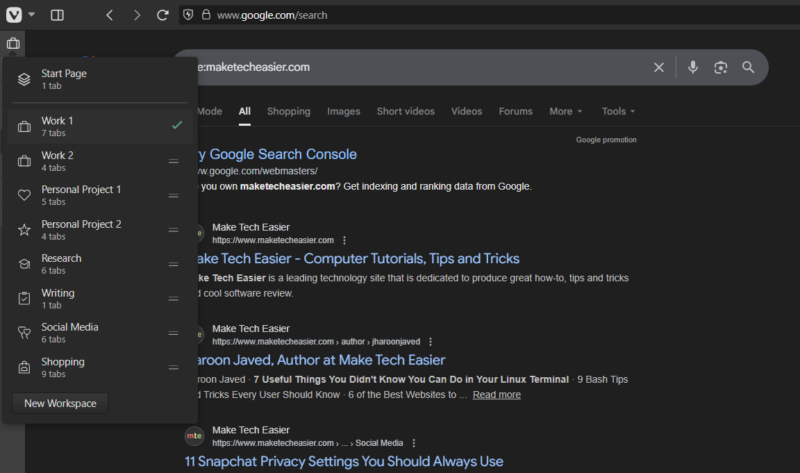
Now, I have separate Workspaces for all my different projects, but I didn’t stop there. I went ahead and created some activity-based Workspaces as well. For example, I have a Workspace for distraction-free writing, another one for research, one for social media, and the last one for shopping. However, I won’t stop here because the possibilities are endless and new projects and activities come up all the time, and now I have a way to organize them all to boost my productivity and preserve my sanity.
Hibernating Hidden Workspaces to Save RAM
At this point, you might be wondering exactly what I was thinking too – having all those open tabs in those Workspaces must take a heavy hit on RAM. That’s where Vivaldi’s tab hibernation feature jumps in to save the day. The developers have built it upon Chrome’s Memory Saver feature, which kills the inactive tabs after a certain duration to offload it from your PC’s RAM.
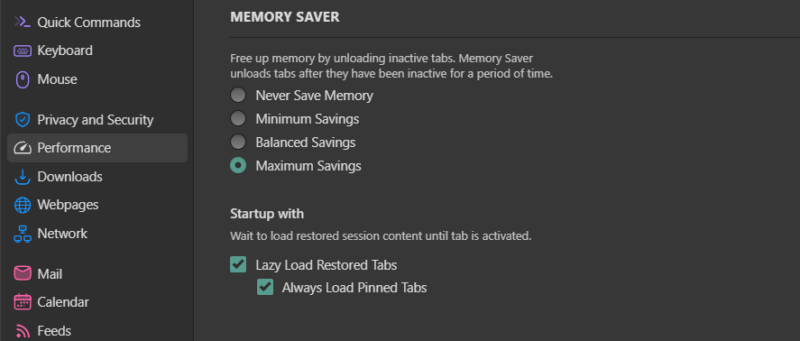
Don’t get me wrong, I loved the Memory Saver feature in Chrome too. I had set it to Maximum Savings in Chrome and have done the same in Vivaldi as well. However, the point is simple – the usefulness of the tab hibernation feature coupled with Workspaces is tenfold compared to how Chrome utilizes it. I mean, without Workspaces, you wouldn’t really want an inactive tab getting hibernated because you have likely opened those tabs that you’re actually working on specifically. Right?
Advanced Tips to Take Workspaces Up a Notch
Workspaces are a productivity booster right out of the box when you install Vivaldi. However, with a few tweaks, I managed to take the whole Vivaldi experience to the next level. Here’s what I did that you can copy:
Customize the tab bar
To me, Workspaces made more sense on the left side as a vertical bar. However, you can place your tabs wherever you want. The option is available at Settings -> Tab -> Tab Bar Position. Your PC’s resolution and your personal preference will influence this decision the most, so try all the options to find the one you like.
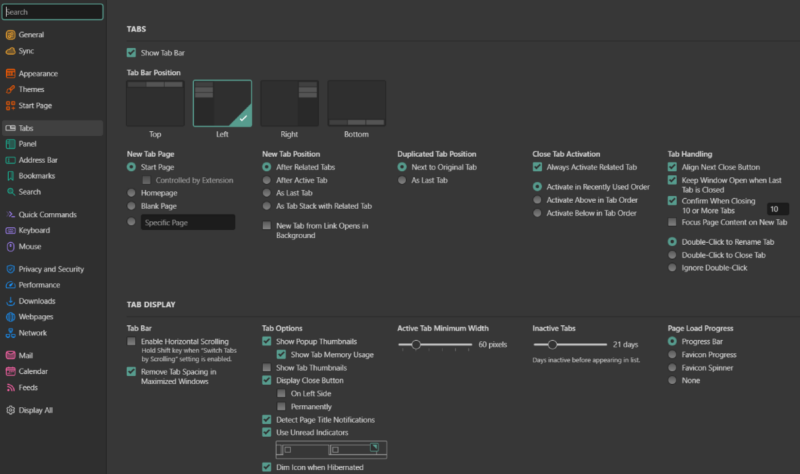
I also minimized the tabs so that only the favicons (site logos) are visible. This way, the tab bar takes up less real estate and looks pretty neat too. And while I was at it, I also enabled Detect Page Title Notifications, Use Unread Indicators, and Dim Icon When Hibernated under Settings -> Tabs -> Tab Options to make the tabs convenient to keep track of at a glance.
Enable memory saving
This is the feature I just mentioned above: Memory Saver. To enable it, go to Settings -> Performance and choose the option that suits your needs. I always pick Maximum Savings to hibernate the inactive tabs quicker.
Learn keyboard shortcuts
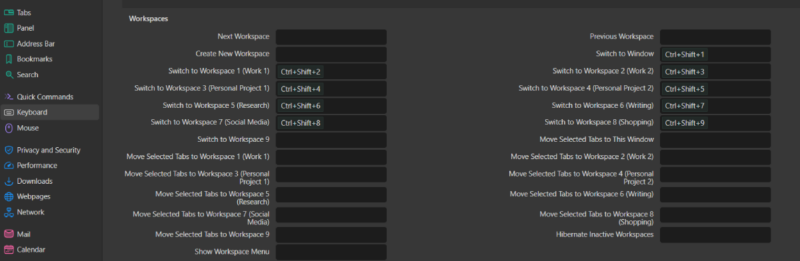
Vivaldi has a keyboard shortcut for literally everything, and it lets you create new ones for your needs. You can learn the default ones and create new ones by going to Settings -> Keyboard -> Workspaces. The best ones are Ctrl + Shift + numbers to switch between your Workspaces without touching your mouse. You can edit the default shortcuts and add new ones for the unassigned tasks.
Add Workspace rules
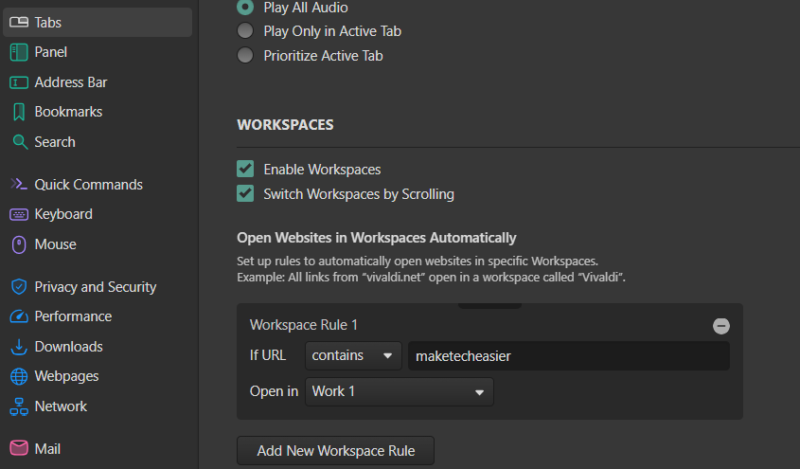
Another useful advanced feature is hidden in Settings -> Tab -> Workspaces. Here you can add rules to automate the tab organization. For example, I add a rule where a URL containing maketecheasier should automatically open the tab in my Work 1 Workspace. So, even if I go to maketecheasier.com in any other Workspace, Vivaldi will move it to Work 1.
Map mouse gestures
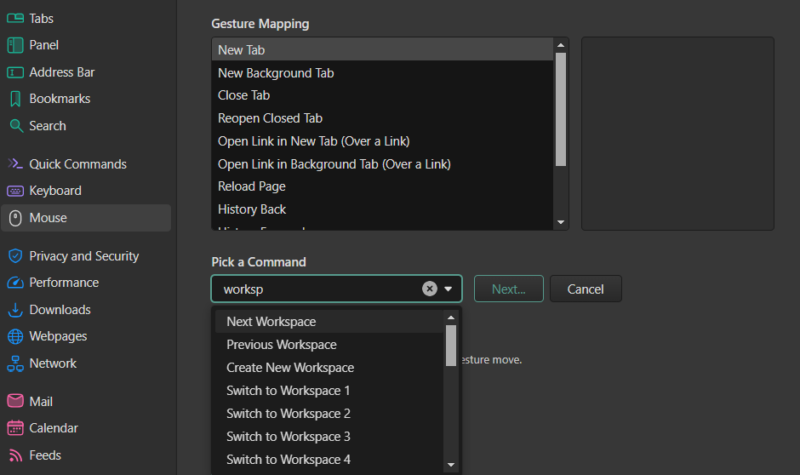
This one is a geeky alternative to keyboard shortcuts. I find working with keys more convenient, but it’s great to have mouse gestures set up just in case. Go to Settings -> Mouse -> Gesture Mapping, and click on the + button. You’ll find a gigantic list of tasks you can automate with mouse gestures, but searching for Workspace gives you all the Workspace-related tasks. Click on one and map the gesture, and you’re good to go.
Why Workspaces Are Superior to Standard Tab Groups
As you’ve seen, there’s a night-and-day difference between Vivaldi’s Workspaces and Chrome’s tab management features. Workspaces are not only handy for separating your work and personal life, they’re super useful for creating dedicated environments to focus on specific tasks.
Tab groups simply don’t match up in comparison, as they look clunky and tend to hog the tab bar if you have lots of tabs in a group. Workspaces, coupled with the advanced settings we learned, are miles ahead in terms of boosting your productivity and making the browser a lot less overwhelming to look at and navigate.
Frequently Asked Questions
Do Vivaldi Workspaces sync to the mobile version of the browser?
No, Workspaces are a desktop-only feature as of this writing.
Can I assign a specific theme or icon to an individual Workspace?
By default, no, you can’t assign a specific theme to each Workspace. However, you can assign an icon or emoji to individual Workspaces.
What happens to my tabs if I accidentally delete a Workspace?
Deleting a Workspace will immediately close all the tabs inside it. However, as a safety measure, a confirmation dialog will pop up to confirm the action. So, it’s highly unlikely to delete a Workspace by accident.








