

No matter which browser you use, you’re bound to stumble upon the problem of having too many tabs open. The good news is that companies like Google are aware of this and are proactively working to address this pain point. Enter Tab Groups for Chrome – a more effective way to organize and label your existing tabs. Wondering how to take advantage of the feature yourself? Let us walk you through the quick and easy steps.
Good to know: here’s what to do to fix Family Safety blocking Chrome in Windows.
Create Tab Groups in Google Chrome on PC
The Tab Groups option is currently embedded into Chrome, so you don’t have to do anything except maybe check you’re updated to the latest Chrome version on your PC. To do that, tap on the three dots in the upper right corner and select Help -> About Google Chrome in the menu. If there’s an update available, be sure to install it.
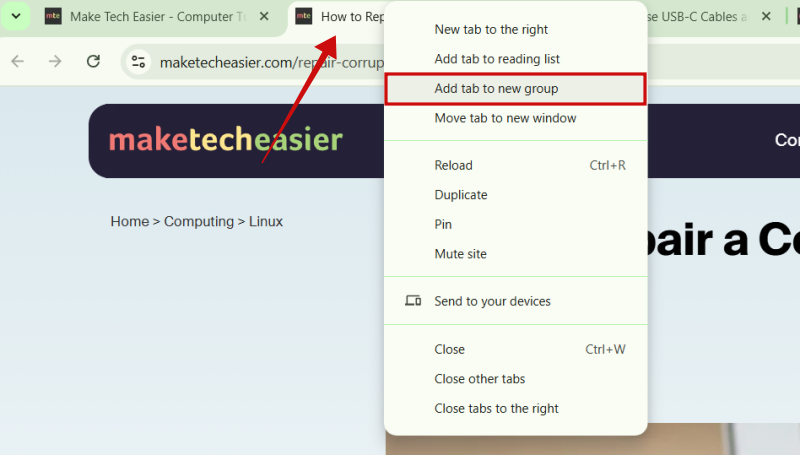
Chrome will restart. Next, open a few tabs, preferably that are somehow related to one another. Right-click on any tab and select the option to Add to a new group.
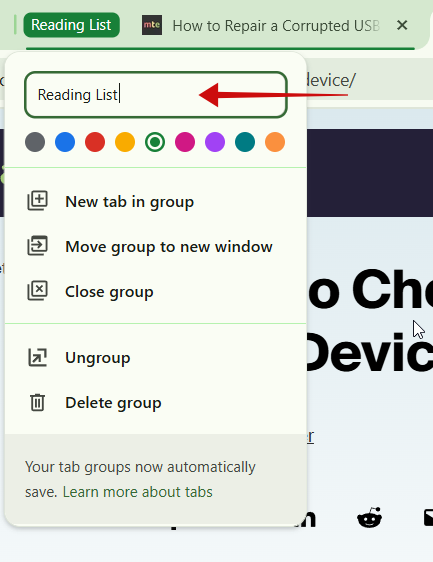
A small pop-up will appear asking you to name your group. Select a color to differentiate it from other tab groups you might want to create next. Once you add a tab to a group, it will feature a thin border in the color you’ve selected.
Now, when you click on the name of the Tab Group, the tabs you’ve added to the group will be hidden.
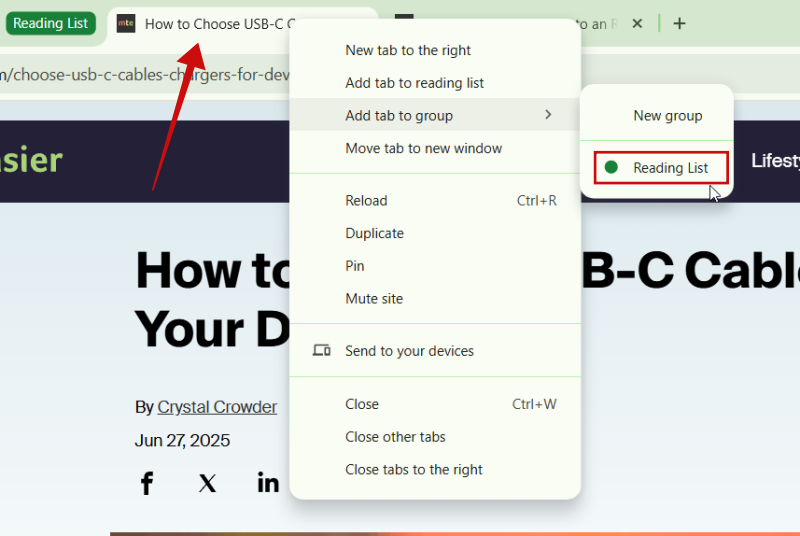
If you wish to add another tab, right-click it and select the group you’ve already created. Or you can create a new one.
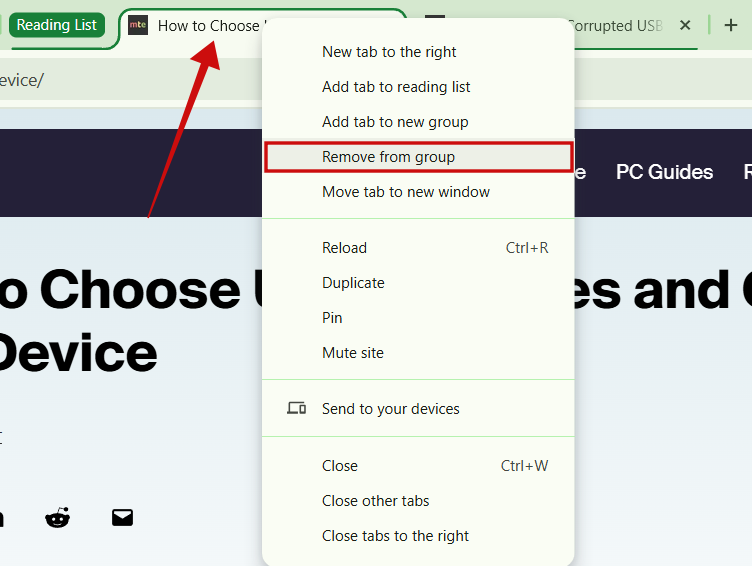
In case you are done with a tab being a part of any particular group, removing it is just one click away. Right-click on whichever tab you want to drop and select Remove from group. An alternative method is to drag the tab out of the browser so it opens a new browser window.
Right-clicking on the Tab Group name reveals a few other options. Pressing on New tab in group opens an empty tab in the group. Alternatively, you can drag and drop an existing tab in your group. Move group to new window shifts the Tab Group to a new window, while Close group simply closes the tab combo.
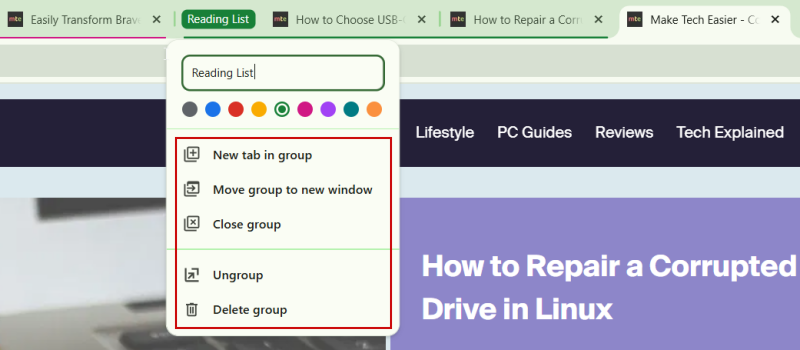
To dissolve a group entirely, you can click Ungroup. Selecting this option will then remove all tabs from the group, and the circle or icon will disappear entirely.
Alternatively, you can press on Delete Group and obliterate the entire Tab Group.
Tip: here’s how to protect Chrome from rust malware like EDDIESTEALER.
Create Tab Groups in Chrome on Mobile
Love using Tab Groups in Chrome on PC? The good news is that you can do so on mobile as well. Whether you’re using an Android or iPhone, here’s how to create a Tab Group. Before proceeding, made sure your Chrome app is updated to the latest version.
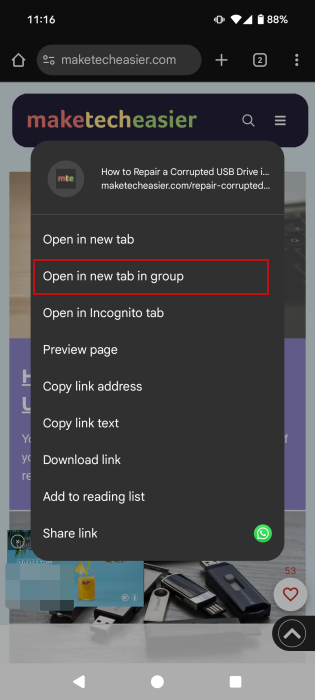
You can create Tab Groups in several ways. In this article, we’re going to demonstrate on Andrid. For instance, if you’re browsing a website and want to open several links in several tabs, you can add them to a Tab Group directly without opening them separetly. Long-press on a link and select Open in new tab group. A toast notification will appear at the bottom letting you know that your Tab Group was created.
Now tap the tab icon in the upper right corner.

Voila, here’s your Tab Group. Chrome will automatically name it 2 tabs, but if you wish to give it another name, press the three dots in the upper right corner of the Group Tab card and select Rename.
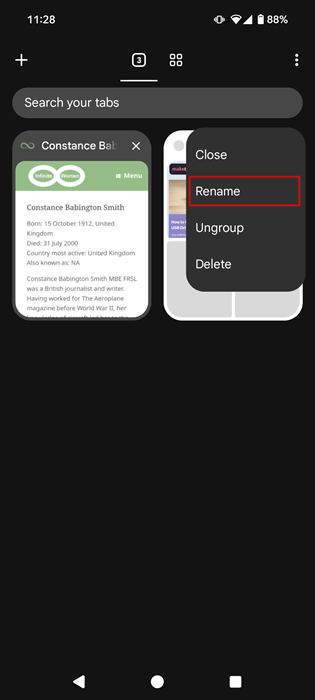
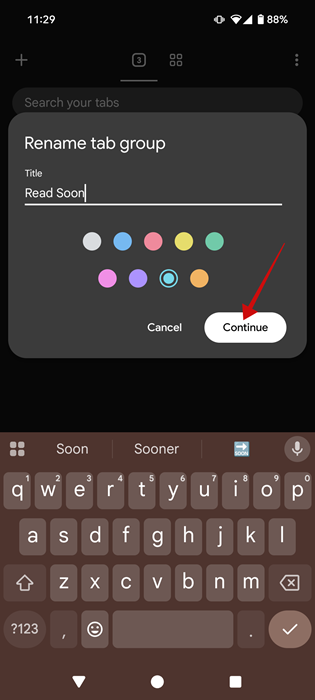
Give it a title, select a color, and tap Continue.
To easily cycle between the tabs of a group, open one of the tabs in full view mode. Then tap on the small circles at the bottom to switch between the tabs included in the group.
Alternatively, if you already have a few tabs open already, tap the tab icon in the upper right corner.
Long-press on a tab to start dragging and dropping it onto another tab. This will automatically create a group. Then you can drag and drop additional tabs into the same group. Note that this only works on Android, but not iPhone.
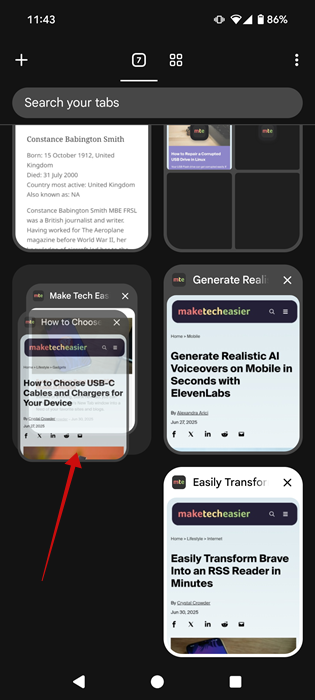
The New tab group pop-up will immediately appear on the screen. Name your group and select a color for it just like before.
By the way, to easily cycle between the tabs of a group, open one of the tabs in full view mode. Then tap on the small circles at the bottom to switch between the tabs included in the group.

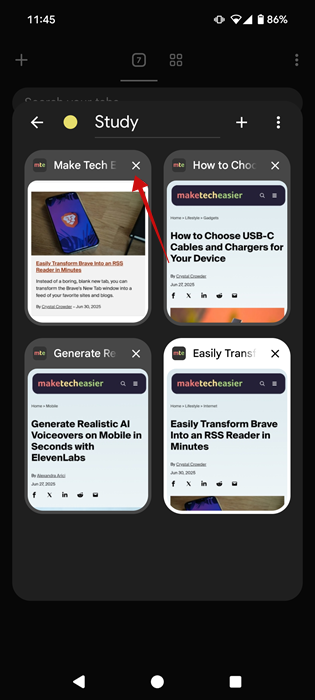
If you want to remove a specific tab from a group, then go to the specific group and tap it. This will open up the group window. Next, tap on the X on the tab you want to remove.
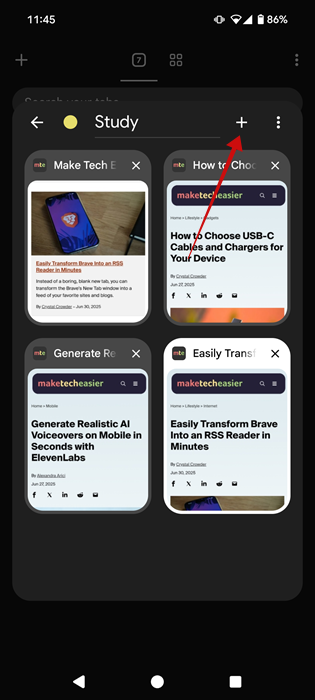
If you wish to add a new tab to your group, just press the + button at the top.
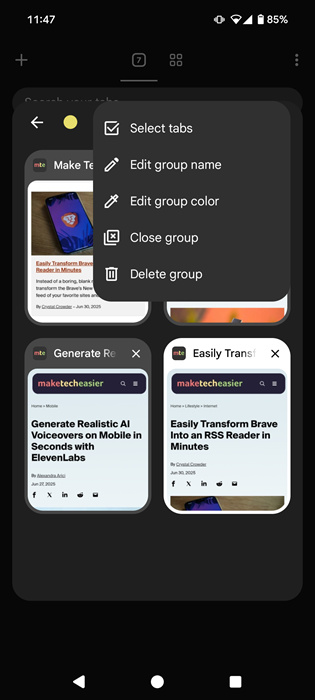
Alternatively, if you press the three dots in the upper right corner, you can Edit group name/color, Close group, or Delete group.
Using Group Tabs in Chrome allows you to neatly organize your information for better access and management. If you want more tips on how to use Google’s browser more effectively, learn how to split tabs in Chrome for improved multitasking. Alternatively, you might want to speed up Chrome a little.