
Like many others, I tend to skip a company’s terms of service or privacy policy before clicking “Agree”. The problem is, those clauses still apply, and they can come back to bite you if something goes wrong. If you are having issue with the lengthy fine print, follow the tips in this guide to quickly zero in on the parts that matter.
1. Find and Look For Specific Keywords
There are a bunch of words associated with concerning clauses that are consistent across privacy policies and TOS of companies. You can use the Find function (Ctrl + F) of the browser to directly search for these words to read the important clauses.
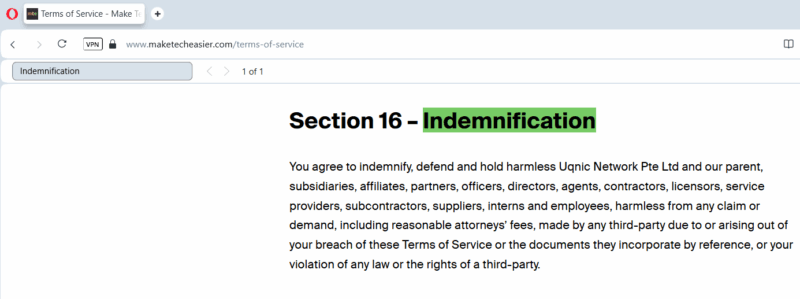
Below is a list of the most important keywords:
- Liability: associated with clauses regarding what the company takes responsibility for (or not).
- Termination: conditions that can suspend your account.
- Indemnification: list requirements for you to cover losses if your actions cause harm to the company.
- Share: usually used when talking about how your data is shared.
- Partners: you need to know how the company handles your data with its partner companies.
- Consent: often used with sensitive clauses with information regarding data use and service access.
- Data: in most documents, there will be many mentions of the word “data”, but they will all be important as they are usually associated with the use of your data.
- Disclose: often found in clauses related to user data and your use of account information.
2. Look for TL;DR or Key Points Section
Many companies have started adding key points or TL;DR at the start or side of their privacy policies and terms of service pages.
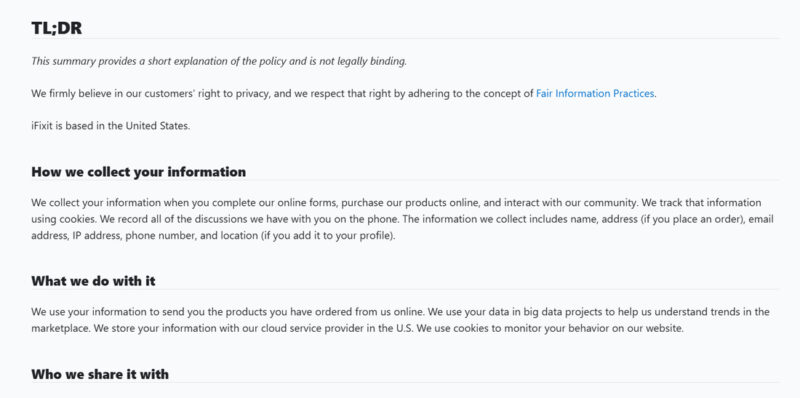
If you find such a section, make sure you go through it. As in most cases, it will list controversial clauses as well.
3. Use ToS;DR Online Tool
ToS;DR is an online tool that tracks and rates most companies’ Terms of Service pages. It basically highlights all the important things the company includes in the TOS and color codes them based on their impact on you. It even gives an overall grade from A to E based on how good/bad their practices are.
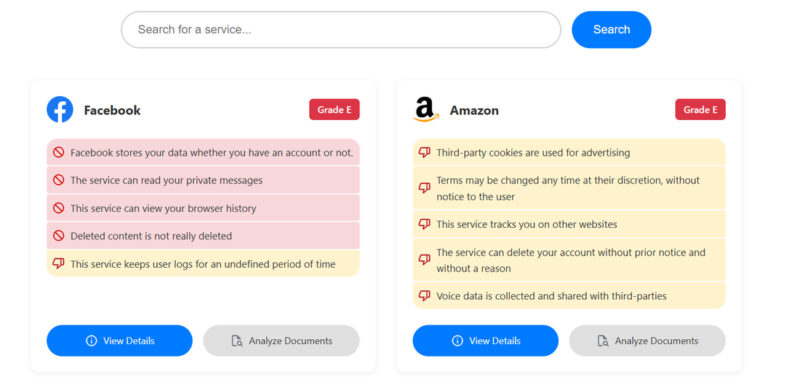
You can click on any highlighted information to move to exactly where in the official TOS page the information is written. Just search your service in the top search bar to see if they have rated them or not. Their browser extension makes the process even easier.
4. Check the Update Date
You’ll find the TOS or privacy policy’s last update date (or effective date) at the top or very bottom of the page, showing exactly when it was updated. You need to make sure it’s updated recently, at least within the last year. Privacy laws like CCPA or DPDPA keep emerging from time to time, which should force companies to update their policies. Even edits to such laws can force policy updates for companies.
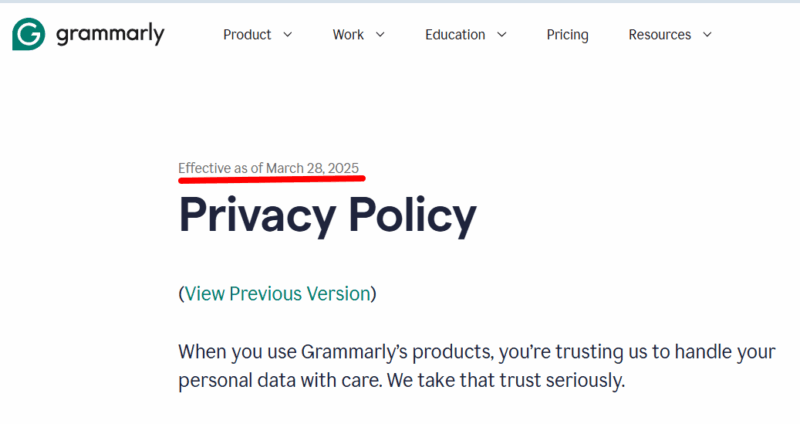
If the page is outdated by 2-3 years, this means it’s probably not updated for the latest laws that could negatively impact you.
5. Get a Summary Using an AI Chatbot
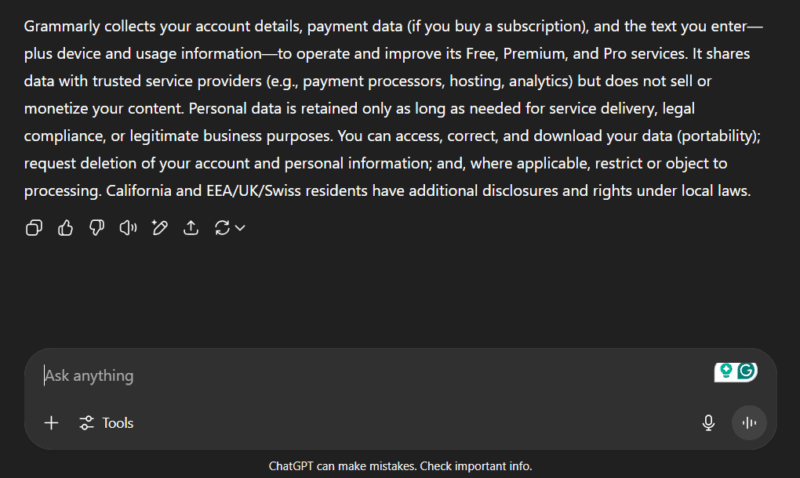
An AI chatbot like ChatGPT can summarize such long pages and even extract concerning information. Just copy/paste the full page in the chatbot window and ask it to summarize and highlight points that can negatively impact the users.
Below is an example prompt for a privacy policy:
Summarize the following Privacy Policy, focusing on how user data is collected, shared with third parties, retained, and what rights (access, deletion, portability) the user has. Keep it under 150 words.
6. Use EULAlyzer to Highlight Interesting Sections
EULAlyzer is a Windows app that can flag sections in a terms of service page that users may find interesting; in other words, it can highlight sections that may negatively impact users. While it’s made for scanning them when installing an app, you can also copy/paste from anywhere (even online) to scan.
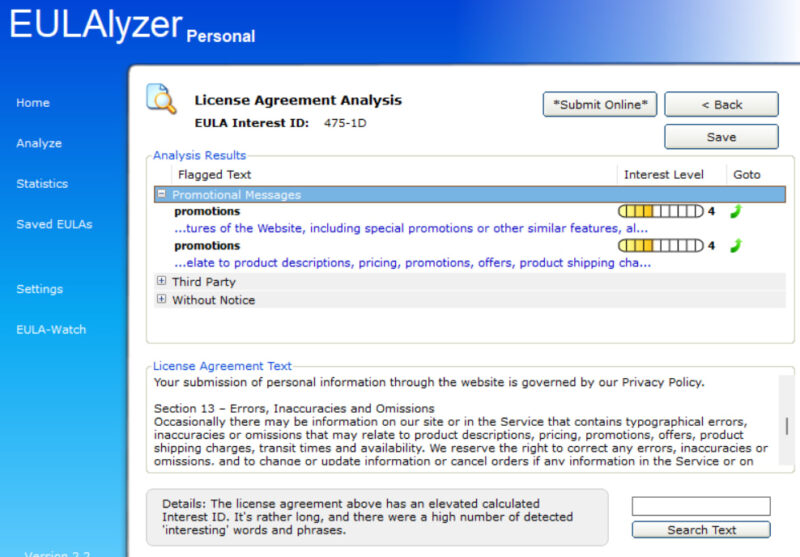
After the scan, it will show flagged text and list it in categories like third-party, without notice, promotional messages, etc. You can then click an item in the flagged list to jump directly to that clause in the TOS for more detail.
Using an AI chatbot for quick summaries is definitely the most customizable method to make reading TOS or privacy policies easier. If you don’t want to read at all, trusting ToS;DR rating is a good option too. You might also be interested in knowing what cookie consent means before agreeing.








