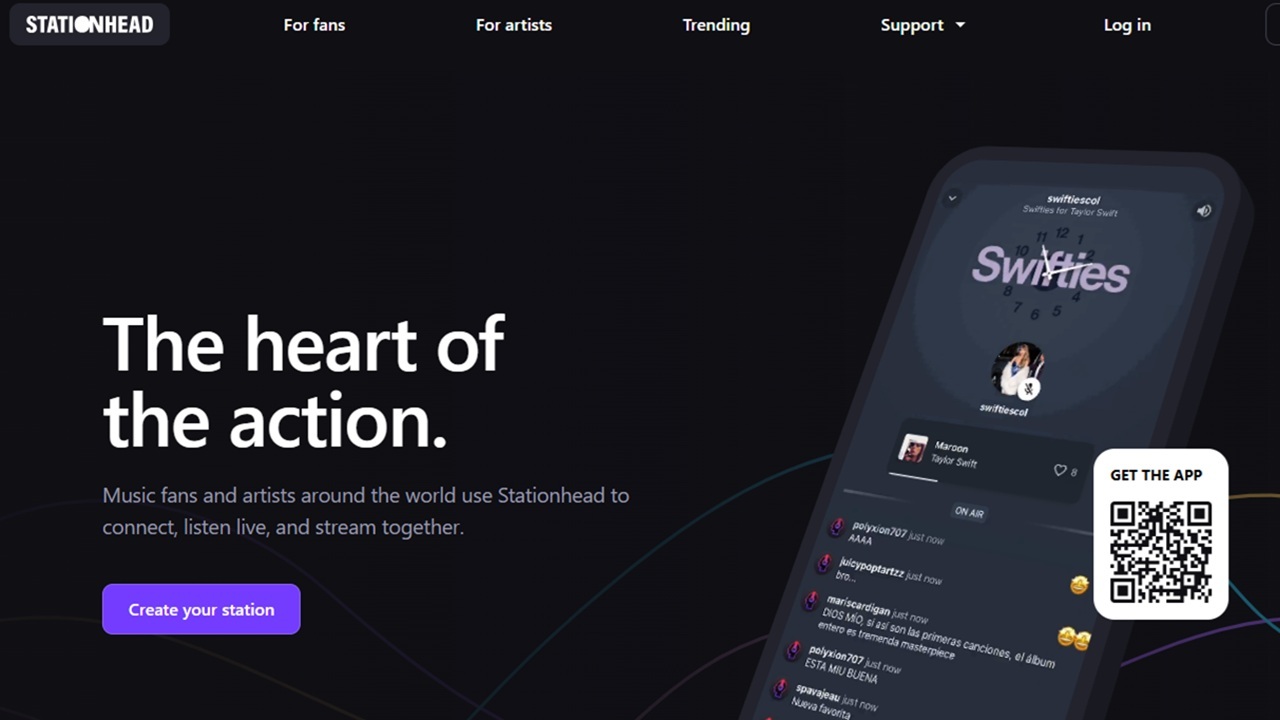
Music has a way of bringing people together and it’s always fun to listen together. Thanks to Stationhead, you can now join in with your friends and fellow fans to listen together via Spotify and Apple Music.
Stationhead is the Home of Fandoms
Stationhead is a social platform focusing on music fandoms. Users and artists can create playlists and listen together in real-time. What I love most is artists may randomly drop in on fan-created playlists to chat.
Artists can also host livestream release parties. Fans join, listen together, and interact with the artist.
During livestreams, fans are free to chat, ask question, and buy music and merchandise if they want. Participating is completely free. There is a premium version, but it only lets you send animated GIFs at the moment. So, it’s not really worth it right now.
Music Plays Via Spotify and Apple Music
No music is hosted on Stationhead. Instead, you link your Spotify and/or Apple Music account. While the platform works with both, you can only listen to a playlist through one service at a time.
Stationhead serves as the social aspect for everyone to interact with each other. It’s also a better way for artists to connect with their fans. Spotify now has in-app messages, but it’s not the same.
The downside is, you must have a premium Spotify or Apple Music account to participate. Of course, if you have a family plan of either, everyone in your family can participate. If you’re not sure how to share your Apple Music plan, use these tips.
Get Started with Stationhead
Visit Stationhead’s site or download the app (iOS | Android). It’s much easier to use the mobile app, though it’s easier to connect payment details on the web version. Sign up for a new account.
Add your phone number and create a username and password. Choose your username carefully. When you create a playlist, it uses this name, so make it something that’s easy for other users to find.
Add a profile picture, if you want. Click Streaming service, select your service, and login to connect the two.
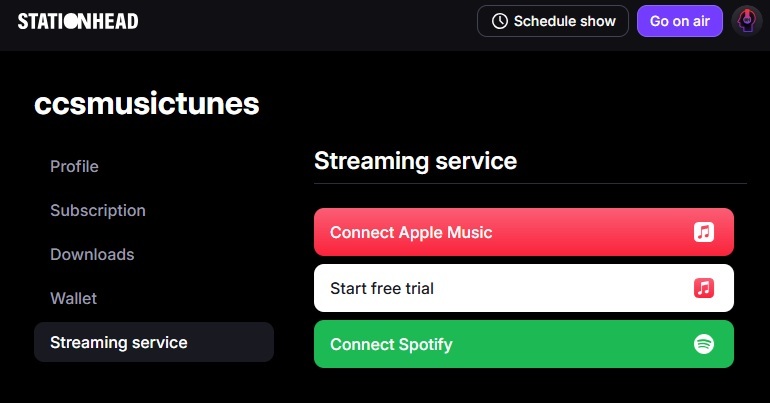
Login to your chosen account and confirm you want to link.
Listening Live With Channels
The simplest way to listen live with other fans is to join a live channel. Fandom channels play music from your fandom 24/7. Chat live with other listeners.
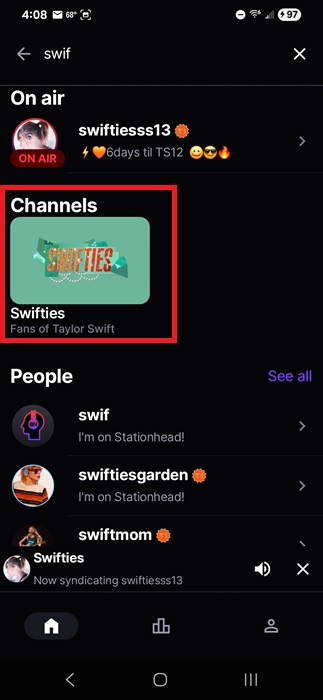
From either the app or your browser, use the search feature to search for an artist or fandom. I’ll use Taylor Swift as an example. On desktop, go to Fandoms to search.
Under Channels in the results, click the fandom station. In this case, Swifties.
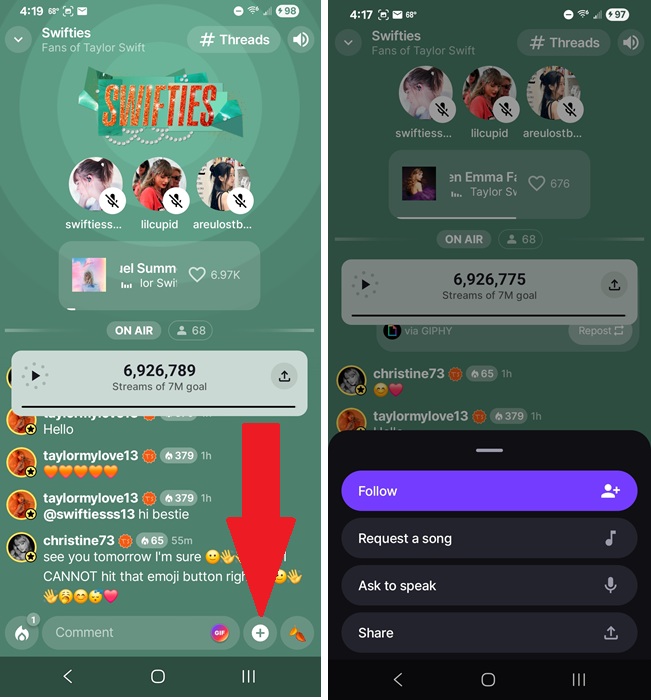
In the Channel window, you’ll see what’s currently playing, who’s managing the channel, number of people online, and real-time chat. You’ll also see a stream goal. More streams get the artist more attention on the platform.
Another way to interact is via Threads. Tap # Threads at the top of any channel to view user uploaded questions and comments. Tap any Thread to add your own comments. Tap the + icon to add your own Thread.
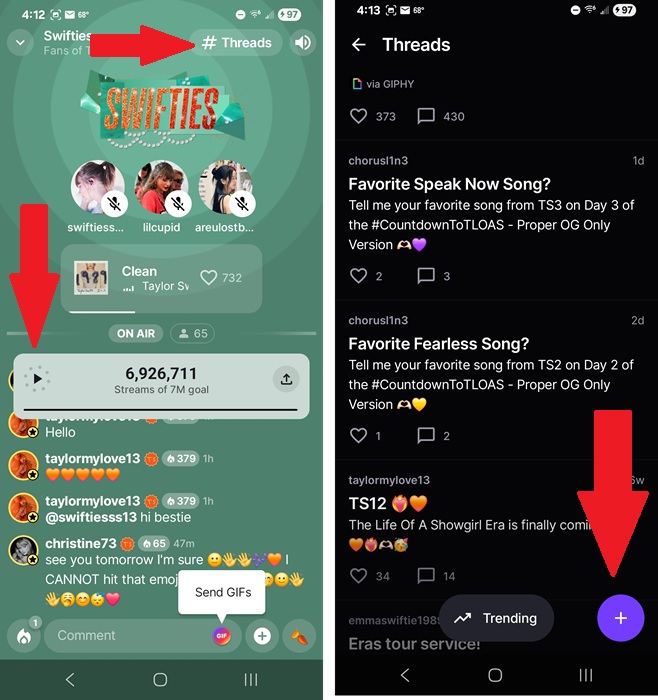
If you find a Channel you want to follow, tap the + beside the chat text box. Tap Follow. You can also request to speak (add a voice comment), request a song, or share the channel with others.
Channels and stations you follow and have recently listened to show up under the For You section of the home page in the mobile app.
Listen to and Create Artist Stations
In order for an artist to have a fandom on Stationhead, multiple users must already have started a streaming station. The more stations and listeners, the better. The platform only creates official fandom Channels for popular fandoms.
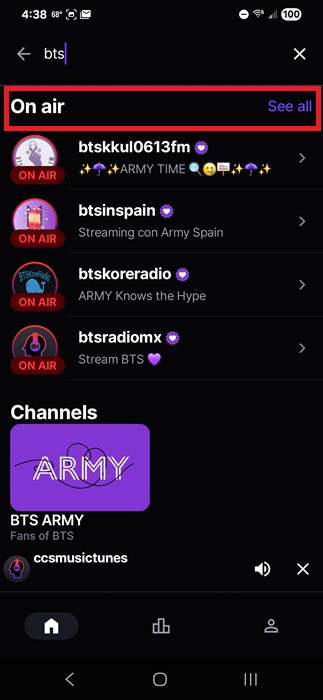
Search for any artist to view on air stations. Under On air, select a station to start listening and chatting or tap Select all to view even more stations. The station creator chooses everything on the playlist, though you can request songs just like you do with Channels.
Want to create your own station? Only iOS and desktop users can currently create stations. The Android app doesn’t offer this feature.
Tap your profile icon on iOS or go to your profile on the desktop version of Stationhead. Since I use Android, I’ll show the steps for the desktop version.
Click Profile and click Go on air. Name your show, test your microphone, choose your music, and notify any followers.
To add music, choose a single song to get started and then create a playlist. I highly suggest creating a lengthy playlist now to make things easier. The platform lets you search using your chosen streaming platform.
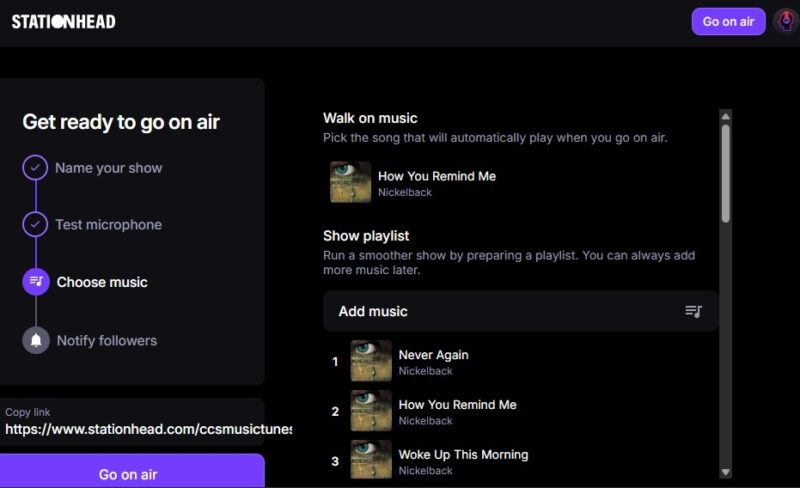
If you’re new and don’t have any followers, just copy the link provided and share it with friends and family so they can join you.
Click Go on air below the share link to go live.
Once you’re live, use your mic to talk just like any radio DJ. Switch between talking only, music only, or a combo. You don’t have to talk at all if you don’t want to.
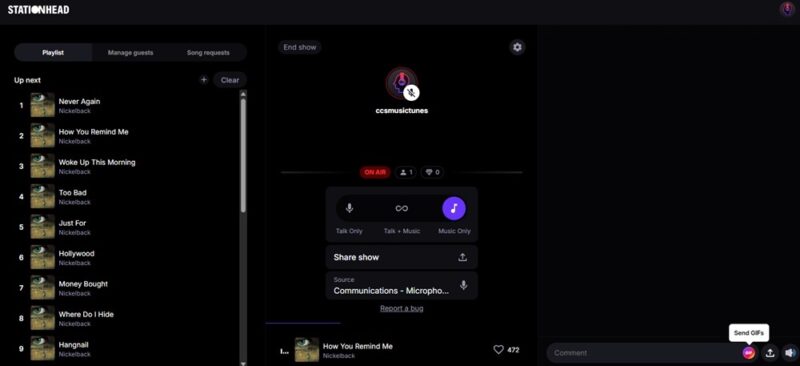
When you’re done with your show, click End Show above your profile name to end the show.
If you just want to prep a show to go live later, tap your profile and tap Schedule show. Set a date and time and then finish setting up your show details.
As you follow fandoms, Channels, users, and stations, you’ll get notifications about upcoming events and shows. Pay close attention to live release parties. Artists are most likely to join in during these.
Or, just join in to any live-streaming session to connect with friends, meet new people, and just share your love of your favorite music. If you’re planning to go to a concert soon, make sure you check out Apple Music’s set playlist feature.
If you don’t have Spotify or Apple Music premium, you can still listen to your favorite artists for free legally, even if you can’t chat on Stationhead.








