
If you’re watching a movie in your native language or simply if you don’t want to be distracted by captions, you can easily remove subtitles on Netflix. In case you’re not sure how to do so, check our post to learn how to remove subtitles on Netflix.
Good to know: here’s how to add a custom profile picture on Netflix.
You can turn off subtitles from any device you’re watching Netflix on. Before proceeding, make sure you’ve updated the Netflix app to the latest version. Log into your account, then navigate to your profile.
Remove Netflix Subtitles on Web Browser
In your browser, navigate to a movie or TV show you want to watch.
Hover your mouse over the text box icon in the lower right corner. A series of options will appear.

Select Off from the column that says Subtitles (on the top right side.)
Tip: Netflix not working for you? Here’s what you can do to start streaming your favorite TV shows again.
Remove Netflix Subtitles on iPad or Android Tablet
If you’re watching on an Android tablet or iPad, open the Netflix app and then navigate to a show or a movie you’d like to watch.
Tap once on the screen to bring up the menu at the bottom. Select Audio & Subtitles.
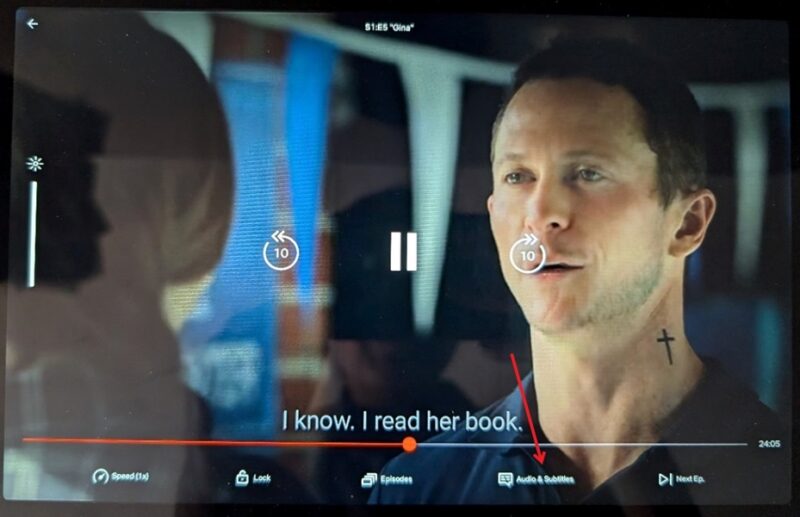
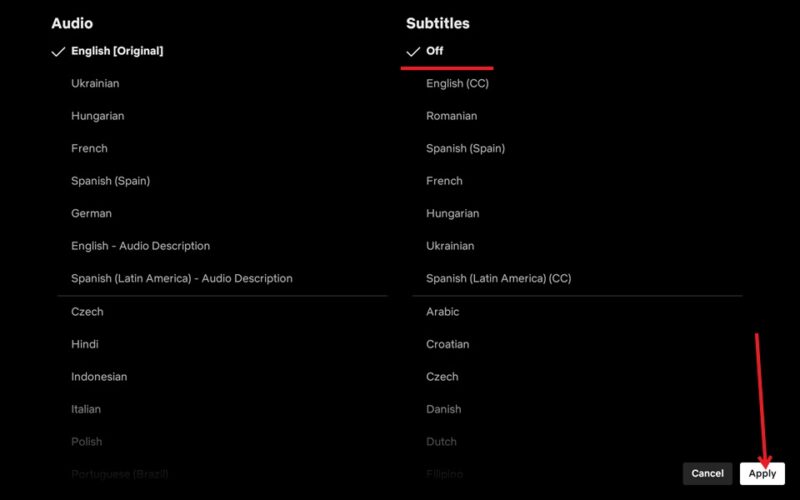
Tap Off under Subtitles and then press Apply. These options will appear at the top on your iPad and at the bottom on Android.
Remove Netflix Subtitles on Fire TV Stick
Select your show on Netflix.
Press the Menu (hamburger menu) button from the Fire TV remote or Remote for Fire TV & FireStick app on your mobile.
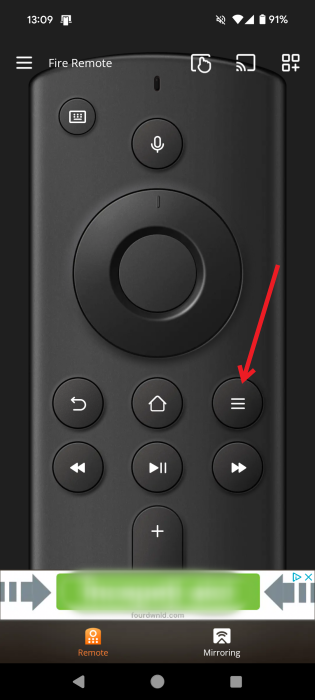
Select Turn Captions Off.
Press the Menu button once again to set the option.
FYI: here’s how to quickly switch between your Netflix profiles.
Remove Netflix Subtitles on Roku
For those with a Roku device, select the show you wish to remove subtitles.
On a newer Roku device, press Up on your remote.
Select Audio & Subtitles.
Select the Off option under Subtitles.
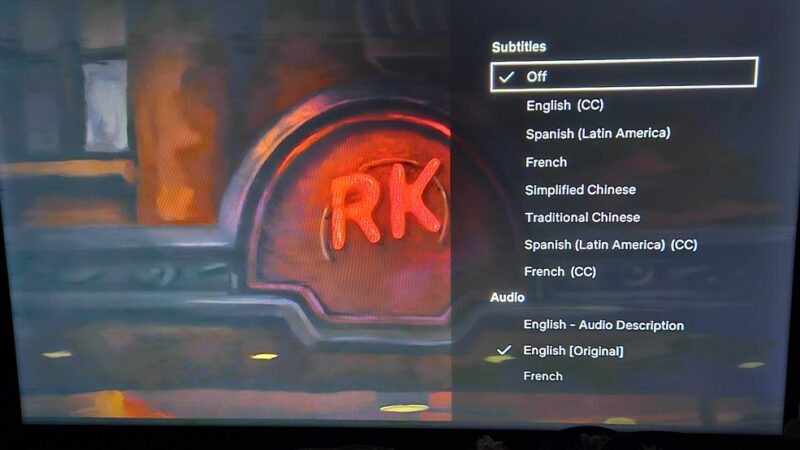
On older Roku devices, use the Back button on the Roku remote to show the video description page.
Under Audio & Subtitles, select Off. Now Press the Back button to return to the description page to resume watching the video.
Tip: if you have a Samsung Galaxy phone, check this flashlight tricks you should try.
Remove Netflix Subtitles on Android TV
If you have a Samsung TV or any other type of Android TV, this is how you can disable subtitles on Netflix.
Press the large central button on your remote to bring up a list of options at the bottom. Use the arrow buttons on the remote to navigate to the Other tab. Press the Enter (central) button.
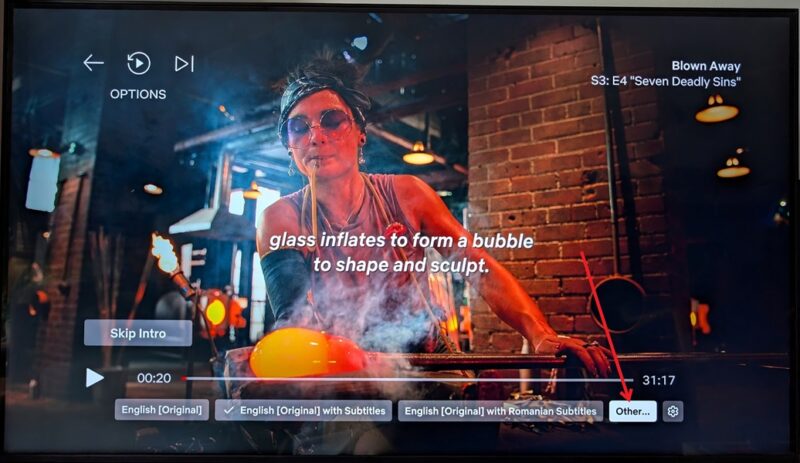
Now select Off from the list of options under Subtitles.
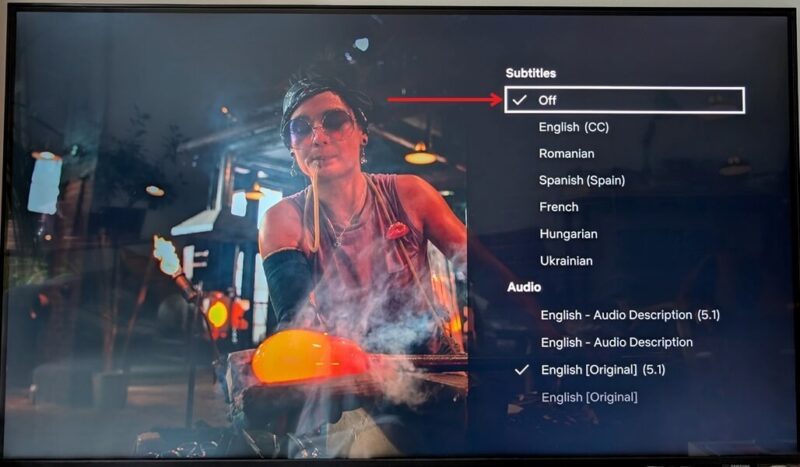
Press the back button on your remote to go back to watching the show you’ve selected.
Tip: going on holiday soon? Here’s how to download Netflix content to watch offline on your plane ride.
You can continue to tailor your Netflix experience to your own preferences with our tips. For instance, learn how to edit or delete a Netflix profile. It might also interest you to learn of the best games that come for free with your Netflix account.
Image credit: Unpslash All screenshots by Alexandra Arici








