Curious about GPT4All? I spent a week using the software to run several different large language models (LLMs) locally on my computer, and here’s what I’ve learned.
What Is GPT4ALL?
GPT4ALL is an ecosystem that allows users to run large language models on their local computers. This ecosystem consists of the GPT4ALL software, which is an open-source application for Windows, Mac, or Linux, and GPT4ALL large language models. You can download these models directly from the GPT4ALL software, and they’re typically 3 GB to 8 GB in size.
One of the key advantages of GPT4ALL is its ability to run on consumer-grade hardware. As long as you have a decently powerful CPU with support for AVX instructions, you should be able to achieve usable performance. And if you also have a modern graphics card, then can expect even better results.
Another advantage is the privacy-oriented nature of GPT4ALL. By running the language models locally on your own computer, your conversations and data can remain confidential and secure. This is in contrast to cloud-based AI services, such as ChatGPT, where your interactions are processed on remote servers and may be subject to data collection or monitoring.
But if you do like the performance of cloud-based AI services, then you can use GPT4ALL as a local interface for interacting with them – all you need is an API key.
Installing and Setting Up GPT4ALL
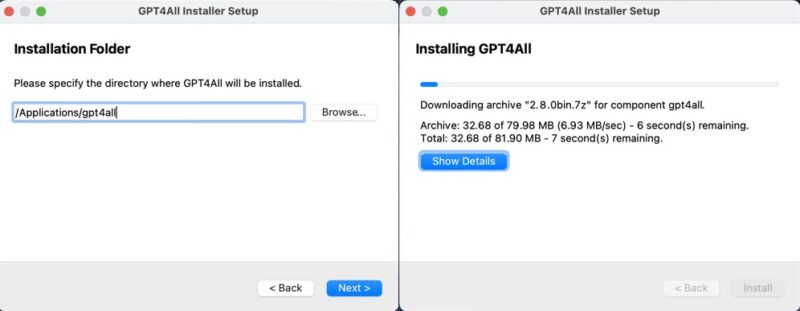
The installation and initial setup of GPT4ALL is really simple regardless of whether you’re using Windows, Mac, or Linux.
You just need to download the GPT4ALL installer for your operating system from the GPT4ALL website and follow the prompts. Whether you’re on Windows, Mac, or Linux, the process is straightforward and shouldn’t take more than a few minutes.
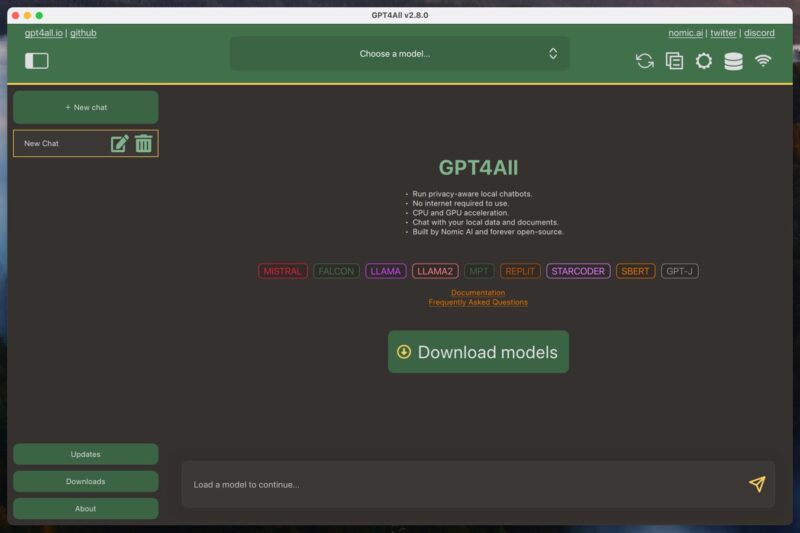
Once you launch the GPT4ALL software for the first time, it prompts you to download a language model. I decided to go with the most popular model at the time – Llama 3 Instruct. This model is a little over 4 GB in size and requires at least 8 GB of RAM to run smoothly.
Downloading the model is just as easy as installing the software. All I had to do was click the download button next to the model’s name, and the GPT4ALL software took care of the rest.
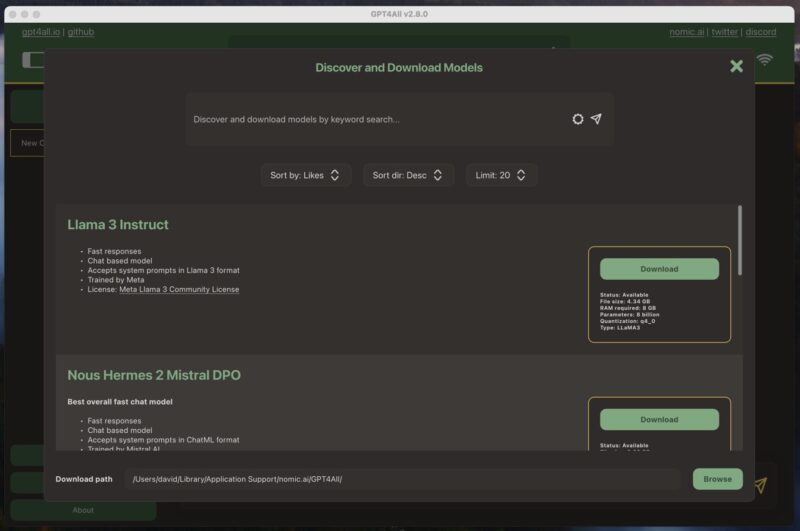
Once the model was downloaded, I was ready to start using it.
Using GPT4ALL for Work and Personal Life
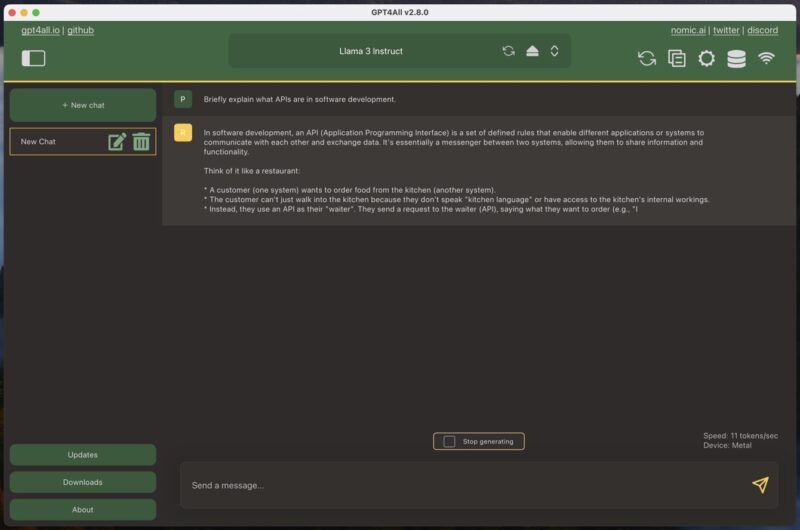
If you’ve ever used any chatbot-style large language model, then GPT4ALL will be instantly familiar. The only difference is that you first have to load one of your downloaded models, which can take a few moments.
To start a new chat, simply click the large green “New chat” button and type your message in the text box provided. When you send a message to GPT4ALL, the software begins generating a response immediately. On my MacBook Air with an M1 processor, I was able to achieve about 11 tokens per second using the Llama 3 Instruct model, which translates into roughly 90 seconds to generate 1000 words. That’s a pretty impressive number, especially given the age and affordability of my MacBook Air.
But speed alone isn’t everything. How about performance?
Generally speaking, the performance of large language models (LLMs) is well documented, and you can see what the most powerful models are on sites like the LMSYS Chatbot Arena Leaderboard. For example, the model I used the most during my testing, Llama 3 Instruct, currently ranks as the 26th best model, with a score of 1153 points. The best model, GPT 4o, has a score of 1287 points.
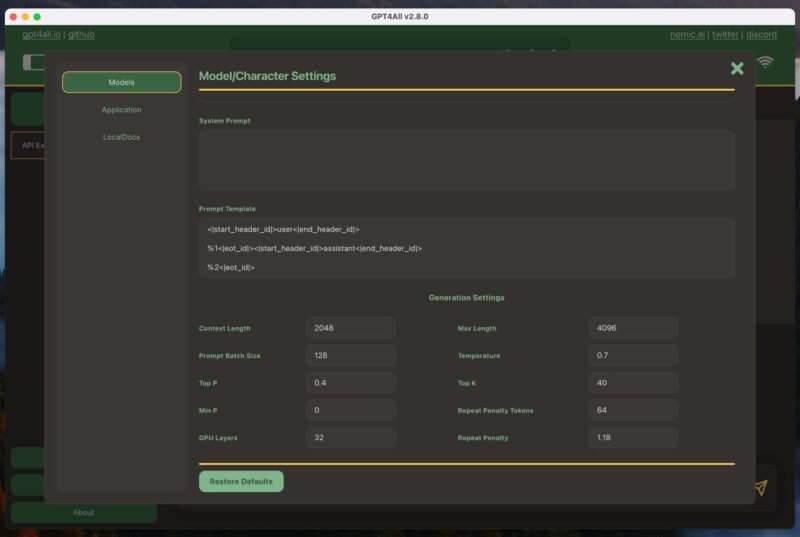
In practice, the difference can be more pronounced than the 100 or so points of difference make it seem. Large cloud-based models are typically much better at following complex instructions, and they operate with far greater context. For instance, Gemini Advanced has a context window of 32k tokens, whereas Llama 3 Instruct has, by default, only 2048 tokens in GPT4ALL – although you can increase it manually if you have a powerful computer.
These are the biggest negatives when compared to cloud-based models. However, the most significant positives are privacy and availability. With GPT4ALL, you can rest assured that your conversations and data remain confidential and secure on your local machine. You don’t have to worry about your interactions being processed on remote servers or being subject to potential data collection or monitoring by third parties.
Moreover, since you’re running the model locally, you’re not affected by any third-party shortages. For example, ChatGPT is down quite often (you can see its current status here), and one poorly timed period of downtime can greatly disrupt your workflow and make you regret your subscription. This is something that can’t happen to you with GPT4ALL, especially if you install it on more than one machine to account for unexpected hardware failure.
Making Full Use of GPT4ALL
There are three main things you should do to make the most of GPT4ALL:
- Use the best LLM available: Models are constantly evolving at a rapid pace, so it’s important to stay up-to-date with the latest developments. Keep an eye on LLM leaderboards, such as the aforementioned LMSYS Chatbot Arena Leaderboard, and join communities like r/LocalLLM to stay informed about the best models available.
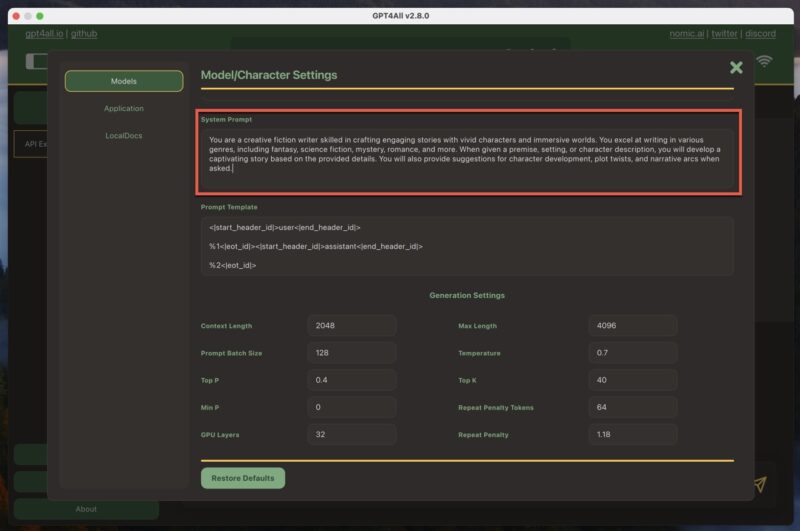
- Customize the system prompt: The system prompt sets the context for the AI’s responses. In GPT4ALL, you can find it by navigating to Model Settings -> System Prompt. Customize the system prompt to suit your needs, providing clear instructions or guidelines for the AI to follow. This will help you get more accurate and relevant responses.
- Ask the right questions: Prompt engineering is key to getting the best results from GPT4ALL. Be specific and clear in your questions, and provide enough context for the AI to generate useful responses. Experiment with different question formats and phrasing to find what works best for your use case.
By following these three best practices, I was able to make GPT4ALL a valuable tool in my writing toolbox and an excellent alternative to cloud-based AI models.
It’s worth noting that besides generating text, it’s also possible to generate AI images locally using tools like Stable Diffusion. If you’re interested in exploring the world of local AI image generation, be sure to check out our guide on how to use Stable Diffusion to create AI-generated images.
Image credit: DALL-E. All screenshots by David Morelo