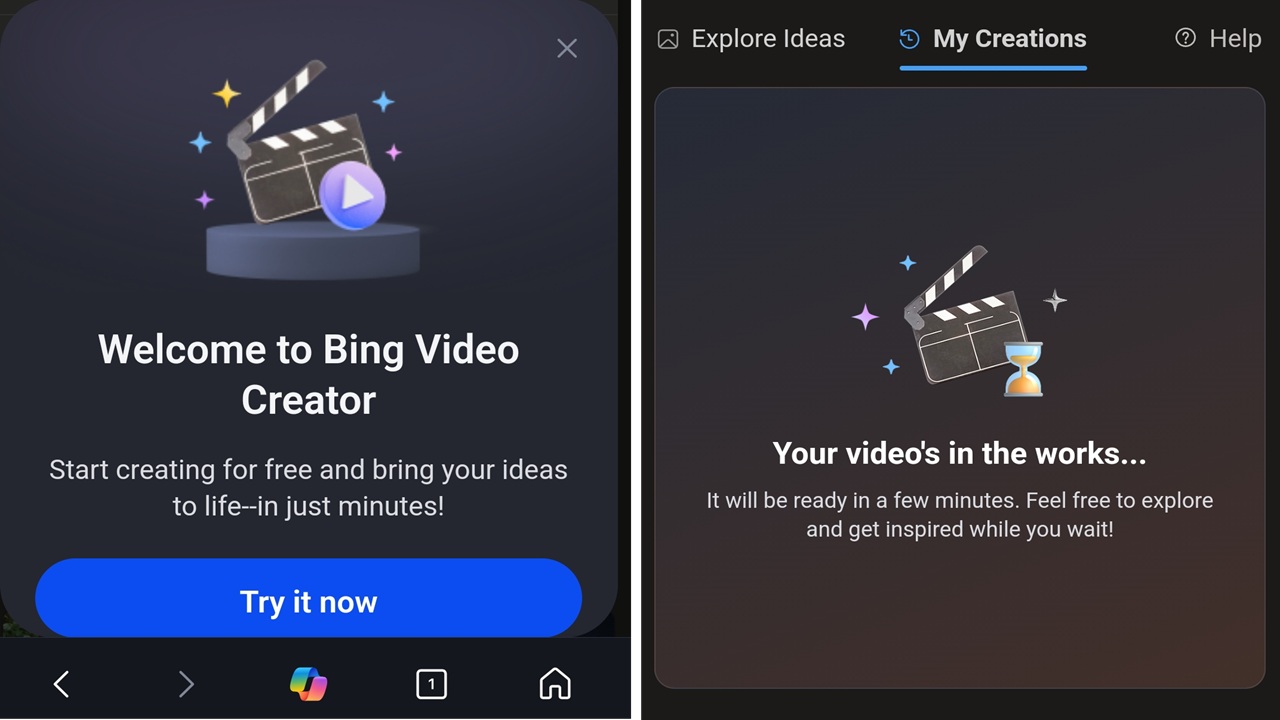
Do you want to use OpenAI’s Sora video creator, but don’t want to pay for it? Now you can create free AI videos with Bing Video Creator, which uses Sora. All you have to do is login to start creating.
How to Get Bing Video Creator
Microsoft has just launched this new feature for the Bing Search mobile app. For now, you’ll have to download the app to access the Bing Video Creator. Microsoft does plan to roll out it later to desktop and Copilot Search.
Once you’ve downloaded the Bing Search app (iOS | Android), sign in to your Microsoft account or create a new one for free. You must log in. This is how Microsoft keeps track of your requests. It’s also how you’ll access your creations once they’re complete.
You don’t need a separate OpenAI or Sora account, even though the video creator feature is powered by Sora.
Make Your First AI Video Request
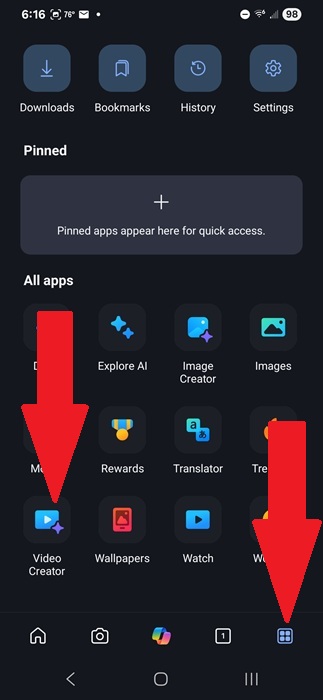
Open the Bing Search app and tap the Apps button (four small squares in a larger square) at the bottom right. Scroll down until you see Video Creator. If you don’t see this app, update your Bing Search app. Microsoft has rolled the tool out to all users, except for those in China and Russia.
Enter your prompt into the editor and tap Create.
Tap Settings button just below the text editor to change your settings. For now, the only thing you can change is the creation speed – Fast (minutes to create) or Standard (hours to create).
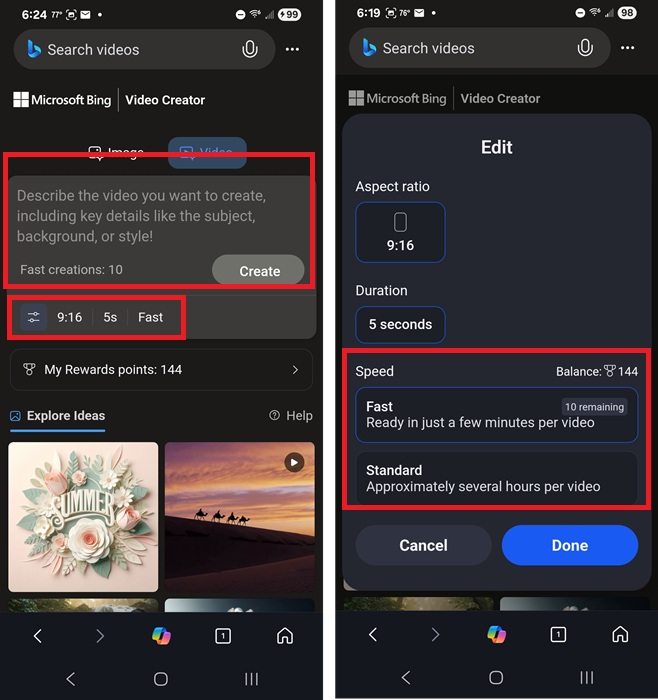
The only aspect ratio is 9:16. Since you’re using your phone to create these AI videos, the ratio makes sense. It’s also perfect if you’re planning to upload to TikTok or other social media platforms.
Getting Inspiration for Your AI Videos
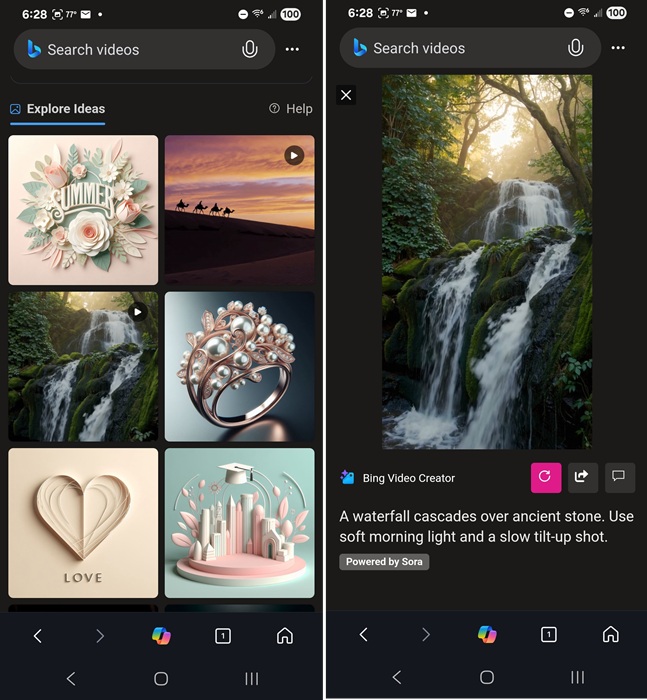
If you’re not sure what you want to create just yet, scroll down to Explore Ideas in the Bing Video Creator. Tap any of the AI-generated videos to not only see the video, but see the prompt used to create it. This may help you figure out how to better phrase your AI video prompt to get better results.
I also suggest checking out Sora directly. The Sora Overview page features a handful of AI videos along with the prompt used. To see more, you’ll have to sign up for a premium account, but it’s free to check out the Overview samples.
Bing Video Creator Limitations
It’s completely free to use the Video Creator as often as you want. You’re even able to queue up three videos back to back. However, there are a few limitations to prevent users from abusing the system.
All users get 10 free Fast video creations. After that, the speed switches to Standard, which is significantly slower. The good news is all Standard creations are free.
Also, you can only create 9:16 videos. No other sizes are available. So, this might not be ideal for creating landscape mode videos.
Get More Free Fast AI Video Credits
If you’ve used Bing Search (a viable alternative to Google search) while logged into your Microsoft account, you might have noticed you accumulate points over time. Everything from simple searches to fun trivia earn you points. Redeem your points for gift cards, items from the Microsoft Store, sweepstakes, and now, AI video generation.
Each Fast AI video prompt costs you 100 points. But, the points are free to earn. Depending on your level on Microsoft Rewards, you can earn anywhere from 50 to 250 points per day.

Access and Delete Your Video Creator History
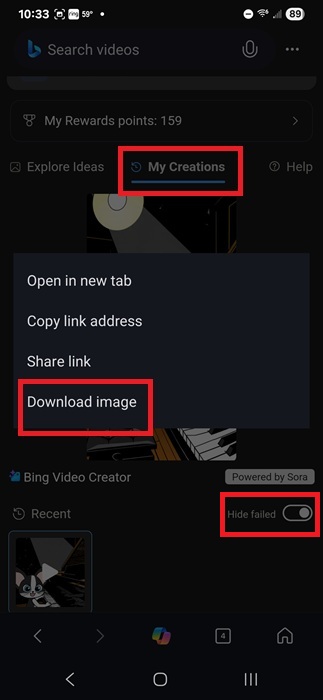
All your image and video creations are stored for up to 90 days. Go to Video Creator in the Bing app and tap My Creations under the prompt editor. You’ll only see this if you’ve created a new video in the last 90 days. Long-tap on any creation to download it to your device.
Right now, there isn’t a way to delete videos simply by selecting or long-tapping the video. All you can do is toggle on Hide failed under My Creations. You can also tap any video to view share options.
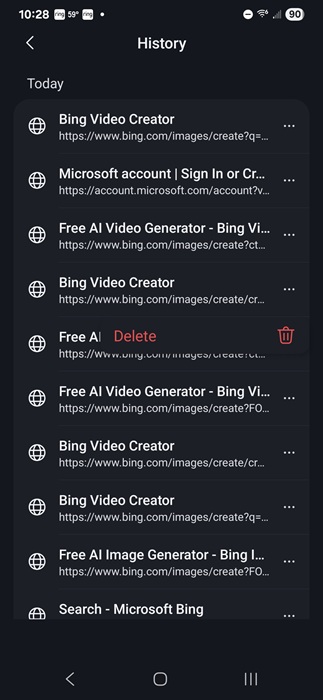
If you want to delete all your AI videos, you have to clear your Bing search history. In the Bing app, tap the History icon near the bottom right. Tap View all next to History. Then, tap the three dots next to any Video Creator entries and select Delete. Even then, it doesn’t always go away. Since it’s a new feature, I expect deleting history to be a bit easier in future releases.
How to Create Better AI Videos With Video Creator
Since you have to earn or pay for Fast videos, you’ll want to make the most of your prompts. Or, if you’re using the always free Standard speed, you don’t want to wait several hours just to find out your video isn’t anything like you imagined.
A few tips to keep in mind when creating AI video prompts include:
- Be as specific as possible
- Include a style, such as sketch, painting, realistic, cartoon, etc.
- Detail the scene, such as under a shady tree or in the light of moon
- Make the most adjectives to describe colors, textures, and more
- Include a theme, if applicable
- Get moody, such as keeping things dark, light, happy, nostalgic, etc.
- Write what you envision, include everything you see in your mind so Bing Video Creator can see it too
It’s always better to be too detailed than not include enough. I stuck with something simple, yet detailed for my first creation in Video Creator. I used “create a black and white kitten playing a piano in a cartoon style.” Since I used Fast as my speed, it took around a minute to create.
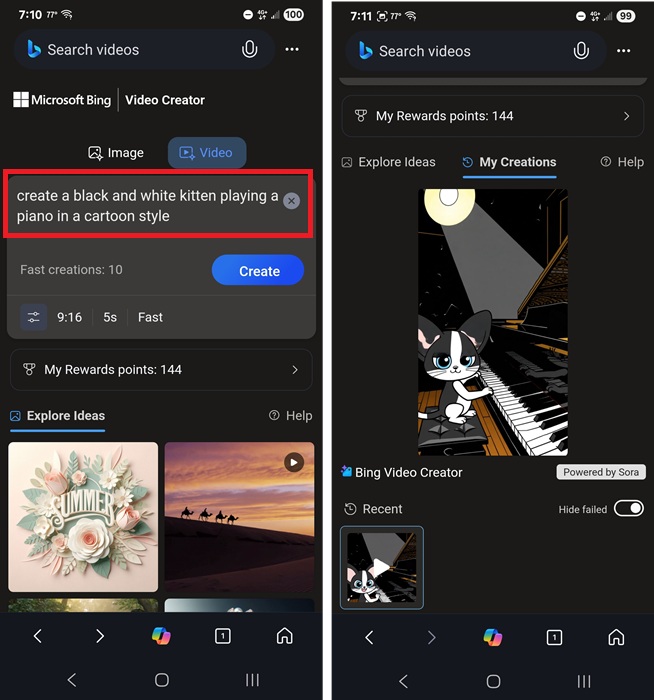
Outside of normal AI glitches (in this case, the inner ears kept going from pink to black), it was close to what I had in mind.
Bing still lets you create AI-generated images as well as video. MS Paint also has a built-in AI image creator too. Or, try Stable Diffusion to generate AI images without an online generator.








