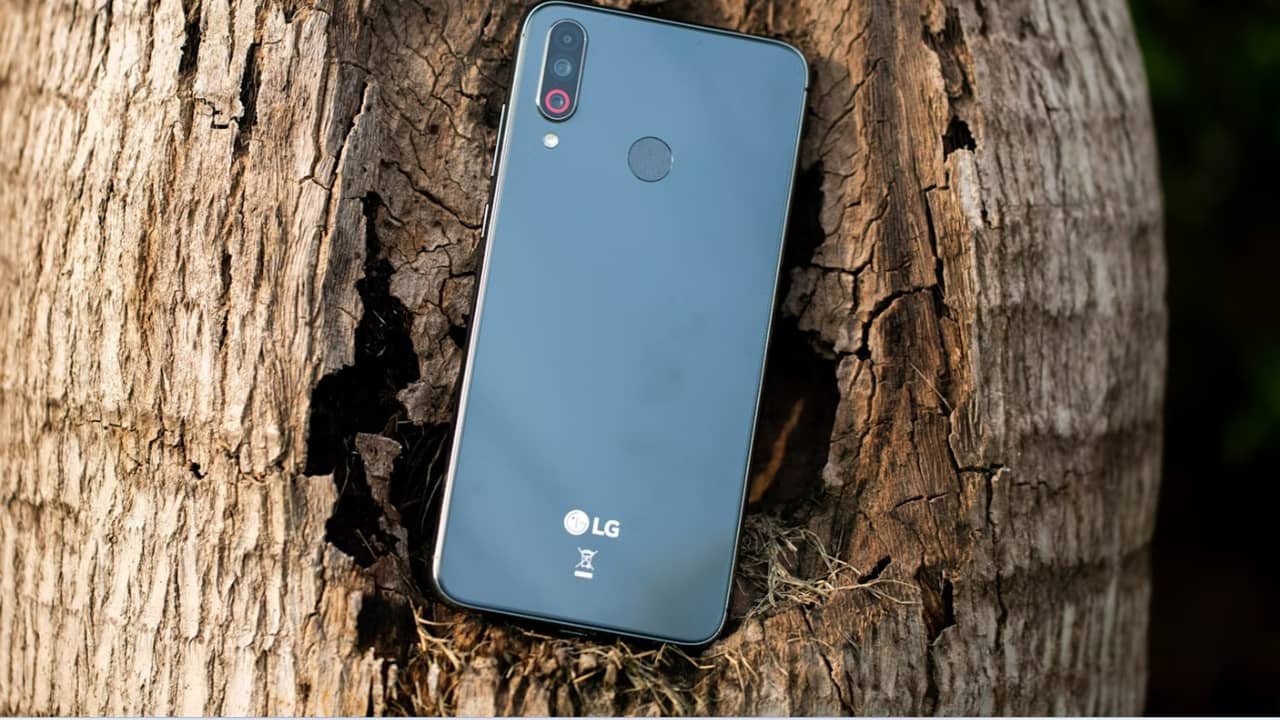
If you’re still using an old LG phone, now is the time to back it up and update it before the LG servers shut down for good. After June 2025, you won’t be able to access updates any longer.
What the Deadline Means For You
LG announced on April 10, 2025 (let your browser translate it) that the LG update servers will officially shut down on June 30, 2025. This means if you have an LG phone, you won’t be able to download any updates at all after this deadline.
LG previously exited the smartphone industry in 2021, but promised updates for at least three years for eligible devices. One of the last system updates was for Android 12.
Odds are, you’ve likely upgraded to a new phone by now, but may still use your older LG phone for various reasons like running old apps no longer supported on newer devices or even as a webcam. If you haven’t turned it on in a while, I highly suggest starting it up and checking for updates, along with backing things up.
Along with updates going away, the LG Bridge PC software is going bye bye as well. This is necessary for installing updates remotely from your PC, along with backing up and restoring your phone from a PC.
Download and Install the Last LG Updates
For references, all steps are performed on an LG Velvet device, so the steps may vary slightly based on your LG model and Android version. Ensure your device is charged and go to Settings.
Tap System updates (or System if you don’t see this option) -> Check for new system update. You can also tap Show system update history to see when your LG phone last updated.
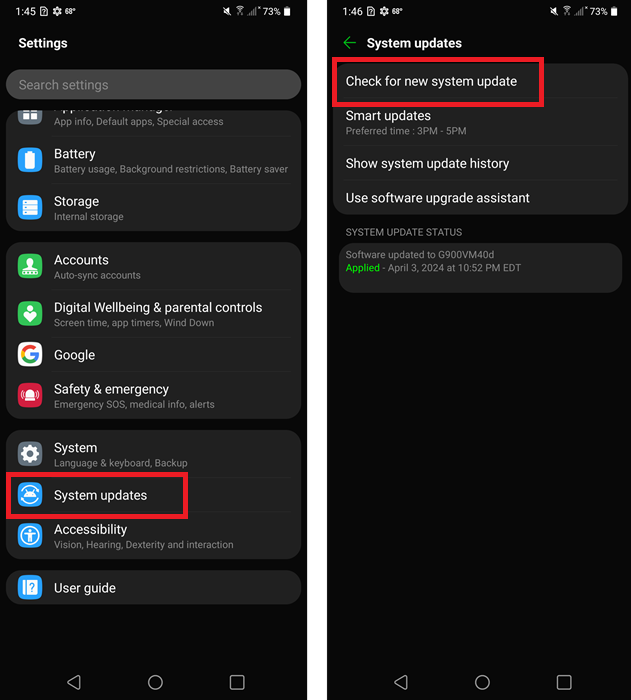
If you had Smart Updates turned on, your LG should have already updated on its own as long as it was powered on during your preferred time.
If you can’t update using this method, using the LG Phone backup method in the following section.
How to Backup Your LG Phone
Start by downloading the latest version of the LG Bridge software. Keep the executable in a safe place. As long as you have it, you can still use it after support ends to restore a backup on your LG device. It’s possible LG may remove the software after the June 30th deadline. Support for updating your LG phone via LG Bridge will end on the deadline, though.
Install LG Bridge and connect your LG phone via its included USB cable. Open LG Bridge on your PC or Mac and select LG Backup. If you need to update your phone instead, select Software Update.
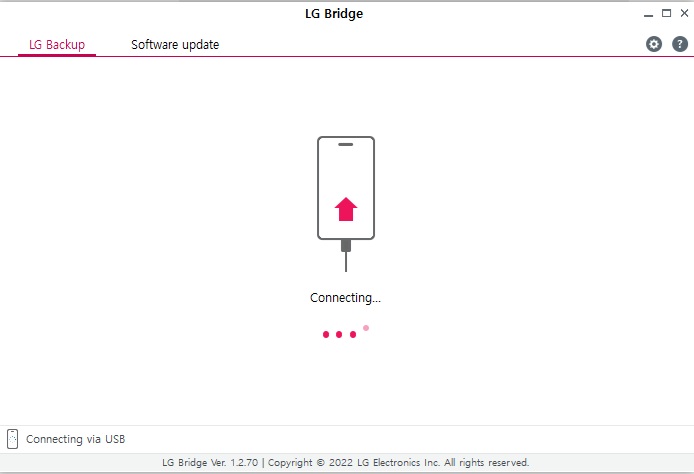
Select the items you want to back up, select where you want to store your backup, and wait for the software to copy your backup to your computer.
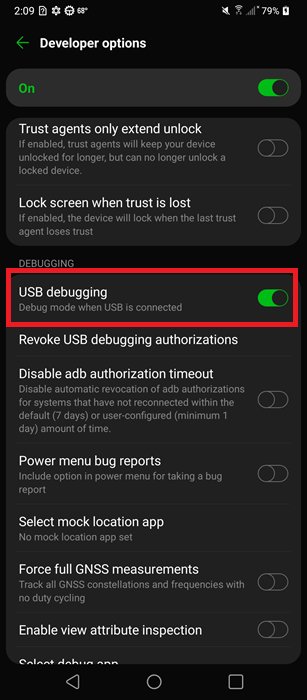
If your phone has issues connecting, tap Settings on your LG device and select System -> Developer options and enable USB debugging.
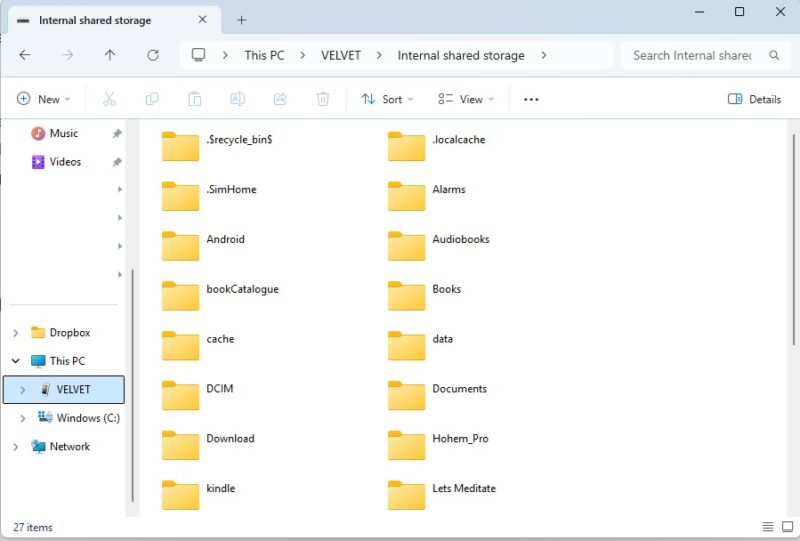
If you still can’t connect, your phone may not be compatible. For example, my LG Velvet has never worked with the LG Bridge software. In this case, you can manually back up the files you want to keep by connecting your device directly to your computer and selecting File transfer as the USB connection option on your LG phone.
Use File Explorer on your PC to view files stored on your LG phone and copy them directly to your PC. I recommend backing these files up to an external drive or cloud storage service to ensure nothing gets accidentally deleted or lost.
You can also use other backup tools to back up your LG device. This is also highly recommended as part of the backup and wipe process if you decide to donate or sell your phone.
Using Third-Party Sources
After the LG phone update servers shut down, you won’t have access to official updates any longer. If you haven’t updated, your only option is to search for updates on third-party app stores.
APK Mirror and F-Droid are two of the best options. You can then search for your LG device model or a specific Android system update.
But, be careful when downloading from third-party sources. If you download and install the wrong file, it could brick your device. So, always back it up before you update it. Also, if you try to install a higher Android OS than what your LG supports, you could experience numerous usability issues.
Since LG phone support is ending, many apps on the Google Play Store may no longer be compatible. Using alternative Android app stores like those mentioned above will help you find older versions of apps that still work with your device.








