When someone calls or texts you, how do you know they’re real? With call spoofing and impersonations rising, you can never be too sure. To address this, a new Google system app, Android System Key Verifier, is being preloaded on old and new Android devices alike. It uses end-to-end identity checks to protect your phone calls, messages, and chat apps from identity fraud.
How Android System Key Verifier Secures Your Android Phone
The Android System Key Verifier app comes preinstalled as a system app on Android devices running version 8.0 or higher. It uses device-based encryption key checks to verify contact identities during calls and texts. In this way, the Android security feature is similar to the Contact Key Verification within iMessage in iPhone.
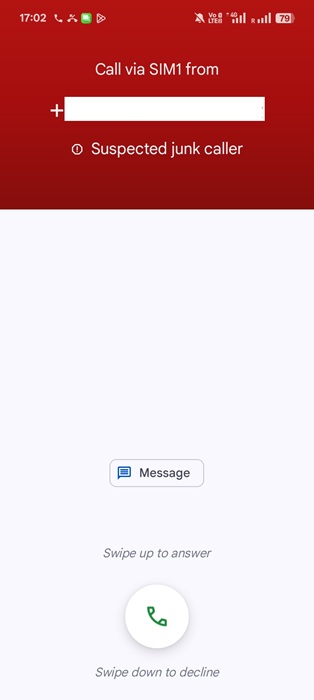
During any call or messaging interaction, the Key Verifier verifies the contact’s identity using cryptographic keys and other system-level checks. It also uses AI to detect patterns of scam calls (e.g., scammers posing as trusted contacts) and then flags or blocks them. You will not see any warnings if a call is verified as safe.
Since June 2025, this app is automatically being downloaded and installed on all Android devices. Some users are mistakenly uninstalling it due to privacy concerns. But the app is safe and recommended for use.
As per an official Android source, the System Key Verifier’s cryptographic key information is controlled locally by the user’s device, not by Google or third parties. The keys are generated, stored, and managed locally using secure hardware like the Trusted Execution Environment (TEE) or Secure Element.
Throughout the contract identity verification, the key material remains outside the application process. Google only has access to optional diagnostics information which it uses in the app, but not the private keys. Even if the Android operating system is compromised in an extreme unlikely scenario, attackers might use the app’s keys but cannot extract the key material from the device.
Related: passkeys and two-factor authentication (2FA) apps are other ways to ensure Android device security.
Check Android System Key Verifier is Running on Your Phone
The Android System Key Verifier app is being installed by Google and runs automatically in the background. You don’t need to open or configure it manually. But if you want to be sure, it’s useful to check the app’s availability on your Android phone.
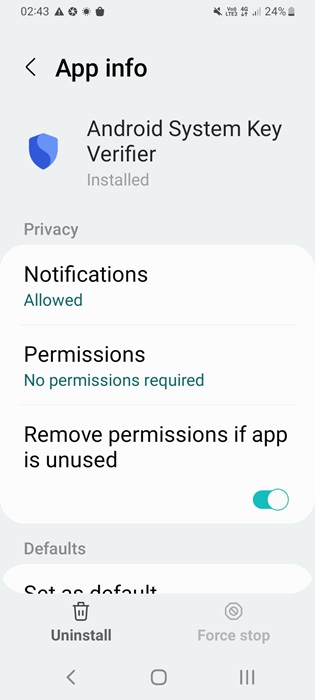
On any Android device, go to Settings -> Apps -> System Apps and select Android System Key Verifier’s App info. While you can view the app as installed, you cannot access it directly as it runs in the background.
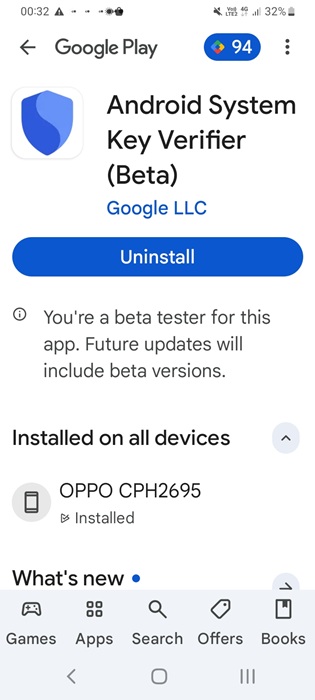
Alternatively, you may check the app’s installation status on its Google Play page. It only shows Installed, but you can uninstall it. But it’s best not to do it since the app is lightweight and crucial for protecting against identity fraud.
Related: learn why encrypted messaging apps is needed to protect yourself from spam, spoofing, and fraudulent accounts.
Utilizing Android System Key Verifier in Messaging Apps
The Android System Key Verifier not only secures your regular calls and messages. It can also ensure you’re interacting with trusted contacts for real. Of course, the verification is not viewable at the front end.
However, Android Security Key Verifier is integrating into popular messaging apps like Google Messages and WhatsApp. So, you can start using it to verify your contacts on these apps.
On WhatsApp, open any trusted contact’s message window and click the three-dot button followed by Verify security code. It takes a few seconds for your primary device to verify the cryptographic keys of your contact.
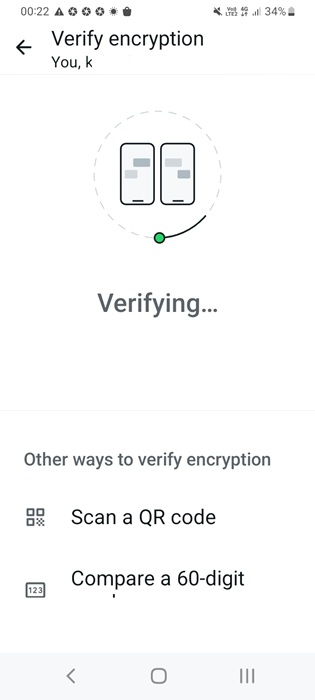
You will see a status that the end-to-end encryption was automatically verified for the contact with a timestamp.
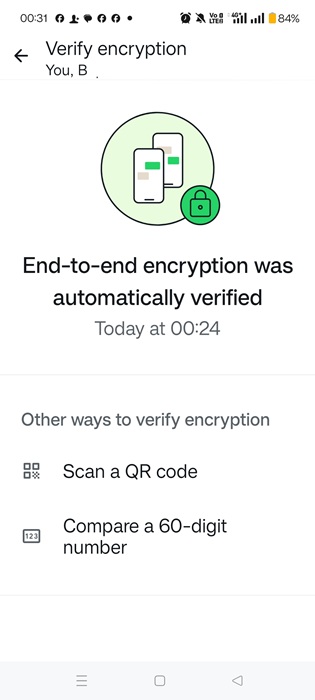
On the above screen, click Scan a QR code.
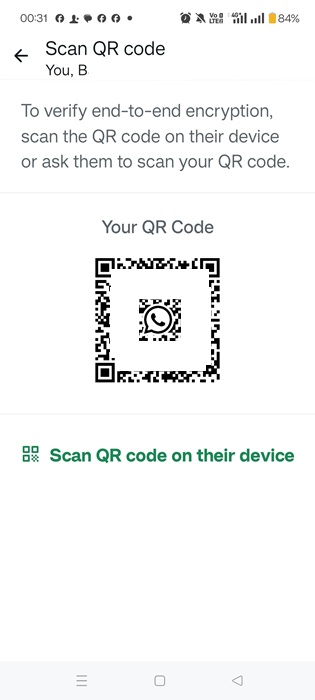
In the next screen, you can see Your QR Code which anyone can scan on their WhatsApp contacts if they have you. To do it on your device, click Scan QR code on their device.
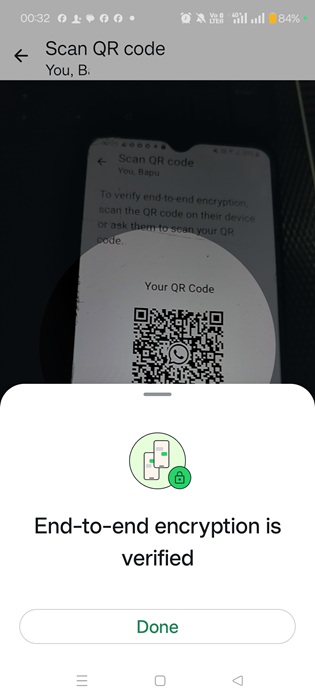
Your phone camera will scan the QR code of your contact and complete the end-to-end verification.
If you’re not a fan of using QR codes, go to your contact verifier page in WhatsApp and tap Compare a 60-digit number. The other person does the same for your contact on his WhatsApp. Both numbers will match exactly for a proper end-to-end verification.
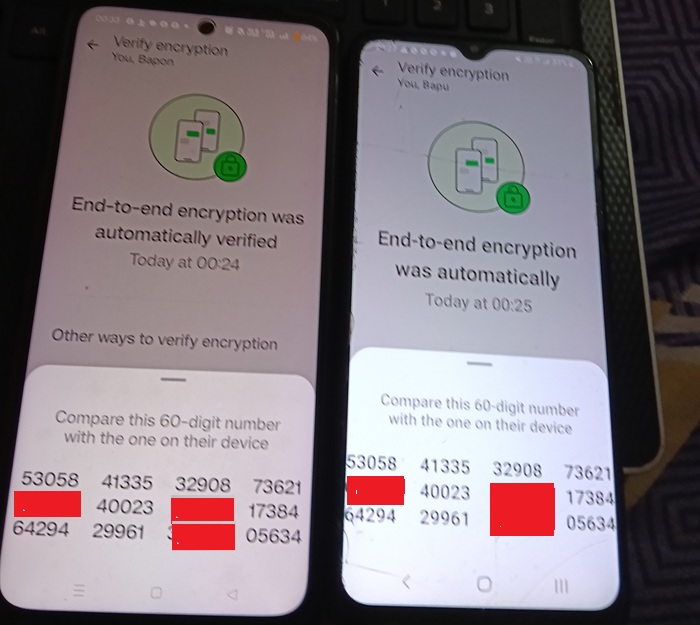
Next time you exchange a contact on WhatsApp, it’s worth the effort to ensure that you can trust them. Even if they use multiple devices for that number, the verification occurs on all the other devices. Do you want to keep your privacy in WhatsApp? Follow these recommendations.
Apart from WhatsApp and Google Messages, Google plans to roll out the Android Security Key Verifier feature on other messaging apps such as Viber, Telegram, and Signal.
To enhance the protection on your Android device, use many security features such as biometrics, a tightened lock screen, and setting up Find My Device.








