With spyware and hacks on the rise, CISA’s mobile security tips provide simple and effective ways to lock things down without much hassle.
By Henderson Jayden Harper – Dec 17, 2025
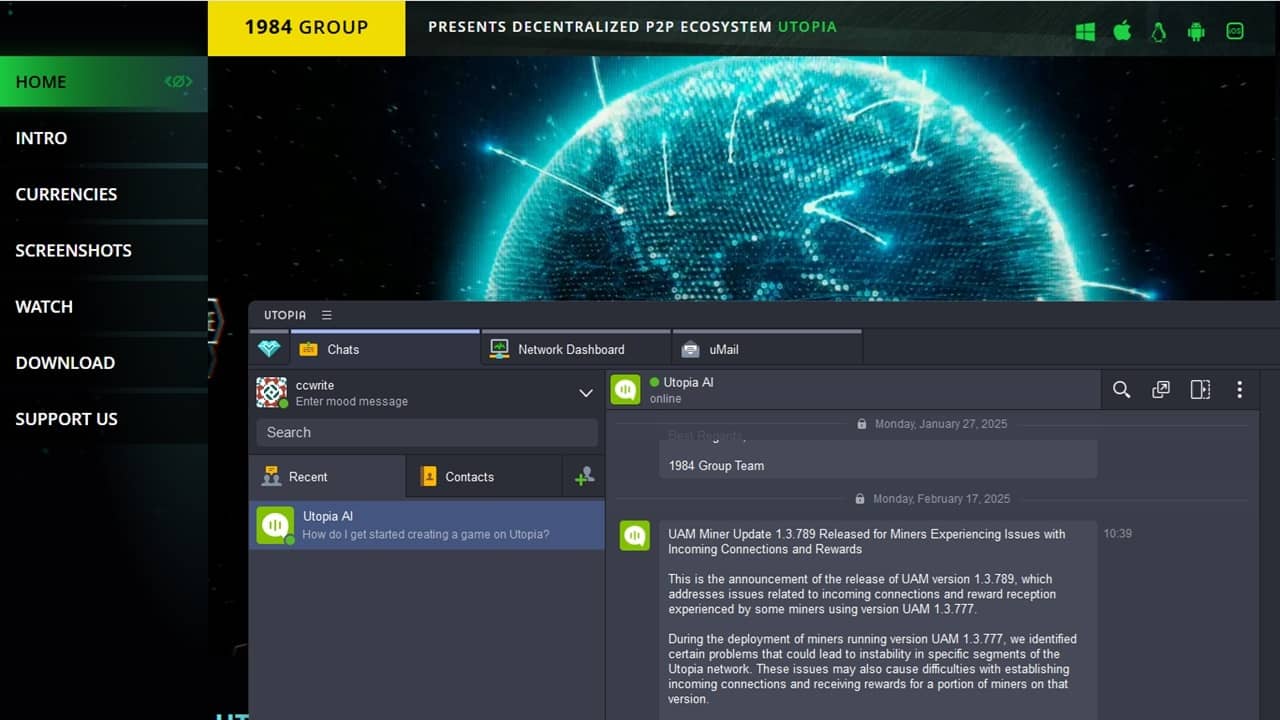
The 1984 Group created the Utopic P2P Ecosystem as a decentralized alternative to the data hungry browsers and apps we are all far too used to.
By Crystal Crowder – Jul 8, 2025
There’s no need to panic when you see the Windows C drive displaying a yellow triangle sign.
By Sayak Boral – Jun 11, 2025
Windows 11 enables automatic BitLocker encryption by default in 24H2 update, and a lot of users are having BitLocker lockouts and blue screen of death.
By Sayak Boral – May 13, 2025
SSH Tunneling can encrypt connections over the internet, just like a VPN. Find out the differences between SSH Tunneling and VPN, and which one you should use.
By Ramces Red – Jan 20, 2025
To improve the security of your Linux system, you can do a full disk encryption both during and after the installation in Ubuntu.
By Haroon Javed – Dec 2, 2024
Mailum, a new provider of secure email, has recently convinced me to switch to it from ProtonMail, and there are eight main reasons why.
By David Morelo – Oct 1, 2024
Choosing a VPN can be overwhelming. Discover the key features to look for in a VPN to ensure your online security and anonymity.
By Karrar Haider – Sep 12, 2024
Looking for a VPN solution for your devices? Explore our comparison of WireGuard vs OpenVPN to determine which one fits your personal needs.
By Ramces Red – Jul 29, 2024
Learn about the benefits of using SSH with GPG encryption keys for secure login sessions. Protect your data and keep hackers at bay today.
By Ramces Red – May 22, 2024
Shufflecake is an innovative tool for creating an encrypted and hidden filesystem in Linux. Learn how to setup your own in Ubuntu today.
By Ramces Red – Feb 21, 2024
USB flash drives may be obsolete storage devices, but they still have many other uses. This guide shows the most useful things to do with a flash drive.
By Tanveer Singh – Sep 9, 2023
GPG is an important part of keeping your digital data safe and secure today. Learn how to get started by using its GUI front-end: Kleopatra.
By Ramces Red – Jun 29, 2023
Keyloggers are a dangerous security threat. Hackers use them to get sensitive information. Learn how to detect a keylogger in Windows.
By Sayak Boral – Apr 6, 2023
Steganography is the art of concealing messages inside regular objects. Learn how you can do this art in Linux with your digital files.
By Ramces Red – Mar 28, 2023
When a USB drive is encrypted, it protects it from unauthorized access. This guide shows how to encrypt your disk using BitLocker in Windows.
By Sayak Boral – Mar 8, 2023
Tomb is a program which creates portable partitions that you can mount on any Linux distro. Learn how you can use it to encrypt files today.
By Ramces Red – Jan 10, 2023
Is it time to make encryption part of your routine when sending emails?
By Ojash Yadav – Oct 18, 2022
Get a free SSL certificate effortlessly.
By Ojash Yadav – Jul 26, 2022
You don’t need to be a cryptographer to understand encryption or use it yourself.
By Crystal Crowder – May 24, 2022
Next >
Affiliate Disclosure: Make Tech Easier may earn commission on products purchased through our links, which supports the work we do for our readers.