If you own a self-hosted WordPress account, chances are you are using FTP to transfer all your files online. Here’s the problem: connecting and transferring files via FTP is not secured. All your login credential (including username and password) and data are transmitted over the network in plain text. Any hacker who is sniffing your network can easily obtain your password and gain access to your account.
If you are really concerned about the security of your site, this is something that you really need to avoid.
In place of FTP, you can use SFTP (SSH File Transfer Protocol) to create a secure network connection instead. When you are connected via SFTP, all your data are encrypted. Even if they are intercepted, they will only show up as garbage text on the hacker’s computer.
This tutorial teaches you how to connect to your WordPress account (or any other Web server) via a SFTP connection.
A point to note: Not all web host supports SFTP. Do check with your Web host before carrying out the steps below. If your web host does not support SFTP, maybe it’s time to consider another web host that does. Hostgator does the hosting for MTE and they support SFTP.
While there are many FTP clients that support SFTP, the one that I find it the easiest to use and is available for all platforms is Filezilla.
Download and install Filezilla client for your platform. (skip this step if you are already using Filezilla)
Open up Filezilla. Click on the first icon on the Toolbar to access the Site Manager. Alternatively, you can find the Site Manager at the menubar File->Site Manager.
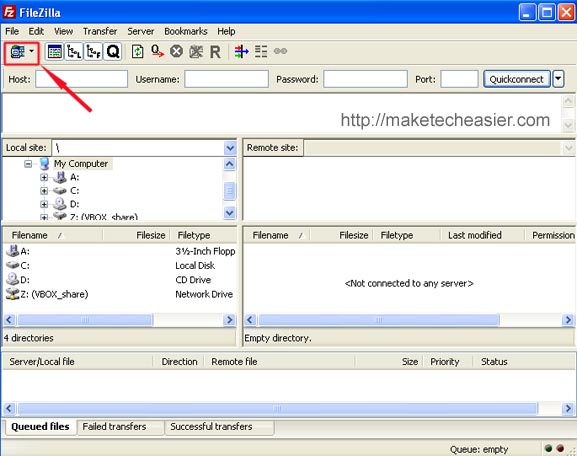
Click the New Site button on the left bottom pane to create a new account.
On the right pane, enter your host name (this is usually the IP address assigned to you by your Web host). In the Port input field, enter 22 (Different web hosts have different ports for their SFTP connection, Hostgator uses port 2222. If you can’t connect with port 22, you may want to ask your web host for the port number).
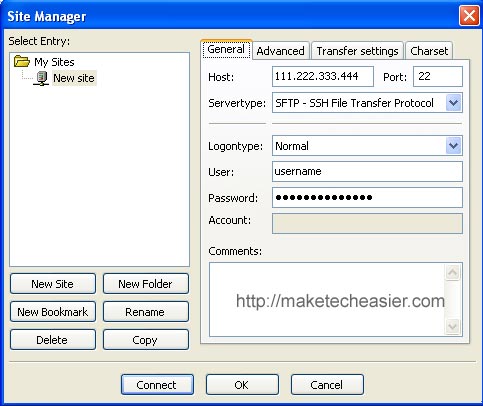
Under the Servertype dropdown field, select SFTP – SSH File Transfer Protocol.
Enter your login username and password. Click Connect at the bottom to connect to your account. If everything is fine, you should see a popup window prompting you to accept the server’s public key. Click Ok to continue (You may want to save the key in your cache so that it won’t prompt you all the time). You should be connected to your account via SFTP now.
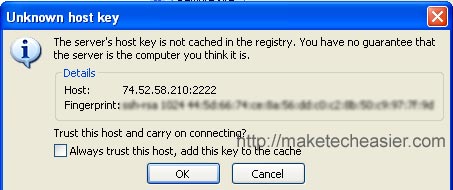
Bringing it a step further
If you are really paranoid about your security, you can use a public/private key authentication to connect to your SFTP network instead. A public/private key authentication allows you to login to your account without any password and also eliminates any chance of a brute force SSH attack.
Once again, not all web hosts allow you to generate public/private key certificate. The following example is based on Hostgator cPanel.
Log into your cPanel. Scroll down until you see the SSH/Shell Access icon.
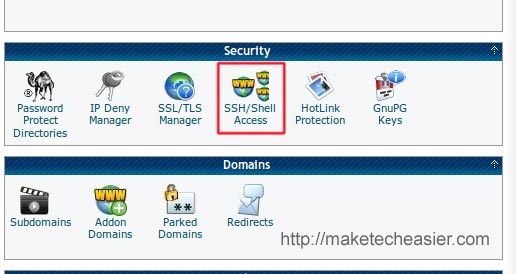
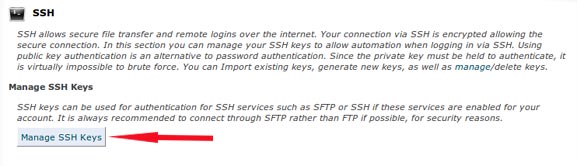
Click on the Manage SSH keys button.
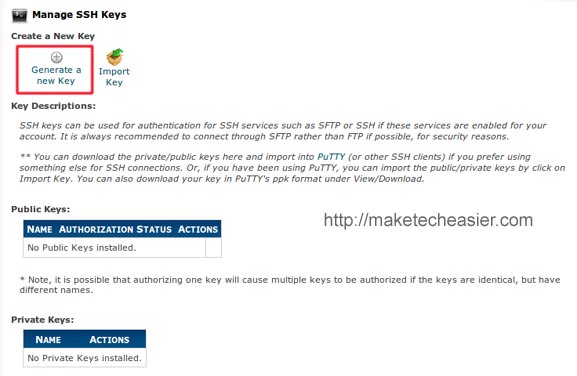
Click on the Generate a new key link.
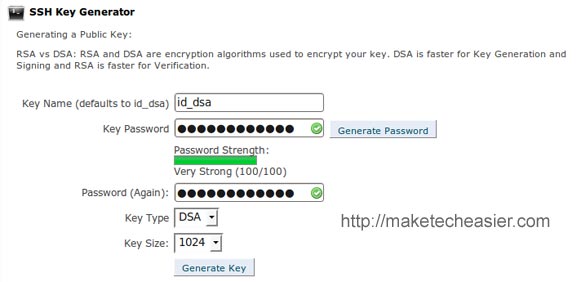
Enter your key name and give it a password. Make sure that your password is a strong one. Click on the Generate key button.
You should now see information about your public key.
Back to the main screen, you should see that your public key is listed as not authorized. Click on the Manage Authorization link to toggle it.
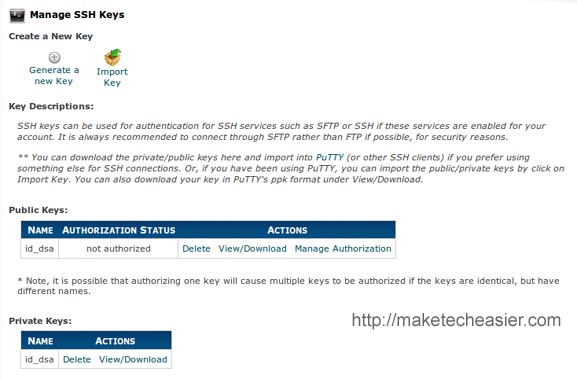
Back to the SSH key management screen, download the private key to a secure folder in your computer.
In your Filezilla, go to Edit->Settings. On the left, click SFTP. On the right, click the Add KeyFile button. Navigate to where you store your private key and select it.
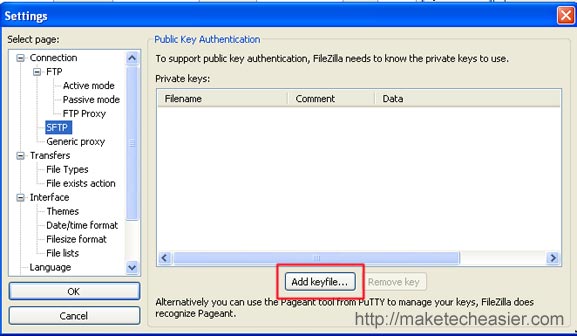
Once you have added the private key, click Ok to close the window.
Back to the Site manager screen, remove the password that you have saved previously. Click the Connect button. Filezilla will now authenticate the session with your private key and allow you to login to your account without any password.
That’s it.
Image credit: beefranck