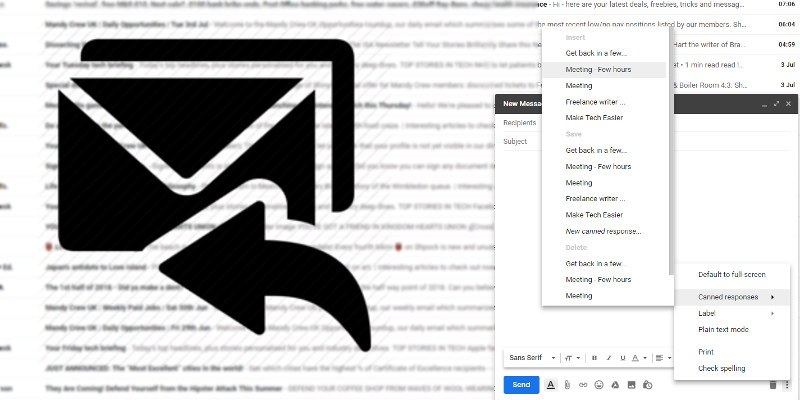
After the recent UI revamp, Gmail has reasserted itself as the best email service by way of user-friendliness and accessibility. It’s also easy to add various bells and whistles to Gmail using extensions and add-ons. Among the best of these are Canned Responses – emails pre-written by yourself, which you can send at the click of a finger, or even automatically.
We’ll show you how to create canned responses, then use filters to send them as auto-replies to whomever you want.
Enable Canned Responses
First, you’ll need to enable Canned Responses in Gmail. It’s a bit of a mystery why such a useful feature isn’t enabled by default.
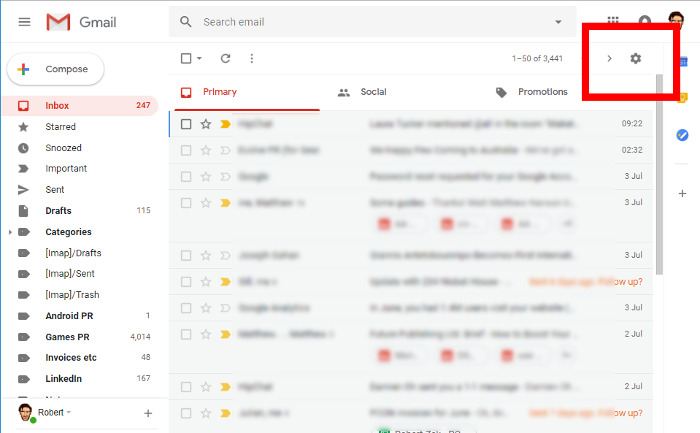
To enable Canned Responses, click the cog icon at the top-right corner of your Gmail inbox.
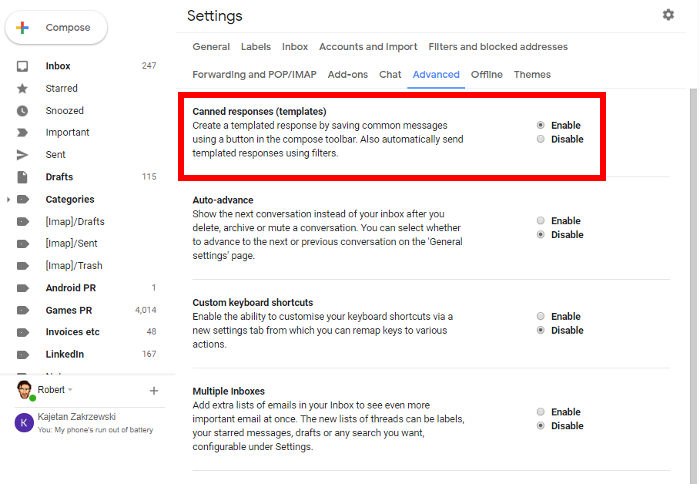
In Settings click the Advanced tab, then select “Enable” next to “Canned responses.”
How to Use Canned Responses
From now on, when composing a new email, you can click the three-dotted menu icon in the “New Message” box, and “Canned responses” will appear as an option. Hover over that, and you’ll see options to Insert, Delete and Save your canned responses.
To create a new canned response (or auto-reply template, as the case may be), ignore the “Canned response” setting for now. Just write what you want to say in your auto-reply into the body of the New Message box.
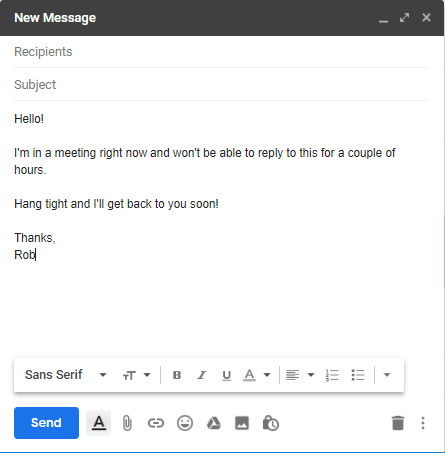
When you’re finished, click the menu icon at the bottom-right corner, select “Canned responses,” then click “New canned response.”
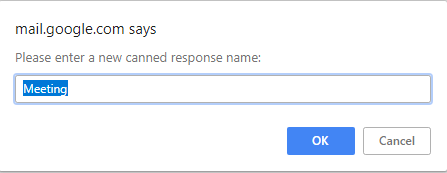
You’ll be prompted to give your canned response a name. Give it a label, and click “OK.” We called ours “Meeting.”
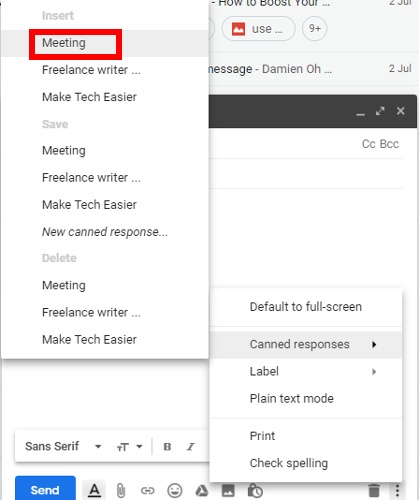
Now, the next time you go to the Canned Responses menu in the New Message box, you’ll see your new auto-reply appear as an option. If you want to add it to the email, just click it under the “Insert” heading.
If you want to edit your canned response, first open it under the “Insert” heading, make your changes, then go back to the canned responses menu and click it under the “Save” heading. Press OK when asked to confirm the overwrite.
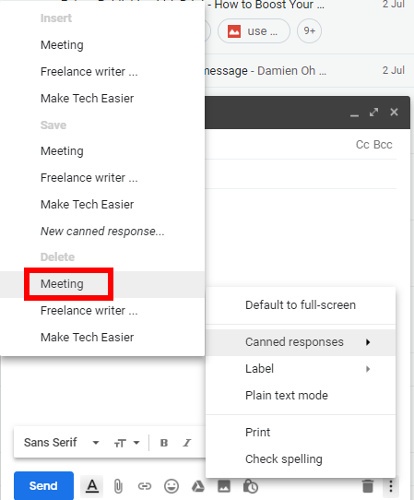
To delete a canned response, open the Canned Responses menu and select it under the “Delete” heading.
Turn Canned Responses into Auto-Replies
Now it’s time to turn these canned responses into full-on auto-replies.
Click the cog icon in Gmail, then Settings.
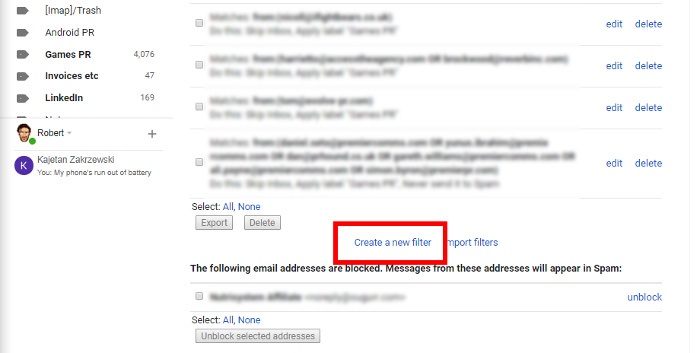
Next, click “Filters and blocked addresses”, then at the very bottom (you may need to scroll if you have existing filters) click “Create a new filter.”
In the next box select your criteria for an auto-reply – whether it’s when you receive emails from specific addresses, emails that include the word “work,” or emails with specific things written in the “Subject” line.
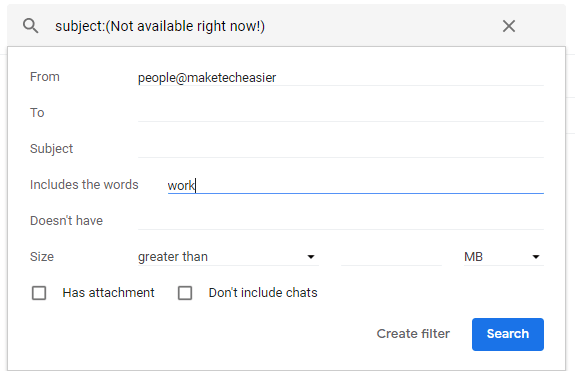
When you’re done, click “Create filter,” then in the next box tick the “Send canned response” box, and choose the canned response you want to send.
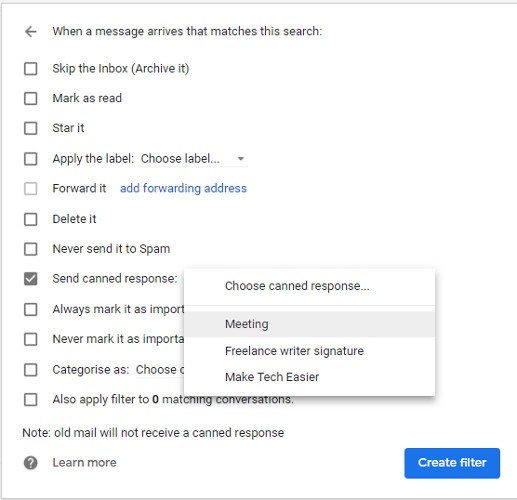
When you’re ready, click “Create filter” again, and you’re good to go!
Conclusion
You can create any number of auto-replies and canned responses using the above method, creating a database of instant replies for all purposes. You could have one auto-reply that says you’ll get back to someone in a few hours, a few days, or even never, if you so wish. It’s up to you.
Another great use of canned responses is to create signatures that you can chuck into your emails. Gmail has a Signature option, but it’s a bit limited, and you need to toggle it on and off all the time. With canned responses you can quickly add signatures on an email-by-email basis.
To find out more, check out our guide on how to use canned responses as a signature tool (you can skip down to the bit talking about creating a signature).