Q: Your site is very helpful to me. Could you please tell me how to embed that related posts like in your site in mine? I have tried a lot of alternatives, can you please tell me how you add that related posts with thumbnails?
If you are frequently browsing the Web, you will notice that many blogs are showing image thumbnails for the Related Posts section, just like what we did in Make Tech Easier. In WordPress, there are several ways that this can be done. Let’s check it out.
Using a plugin
The easiest way to implement the image thumbnail (without any coding) is via a plugin. LinkWithin is one such tool that you can use. Advantage of LinkWithin is that it doesn’t take up any of your server space and bandwidth (to store the thumbnails) and there are little (or zero) configurations need to be done.
Go to LinkWithin. Fill in the detail on the front page.
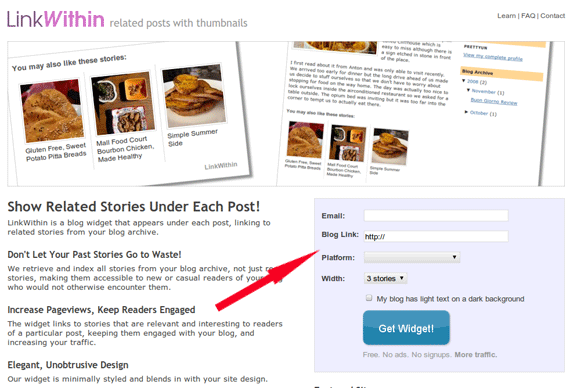
Click Get Widget. You will then be directed to a page where you can download the plugin.
Install and activate the plugin. Your thumbnail related post will immediately appear in your blog.

As good as it can get, there are some disadvantages and limitation of using LinkWithin.
- there is limited control for the end-user: you are not able to configure which image thumbnail to show for each post.
- you cannot adjust the size and styling of the widget.
- you cannot set the position for the widget to appear. The default is for it to appear immediately after the post content ends, but there are times where you want to insert author information or advertisements first before the related post. in this case, this doesn’t come handy.
Hacking the WP theme file
The best way to fully customize the user experience is to go into the theme file and do some hacking. This will require some coding experience.
First, using the instruction here, activate the post thumbnail feature (only applicable in WP 2.9 and above).
Next, install and activate the Yet Another Related Posts plugin. What I love about this is the ability to use a template system to style up the related post content.
In the YARPP plugin folder, go to the yarpp-templates folder and copy the file “yarpp-template-thumbnail.php” to your theme folder.
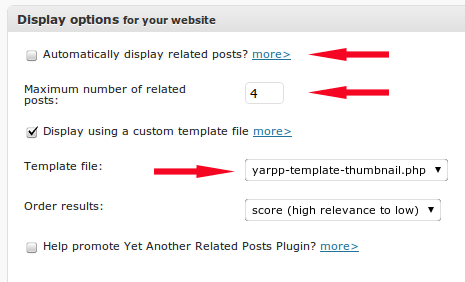
Next in the WordPress YARPP options page:
- uncheck the “Automatically displayed related posts?“
- select the number of related posts that you want to display
- choose the yarpp-template-thumbnail.php from the template file dropdown list.
Open the “yarpp-template-thumbnail.php” in a text editor. Replace the code with the following.
What this code does is to check if there is a thumbnail set for each related post. If yes, it will display the thumbnail and the permalink.
Next, in your theme folder, open your “single.php” file and add the following line to the part where you want to display the related post:
Lastly, we need to do some styling. Copy and paste the following styling code to your style.css file.
That’s it.
Image credit: wuzhao.album