If your Spotify or Apple Music playlists feel stale, it’s not just your imagination. With those platforms, discovery tends to loop back to the same artists, songs, and moods. But YouTube Music’s recommendations are different enough that you may want to switch if you’re more about discovering new music than just replaying hits.
Why YouTube Music’s Recommendations Are Superior
Spotify and Apple Music optimize shuffle for familiarity to keep engagement high, so they are often repeating songs you already know, like, and play.
I’ve noticed that Spotify’s algorithm is famous for creating a feedback loop. If you listen to a specific genre for an hour, Spotify assumes that is all you want to hear, and it aggressively narrows your Daily Mixes to that genre.
For me, YouTube Music’s shuffle feels more random, as it has a wider dataset to work with. It tracks not just your listens, but your watch history on regular YouTube as well. As your video habits are likely wider than your listening habits, YouTube Music takes risks and throws in songs that connect to video you’ve watched.
Apple Music, on the other hand, relies heavily on how you curate, and in some cases, it uses your playlists. When you start a station based on an artist in Apple Music, the algorithm tends to stick to the greatest hits or the most popular tracks in that genre. YouTube Music doesn’t have this limitation. It can pull from live performances, music videos, covers, remixes, and even 10-hour study beats. This includes unofficial content that others don’t have.
How to Reset YouTube Music Recommendations
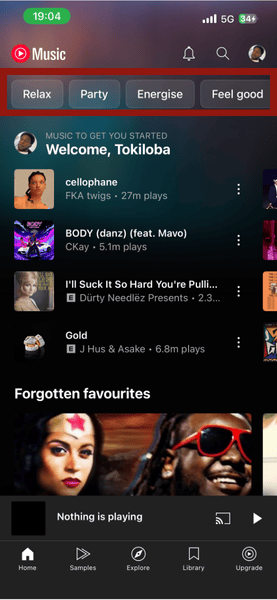
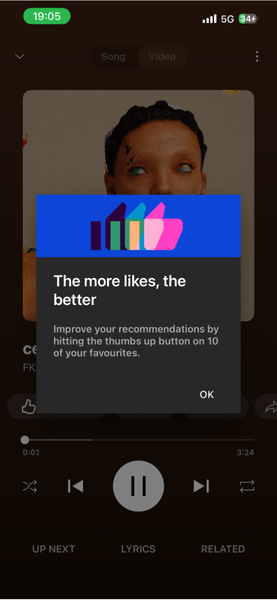
To get the most from the algorithm, you need to train it correctly. You want to avoid skipping too aggressively early in a session. Your first 5 to 10 interactions matter, and YouTube tells you to hit the thumbs up on 10 of your favorites to improve your recommendations.
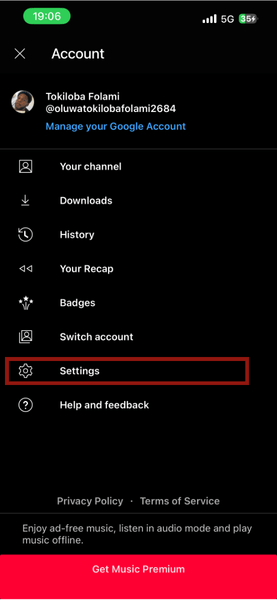
You can also improve your recommendations through the settings. Tap on your profile icon in the top right of the screen.
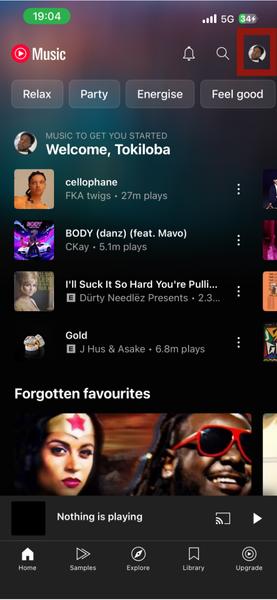
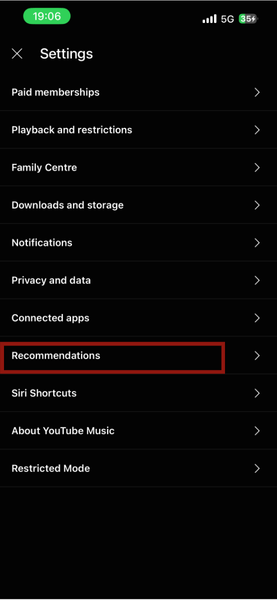
Go to Settings -> Recommendations, and choose Improve your music recommendations.

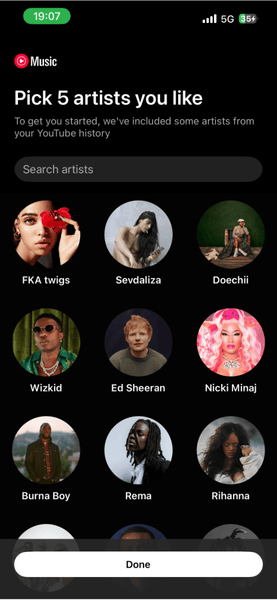
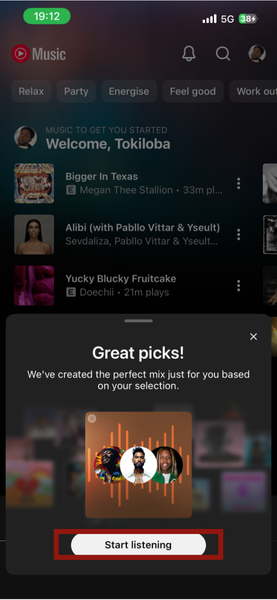
Select the artists you like. YouTube Music suggests choosing five, but you can choose more. Also, if you keep scrolling, more and more artists keep popping up, giving you endless options. YouTube Music then creates a mix based on your choices. Tap Start listening, and your queue will fill with songs from those artists.
Pro Tip: as YouTube Music leans on your wider YouTube history, watching things like children’s cartoons or white noise for sleep on your main account can skew your music recommendations. To prevent this, go to Settings -> Privacy and data, and toggle Pause watch history on before playing music that doesn’t match your actual tastes (like during a party or for kids).
Where YouTube Music Still Falls Short
Its recommendations are excellent, but the audio quality tops out at 256 kbps AAC, which falls behind both Spotify and Apple Music. Spotify supports up to 320 kbps and has also introduced a Lossless option, similar to Apple Music, which has both Lossless and Dolby Atmos.
YouTube Music’s biggest strength can also be a downside. Because it pulls in live performances, remixes, and covers from YouTube itself, not all songs come from official releases. As a result, your playlist can look messy. Instead of a clean title, you may see long names like “Artist – Song (Official Video) [HD 1080p].” These tracks often do not show up under the artist’s official albums, which can make your library feel disorganized and harder to browse.
YouTube Music also has less social integration when it comes to collaborative playlists and overall sharing culture compared to its competitors. Additionally, the lack of a dedicated desktop app means it relies on a web player. Without the polish, smooth integration, and offline support of a native app, using it on a laptop can feel frustrating, especially when you have to search through multiple tabs just to find the player.
Who Should Switch to YouTube Music?
YouTube Music is best for listeners who feel stuck hearing the same songs repeatedly. I find that I enjoy YouTube Music more when discovery is my top priority and I want new songs outside of my usual rotation.
It’s also very nice to have music videos on the same app where I listen to songs. And because I already use YouTube Premium, using YouTube Music comes at no extra cost. However, if you’re an audiophile and rely heavily on collaborative playlists, YouTube Music may not be the best choice.
Switch Without Losing Your Music
If you simply want to explore YouTube Music to test the waters, you don’t need to commit immediately, and you don’t have to build your YouTube music library from scratch.
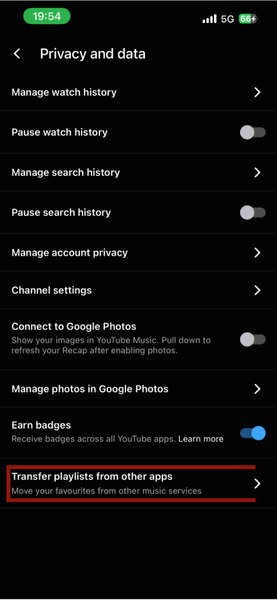
To transfer playlists from other apps, go to Profile -> Settings -> Privacy and data.
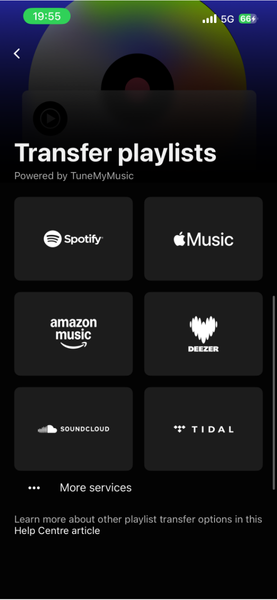
Tap Transfer playlists from other apps. You’ll be able to transfer playlists from Spotify, Apple Music, Amazon Music, Deezer, and others.
There are other ways to transfer your music using third-party apps, but if you’re on YouTube Premium, doing so directly from the app comes at no extra cost to you.
Note: music libraries vary between platforms, and some songs may be missing on Spotify, YouTube Music, or exist in different versions. In such cases, those songs won’t transfer over.
If you want to try YouTube Music and don’t have a premium subscription, there are ways to get a discount. And if you already use YouTube Music but want to move your tracks to Spotify, you can do so easily with Spotify’s new TuneMyMusic integration.








