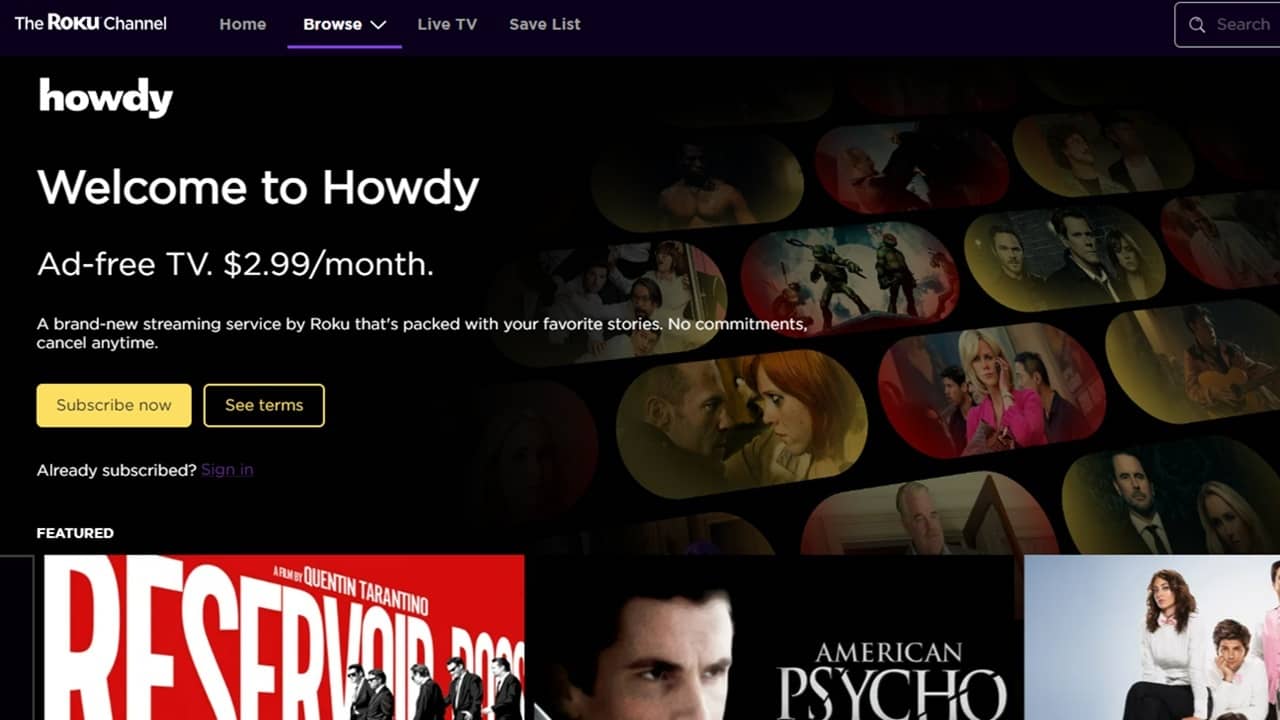
Roku launches Howdy, a cheap, ad-free streaming service in the crowded streaming market. However, Howdy will initially only be available on Roku devices. If you want to take advantage of this ultra cheap new service, but not a Roku device owner, there are a few ways to stream Howdy on any device or TV.
What is Howdy and What Makes it Different?
Howdy is a premium streaming service Roku launched in August 2025. It’s a way to help boost revenue, while providing the cheapest streaming service around. At just $3/month, the price alone sets it apart from the likes of Netflix, Disney+, Prime Video, and more.
The only problem is the library is relatively small, only offering around 10,000 hours of older movies and classic shows. After checking it out, I found it to essentially be most of the Roku Channel, but ad-free.
It’s designed to be a compliment to major streaming platforms or a nice ad-free add-on to FAST (free ad-supported TV) services. There’s no commitment and you’re free to cancel anytime.
Since it’s a Roku service, it makes sense that it’s initially only launching on Roku devices, the Roku website, and the Roku app. You won’t find it on other smart TVs, other brands of streaming boxes, or as a separate mobile app. Sure, Roku says Howdy will launch on other platforms in the future, but that could be months or years.
For now, you’ll have to use a few workarounds if you want to try out Howdy for yourself, but don’t have a Roku device.
Watch Howdy on Any Mobile Device and Desktop
Yes, a dedicated Howdy iOS or Android app would be more convenient. For now, you’re stuck using your favorite mobile browser instead. Since you’re doing this from the Roku site, the process works the same on your favorite desktop browser.
Visit The Roku Channel and create a free account. You don’t need a Roku device to do this. This also gives you access to create a save list of free ad-supported content from Roku.
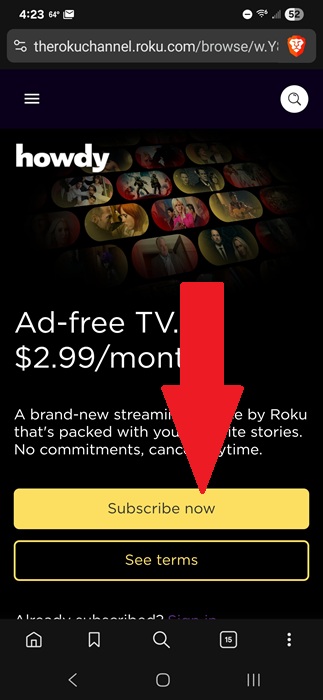
Visit Howdy on the Roku Channel. Browse what’s available before you sign up to make sure it’s right for you. You can even view some free episodes. If you haven’t subscribed, tap Subscribe now. You’ll sign up via your Roku account. This is also where you’ll manage your subscription in the future.
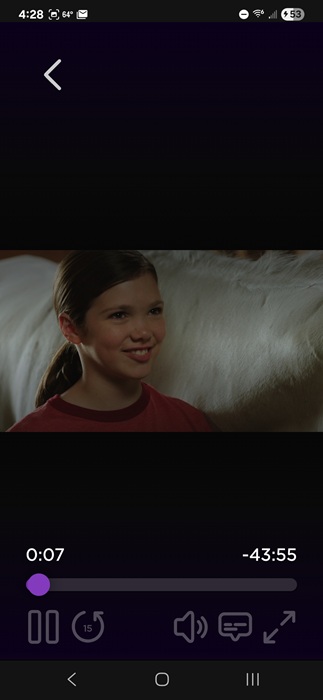
Now, you can watch any of the ad-free content on your mobile device. The player is surprisingly easy to use, especially on a mobile site. Large buttons make it easy to pause and play, along with enlarging the screen for landscape mode. I tried it on an episode of Heartland.
Leaving the site up all the time on phone or tablet isn’t ideal. So, either add the site as a bookmark or add a shortcut to it on your phone’s home screen or desktop screen. This guide steps you through the process on Android with Chrome, but it works almost exactly the same for other browsers and on iOS.
You can also use a third-party bookmark manager. This lets you sync your bookmarks between devices, no matter what browser you’re using. I personally prefer using Raindrop.
The downside is if you clear your cookies and/or history, you’ll have to log back in to access your account. A password manager helps you fill in the password quickly.
Stream on Your TV
You may love streaming shows and movies on your phone or tablet, but if you have a nice TV, why not stream Howdy on a larger screen? No, you don’t need a Roku device to do it. You just need to load the service on your mobile device and cast it to your TV.
For iOS and macOS
If you’re using iOS or macOS, you can usually use AirPlay to cast your screen to your TV. Ensure your device and TV/streaming box are on the same Wi-Fi network.
Look for the AirPlay icon (rectangle with small arrow) while streaming on Howdy in Safari (or another browser). Tap it, choose your TV or streaming box, and start watching. Your TV or streaming box must be compatible with AirPlay.
If that doesn’t work, mirror your screen. Open the Control Center on your iOS device and tap the Screen Mirroring button (two interlocked rectangles). Select your TV from the list and enjoy streaming on a larger screen.
For Android
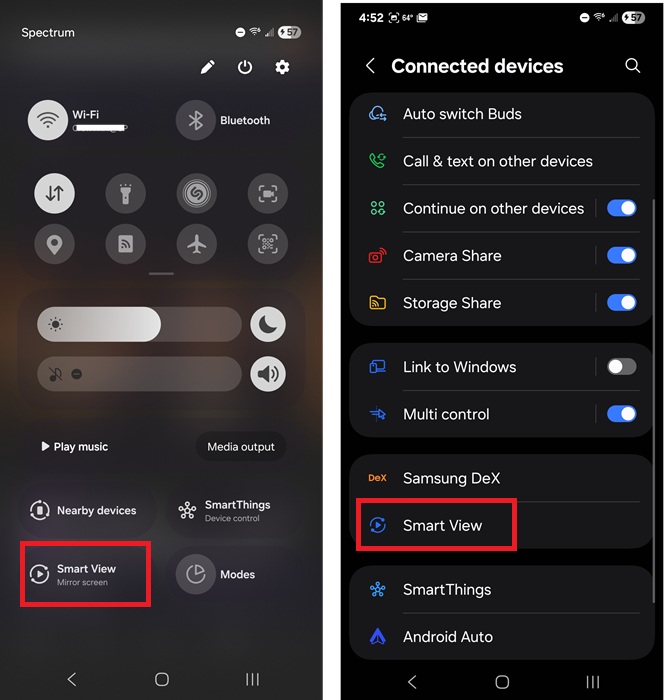
Your TV or streaming box must support casting from another device. While the exact steps vary based on your Android device, you’ll want to look for Smart View.
Pull down your Quick Settings menu and tap Smart View. If you don’t see it, go to Settings -> Connected Devices -> Smart View. Then, select your TV/streaming box.
You also have a few other methods for connecting your Android device to your TV or streaming box.
A dedicated app for TVs and mobile devices definitely would simplify the process. The only other option is to buy a cheap Roku device for just $30. This is perfect if you plan to keep streaming Howdy for a while and don’t want to keep using your phone or tablet.








