
When you don’t feel like scrolling through your Google search results, just create a Google Audio Overview. Building on the capabilities of NotebookLM, Google’s letting you summarize your results in an engaging podcast format.
How to Enable Audio Overviews for Podcasts
Google’s currently testing out a new Audio Overview feature. Since it’s still in a test phase, you have to enable the feature before you can try it.
Visit the Audio Overview Search Labs experiment and toggle the feature to on. Make sure you’re logged in to sync the setting across your devices. Otherwise, you may have to re-enable the feature every time you open your browser.
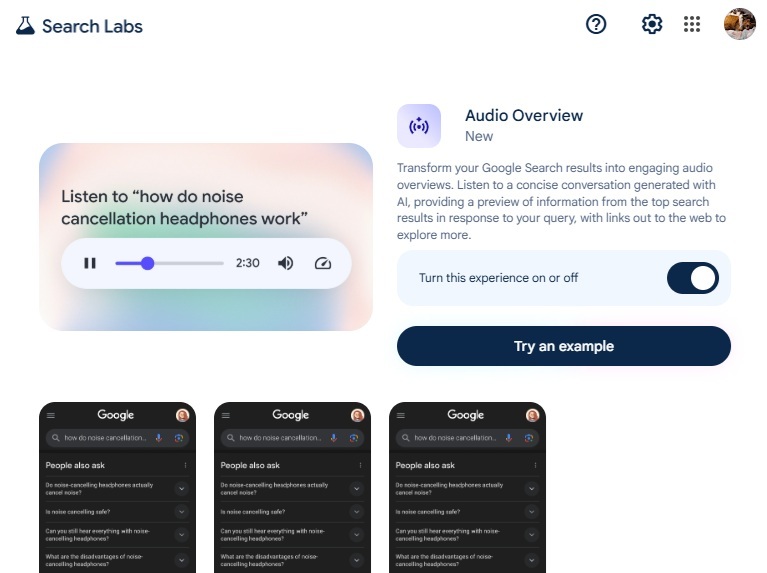
If you want to try it out before using it on your own search results, just press Try an example. The sample searches for “how to noise cancellation headphones work.”
Generating an Audio Overview
Make sure you’re logged in using the same account you used to turn on this experiment. Then, search Google normally.
At first, it’s hard to tell there’s a podcast available for your results. I’m not sure why it’s not listed with the AI Overview at the top of the search results, but it’s not.
Scroll down to just under the People also ask section to see Search Labs | Audio Overview. Press Generate Audio Overview. Google doesn’t generate these automatically to save on resources.
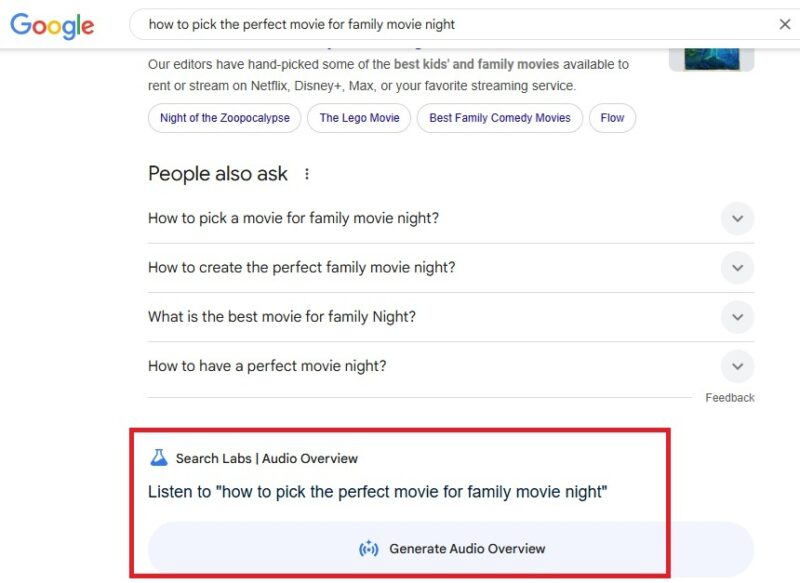
It may take a few minutes for the overview podcast to generate. Once it does, click the Play button to listen. Depending on the results, the audio overview is usually between 2-4 minutes.
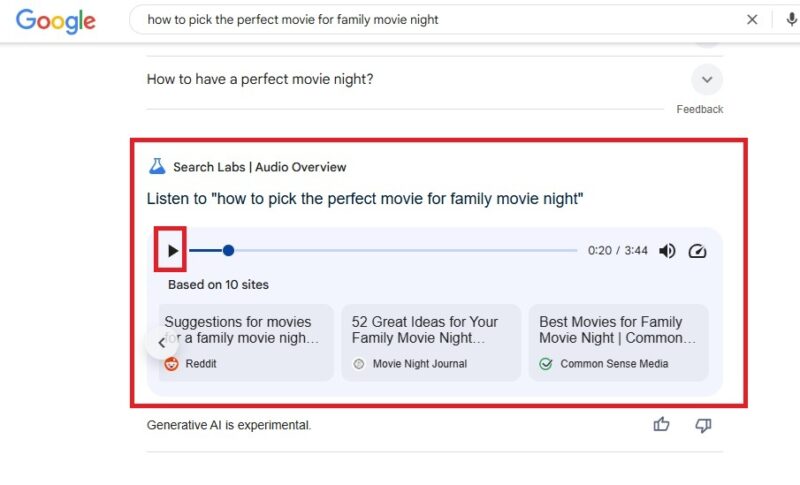
Two AI-generated voices go back and forth discussing your search results. For my test, it based the podcast-like overview on 10 results. So, this isn’t going to help you summarize pages of search results. You’ll have to mainly scroll to view more results. I know it’s a pain, but sometimes there are hidden gems past that first page of results.
Getting More From the Audio Player
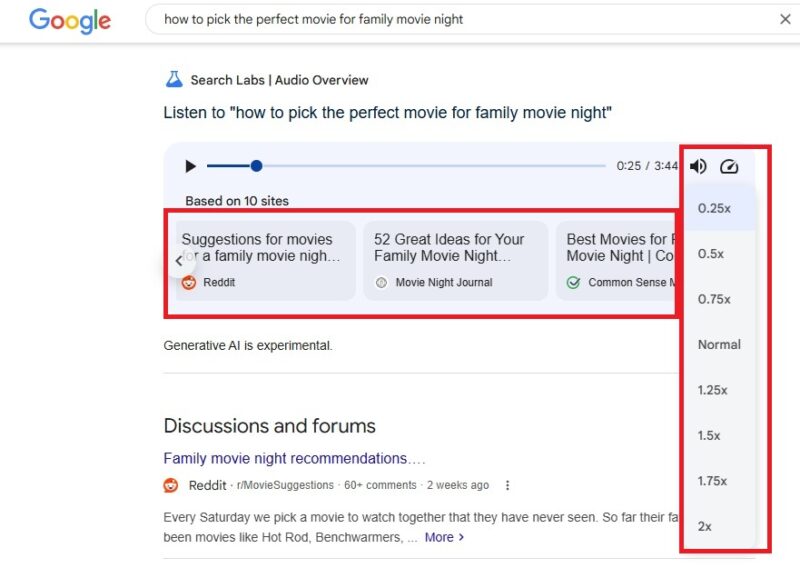
The audio player lets you do more than just listen. Got more important things to do? Speed up the audio up to twice the normal speed. Does it sound funny? Yes. Does it make search results more entertaining? Absolutely.
Or, slow things down if the AI voices get a little too excited. Honestly, the slowest speed just makes the entire overview sound incredibly dramatic.
There is one more thing. Since the overview only pulls from a certain number of search results, Google wants you to know which results are being used. Look just below the player itself to see a list of the sites used. Scroll to the side to view the entire list.
Not Widely Available Just Yet
During my tests, I’d say Audio Overviews were only available roughly half the time. Ironically, if I searched for “what are Google Audio Overviews,” I didn’t get the overview.
If you don’t see an option to generate the overview below the People also ask section, there isn’t one available. I’m not sure why these can’t auto-generate on any topic, but so far, it’s limited.
Not Always Accurate
Much like a normal podcast, sometimes these overview podcasts get a little off-topic. Don’t be surprised if the audio overview isn’t correct, doesn’t match up with the sources listed, or veers into a related topic midway.
Google even warns these use generative AI, which isn’t always perfect. I’d suggest checking out the provided sources to verify what you’ve heard, especially if something sounds off.
Use the thumbs up/down buttons to provide feedback to help Google improve the feature before it’s officially released.
Getting More Search Summaries
For queries Audio Overview doesn’t work with, you still have other options to get audio summaries. In sticking with Google, try importing sources into NotebookLM or upload documents to get audio summaries in Google Gemini.
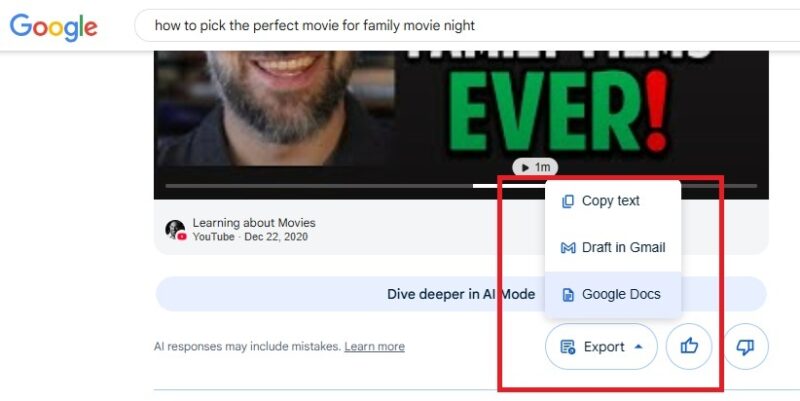
Another option is to export the AI Overview at the top of your search results as a Google Docs document and upload it to Google Gemini. Simply click the Export button just below the AI Overview and choose Google Docs. It’s a more time-consuming process, but it does work.
Of course, you can use any other AI tool to summarize content, export the document, and upload to Google Gemini to get an audio summary of it.
Another option is to use Copilot’s podcast feature. It may be too general, but you’re also able to define your sources in your query. It’s free to use, though free users only get a limited number of queries per week.
If you love saving time by summarizing content, see how to summarize your emails in Gmail. It’s a quicker way to finally reach inbox zero.








