
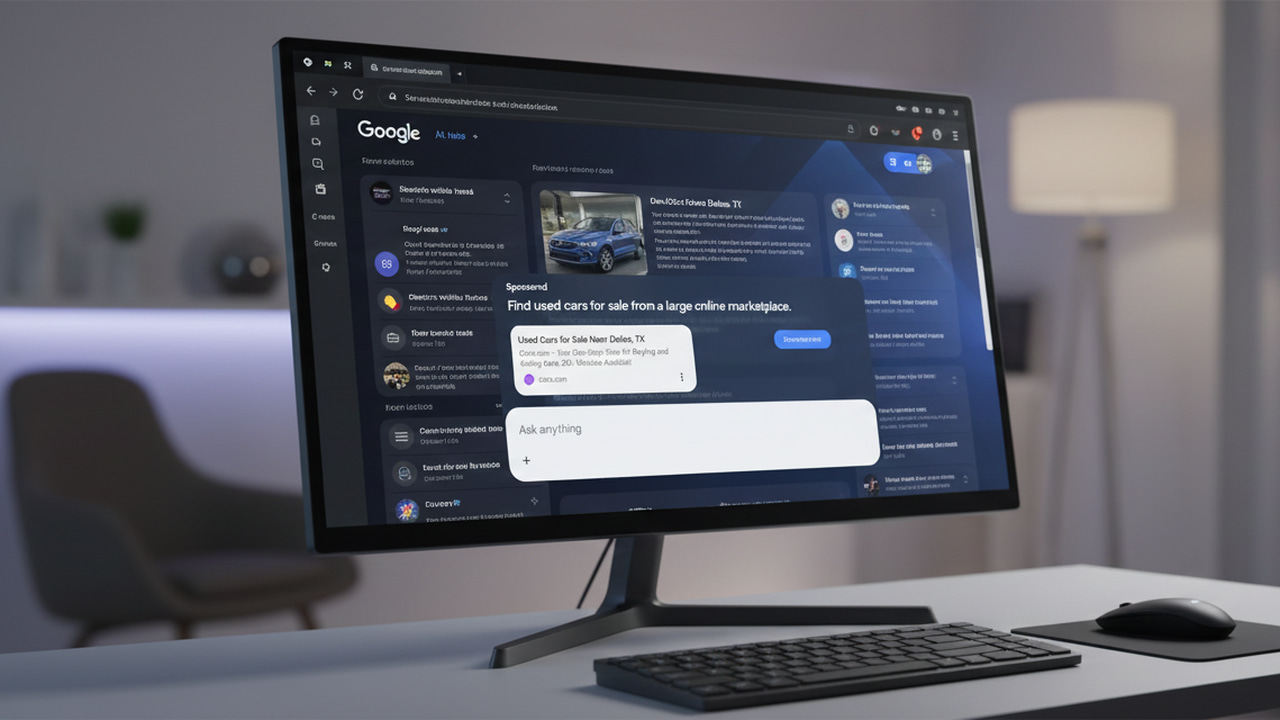

If you enjoyed an ad-free ride in Google Search AI Mode for the past few months, that has ended. Users are now seeing ads in AI Mode, and, frustratingly, most ad blockers are not blocking them. Let’s learn what new ads are in Google Search AI Mode and how you can block them.
How Ads Inside Google Search AI Mode Work
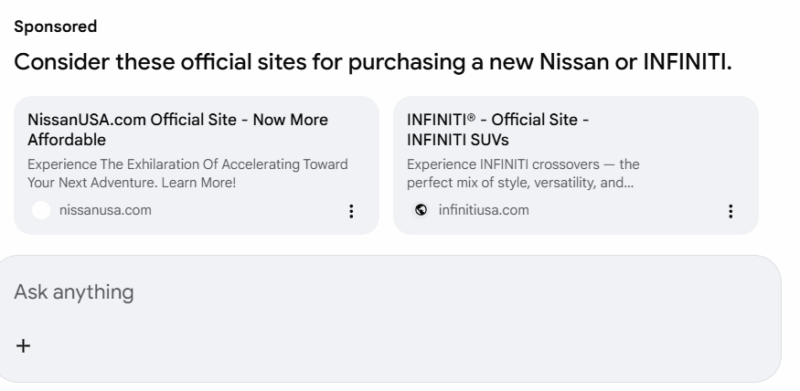
When you open the conversational AI Mode in Google Search, it can now show ads at the very bottom. So far, it seems Google is very selective with keywords and users to show ads. We tested many popular keywords from different locations using VPN, but only a few yielded results, and only within the USA locations.
As per reports and our tests, all ads seem to be at the very bottom of the conversation. They have “Sponsored” text at the top, with a seemingly AI-generated title that recommends the product/service below it. There are also reports of ad blockers not successfully blocking these ads, especially Manifest V3 compliant ad blockers.
Google is serving ads using the same-origin API calls as it does for its other services, so filter-based ad blockers aren’t working. To confirm, we tracked network connections for all requests during AI Mode conversations, and all requests were within Google’s ecosystem. What’s really bad is that the current element hiding methods don’t seem to be working either.
To block ads in Google Search AI Mode, you’ll need an ad blocker that is focused on blocking ads inside AI Mode, or manually block ad elements yourself. Below, we are listing two methods to reliably block ads in AI Mode:
Block AI Mode Ads using Bye Bye, Google AI
For a simple solution, you can get a Chrome extension that will automatically hide the sponsored section in AI Mode. The ads will still load, but you will not see them. We recommend Bye Bye, Google AI extension for this purpose. While its main function is to hide AI Overviews and AI Mode, it also has the option to block ads only.
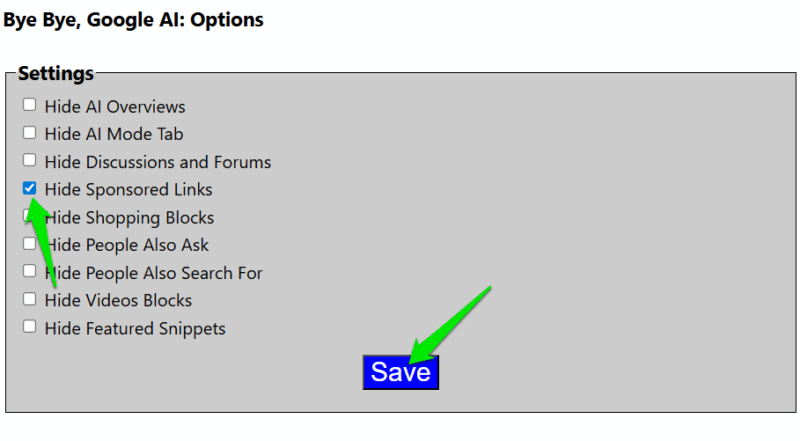
Just install the extension and open its options. Here, check the checkbox next to Hide Sponsored Links and click on Save. Now, reload the AI Mode conversation, and the ads will be removed from the bottom. In some cases, you might see white space.
The extension depends on Google keeping its page CSS static to work, which it often doesn’t. So, a new update can break the extension temporarily until the developer updates it. It may also not work perfectly on Chromium-based browsers other than Chrome.
Use uBlock Origin Element Picker Mode
If you want to take matters into your own hands, uBlock Origin’s element picker mode will give you complete control. While uBlock Origin may not block AI Mode consistently, you can manually target ads to block. Unfortunately, this function isn’t available on the uBlock Lite version that Chrome and most Chromium-based browsers support.
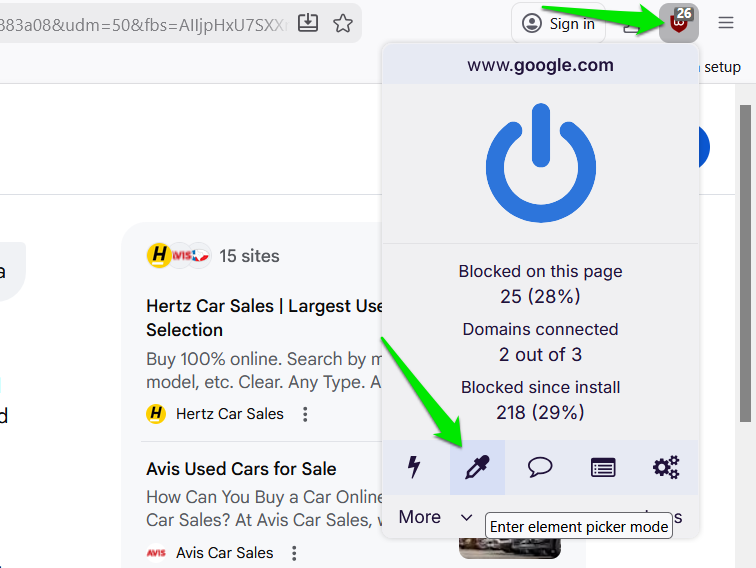
You need the original uBlock Origin extension, which you can either get on Firefox or manually install in Chrome using a workaround. You’ll have to use the element picker when an ad in Google Search AI Mode appears. Just click on the extension button and select the element picker at the bottom.
Now, hover over the ad, and it should turn pink. Ensure the full ad is selected along with the “Sponsored” text. You can also adjust the left slider on the CSS preview to have more control over area selection. Once selected, click on the Create button to create the filter.
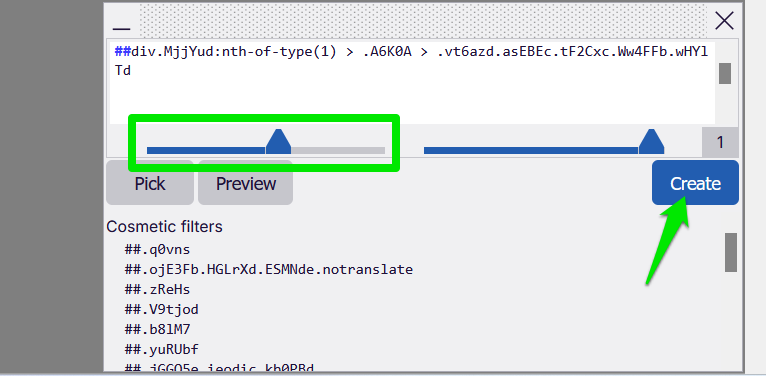
uBlock Origin will now automatically remove all sponsored content in AI Mode. Unless Google makes changes to page CSS, this filter should work. If it stops working, you can follow the same process to create another filter. You can remove this filter in the uBlock dashboard under the My filters section.
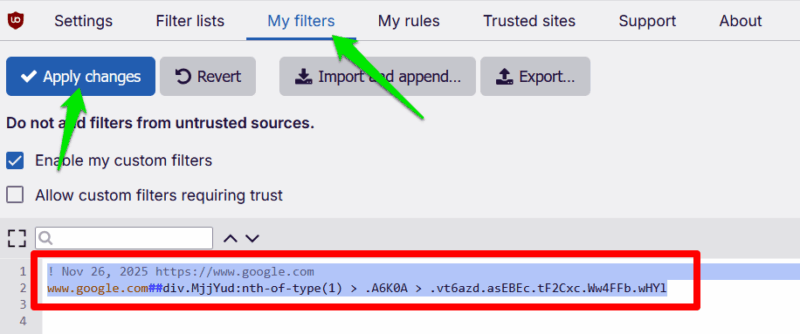
Google keeps making changes to the page CSS, so manually filtering and updating the filters is the best way to block ads in Google Search AI Mode. If you are tired of ads on your Android device as well, check out these ad-blocking apps.