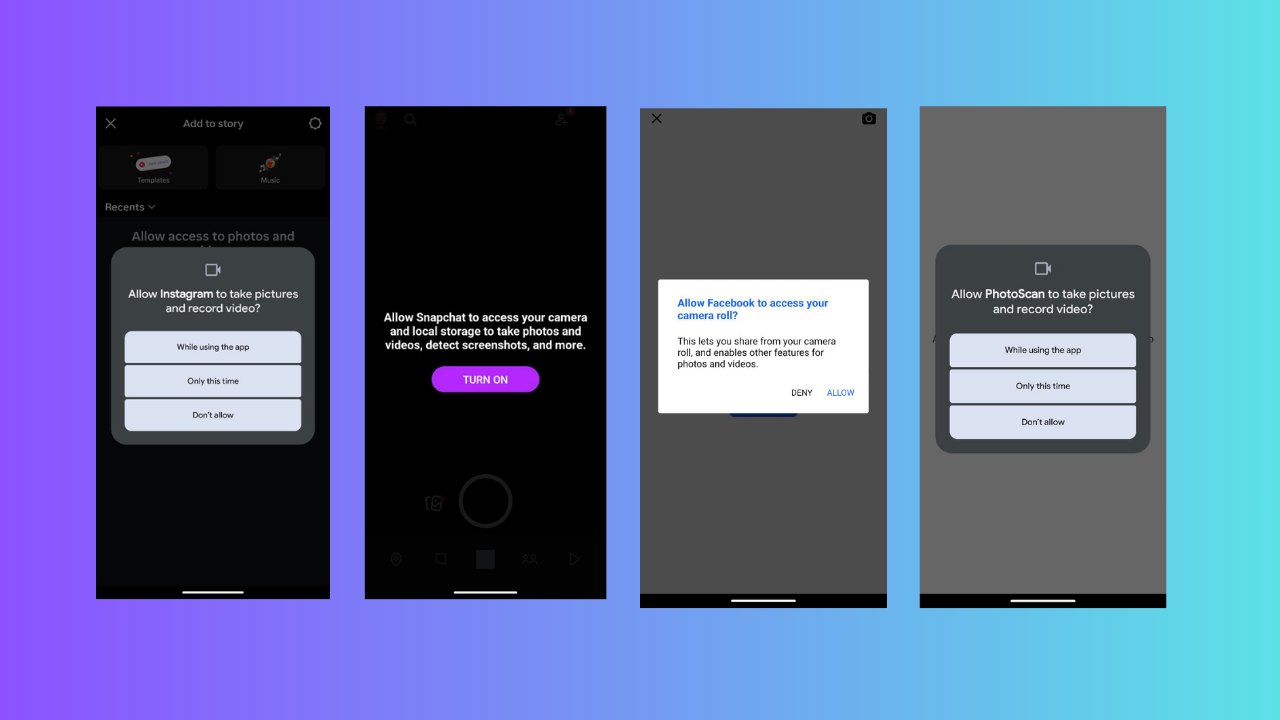
Your camera roll holds your life’s moments, but apps like Facebook might be sneaking a peek with its latest Meta’s cloud processing scan. The truth is, plenty of apps may already have access to your photos without you realizing it. Here’s a simple guide to quickly check which apps can access your photos and how you can stop them.
Why Apps Want Access to Your Photos
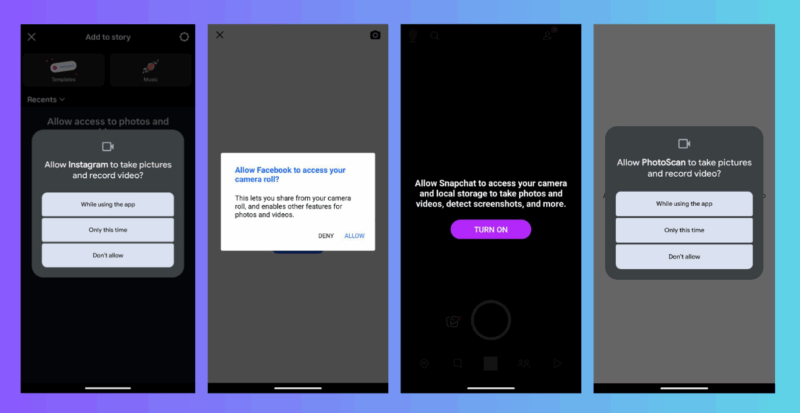
Apps ask for photo access for different reasons. Social platforms like Facebook and Instagram use your photos for AI-driven features like collages, recaps, or story suggestions.
Cloud storage apps back them up automatically. Even seemingly harmless apps like collage makers or editing apps might quietly scan your entire roll for no clear reason.
The risk is big and the stakes are high. Photos contain sensitive details like faces, locations, or even home addresses through metadata.
If apps access and analyze this data without clear consent, you’re exposed since you lose visibility into how that data is stored, shared, or even used.
Meta’s recent camera roll scanning for cloud processing shows how easily permissions can be stretched, but it’s not just them. If you’re already concerned about Meta, see how Instagram and Facebook rank as top privacy offenders.
Which Apps Might Be Scanning Your Photos?
Social media apps are the most obvious culprits, but they’re not the only ones accessing your camera roll.
Photo editing apps often demand full account access when only selected photos would do. Collage makers may scan your roll for templates, even if you’re working on just one image.
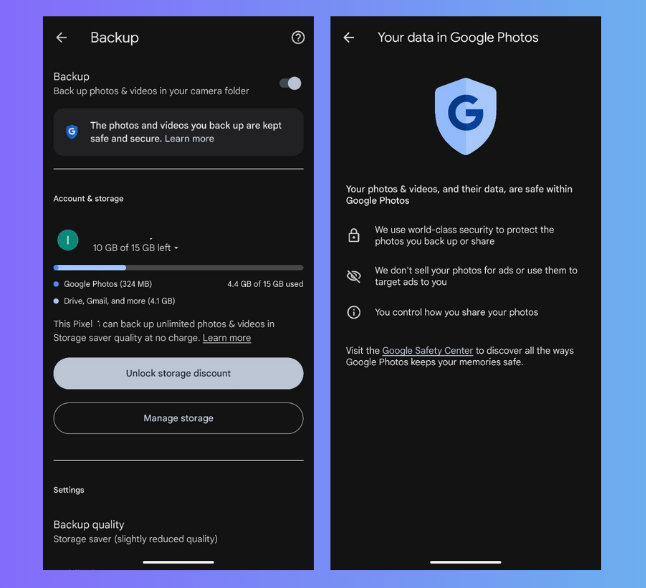
Cloud services like Google Photos or iCloud automatically back up your entire library unless you opt out. Google Photos, for instance, offers on-device processing, which feels safer than Meta’s cloud uploads.
The key is to know which ones have access, what their intentions are, and how to limit them when possible. To tighten your privacy, you can explore ways to protect privacy and security on Android here.
Run a Quick Camera Roll Privacy Audit
A privacy audit only takes a few minutes and can stop apps scanning camera roll content.
On iOS, head to Settings -> Privacy -> Photos. You’ll see a list of apps and their access to all photos, selected photos, or none. Set apps you don’t trust to None.
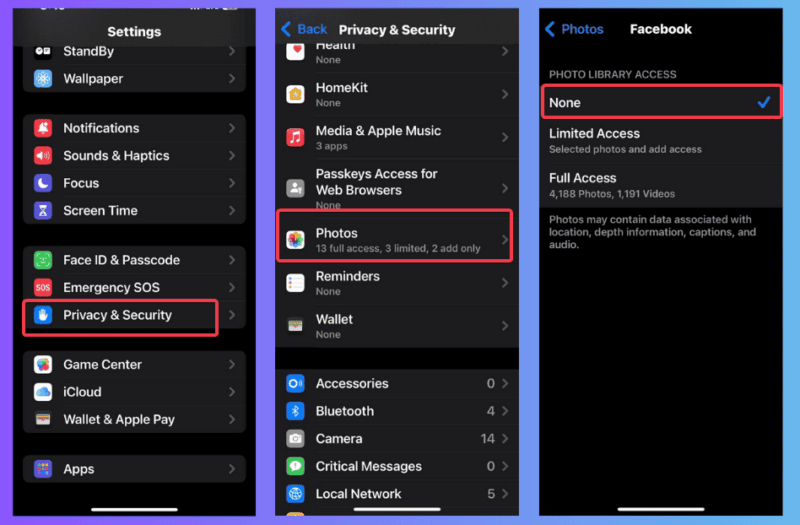
On Android, check Settings -> Security & Privacy -> Permissions. Tap on Camera, then on Photos and Videos, and limit access or revoke permissions.
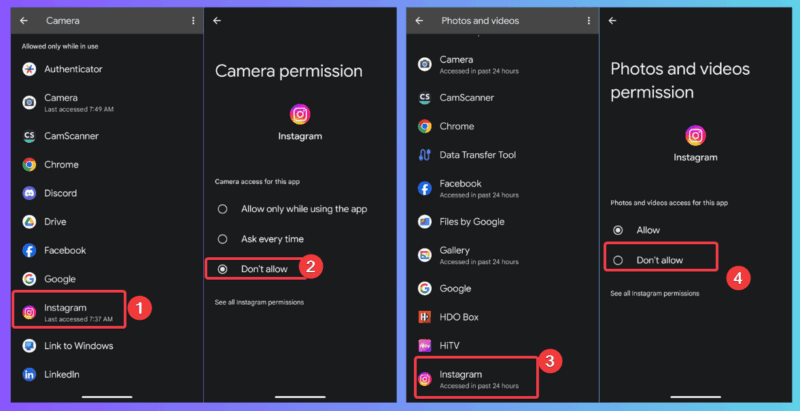
If you want to go deeper, you can review individual apps. We’ll use Facebook and Google Photos as examples:
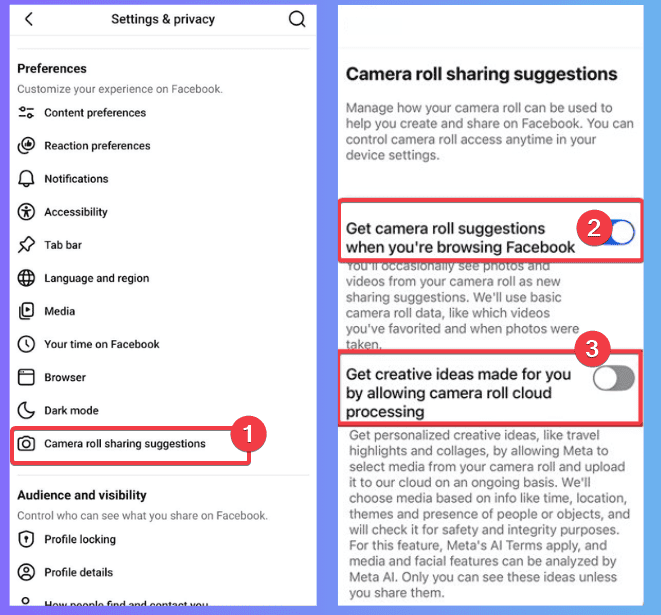
- Facebook: Tap Menu -> Settings & Privacy -> Settings -> Camera roll sharing suggestions and turn off both toggles. I found Facebook’s scanning enabled on my phone without a clear prompt, which is annoying, but fixable.
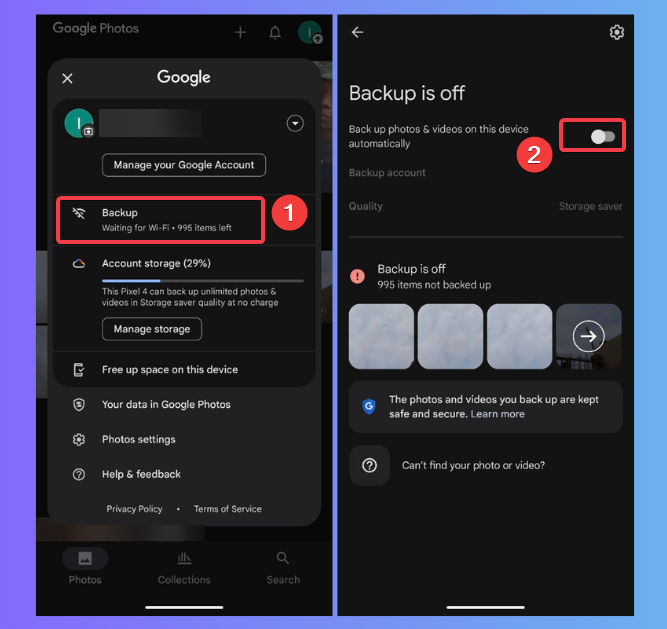
- Google Photos: turn off automatic backup to prevent every image from being uploaded. This is also applicable to apps like iCloud, OneDrive, and other storage apps.
Regular audits keep apps in check from extending their permissions under the radar. If you’re unsure which permissions are too broad, check which apps also track your location too alongside photos.
Secure Your Photos with This Privacy Checklist
Beyond permissions, you can protect your photos with these extra steps:
- Turn off auto-sync in Google Photos or iCloud to keep photos local.
- Use offline editing apps like Snapseed to avoid cloud data upload.
- Strip metadata by taking screenshots before sharing your sensitive photos.
- Always review permissions monthly or after every update and delete unused apps.
I started screenshotting photos before posting online, and it’s become second nature. These habits ensure apps don’t sneak into your camera roll unnoticed. If you’re serious about limiting Meta’s reach, see how to cut down data sharing with Meta.
Stay in Control of Your Digital Privacy
Meta’s Camera roll scanning is a reminder of how apps exploit default settings to cause privacy lapses quietly. By running a quick audit, you can stop apps from scanning camera roll data for good.
Make it a habit to review your permissions, and you’ll regain control of your digital privacy. For more privacy tips, these essential Android privacy settings will safeguard your phone. Share your audit tips in the comments!