You likely do a great job vetting Chrome extensions before installing them. However, what happens if an extension changes hands and falls under the control of a malicious actor? Ownership transfers are common, yet users are never notified of the change. Let’s look at how these transfers pose a threat and how you can stay protected.
Why Chrome Extension Ownership Transfer is a Threat to You
Installing a Chrome extension is more than just the installation of code; you are trusting the extension provider and giving them permission to access your data. The problem is that this trust is a sellable asset, as it’s very easy to sell a Chrome extension to anyone without any intervention from the extension users.
You may trust the developer with your data and provide all the permissions to manage your data. However, the developer can sell the extension to another person while still retaining the permissions you gave. If the new owner has malicious intentions, they can not only harvest your data but also manipulate the extension code for malicious actions.
To make matters worse, buying/selling Chrome extensions is very common, and the process is simple. They are sold on auction websites like Flippa or Acquire.com all the time, and the transfer process is as simple as filling out a Google form. After the transfer, there is no indication other than the developer details changing.
How a Malicious Actor Can Infect a Legitimate Extension
Now the question remains, what’s the difference between a malicious extension and a legitimate extension getting infected later? Shouldn’t Google’s vetting process catch them just like other malicious extensions? Well, malicious actors use a multi-step infection process to stay hidden as long as possible, which is usually enough to achieve their goals.

They don’t inject malicious code immediately. They heavily depend on the Command & Control (C2) server to download actual malicious instructions. Even if they do need content scripts or iframe elements, they initially introduce them for legitimate extension functions. Afterward, based on triggers, the C2 server sends instructions to execute the job, such as stealing credentials, injecting affiliate links, or creating botnets.
While this helps avoid Google’s automatic vetting system, eventually, infected extensions are caught by manual reports and security experts. This is why malicious actors target extensions with a large user base that already have elevated permissions, such as automation extensions or content download extensions (often used by designers and writers). By the time malicious activity is detected, tens of thousands of users are already compromised.
The recent takeover of the Save Image as Type Chrome extension, which led to affiliate commission fraud, is a good example of how an extension’s ownership transfer can quietly enable malicious attacks.
How to Stay Safe from Malicious Activities After Extension Ownership Transfer
You won’t receive any notification if an extension’s owner changes, and it isn’t feasible to check all your extensions’ official pages periodically to catch an ownership transfer. While Chrome won’t tell you about ownership changes, you can take the following proactive measures to protect yourself:
Restrict Site Access for Chrome Extensions
Many extensions depend on “Read and change all your data on the websites you visit” permission, which is exactly the type of extensions malicious actors target. Thankfully, you can limit this access in Chrome to only allow it on specific websites or when you click the extension icon. Here’s how:
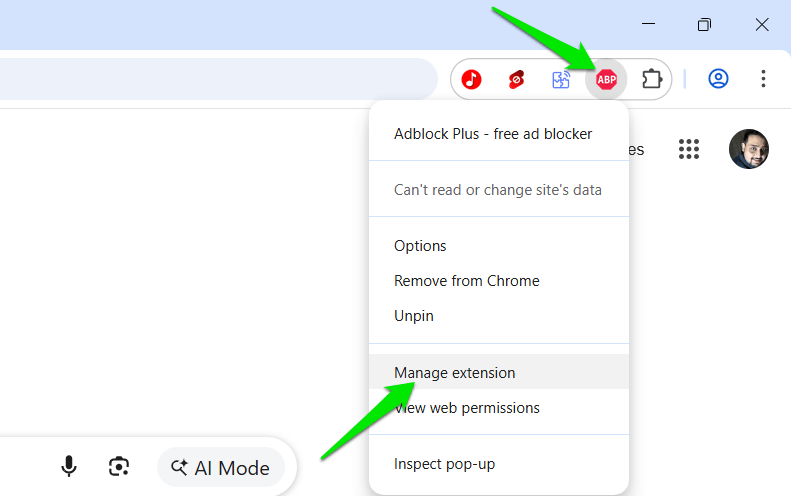
Right-click the extension icon in the toolbar and select Manage extension.
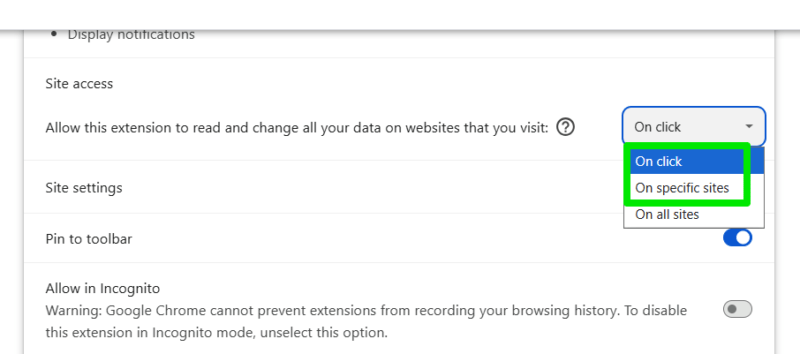
Under Site access, select On click, and the extension will only activate when you manually click it, preventing any background actions. If the extensions depend on working automatically, then choose the On specific sites option and provide the website URLs where you want to use the extension. Repeat this for all extensions with site access permission.
Enable Chrome Enhanced Protection
Chrome has an Enhanced Protection mode that can protect you from many attacks that such infected extensions can execute. Among other things, this mode scans pages in real-time and detects malicious behavior to warn you. Since most attacks by extensions change the page behavior, Chrome’s Enhanced Protection mode will detect them and warn you. Here’s a complete guide to enable Chrome Enhanced Protection mode and its benefits.
Get Notification for Chrome Extension Ownership Change
While Chrome doesn’t provide notifications for ownership change, you can get this with the help of the Under New Management Chrome extension. This extension keeps track of the Chrome Web Store pages of all your extensions and notifies you if any developer information changes, including name, email, and website.
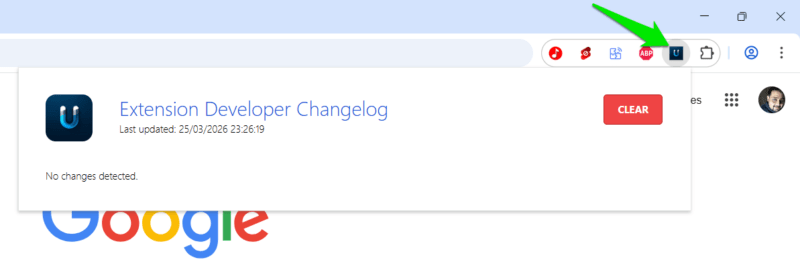
It checks for this information periodically and shows a red badge on its icon if a change is detected. You can click on the extension to get a detailed log of changes.
It’s worth mentioning that not all ownership transfers are malicious. It’s a common practice, often nothing more than a business transaction. If you detect a change, check the new details to decide if they are worth trusting. You might also be interested in these Chrome security extensions for more protection.