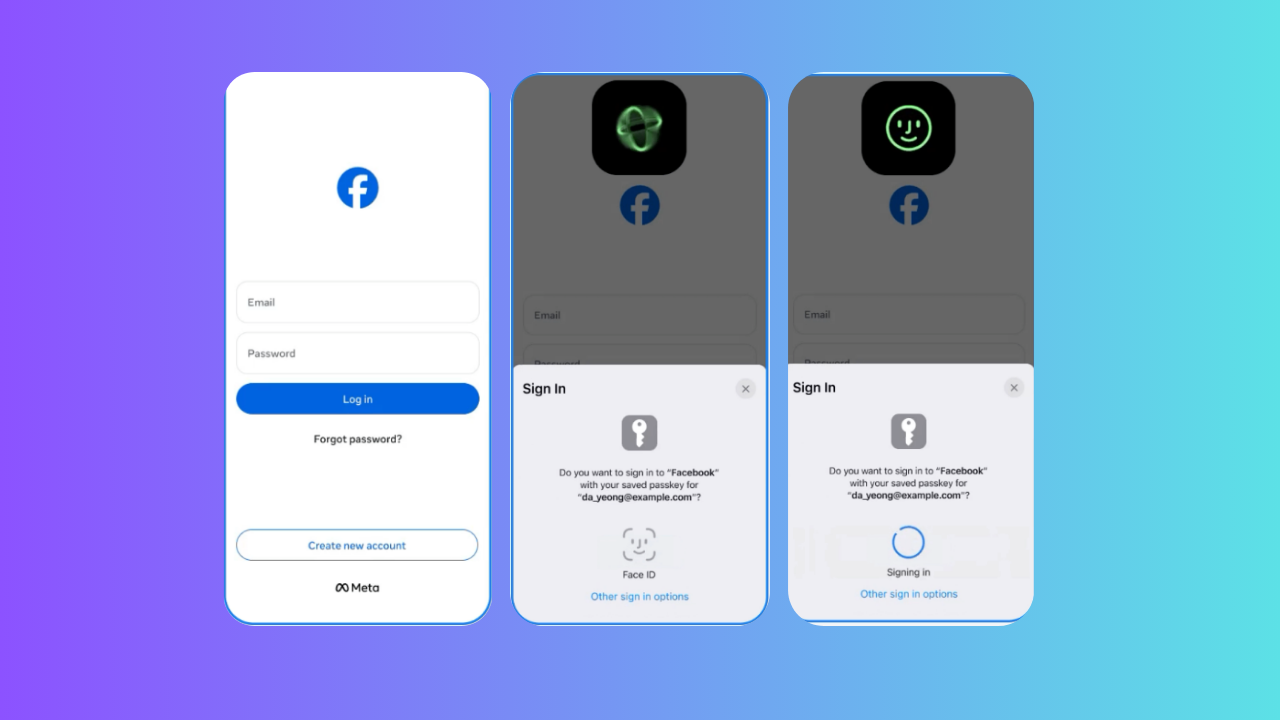
Passkeys are the new standard for securely logging into your accounts without a password. Now that Facebook is finally adopting, you can easily log into your account using Face ID, Touch ID, or a PIN. This makes logging in a breeze while keeping hackers away. Facebook’s support is currently limited to iOS and Android apps, with Messenger support expected soon. This guide will explain how to set up Facebook passkeys on your phone for a safer and easier login.
Why Use Passkeys for Facebook?
Setting up passkeys for your Facebook account is a security boost. Unlike before, where you had to rely on passwords, which can be easily hacked or guessed, passkeys are almost impossible to hack because they rely on your phone’s PIN and biometrics.
Also, they’re so easy to use with no need for typing long, complicated passwords.
Besides, you can use the same passkeys for both the main app and Messenger (once supported). Plus, setting up passkeys on Facebook allows you to autofill payment info with Meta Pay and secure encrypted Messenger chats.
Note: you still need a password for non-mobile devices login, ensure to set up two-factor (2FA). If you’re curious about their differences, you can check out our comparison on how passkeys stack up against 2FA.
Set Up Passkeys for Facebook
To set up Facebook passkeys on your phone, you need to update the app. Make sure you have the latest version installed.
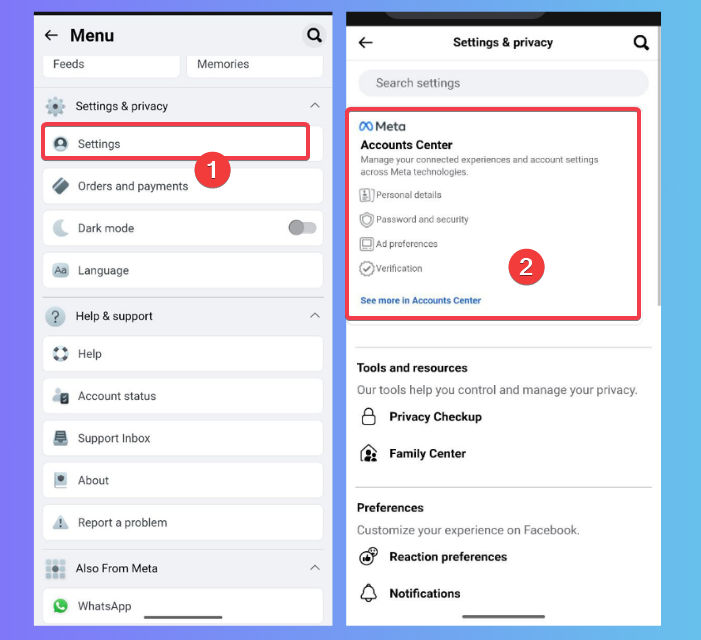
Launch the app, tap the Menu, then go to Settings & Privacy -> Settings -> Accounts Center.
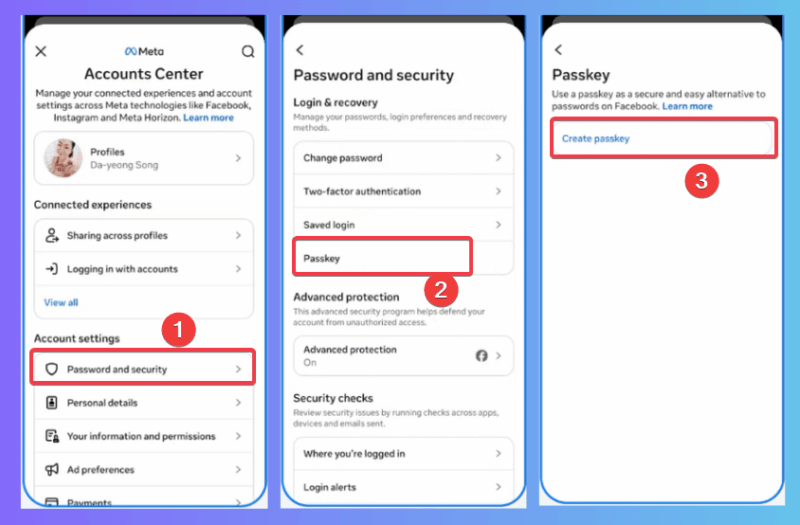
Tap Password and Security, choose Passkeys, and hit Create Passkey.
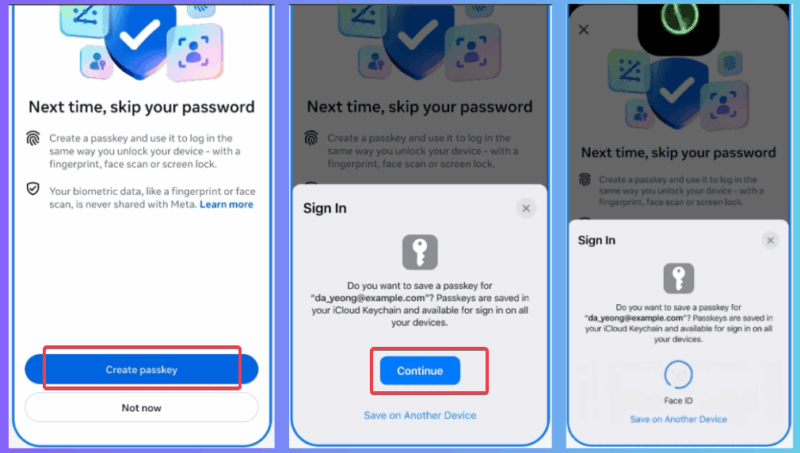
Enter your Facebook password, then follow the prompts to confirm with Face ID, Touch ID, or your Device PIN to create a passkey.
To verify, log out of your account and log back in using your biometric or PIN.
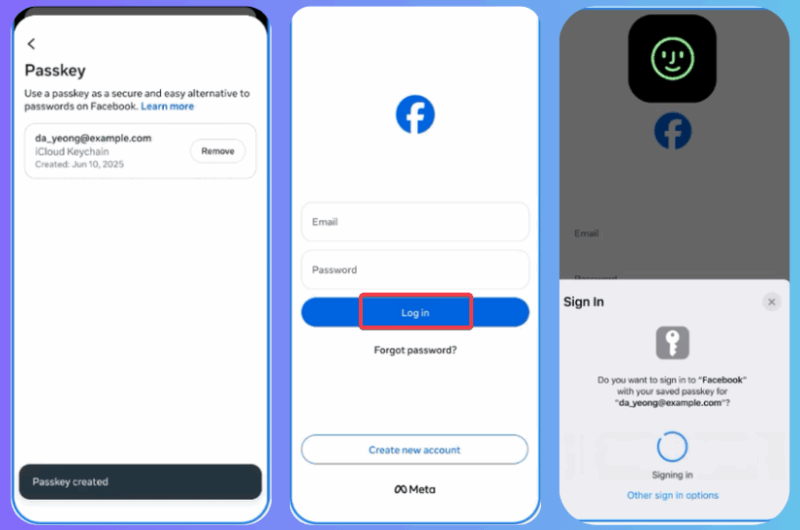
Note: If you don’t see the option to set up Facebook passkeys, double-check for app updates or wait for the rollout in your region.
Should you want to set up passkeys elsewhere, try this guide to create a Microsoft passkey for another secure login option.
Tips for a Secure Facebook Account
To keep your Facebook account safe, ensure you use a strong, unique, complex password for non-passkey logins. If you forget your password, here’s how to recover your Facebook account.
Use app-based or security key 2FA when enabling two-factor authentication. Avoid SMS-based options for better security from hackers.
Consistently monitor account activity in the Accounts Center to spot suspicious login sessions.
Setting up a Facebook passkey is the best, so keep an eye out for Messenger and desktop integration. Although Facebook has yet to announce the date but it should be within the next few months.
For more ways to protect your account, you can revisit the Facebook privacy settings.
Facebook passkeys set up is an easy way to boost your account’s security, simplify logins, and protect your activities. If the feature is present on your app, try the steps out and let us know how it went in the comments!








