

Blue ticks tell the sender you have opened their chat. If you want to see what a message says now and reply later, a few options let you read it without tapping into the conversation, and WhatsApp has a setting that switches the receipts off.
One limit applies to everything below. According to the WhatsApp Help Center, turning off read receipts does not disable read receipts for group chats or play receipts for voice messages, and there is no way to turn those off. In a group chat, or with a voice note, the privacy setting will not cover you, so the only route is to avoid opening or playing the message in WhatsApp.
1. Read the message from the notification preview
The quickest option is the notification itself. When a WhatsApp message arrives on Android, swipe down on the notification, or tap the downward arrow on it, to expand the preview. On iPhone, press and hold the notification to preview it.

How much text you see depends on the phone, the screen and your notification settings. Short messages usually fit. Longer ones get cut off, and tapping through to read the rest opens the chat in WhatsApp, which defeats the point. Treat this as a quick look at short messages rather than a dependable way to read everything.
2. Use the WhatsApp widget on Android
The WhatsApp widget on Android lists unread chats on the home screen, and you can scroll it without launching the app. That helps when messages have stacked up and the notifications are already cleared.
Press and hold an empty part of the home screen, tap Widgets, scroll to the WhatsApp section, then place the WhatsApp 4×2 widget on the home screen. Unread messages appear in it as they arrive and stay there until the chat is opened. Scroll through the widget rather than tapping an entry, since tapping opens the chat in WhatsApp. Widget names and sizes vary by launcher and by WhatsApp version, so the layout on your phone may differ.


3. Ask Gemini to read your WhatsApp notifications on Android
On Android, the Gemini mobile app can read and reply to messages in your notifications, including messages from WhatsApp. Google’s help pages say this runs through the Device assistance connected app, formerly called Utilities, so Gemini reads the notification rather than opening the chat. Gemini cannot read or summarise messages directly in WhatsApp, and it cannot go through your WhatsApp message history.
The Google app needs notification access first. Open your device settings and tap Apps > Special app access > Notification read, reply & control > Google, then turn on Allow notification access. If your phone does not have that menu, Google gives a second path: Apps > More > Special access > Notification access, then turn on Google. Google notes that some steps vary by device and Android version.
Then open Gemini and use one of Google’s documented prompts:
- “Play my WhatsApp messages.”
- “Read all my messages in full.”
- “What messages did I get from [contact name]?”
- “Read my messages from my [group name] group.”
Three points before you rely on it. Google says these notification actions are being released gradually, so they may not have reached your phone yet. Gemini cannot read or play voice, image or video messages. And it summarises lengthy messages and conversations to save time, so ask it to read them in full when you want the exact wording. Google lists Device assistance as available only in the Gemini mobile app on Android.
4. Turn off read receipts in WhatsApp
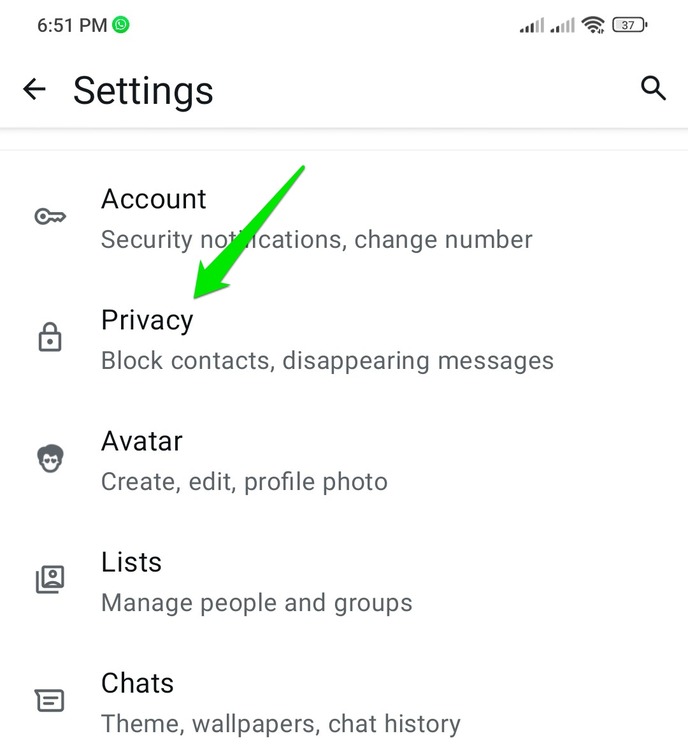
To read messages in the app without sending blue ticks, switch the receipts off first. In WhatsApp, go to Settings > Privacy and turn off Read receipts. WhatsApp lists disabled read receipts as one of the reasons a sender does not see two blue check marks.

The Help Center also sets out what the setting does not cover:
- It does not disable read receipts for group chats or play receipts for voice messages, and there is no way to turn those off.
- With it off, you will not see read receipts from other people either.
- You might not be able to see who views your status, and others might not be able to see when you view theirs.
Use it for one-to-one text, and for media you would rather open in the app. It will not hide you in a group thread or when you play someone’s voice note.
5. Hover over the chat in WhatsApp on a computer
If you are signed in to WhatsApp in a browser or the desktop app, you can sometimes see more of a message without clicking into the chat. Rest the mouse pointer on the message preview in the chat list and a larger preview of the text can appear.

How much you get depends on the length of the message and the size of the window, and WhatsApp does not document the behaviour, so it can change between releases. Clicking the chat opens it, with the usual receipts, so hover only.
6. Open received media from the Android media folder
Photos, videos and voice notes are the awkward case, since the text-based options above do not cover them and play receipts for voice messages cannot be switched off. On Android, WhatsApp saves downloaded media to local storage, which you can browse with a file manager app.
On recent Android versions, open the Files app and go to Internal storage > Android > media > com.whatsapp > WhatsApp > Media. Videos sit in the WhatsApp Video folder, photos in WhatsApp Images and voice notes in WhatsApp Voice Notes. Files only appear there once WhatsApp has downloaded them, so anything still waiting on a manual download in the chat will not be in the folder. Filenames are not descriptive, so sort by date or check timestamps to find the right one.

Reading messages outside the app may also help with cutting down WhatsApp spam, on the reasoning that a read receipt confirms the number is active, though WhatsApp does not document that. For more settings in this area, see these WhatsApp privacy features.