TikTok now allows you to reduce AI content in your TikTok feed through a new slider in your settings. If your For You Page feels overrun with AI-generated videos, this update finally gives you meaningful control.
What the AI Content Slider Does
TikTok’s new AI content slider adjusts how much AI-generated content appears in your feed. It doesn’t completely remove synthetic clips, but it gives you a reliable way to reduce AI content in your TikTok For You Page (FYP) when your recommendations start to feel repetitive or low quality.
TikTok’s improved detection system supports this. It now uses C2PA content credential metadata and an invisible watermarking system to identify AI content created with tools like TikTok AI, Sora, CapCut AI, and others. So, when you move the slider to see less, it reads the markers and adjusts how often those videos appear.
How to Access and Adjust the Slider
Note: This feature is gradually rolling out worldwide over the next few weeks. So, if it’s not yet visible, update your TikTok and try again in a day or two.
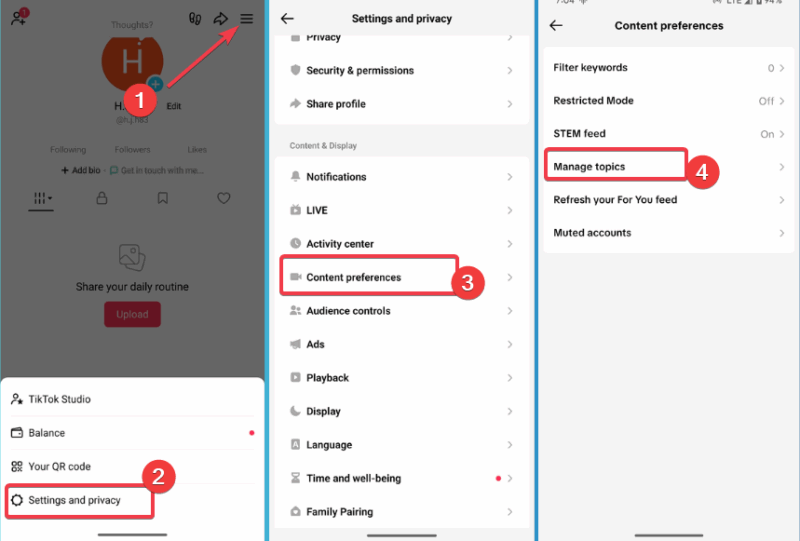
To access this slider, tap Profile and tap the hamburger menu in the top right. Then, navigate to Settings & privacy -> Content & display -> Content preferences -> Manage topics.
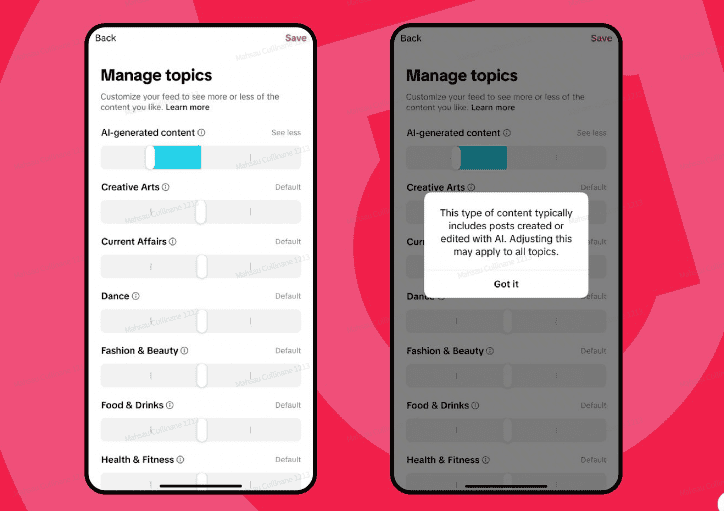
Look for AI-generated content and slide fully left to reduce it. Changes appear gradually as you scroll through your feed.
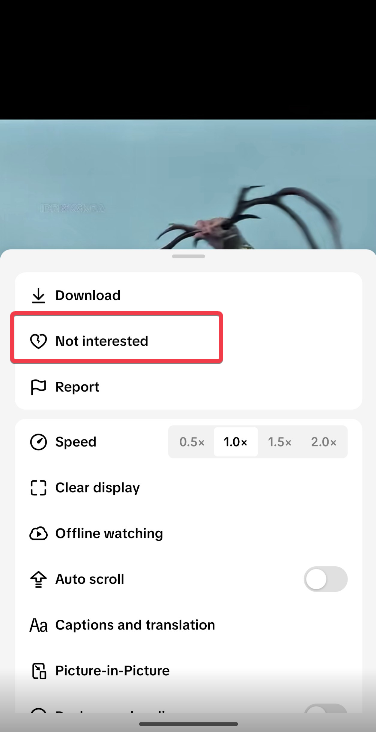
For faster results, long-press any training AI video, and tap Not interested. This basically trains the algorithms twice to stop generating AI content you don’t like.
You can learn more about customizing your TikTok For You Page if you want more control over retraining the algorithms for your feeds.
Limitations & What to Watch Out For
Even though this update is a solid step forward, it’s not flawless. You can’t block all AI content because detection isn’t flawless. The tool only works on properly labeled videos. So, heavily edited clips or externally generated videos can confuse detection. Besides, TikTok will not allow the slider to remove AI content completely.
The slider only affects the For You Page, so you may still see AI clips through search or the Following tab.
Invisible watermarks are proprietary. Hence, only TikTok can read them, which limits transparency. You can’t say for certain why a particular video is flagged as AI content over others.
Also, algorithmic changes take time. The slider will influence recommendations based on your behavior rather than enforce a hard filter.
Despite these limits, it’s the most effective way yet to reduce AI content in your TikTok feed. You can pair it with these markers to easily detect AI-generated content faster.
Block Artificial Intelligence and AI Keywords
This only works if videos are labeled as AI or artificial intelligence. Otherwise, this won’t block the video. Also, this setting will also block AI tutorials, even if they’re completely human-generated.
Tap your profile, open the hamburger menu, and select Settings and privacy -> Content preferences -> Filter keywords. Tap Add keyword. Enter AI in the box and turn on Smart filter to also filter out related keywords.
If you want to reduce AI content on TikTok as much as possible, select all feeds to filter. Or, you can just filter from specific feeds. Tap Save when you’re done.
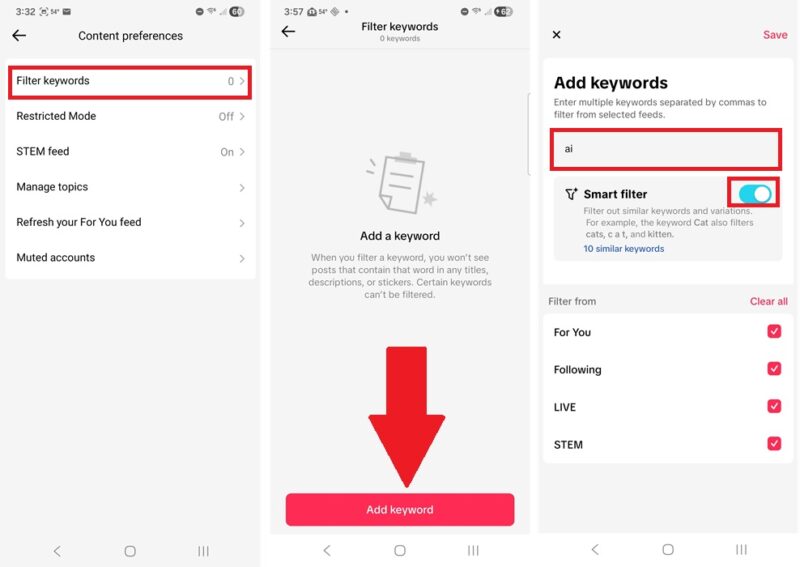
If you notice other specific keywords or hashtags on AI content you’re seeing, block those as well.
This won’t block any accounts you follow, though you might not see the content in your feed any longer. You’ll have to view the accounts directly.
Reset an AI Infested Feed
You could look at a hundred human-generated clips, but accidentally check out one AI-generated video and suddenly that’s all you’re seeing in your FYP. Of course, the more that appear, the more TikTok thinks you want to see AI content.
TikTok lets you reset your feed to help you start over. This doesn’t remove any creators you follow. It just lets you start your feed over.
Tap your profile, tap the hamburger menu at the top right, and tap Settings and privacy -> Content preferences -> Refresh your For Your feed. Tap Start.
Choose any and all reasons you’re resetting your feed. Then tap Submit.
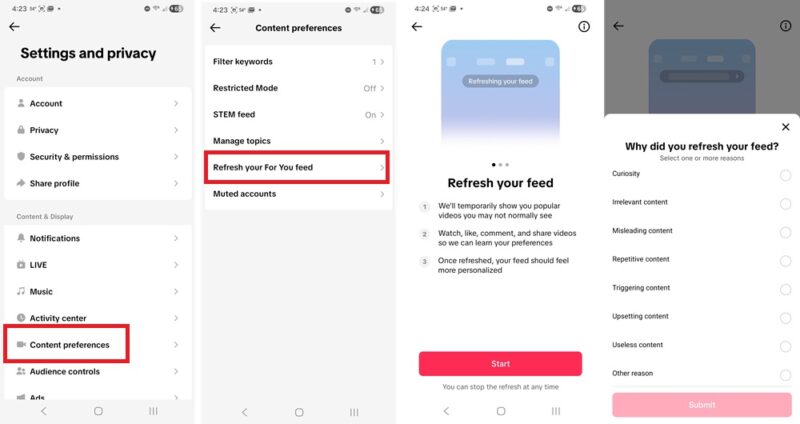
This starts you over with popular content. Choose videos you interact with carefully to create a better For You feed.
This doesn’t reset any other feeds. Only the For You feed.
Why Control AI Now?
AI content has exploded across TikTok in 2024 and 2025. A lot of it is low-effort spam that’s good enough to game the algorithm but boring and repetitive to watch. Hence, it creates user fatigue while crowding out human-made content.
By letting people reduce AI content in their FYP, TikTok is responding to a growing fatigue around AI slop. TikTok also announced a $2 million AI-literacy initiative because even they know people are fed up.
This slider isn’t charity; it’s a form of damage control before creators and users jump ship. Pinterest, Instagram, and YouTube are facing the same challenge, and everyone’s racing to add similar controls before regulators force their hand.
While you wait for the slider to reach your account, keep your TikTok experience secure with these essential TikTok privacy settings.
TikTok’s new slider is the simplest and most powerful way to reduce AI content in your TikTok feed today. Update the app, navigate to the settings, and slide the slider to the left. Your For You Page will feel fresh and human again within a few scrolls.
For similar fixes on other apps, learn how to reset the Instagram algorithm or filter AI-generated images in DuckDuckGo search.









