
Rust is among the system programming languages used in Google Chrome’s backend. Recently, a Rust-based malware called EDDIESTEALER began attacking Chrome users through fake CAPTCHA verification pages. This isn’t the first time, as similar incidents have been reported before. Below are solutions to protect your Google Chrome browser from Rust malware threats.
Rust Malware in Chrome: Why It’s So Effective
Rust-based malware is highly effective in Google Chrome because it hides its code using social engineering while bypassing Chrome’s app bound encryption, introduced in version 127. Rust uses string and API obfuscation, self deletion, and multi-stage payloads to sneak malware into web browsers. Chrome’s widespread use and user trust make it the biggest target.
EDDIESTEALER is a recent Rust-based infostealer analyzed by Elastic Security Labs on May 30, 2025. It targets Chrome users through fake CAPTCHA prompts on compromised websites, tricking Windows users into pasting a malicious PowerShell command in Run. This downloads an obfuscated JavaScript payload (“gverify.js”) to your PC’s Downloads folder.
Leveraging Rust’s stealth capabilities, the malware evades Chrome’s sandbox (similar to CVE-2025-2783) and deletes itself. Its payload steals data from cryptocurrency wallets like Bitcoin and WasabiWallet, password managers like Bitwarden and KeePass, and apps like Telegram Desktop.
EDDIESTEALER is following the pattern of previous Rust malware that have targeted Chrome, such as “Fickle Stealer,” which emerged in mid 2024, and “StealC,” noted in early 2023. All three have used social engineering like fake CAPTCHAs, phishing, and malicious ads respectively to initiate multi-stage attacks.
Use Chrome’s Enhanced Protection Mode
On your Chrome browser page, click the three-dot menu on top right, followed by Settings -> Privacy and security -> Security -> Enable Enhanced protection.
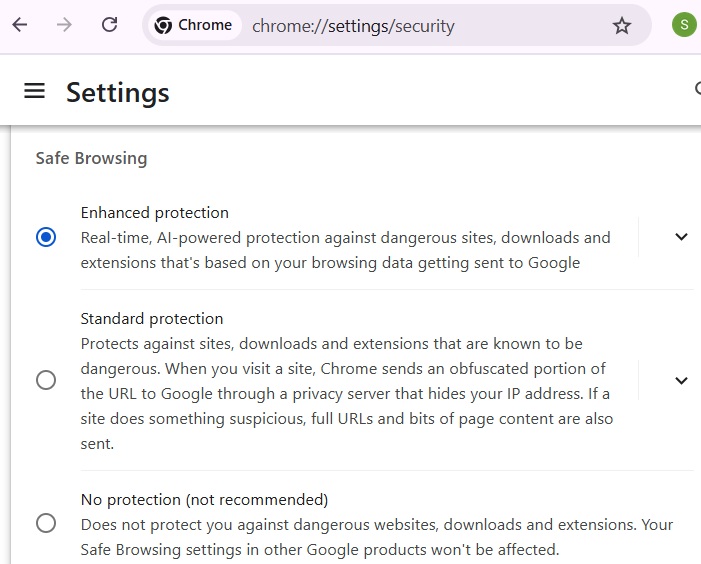
The Enhanced protection mode uses machine learning and AI to detect threats in real time. While Rust malware threats are user initiated, the enhanced mode is more effective at identifying fake CAPTCHAs and unverified sites, and issuing “insecure download blocked” warnings. Additionally, avoid visiting Chrome webpages flagged as Not Secure for extra peace of mind.
Disable JavaScript for Sites You Don’t Trust (Optional)
This setting is optional for Chrome users who visit only a few websites or have separate Chrome profiles earmarked to block JavaScript entirely.
Go to Settings -> Privacy and security -> Site Settings -> Content -> JavaScript -> Choose Don’t allow JavaScript. You can later add multiple trusted sites to exceptions below this setting by clicking Add next to Allowed to use JavaScript.
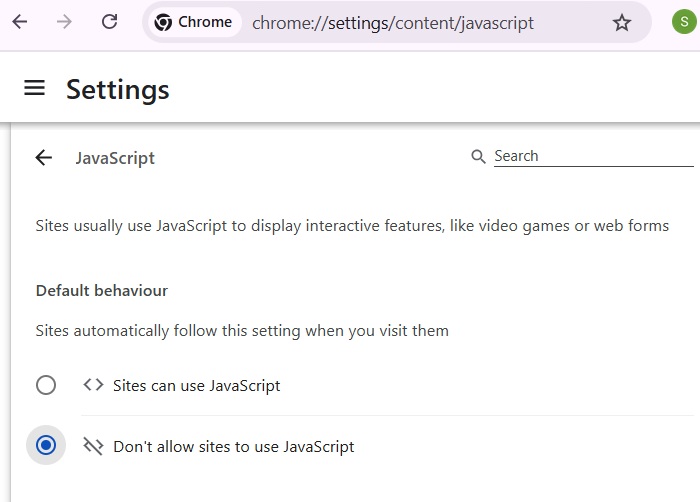
All Rust-based malware examples we have seen so far have used JavaScript to advance the payload on your Chrome browser. The above minimal JavaScript setting is an easy way to halt it entirely. However, it may not be convenient to keep whitelisting websites for JavaScript. But, again, many modern websites, such as DuckDuckGo, offer JavaScript-free versions.
Related: there are other ways to block intrusive JavaScript on Chrome and Firefox.
Prevent Sites to Automatically Download Multiple Files
If you want to avoid whitelisting JavaScript, you can instead restrict uncontrolled downloads.
First, go to Settings -> Downloads -> Enable Ask where to save each file.
After that, go to Settings -> Privacy and security -> Site Settings -> Additional permissions -> Automatic downloads -> Select Don’t allow sites to automatically download multiple files.
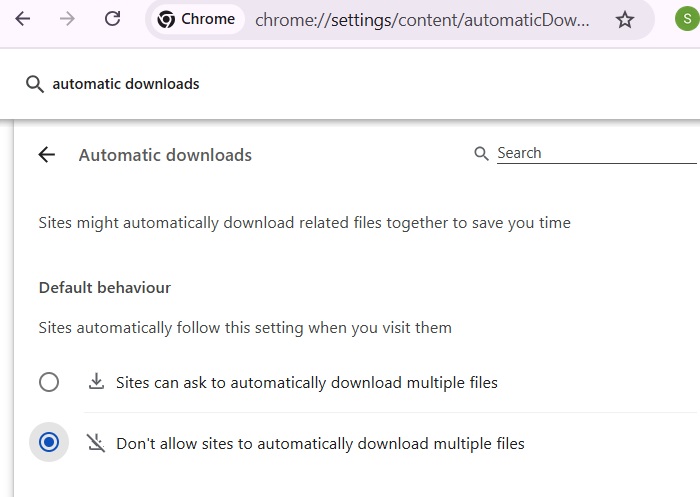
The above setting prevents malicious JavaScript payloads, such as “gverify.js” in EDDIESTEALER, from downloading in the background without your knowledge.
Prevent Rust Malware With Strict Site Isolation
On the Chrome address bar, type Chrome://flags, and hit Enter. Now go to a flag called Disable site isolation, and ensure it is kept at Default.
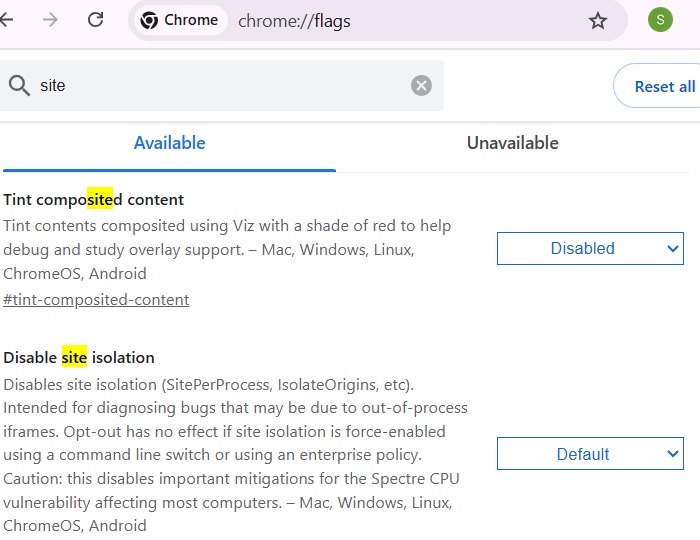
The above setting isolates web processes to limit memory-based exploits by all web-based malware, including Rust malware. You can also achieve this isolation through other methods such as Chrome Properties in Windows.
Download Extensions Only from Chrome Web Store
Chrome supports third party extensions, but downloading them from the Chrome Web Store helps protect against malware that uses hidden APIs to launch attacks. EDDIESTEALER employed this tactic, leveraging Rust’s stealthy programming to bypass Chrome’s sandbox detection and other red flags.
For added security against Chrome-based malware, Google has begun phasing out SMS-based two factor authentication. Instead, it offers more secure alternatives like passkeys and authenticator apps, which should be enabled as soon as possible.








