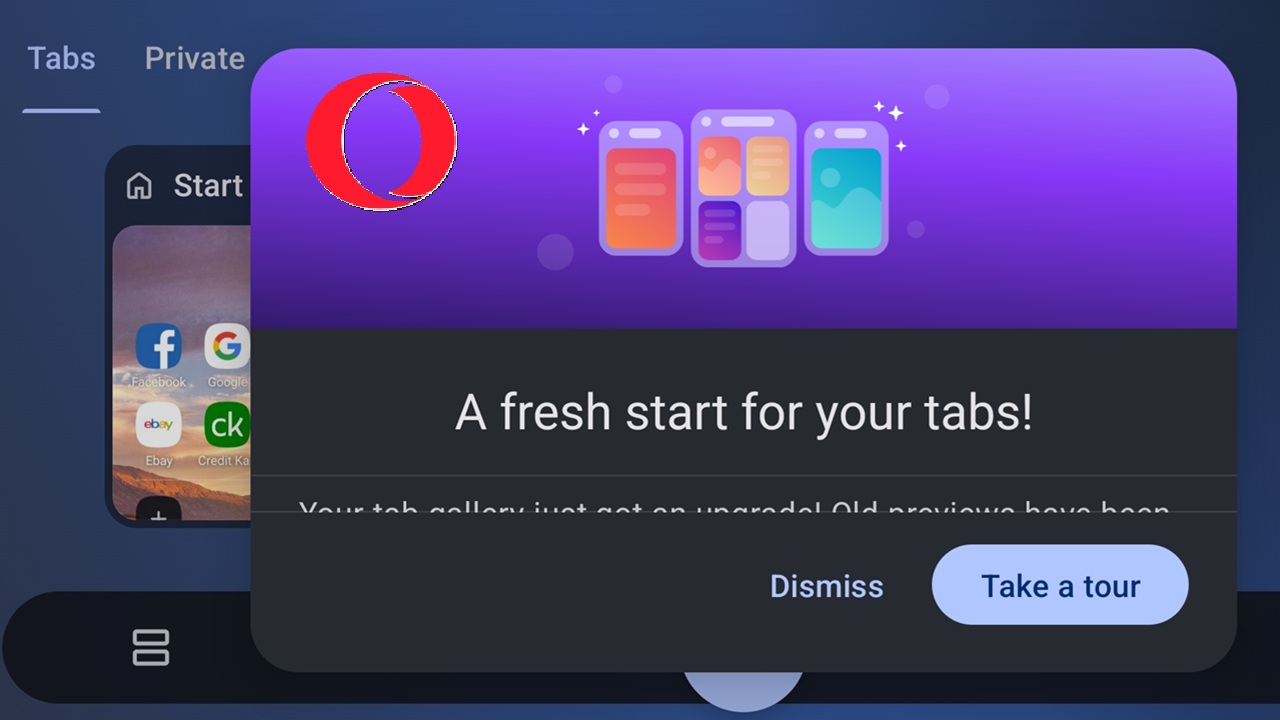
Are you guilty of tab chaos in your browser? The Opera browser for Android was recently updated with multiple ways to organize and manage tabs in the browser. Now, you can finally find the tabs you need quickly.
Before you can use Opera to organize your tabs, make sure you’ve updated it to the latest version. The tab management features mentioned below begin with Opera 89, which was released May 2025.
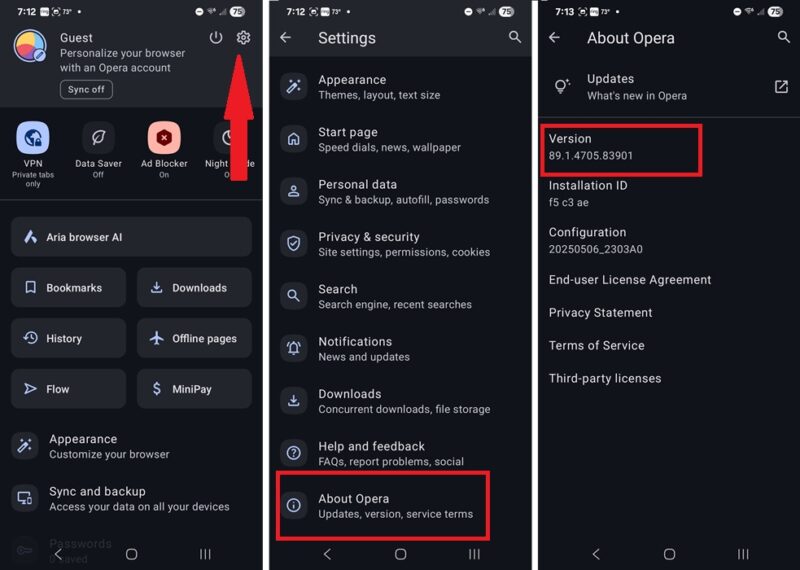
If you’re not sure which version you have, open Opera, tap your profile icon at the bottom left, and tap the Settings cog at the top right of the window that appears. Scroll down and tap About Opera. Look under Version to see which version you’re running. If it’s 89 or higher, you’re all set.
Also, ensure you’re using the standard version of Opera. It comes in multiple niche varieties, including a special gaming edition and a more relaxing version.
1. Choose a Tab Layout
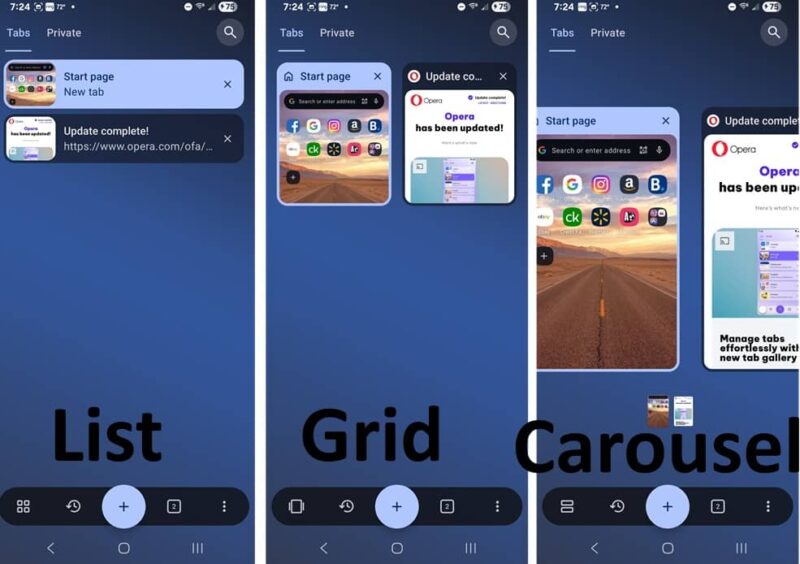
The most exciting way to manage tabs in Opera is by choosing a tab layout that’s right for you. Opera added three layouts – list, carousel, and grid. Most browsers I’ve used stick with the grid layout, but I actually find the list layout easier to use for me.
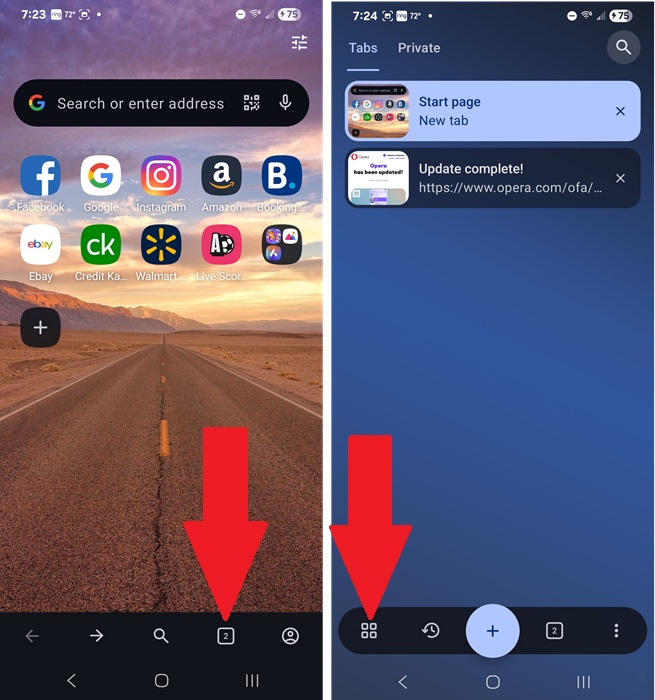
To switch between layouts, open at least two tabs and tap the Tabs icon next to your profile icon at the bottom right. You’ll see a list of all currently opened tabs. Tap the Tab Layout icon at the bottom left to toggle between layouts.
You’re free to switch at any time. For me, the carousel layout works best when I have fewer tabs or groups open. Otherwise, it’s just too much scrolling.
2. Create Tab Islands
Instead of creating groups of tabs, Opera lets you create tab islands. If you have multiple tabs related to each other, place them all in the same island (or group). Then, you’ll still be able to see groups in the same tab layouts as individual tabs.
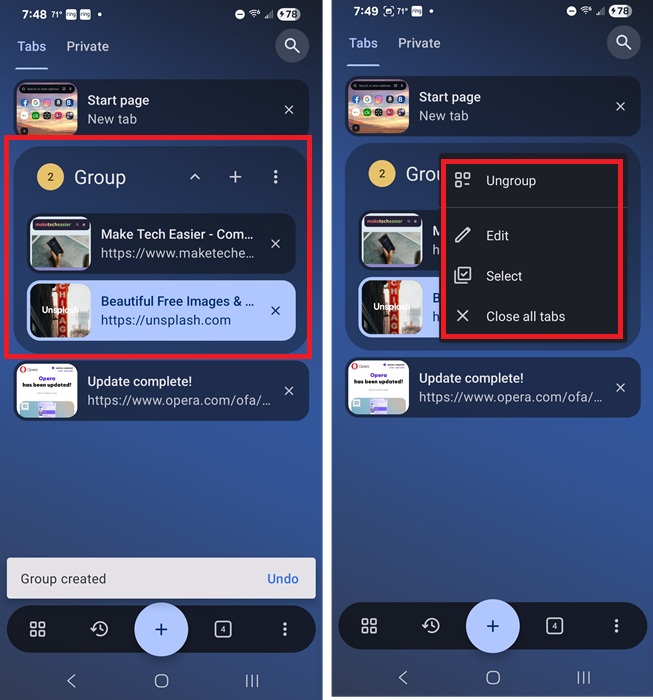
To create your tab islands, tap the Tabs icon at the bottom right to show all your tabs. Long-tap any tab and drag it onto another tab to create your first island. Despite being called islands, Opera names them Group by default.
If you don’t want to have those tabs grouped any long, tap the three dot icon in any group and tap Ungroup. You can also close all tabs in the group or select certain tabs in the group. If you only want to ungroup a single tab, long-tap it and drag it out of the group.
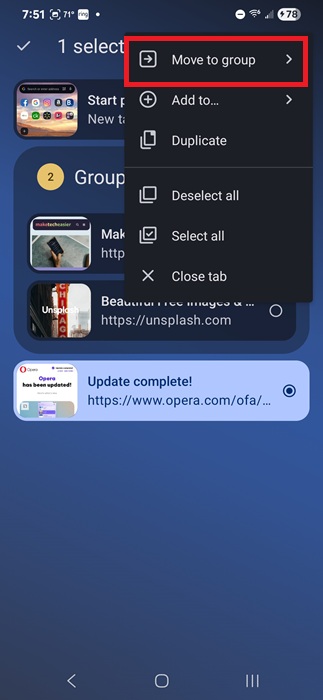
Alternately, if you have tab islands created, long-tap any tab and click the three dot menu at the top right of the browser window. Select Move to group and select your group. I find this method easier if you’re dealing with a larger number of tabs and groups. This method is also easier with the carousel layout.
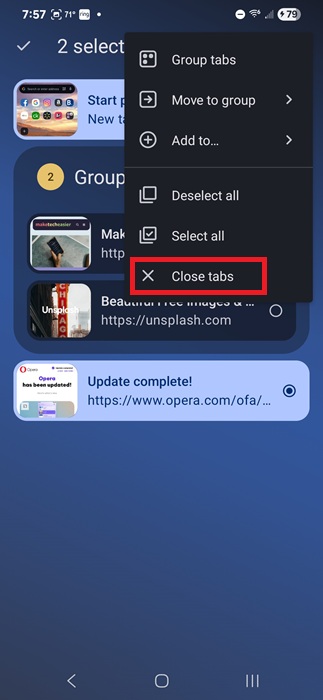
One final method is to long-tap the first tab you want to add to a group. Then, tap each other tab you want to add, tap the three dot menu at the top right, and select Group tabs or Move to group.
Once an island or group is created, tap it to minimize it to the size of an individual tab in your chosen tab layout. Tap it again to expand it to view individual tabs within it.
Tap the three dot menu and select Edit to change the group name. Definitely name your groups if you have multiple ones to make it easier to distinguish them.
3. Close and Restore Tabs and Tab Islands
Forget about having to close individual tabs one by one. Instead, better manage tabs in Opera on Android by selecting multiple tabs at once.
Tap the Tabs icon from any open Opera window to show all open tabs and tab islands. To close multiple individual tabs (or multiple tab groups), long-tap the first one you want to close, and then tap any others you want to close. Tap the three dot menu at the top right and select Close tabs.
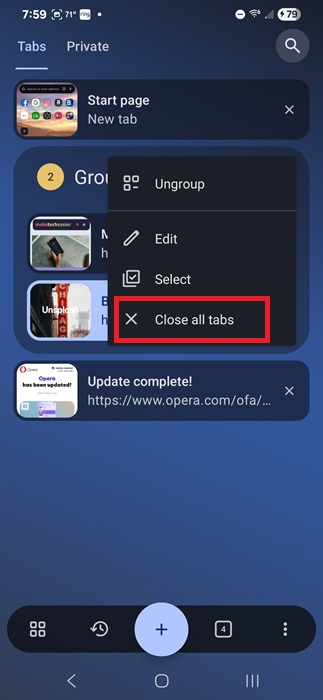
If you want to close an entire tab island or group, click the three dot menu in the group itself and tab Close all tabs.
We’ve all accidentally closed the wrong tab or tabs. If this happens, don’t worry. You can get them back.
Once again, tap the Tabs icon to view all tabs and islands. Then, tap the Recently closed tabs button at the bottom left near the Tabs Layout button. Surprisingly, Opera on Android lets you restore up to 100 of your recently closed tabs.
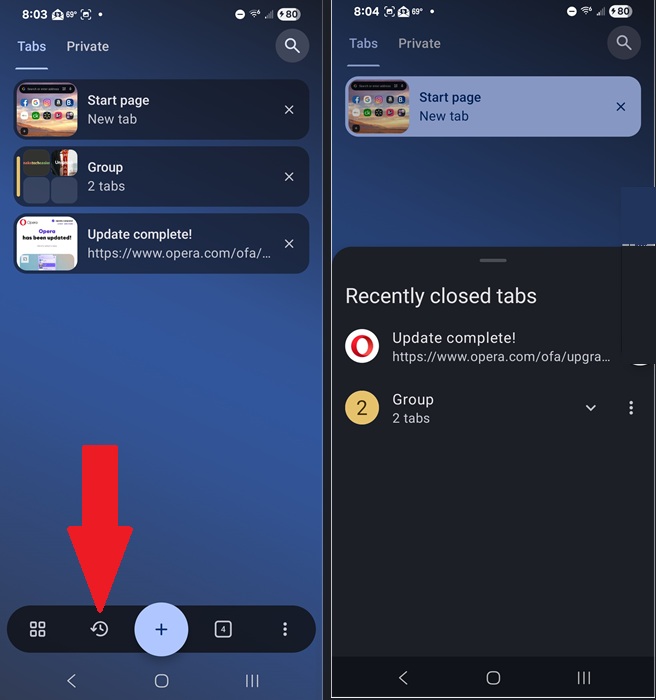
Tap the three dots beside any link to restore it.
4. Search Tabs
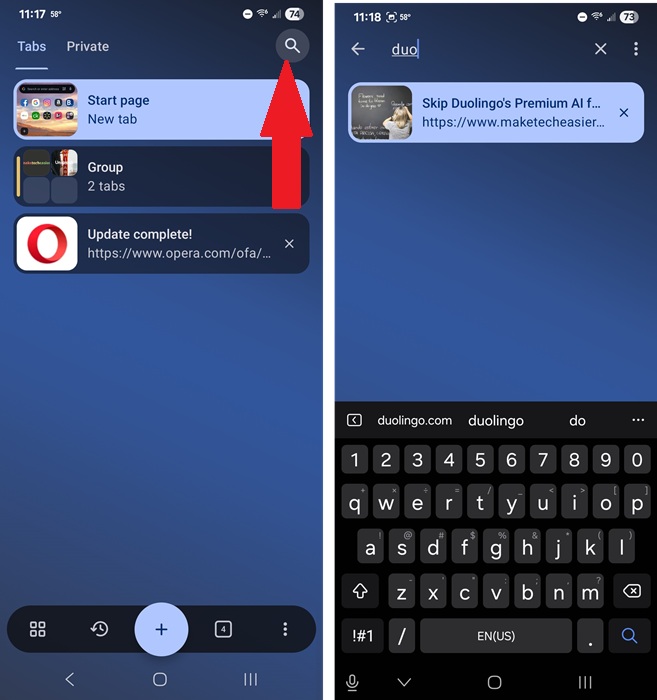
For anyone who goes the extra mile to see just how many tabs you can keep open in Opera, now you can search to easily find the tab you’re looking for. Instead of manually looking through your tab layout, use the newly added Search feature.
Jump to the Tabs screen in Opera (Tabs button near the bottom right) and tap the magnifying glass at the top right. Enter a keyword to jump to that page in your tab list. Click the result you want.
5. Mute Tabs
One final way to manage tabs in Opera is to mute them. You don’t have to close anything or turn your sound down or off. Instead, go to the Tabs screen in Opera.
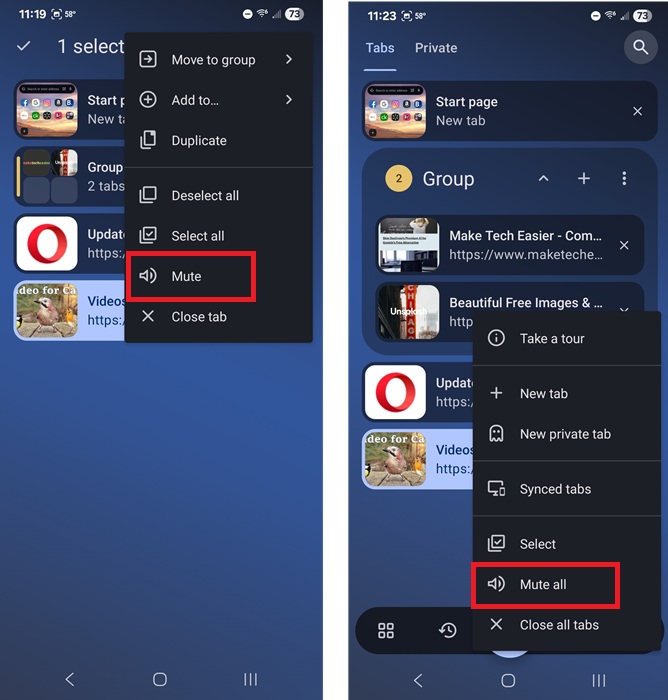
You have three ways to mute tabs:
- Long-tap an individual tab, tap the three dot menu at the top right, and tap Mute
- Tap the three dots menu on an expanded group/island and tap Mute
- Tap the three dot menu at the bottom right and tap Mute all (ideal if you’re not sure where the sound is coming from)
If you’ve never used Opera before, now’s the time to give it a try. Many prefer it over both Chrome and Edge. With improved ways to manage tabs in Opera on Android, it’s even more appealing.








