Most social media apps constantly vie for your attention, often at the expense of focus and productivity. Looking for a more distraction-free alternative, I came across Locket, a minimalist social app that allows me to stay connected to family and close friends without falling into the familiar social media spiral.
Good to know: if you’re a photographer, you might want to check out Irys, an Instagram alternative that actually puts photo sharing first.
A Social App that Prioritizes Your Focus
Anyone with Facebook or WhatsApp installed on their phone knows the drill: endless notifications for messages, posts, and activity updates. When you’re working, that steady stream of alerts can seriously disrupt your focus.
That’s definitely the case for me. Each time I hear a ding, I am compelled to check my phone. While I want to keep my attention to the tasks at hand, I still wish to remain connected with my inner circle, so most of the time I give in and unlock my phone. Usually I tend to just view the notification preview, but often times what I see there prompts me to reply or check something immediately, which breaks my flow.
It’s true that Android and iPhone both allow you to selectively mute app notifications, but that’s not always convenient, and it’s easy to forget to do so. For me, the better solution was switching to Locket, a minimalist social app that keeps me updated on what others are up to without constantly interrupting my day.
Locket’s appeal also lies in what it leaves out. There are no endless feeds to scroll through, so it’s easy to check in and move on. It’s also not a “make new friends” app. While you can search for others via username, Locket doesn’t support user profiles you can discover and eventually befriend. That said, the chance of receiving random friend requests or messages while using Locket is pretty slim.
Tip: here’s what to do if your favorite social media app, like TikTok, is down.
The Time-saving Power of Sharing Directly to the Home Screen
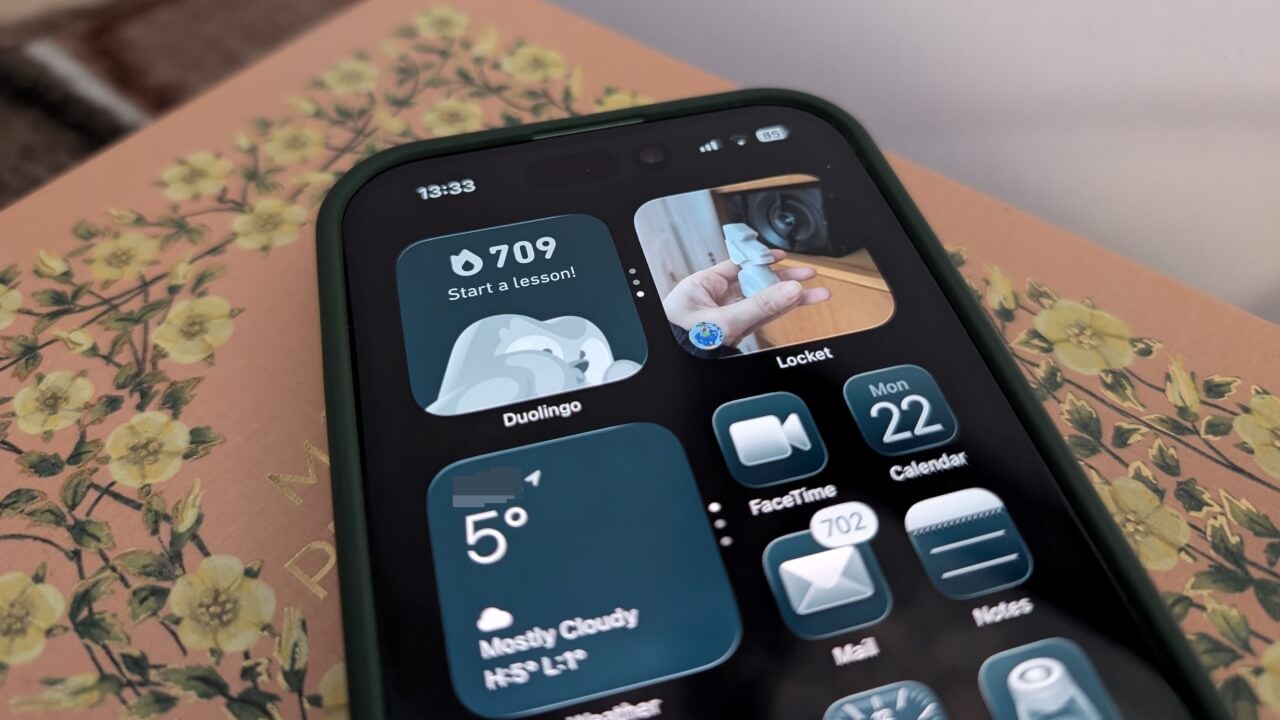
Locket stands out from other social media apps by letting you share photos directly on the home screen. You get automatic updates each time one of your friends posts something, and all you have to do is glance at your phone’s home screen to see what’s new. Since you don’t get an audible notification when this happens, there’s no pressure to check your phone immediately. You can look when it suits you.
Locket is available on both Android and iOS. Once you have the app on your phone, you need to sign up for an account first. The app will then prompt you to add friends from your contacts. I chose to add only close friends and family members, but you can add anyone you know (they also need to have the app).
Next, the app will prompt you to add the widget to your home screen.
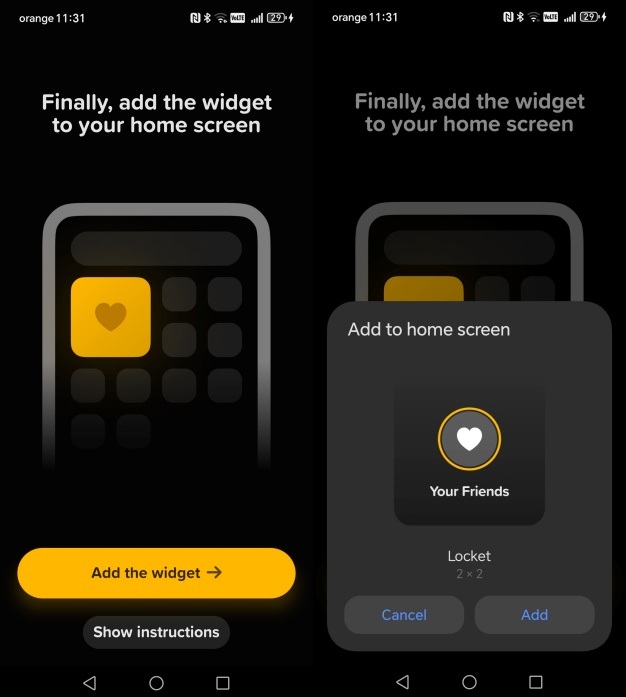
Position it anywhere you want. It doesn’t have to be on the main home screen, if you use multiple. By the way, do you know you can also add a different wallpaper to each home screen on Android?
Never miss a moment
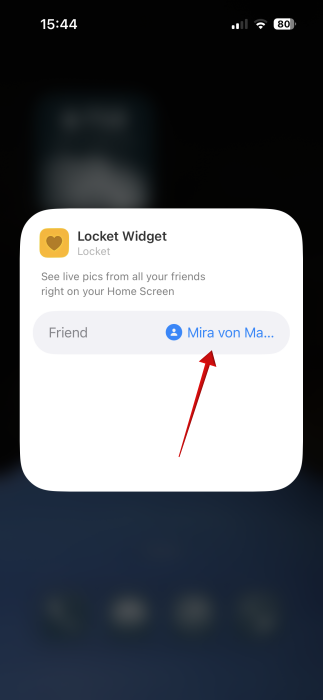
Once the widget is added, you will see photo updates from friends appear straight on your home screen. On iPhone, if you want to prioritize seeing images from a certain friend, you can. Long-press on the widget and select Edit Widget.
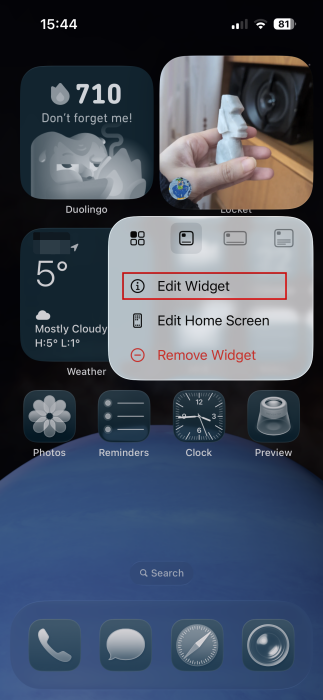
Select the friend in question. Alternatively, you can opt for Everyone and see updates from all your friends.
On iPhone, Locket offers a variety of widget options (you can also add more than one on Android, but they will be the same). To add more than one, long-press on an empty space on your home screen and select Edit.
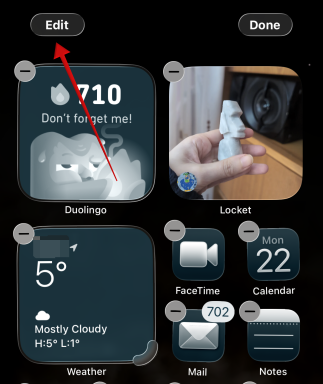
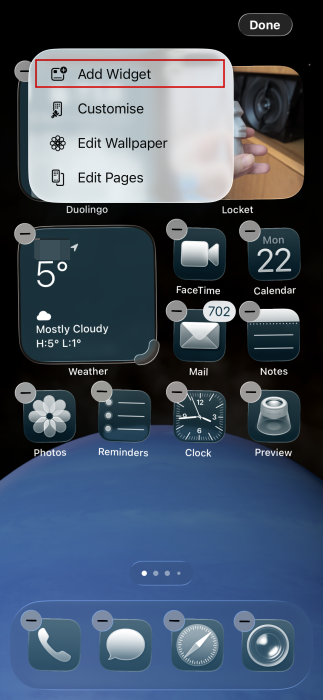
Tap Add Widget.
Find Locket in the list of apps. Go through all the widget options and select your favorite.
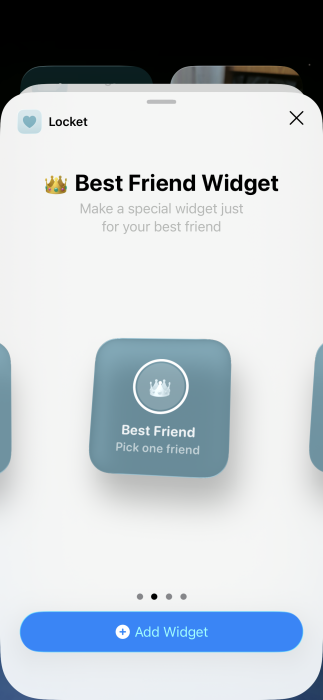
Keep in mind that the widget only displays the most recent image sent, and you won’t be able to shuffle through photos. If multiple friends send images at roughly the same time, you’ll only see the last one that was sent. On iPhone, you can solve this issue by adding multiple widgets, each featuring a different person. Unfortunately, the Android app doesn’t support this yet.
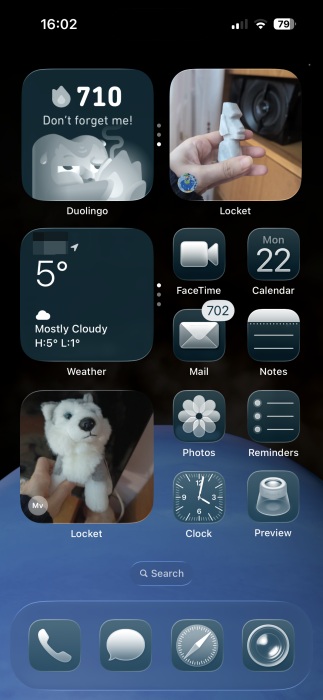
Note that in order to send a photo, you’ll have to snap the image using the Locket app. You can’t upload from your camera roll. In addition, you can add text to the image or even link to Spotify and include a song with your post (only on iPhone).
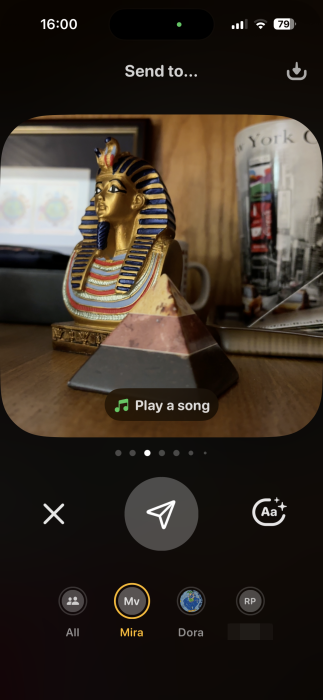
With this setup, I can check my phone’s home screen from time to time and see what my loved ones are sharing. The widget updates automatically and silently, which is great for my productivity.
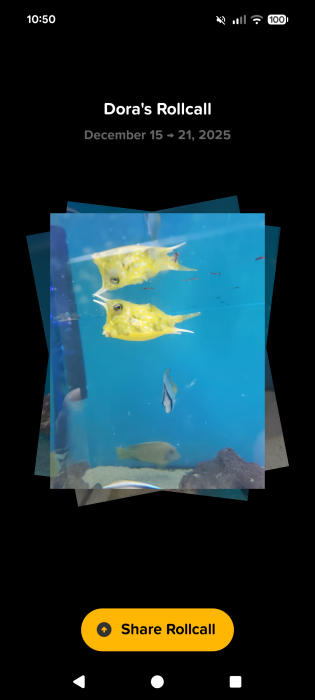
Locket also includes a feature called Rollcall, which lets users compile their best moments of the week into a collage (this time, you can select photos from the camera roll). It’s a convenient way to catch up on recent moments with friends and family.
Tip: you can text even when offline with BitChat.
Simple Messaging Options Are All You Really Need
Modern social media apps offer feature-rich messaging, through it can sometimes feel excessive. Taking the opposite approach, Locket’s straightforward messaging options turned out to be all I need. The app lets you reply to shared photos, and you can also have full conversations, but for that, you’ll need to open Locket.
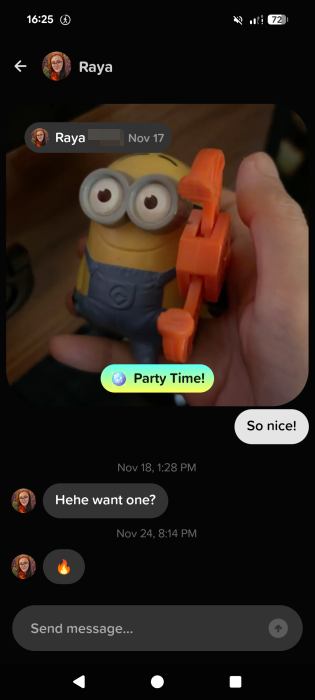
Unlike mainstream social apps, Locket’s messaging is very basic. You can’t send emojis, GIFs, or draw on messages like you can on Instagram, though you can add reactions. There are no video or voice call options, but for someone like me who prefers keeping in touch through simple daily chats, it works perfectly.
Locket does send a notification whenever you receive a message, but since you can view the images without opening the app, it’s easy to resist the temptation of viewing the messages until you have a few free seconds.
If you’d rather work towards quitting social media altogether and reclaim more time for yourself, here are some tips that actually worked for me and helped me take a much-needed break.