WhatsApp on Android automatically backs up your chats and media to Google Drive every day. If you want more control over your data, you can use a local backup instead to avoid relying on the cloud or running into Google Drive limits. This guide gives precise, step-by-step instructions for backing up and restoring your WhatsApp data locally.
Disconnect Google Drive and Delete Its Backup
It’s good to remove your Google account from WhatsApp and delete the backup data first to avoid any conflicts during the restore process. You probably don’t want it anyway if you are moving to a local backup strategy. However, if you still want to keep Google Drive backup alongside local backup, skip this step, but follow an additional step while restoring.
In Android Settings, go to Google, tap on your account name, and select Manage your Google Account.
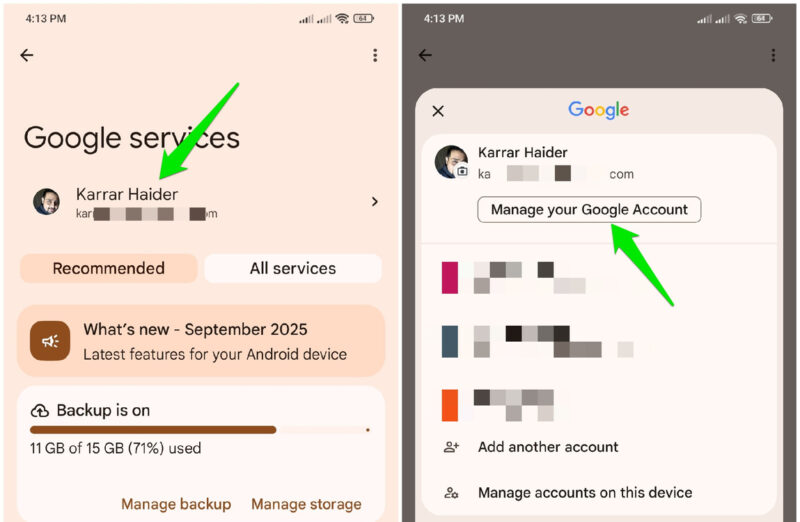
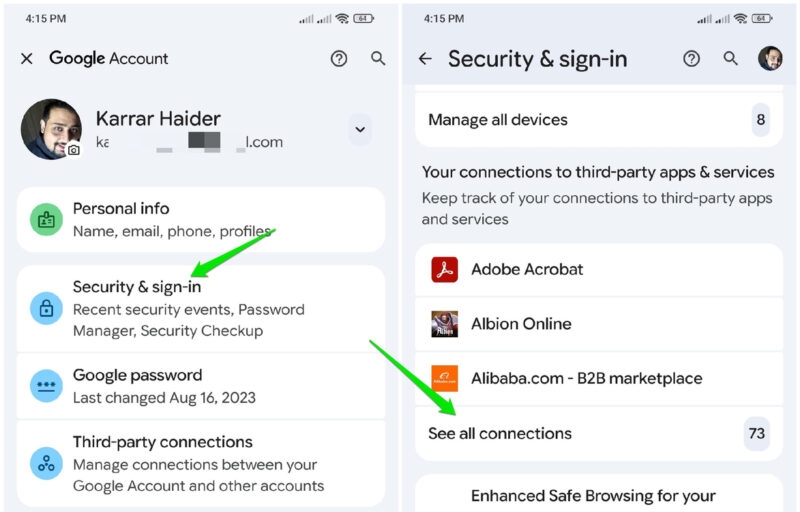
Here, go to Security & sign-in and tap on See all connections under Your connections to third-party apps & services.
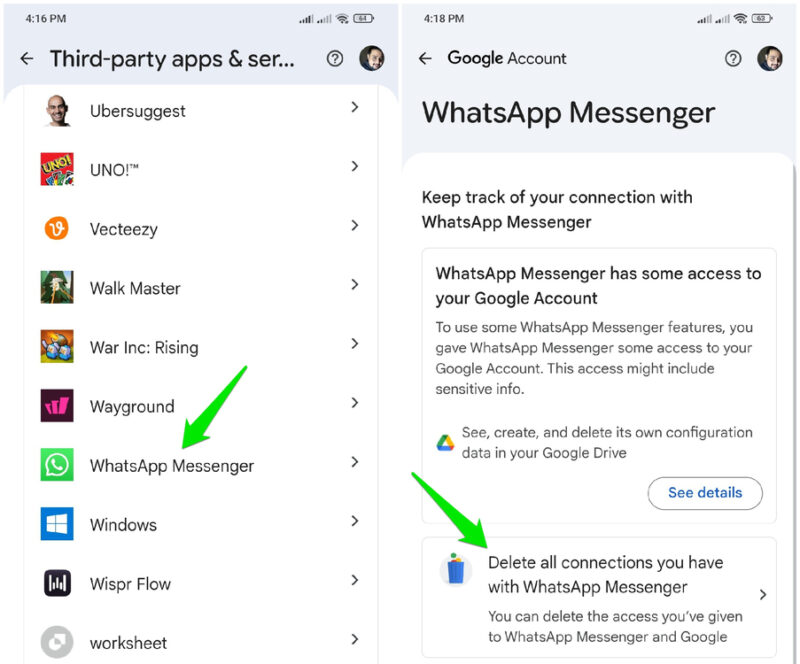
Select WhatsApp Messenger from the list and then tap on Delete all connections you have with WhatsApp Messenger.
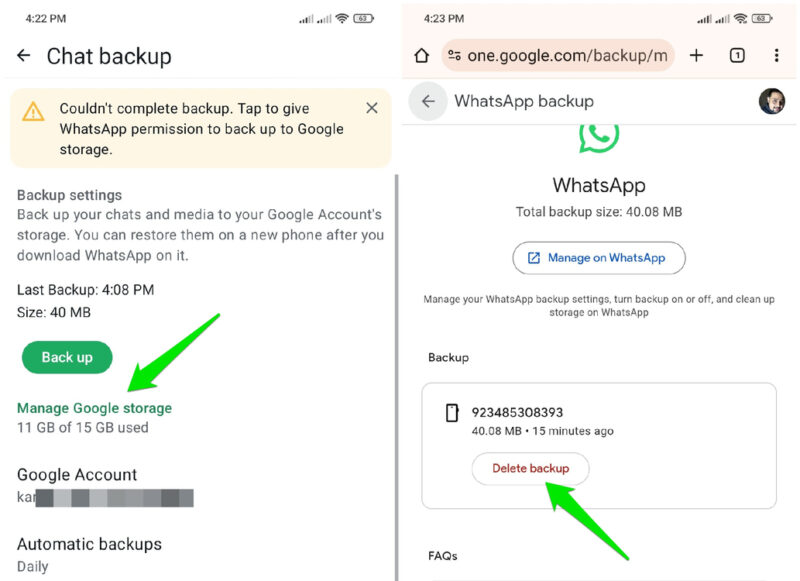
To delete the saved backup file, in WhatsApp, open settings from the dots menu and go to Chats → Chat backup. Here, tap on Manage Google Storage and select WhatsApp under Other. You can now view and delete all saved WhatsApp backups.
Create and Separate a Local WhatsApp Data Backup
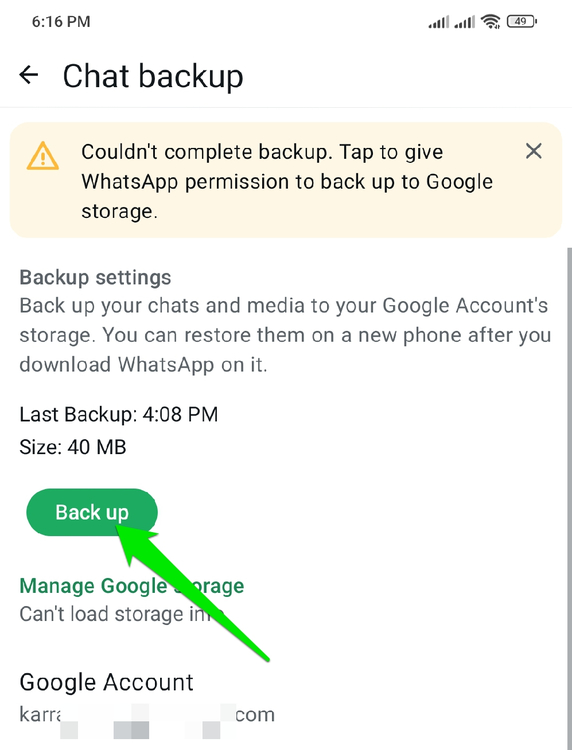
To ensure you have the latest backup, go to Chats → Chat backup in WhatsApp settings and tap on the green Back up button to create a local backup. It will give an error that you need to give permissions for Google storage; you can safely ignore it.
Now, open your phone’s file manager app. In it, move to Internal storage → Android → media → com.whatsapp → WhatsApp. Here, tap and hold on the Databases and Media folders to select them, and then select Copy to from the dots menu. Copy these folders anywhere safe in your phone.
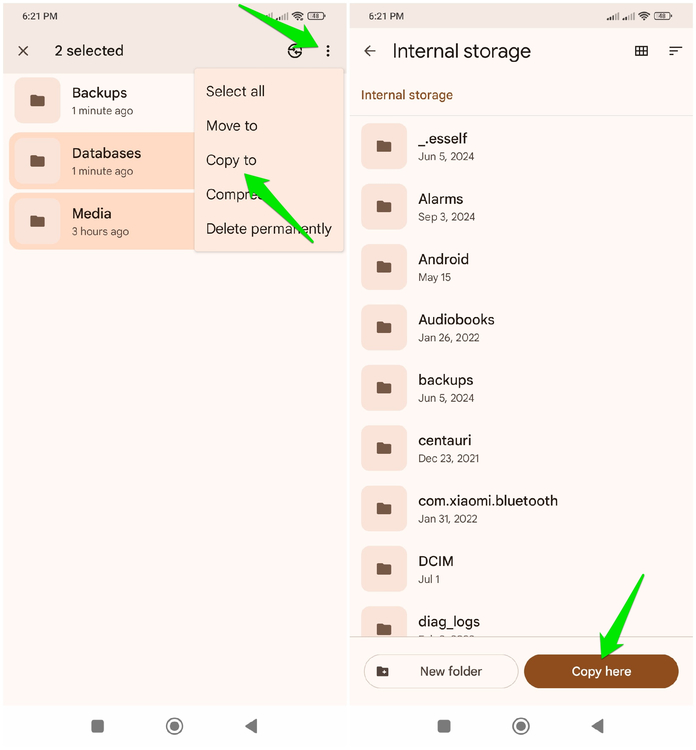
Both of these folders contain chats and media data necessary for backup. Make sure you store them safely, like on an SD card, move them to a PC, or save them in another cloud storage. If you just want to back up WhatsApp chats, you can skip the Media folder and only save the Databases folder.
Restore WhatsApp Backup Data
The restore process is the tricky part, as any error can mess up the whole process, forcing you to uninstall and reinstall WhatsApp. Make sure you follow each instruction step as listed here.
For demonstration, we are assuming you are restoring WhatsApp data on a new phone and have moved the backed-up WhatsApp data folders to its internal storage. Also, if you didn’t delete the backup file in your Google Drive, like in the first step, you must remove the specific Google account from your phone before restoring. Otherwise, WhatsApp will restore from cloud backup automatically.
Step 1: Install WhatsApp and launch the app. Don’t do anything, keep it on for a few seconds, and then close it. This will create the necessary WhatsApp folders in your phone storage.
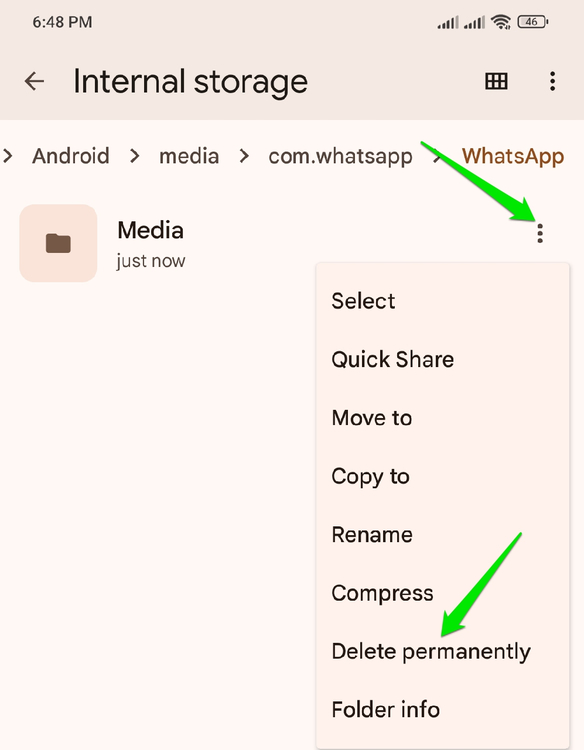
Step 2: Open the file manager, go to Internal storage → Android → media → com.whatsapp → WhatsApp. Here, tap on the dots menu next to the Media folder and select Delete permanently.
Step 3: Now, you need to move the backed-up Databases and Media folders to this WhatsApp folder. Just tap and hold on them to select them, select Move to, and move them to the WhatsApp folder.
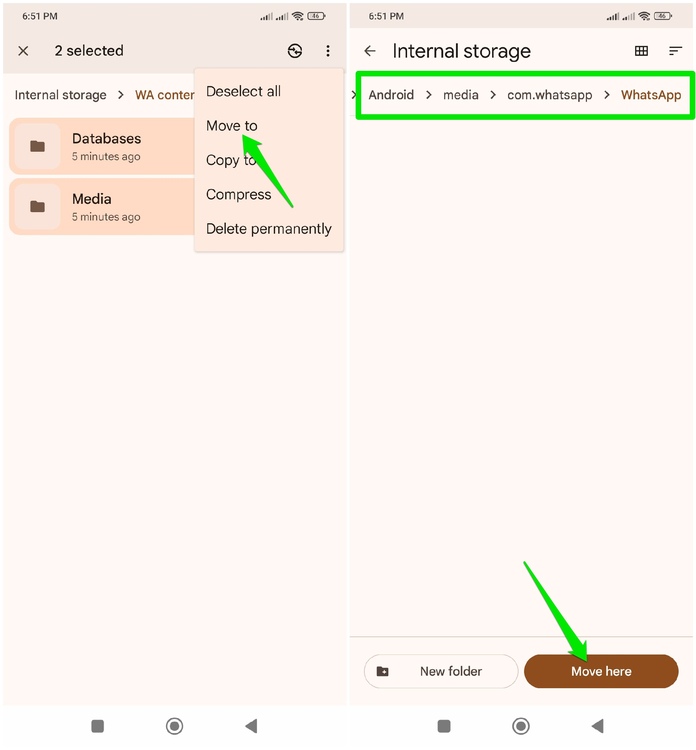
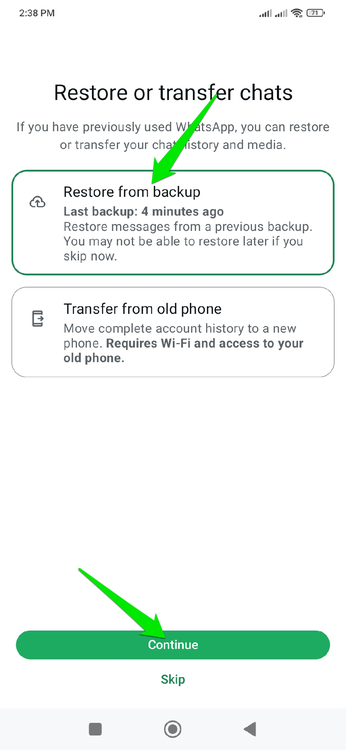
Step 4: Open WhatsApp and log in using the same phone number that you used for the account you backed up. Afterward, provide the contacts and media permissions, and WhatsApp will ask you to restore. Select Restore from backup option here, and it will restore the data from your locally backed-up folders.
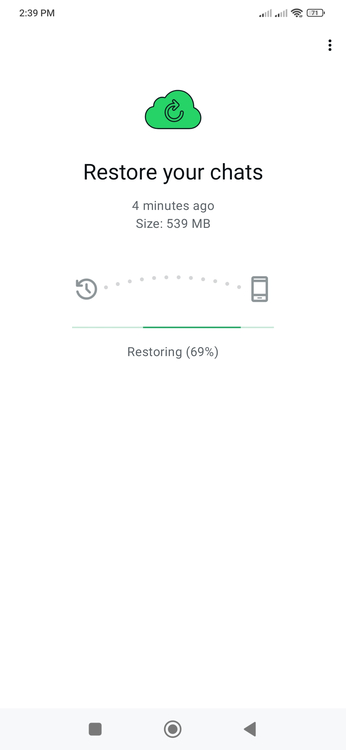
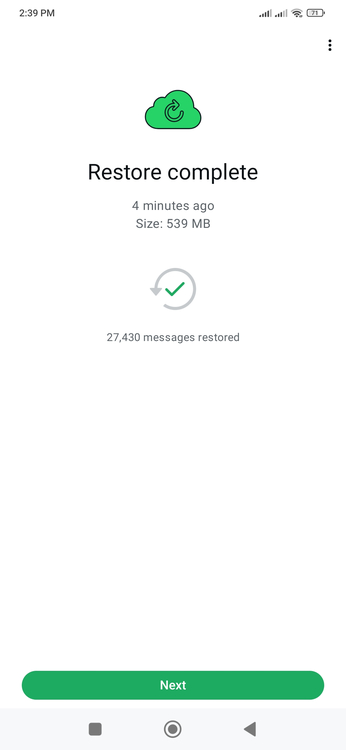
You can then continue to set up WhatsApp as you like. All your chats and media will be restored, including the status of messages at the time of backup.
While there are many privacy-respecting alternatives to WhatsApp, if you’ll be sticking to WhatsApp, using local backups is one of the few ways to enhance privacy. If you want to create local backups due to low Google Drive storage, try these methods to decrease the WhatsApp backup file size instead.








