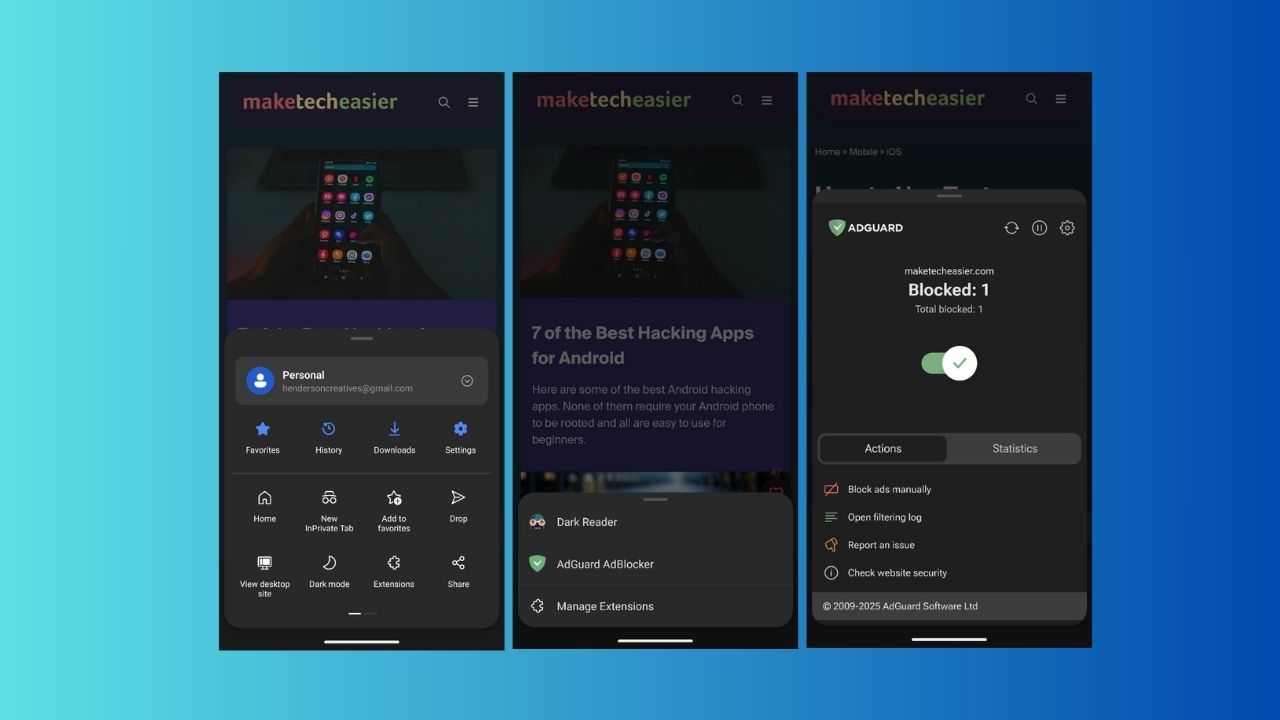
Microsoft is finally experimenting with extensions on Edge for iOS, a year after introducing the feature on Android. Whether you’re using Android or iOS, this is a game-changer for customizing your mobile browsing experience with stuff like ad-blockers and productivity tools, leaving Chrome in the dust. This guide walks you through enabling and installing these Microsoft Edge Mobile extensions in easy steps.
Setting Up Edge Extensions on Mobile
Here’s how to get Microsoft Edge Mobile extensions set up on your phone. It lets you tweak your mobile browser with add-ons, similar to customizing Edge on your PC.
For Android:
Grab the latest update (version 134.03124.57 or later) from the Google Play Store. Launch Edge, hit the three-dot Menu, and you’ll automatically see Extensions.
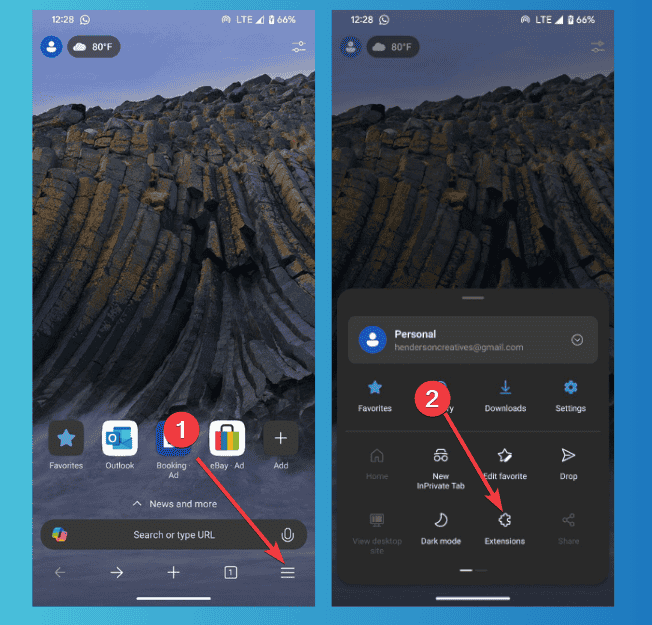
Alternatively, head directly to Microsoft’s web-based Extension Store right in the browser to see the available options.
For iOS:
Sign up for Microsoft Edge’s TestLight program to access this beta. Open Edge, type Edge://flags in the address bar, and hit Enter.
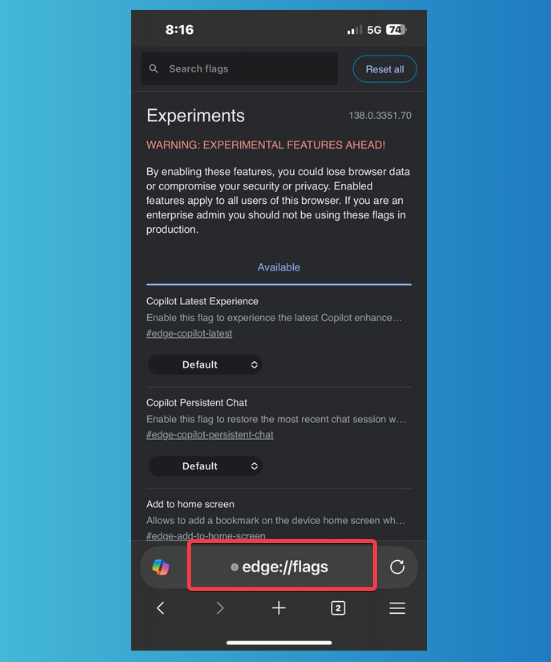
Search for Edge iOS Web Extensions and change it from default to Enabled. You can check out our guide on the best Edge flags for more tweaks.
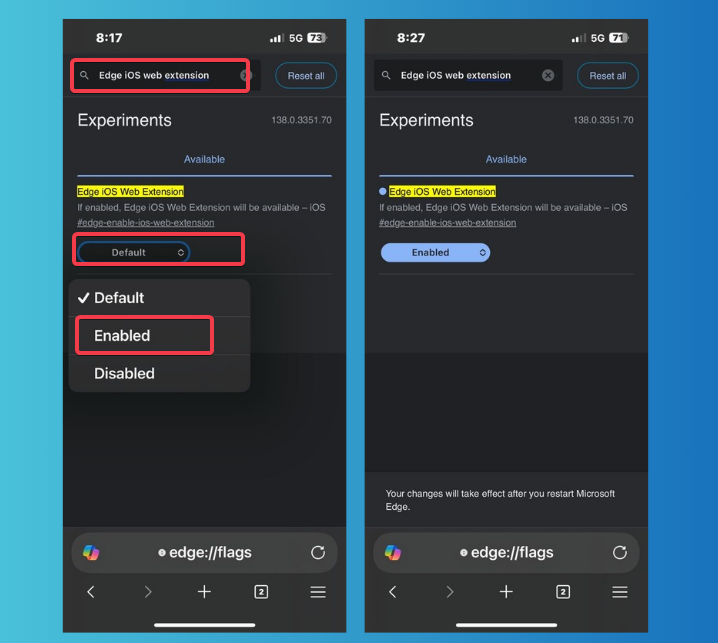
Restart the browser to activate the extension support. Since iOS extension support is in the early testing phase, you should expect some bugs in the beta build.
Getting Microsoft Edge mobile extensions up and running is straightforward, but Android’s stable setup is more reliable than iOS’s TestFlight for now.
Installing Extensions on iOS and Android
Now that you’ve set up Microsoft Edge mobile extensions, let’s install some to enhance your browsing experience. Think of ad-blockers, VPNs, or password managers – here’s how to add them, with steps as easy as installing Chrome extensions on Android.
For Android:
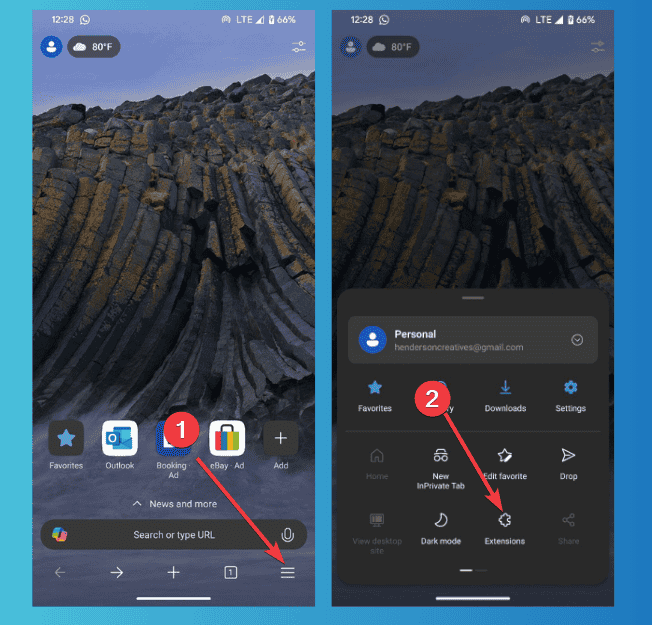
Launch Edge and go to the three-dot Menu and hit Extensions. Check out the Extensions Store, which offers 31 add-ons (as of July 2025), like AdGuard or Dark Reader.
Hit the Get button beside any extension to install it.
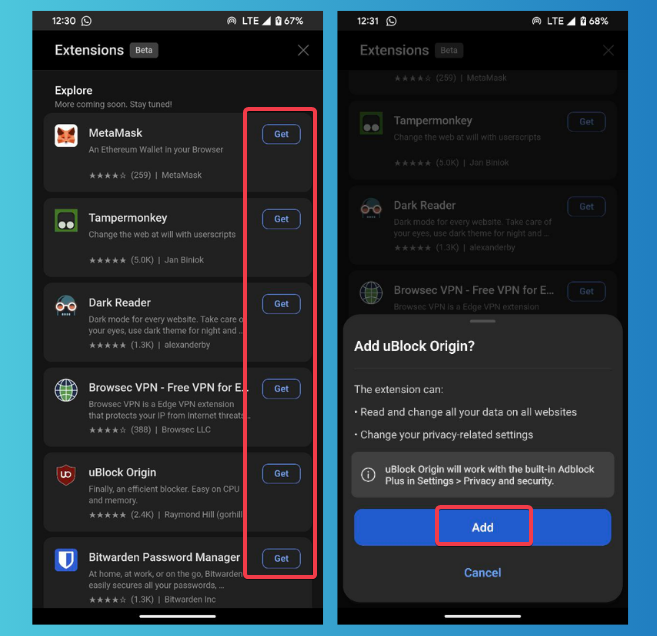
Then, click Add on the new prompt to confirm your selection and grant permission.
For iOS:
Open Edge via TestFlight, then tap Menu -> Extensions.
Similar to Android, pick an extension from the options and click Get. Then grant permission by tapping Add in the next prompt.
Unlike Android, iOS has limited options for now, since it’s still in the beta test. So, if you experience any glitch, report via TestFlight to help squash it.
Note: Avoid crowding your browser; only install the extensions you need to keep things smooth, especially on iOS’s beta setup.
Enable/Disable Extensions on Mobile
After installing Microsoft Edge mobile extensions, you can choose to enable/disable them with these:
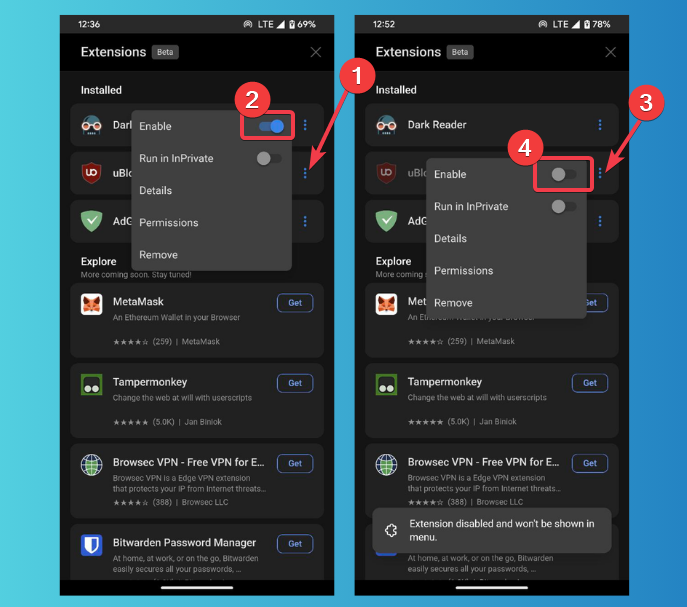
Launch Edge and go to the Menu, and hit Extensions -> Manage Extensions.
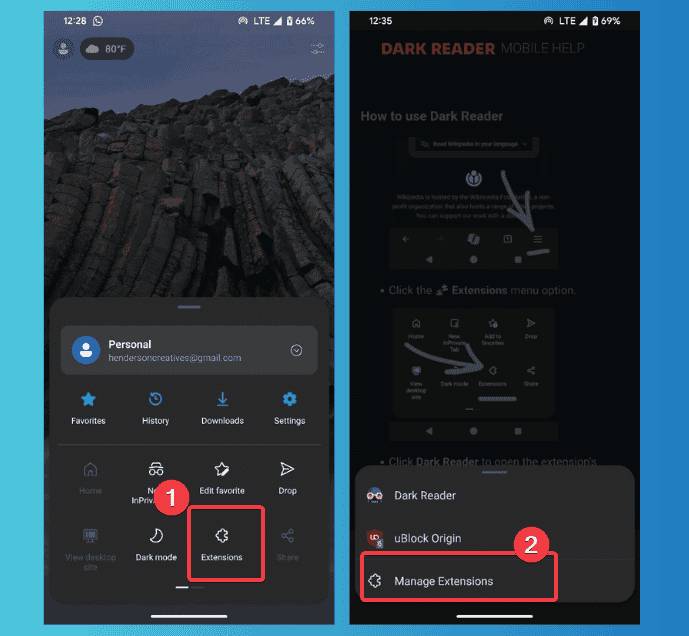
Click the options icon next to the installed extensions. Then, tap the toggle next to Enable to switch between turning the extension on or off.
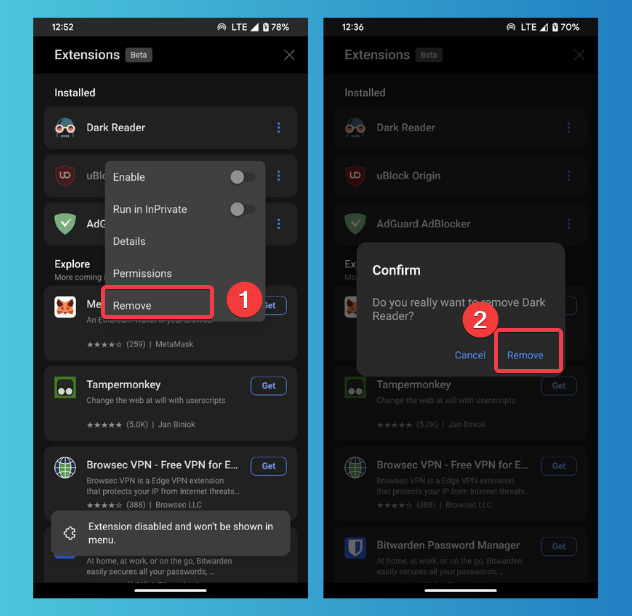
Extra: You can click Remove below the other customization options to uninstall the extension.
Installing Microsoft Edge mobile extensions makes your phone browser way more useful, but stick to the trusted ones to avoid glitches, especially on iOS. Try these steps and tell us how it goes in the comments! If you want more browsing hacks, learn how to add Chrome extensions to Edge on Desktop.