
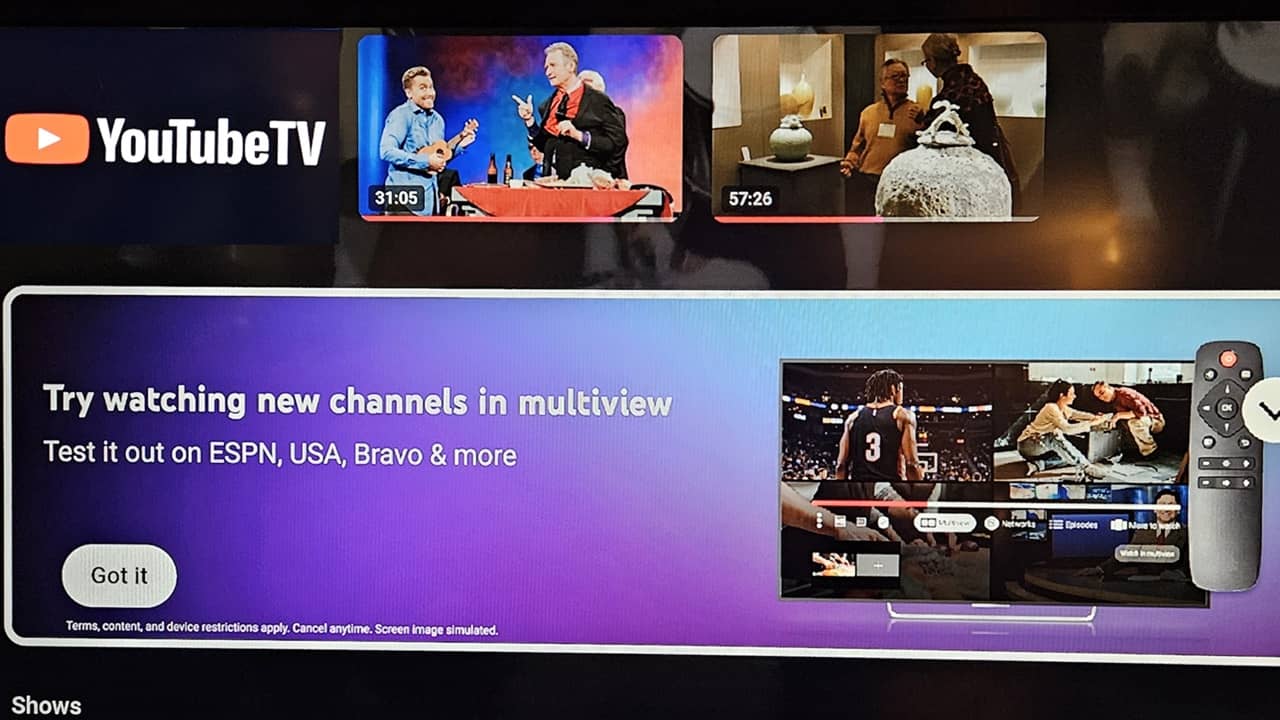

Trying to jump between multiple channels on YouTube TV isn’t always easy. You could easily miss an important moment. Now, you don’t have to thanks to custom multiviews on YouTube TV.
What is a YouTube TV Multiview?
Back in 2023, YouTube TV introduced multiviews for certain sports programming. You could watch up to four games at once, easily switching the audio between each.
For those of us who aren’t sports fans or wanted multiviews for other networks, YouTube TV is finally delivering. In late 2024, some users started noticing pre-created multiviews of popular networks, such as Hallmark and Lifetime together during the Christmas movie season.
Now, you can create custom multiviews on YouTube TV with any eligible networks. This feature is only available on YouTube TV smart TV and streaming box apps. You can’t customize the multiviews on the web, desktop, or mobile apps. But, you can still view pre-created featured multiviews.
Viewing Pre-Created Multiviews
No matter where you’re logged into YouTube TV, you can still check out the pre-created multiviews. As an example, I’ll use the Android app. Tap Home to view various suggestions, continue watching, top picks, etc.
Scroll down until you see Watch in Multiview. Tap any of the available options to start watching.
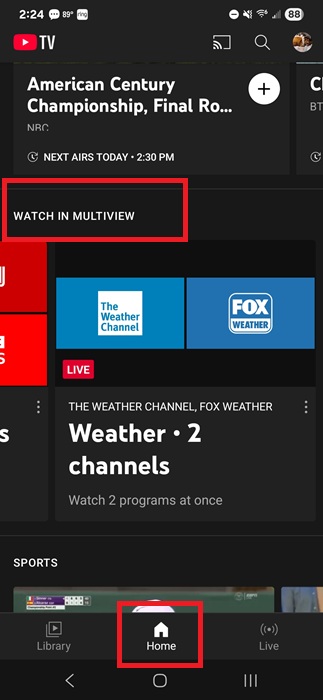
The pre-created options change throughout the day. For instance, during a Sunday afternoon, I only had 4x option of sports channels, 4x of news, and a 2x of weather. During primetime and local news hours, you’ll usually see options for major local networks, along with a few other cable stations, such as TNT, TBS, and USA.
Create a Custom Multiview on YouTube TV
The process works almost the same for TV and mobile apps. For the steps below, I’ll be using YouTube TV on my Roku streaming box. If you’re having any trouble loading YouTube TV on Roku, try these steps.
Currently, only a handful of channels are compatible and may vary based on the season and time of day. For me, I’m seeing a variety of sports networks, most major news stations, Weather Channel, Fox Weather, the four big local networks (CBS, NBC, ABC, and FOX), Food Network, TNT, TBS, USA, and a few others.
Open your guide on YouTube TV and select a compatible channel to start viewing live. I suggest starting with one of the major local or news networks to test it out. I started with a basketball game on CBS and built from there.
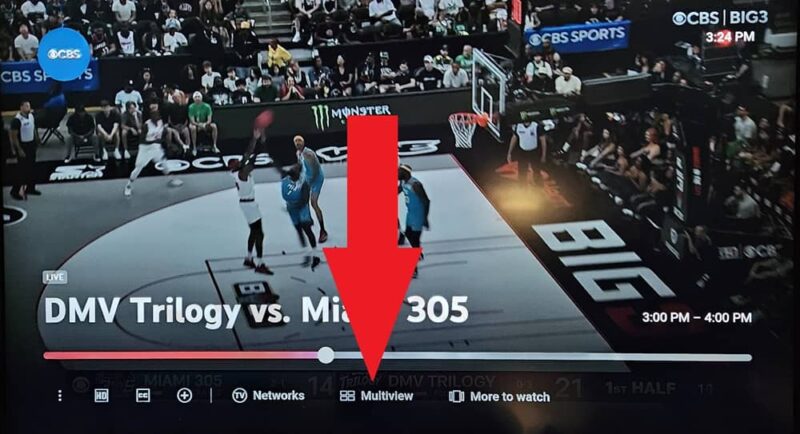
Once you’re viewing a show in full screen, press the down arrow on your remote, and select Multiview just below the progress bar.
Select Build a multiview. Or, scroll through the list to see combos YouTube TV creates with that particular channel. Then, click up to four channels in the list to add to create your own custom multiviews on YouTube TV.
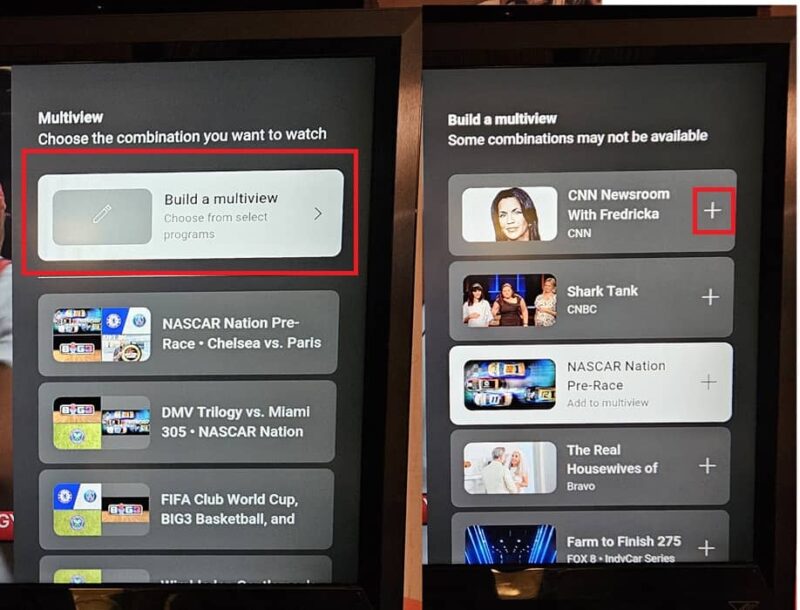
If you accidentally select a channel or decide you want to remove it, scroll down to the bottom of the available channels list and click a channel to remove it.
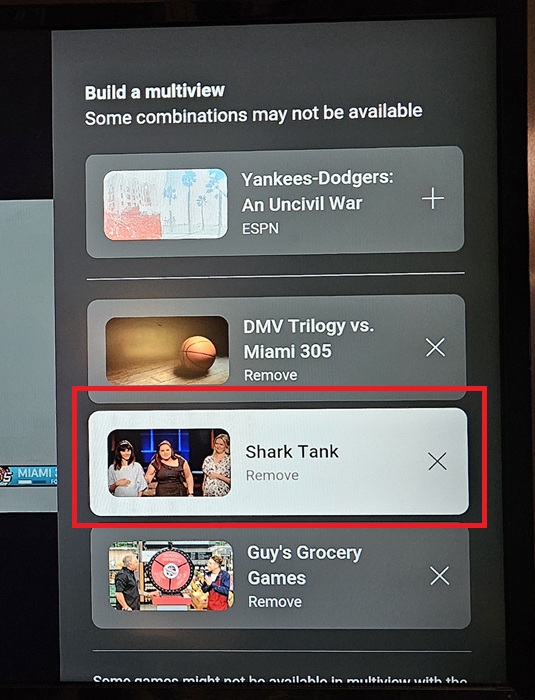
When you’re done, press your back button on the remote to exit the multiview builder. You’ll then see 2-4 different windows for each of the channels you selected.
Switching Active Audio Between Channels
For obvious reasons, audio is only active on one channel at a time. No one really wants to try to hear 2-4 channels at once.
If you can’t tell which station is active, look for a tiny moving volume icon in the top left corner of any of the windows. It blends in, so may have to look closely.
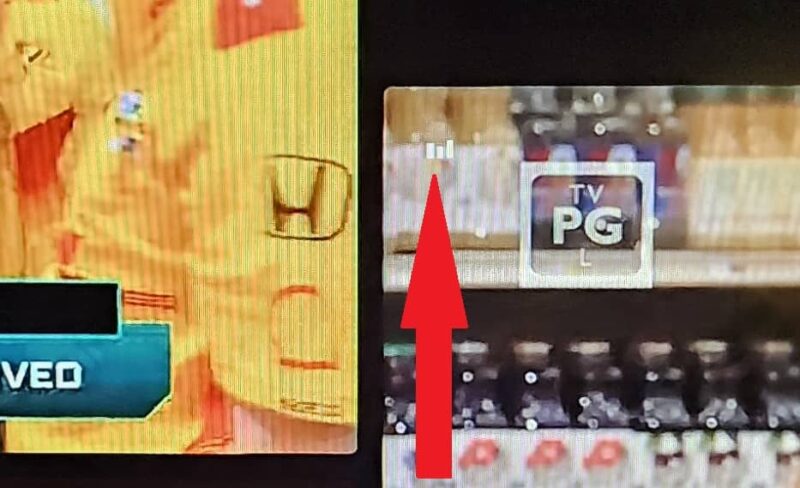
Use your remote’s arrows to move between each channel. It takes up to five seconds for the audio to switch, so be patient. I learned that the hard way.
Exit Multiview
To exit a multiview on YouTube, press your back button or up arrow to display the main YouTube TV guide or home screen. Your multiview continues playing in the background until you either select a new channel to view live or demand (by itself) or something from your library.
Once you exit the multiview, it disappears. You’ll need to create it again. I know that’s annoying, but I’m hoping YouTube TV will add a way to save multiviews for later so we don’t have to go through the process repeatedly.
Manage Your Multiview History and Delete It
While this probably won’t be an issue for most users, you may have created a multiview to let friends or family watch their shows while you watch something else. If YouTube TV starts suggesting content based on shows/channels you weren’t interested in, delete your watch history.
Or, before creating a multiview of channels you might not want in your history, you can pause it.
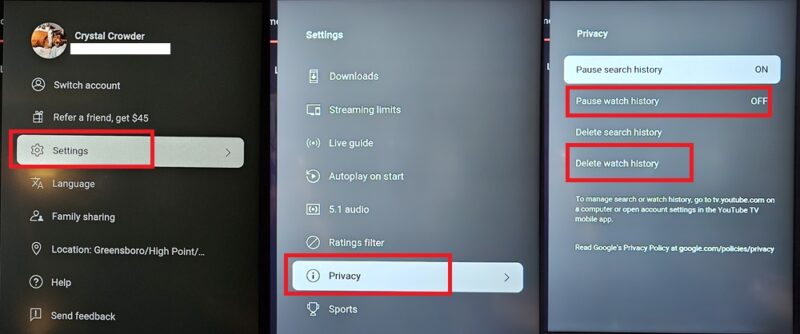
For either option, select your profile icon (this can be on your TV, browser, or mobile app), go to Settings -> Privacy -> Delete Watch History or Pause Watch History (if you’re being proactive). You can unpause your history the same way.
More channels may be available soon to create even more interesting combos. Hopefully, we’ll even get access to custom multiviews on YouTube TV on the mobile apps and web. Until then, you’ll have to settle for pre-created options. Or, check out other streaming sites for more content. And, make sure you’re saving as much money as possible with your streaming services.