
What do Spotify users want most from the popular streaming service? Better controls and tools. Spotify listened and finally added in some incredibly useful Spotify controls to give music lovers more power to customize their listening experience.
1. Spotify Queue Gets a Makeover
While you could always check to see what songs were coming up next by viewing the queue, you’ll notice a few extra Spotify controls when you tap the Queue icon on any song screen. It’s the three lines at the bottom right.
Tap Shuffle to easily shuffle the remaining songs or turn it off. Tap Repeat to repeat songs or tap it again to just repeat a single song. Of course, there’s also Timer. This is a switch from tapping the three dot menu on a playlist and then setting up a timer, which is perfect for bedtime listening.
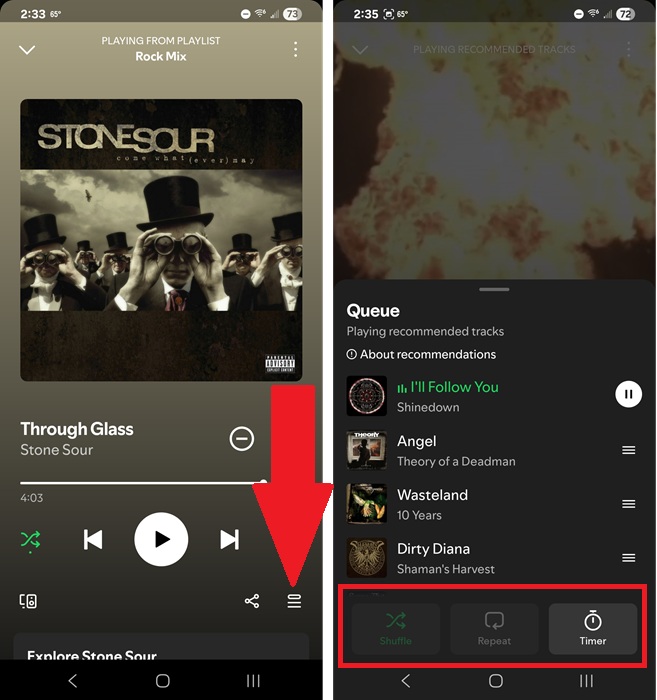
I did discover if you tap Repeat, go out of the queue, and back in, your shuffle and repeat options are greyed out. Exit Spotify completely and go back in and this fixes the problem.
Some users also have a Smart Shuffle button, though Spotify hasn’t rolled this out to all users just yet. For me, I could just tap the Shuffle button twice to turn on Smart Shuffle. Of course, this is still only available on playlists you’ve created yourself. Tapping the shuffle icon at the top of a playlist still lets you switch between in order, shuffle, and smart shuffle.
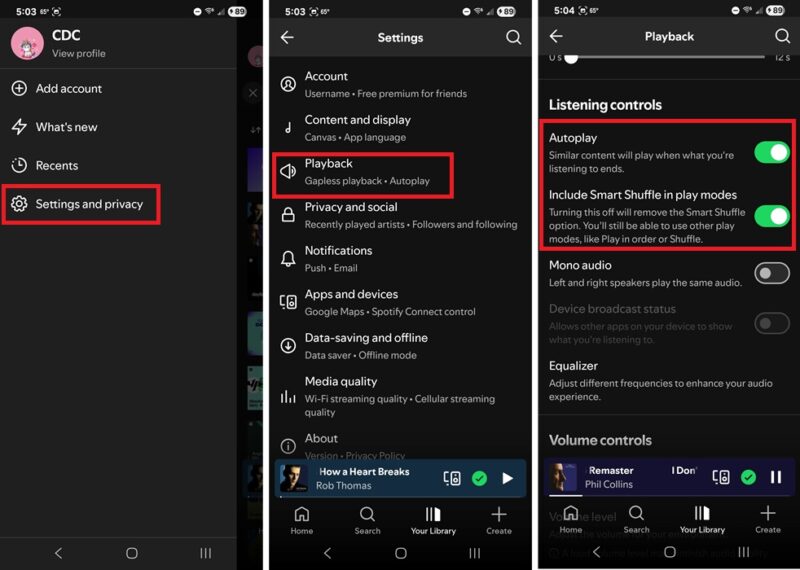
If you don’t like Smart Shuffle at all or don’t want Spotify playing extra songs at the end of a playlist, tap your profile icon and select Settings and privacy -> Playback. Toggle off Autoplay and Include Smart Shuffle in play modes.
2. Convert Liked Songs into Playlists
If you tend to just like songs versus creating different playlists, your Liked Songs list could leave you skipping around a lot as you try to find the right songs for your mood or day. Instead of trying to manually creating individual playlists, let Spotify do it for you.
This one of my favorite new Spotify controls. Tap Your Library at the bottom of the app and tap Liked Songs. Select a genre just under the play button. Review which songs appear and then tap Make this a playlist.
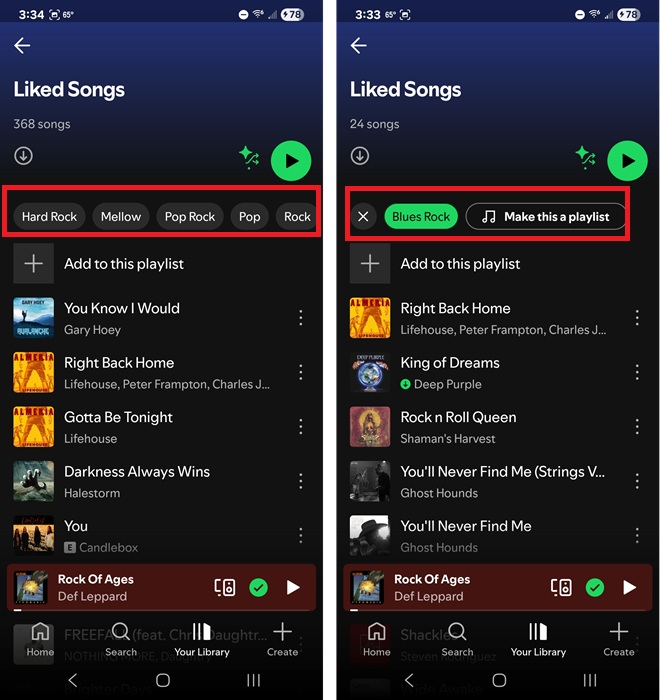
It’s a super easy way to create custom playlists from a list of songs you already know you love.
3. Create Lists From the Main Screen
Spotify’s added an extra control at the bottom of the main screen called Create. There’s no need to jump to Your Library or tap any songs/artists/playlists to create a new playlist.
Instead, tap Create at the bottom right and select what you want to create.
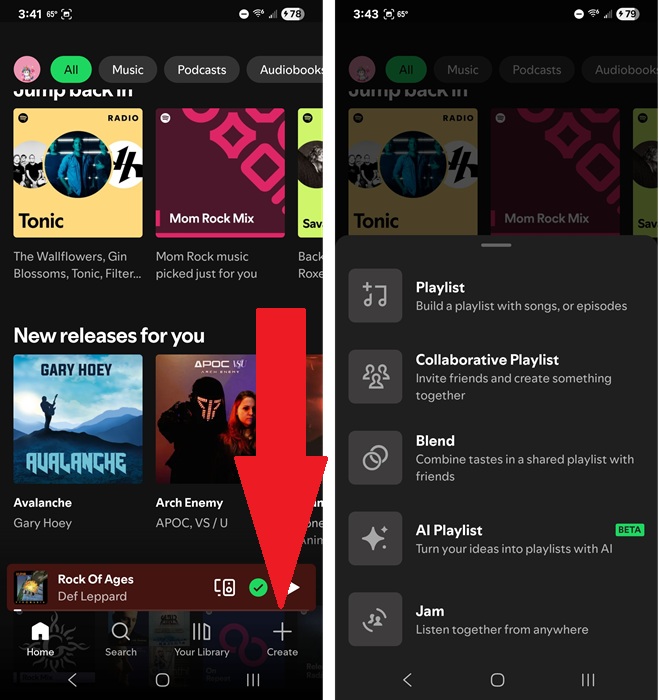
It’s nice to see all the options in one place:
- Playlist – Create a standard playlist of songs or podcast episodes
- Collaborative Playlist – Invite others to create a playlist together
- Blend – Blend tastes together with friends/family
- AI Playlist – Create a playlist from a prompt
- Jam – Listen to the same playlist with others, no matter where you’re at
Of course, the options you see may differ based on whether you’re a free or premium user. For instance, AI playlists are premium-only.
4. Easier Playlist Management
For any playlist you’ve created yourself, Spotify’s added a few extra controls. Just above the song list, you’ll now see three new Spotify controls – Add, Sort, and Edit.
Instead of scrolling to the bottom of your list to add new music, just tap Add to manually search for songs or add any of Spotify’s suggested songs. What I love about this feature is instead of just 3-5 suggested songs at a time and having to refresh to see more, it’s an endless list.
And, as a bonus, you’re not just limited to the search box or suggested songs. Swipe to the next screens to see suggested podcast episodes, recently played songs, and your Liked songs for more ideas to add to your current playlist.
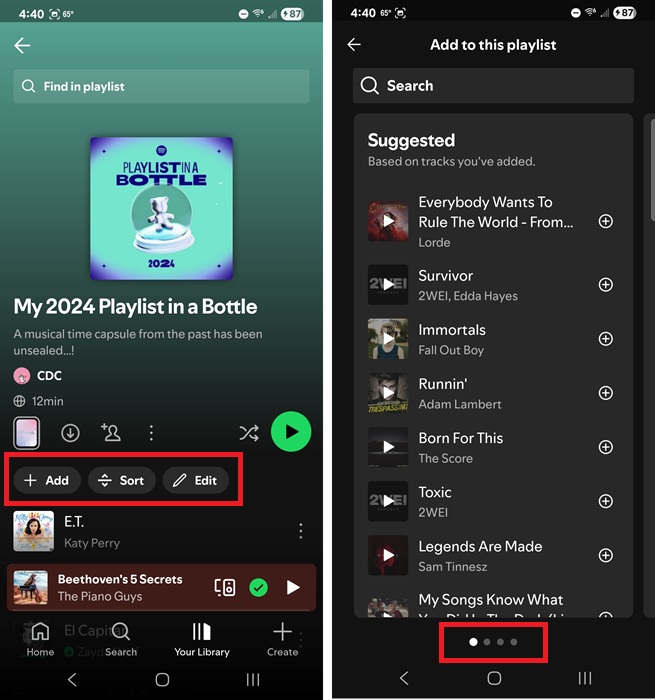
The Sort button lets you sort by custom, title, artist, album, and recently added. Personally, I just usually stick with the Shuffle or Smart Shuffle option next to the Play button.
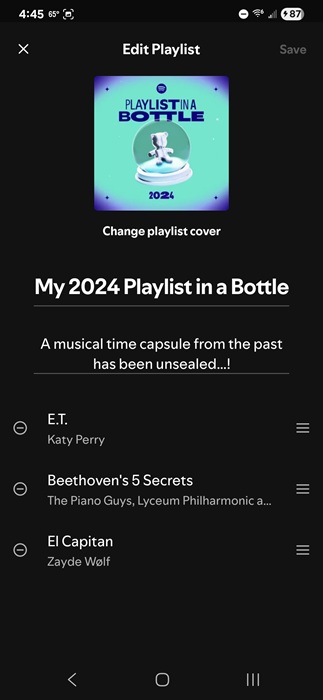
For those who love customizing everything, tap Edit to change your playlist’s cover image, title, description, and even delete and reorder songs.
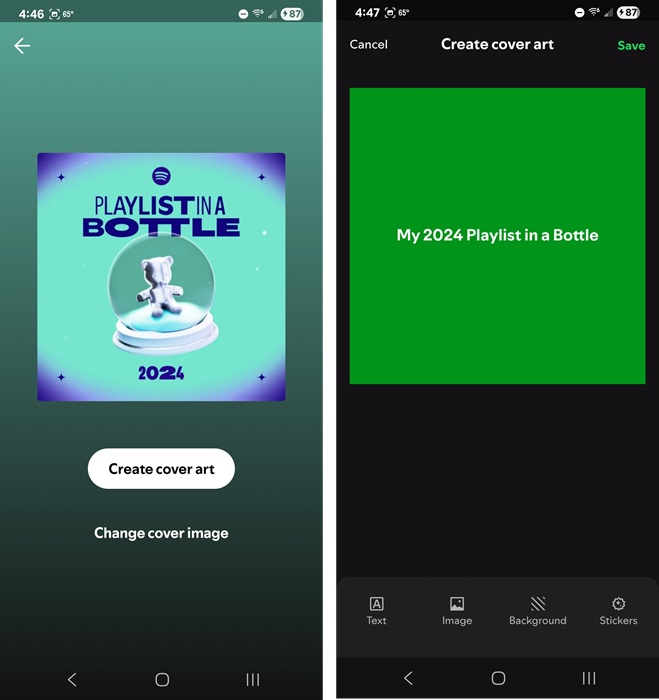
The most exciting part is using Spotify’s cover creator tools to design something completely unique. Tap Create cover art to let your creativity flow, or tap Change cover image to upload an image you already have. The design tool lets you change the text, background image, background color, and add stickers. Tap Save when you’re done.
5. Hide and Snooze Music
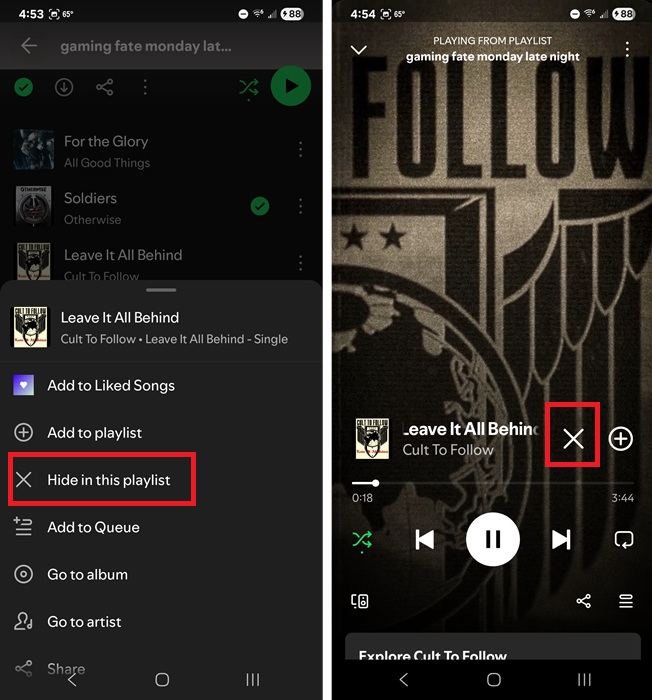
Spotify’s had the Hide feature for a while now, but it’s a bit more prominent now. Generally, you tap the three dots beside any song title and select Hide in this playlist to hide a song in that particular playlist. That option still exists. But, if you’re currently listening to a song, tap the big X on the player screen to hide it.
The Snooze option isn’t currently available to all users yet. I’m a little disappointed I don’t have it yet myself. It’s rolling out to some Premium users and if users like it, we’ll all finally get it. If you do have it, you’ll see a small pop-up when hiding a song asking if you’d like to snooze that song for the next 30 days.
This hides a song for 30 days on all playlists. It’s a nice way to take a break from songs Spotify wants to add to every single playlist just because you listened to it a few times. If your lists are getting stale, try these options to improve your recommendations.
If you don’t see any of these changes, update your Spotify app. Also, some changes are only for premium users and are rolling out in stages.








