As a frequent Telegram user, you may wish to keep some messages hidden from view without permanently deleting them. If you’re worried someone might gain access to your sensitive Telegram conversations, learn how you can keep them out of sight.
1. Archive Chats
The easiest way to hide texts from view in Telegram without deleting them is to archive them.
Open the Telegram mobile app and locate the conversation you wish to hide. Long-press on it until you see a few buttons appear in the upper-right side. Tap the Archive icon.
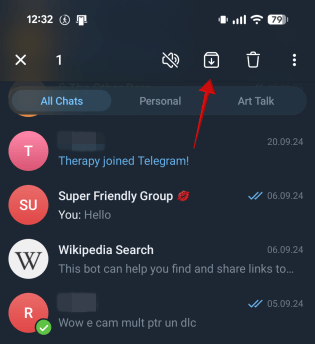
In the Telegram desktop app, right-click on the conversation on the right side of the display and select the Archive option.
Once you archived a chat, Telegram will create an Archived Chats folder that automatically sits at the top of your conversations on the main screen. You will want to hide this from view.
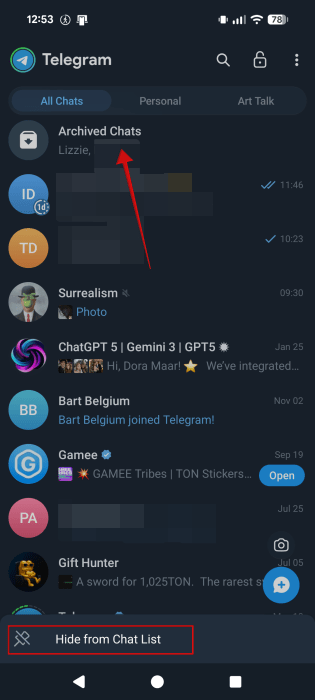
Long-tap the folder, then select the Hide from Chat List option at the bottom.
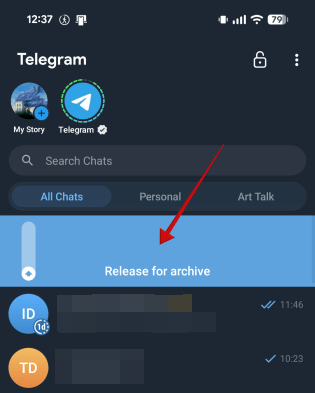
There’s one more thing you need to do to ensure your archived chats stay hidden. First, you need to bring them up again by swiping down from the top of the app in the mobile app and releasing your finger.
Access the archive and tap on the three dots in the upper right, then select Archive Settings.
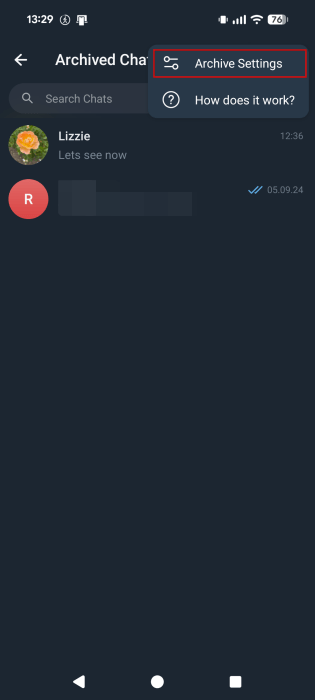
Toggle on the option to Always Keep Archived. This keeps your archived chats in the archive even if they are unmuted and get a new message.

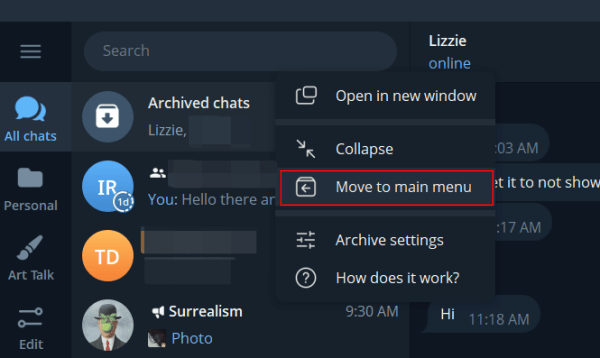
If you’re using Telegram on your PC, right-click on the Archive Chats folder and select Move to main menu. Make sure you do this to ensure you don’t receive any notifications for new messages coming in for archived threads.
2. Move Conversations to Chat Folders
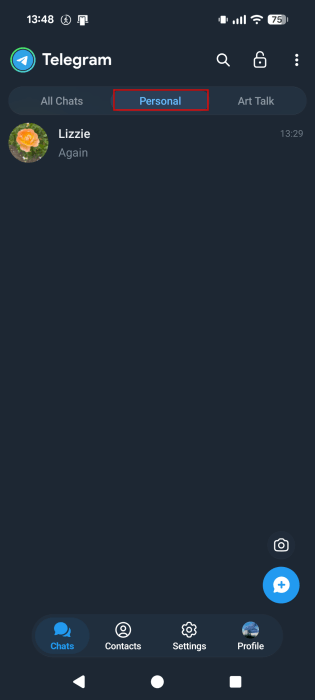
Another option for hiding selected conversations from view is to move them to a separate chat folder. Check our detailed guide here to see how to create a chat folder in Telegram.
However, even after placing your sensitive conversations inside a chat folder, they will remain visible in the main Telegram app screen. To remove them from view, you’ll have to follow the instructions above and archive them. Once you do this, you’ll be able to easily access them by switching to the appropriate chat folder from the main app screen.
3. Create a Group and Give It an Inconspicuous Name
Another way to hide a chat thread is to create a private group and give it a generic name, such as Recommendations or Ideas to remember.
Open Telegram and tap on the three dots in the upper right. Select New Group. Add the person in question.
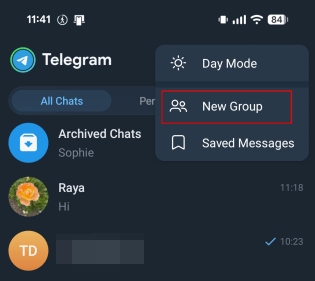
Name your group. It’s a good idea to also turn on Auto-Delete Messages for even greater privacy.

In the Telegram desktop app, click the hamburger menu and select New Group from the left menu.

4. Add a Second Telegram Account
If you have a second phone number, it might make sense to reserve it for your more confidential exchanges. Since Telegram allows you to add a secondary account, you can then easily switch between your mainstream account and your secondary one.
In Telegram, go to Settings → Account. Select Add an Account.
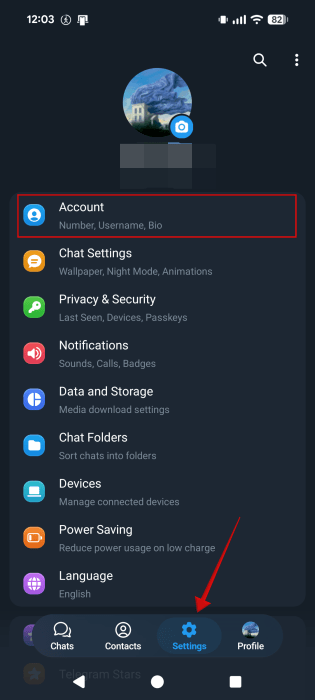
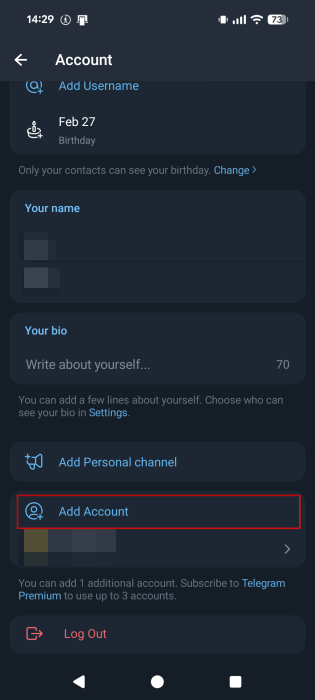
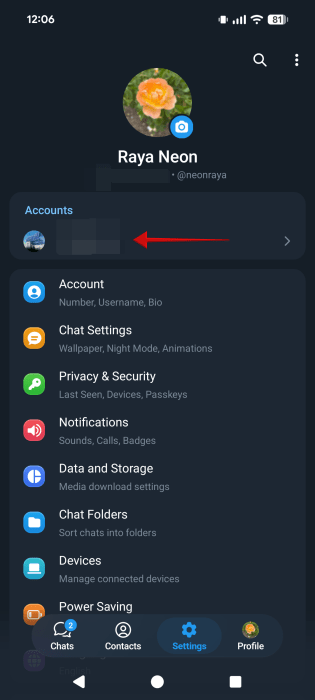
Type your secondary number to log in. Now, to switch back to your other account, just go to Settings and tap on your name in the Accounts area.
5. Lock Your Telegram App with a Passcode Lock
If you frequently share your device with a family member or friend, the best protection for keeping your chats out of sight is to set a passcode lock for your Telegram app. This is a feature also available in rival app WhatsApp, among other privacy-focused options.
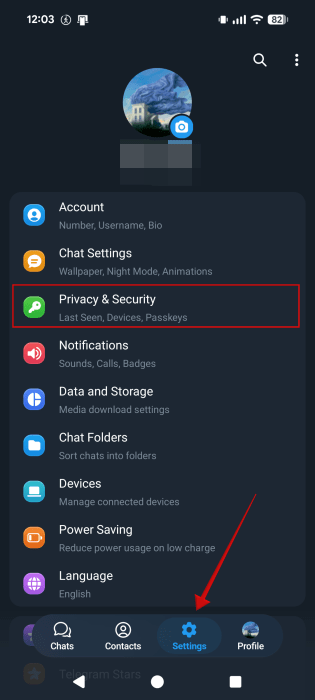
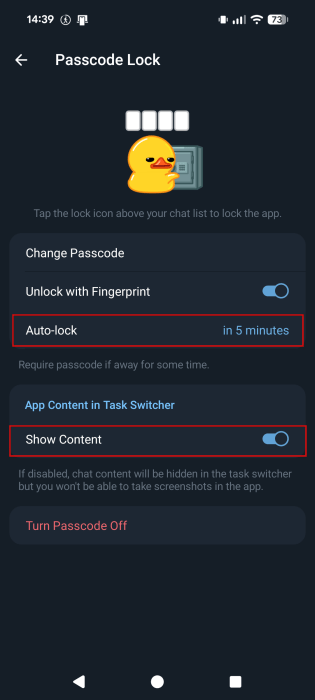
Open the app, and go to Settings → Privacy. Tap on Passcode Lock.
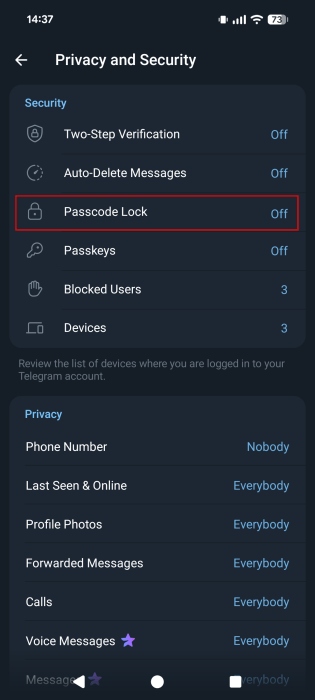
Set your passcode lock. Make sure you also set an Auto-lock time, in case you forget your phone with the screen on. You may also want to deactivate the option to Show Content to hide chat content in the Android app switcher. However, this means you won’t be able to take screenshots.
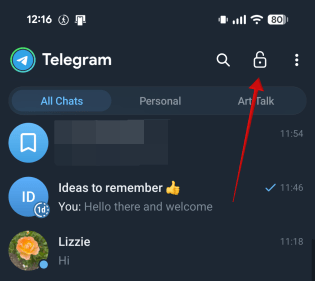
Now, whenever you’re done using Telegram, tap the Lock button in the upper right corner to secure the app.
If you’re looking for more messaging app alternatives, we suggest taking a look at these privacy-focused recommendations.