If you plan to keep using Windows 10 after its end of life, you’ll want to grab its ISO file before it’s gone. While Microsoft hasn’t confirmed it, there’s a good chance they could pull the Windows 10 ISO from their site soon. Follow the steps in this guide to download it right now while you still can.
Why You Need to Get Windows 10 ISO Right Now
Windows 10 reaches the end of support on October 14, 2025. While you can extend Windows 10 security updates, October 14 is still the official end of support date. Beyond this time, it completely depends on Microsoft when they will take down the ability to download Windows 10 using the official website.
If you want to keep using Windows 10 after October 14 or expect you might need it later for anything else, you need to get the Windows ISO file right now. The ISO file is crucial to install Windows 10 on any other PC or for troubleshooting Windows using a Windows 10 recovery drive.
If you don’t save a copy now and it gets taken down, you’ll be at the mercy of third-party providers, which could be infected with malware. Furthermore, getting the Windows 10 ISO is a bit tricky since Windows usually provides the Media Creation Tool when downloading from the official website instead of the ISO file. You can use the following methods to get the Windows 10 ISO file.
Get Windows 10 ISO From Microsoft Download Page
Microsoft only offers the Media Creation Tool to users who access the website using a Windows PC (any version). However, if you make it think you are using a different operating system, it will provide the ISO file for creating a USB installer.
Thankfully, you can change the user agent in the browser to make the Microsoft website think you are using a different operating system, like Android, allowing you to download the Windows 10 ISO file. Here’s how:
Changing Browser User Agent
You can change the user agent in Chromium-based browsers like Chrome, Edge, Opera, etc., using the Developer tools. You should find the option to access Developer tools in the browser’s main menu or by pressing Ctrl + Shift + I shortcut keys. Access the Windows 10 download page and open the Developer tools.
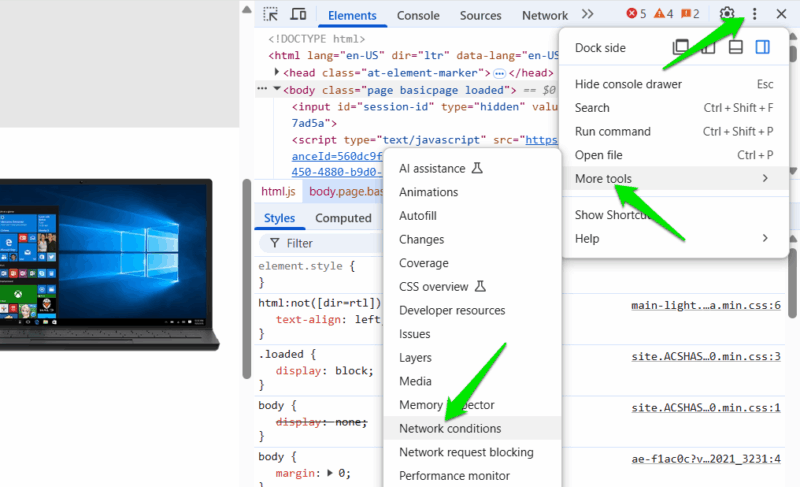
Here, you need to find the Network Conditions tool. On most Chromium browsers, you’ll have to click the three dots menu and then select More tools → Network Conditions.
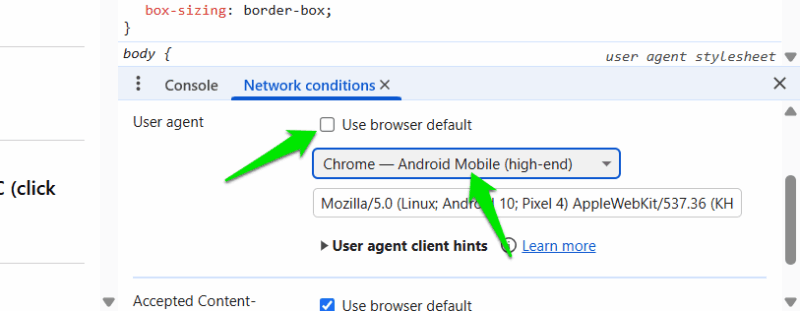
This will open the tool at the bottom of the page. Now, uncheck the Use browser default option and choose any other user agent besides Windows below, such as Android.
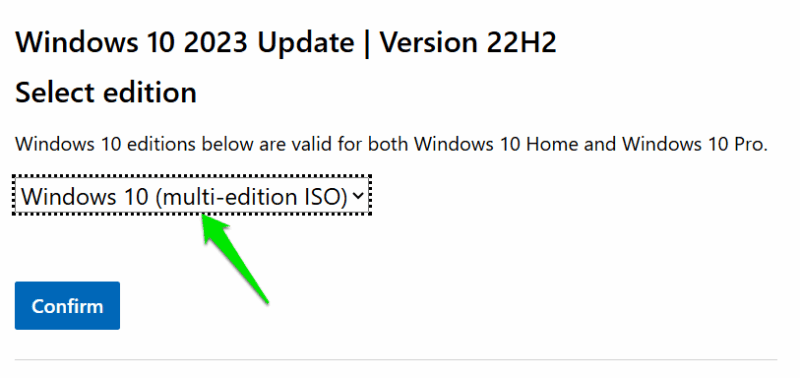
Afterward, refresh the Windows 10 download page, and you should see a new option to select Windows 10 ISO for download. You’ll then have to select a language and a 32-bit or 64-bit architecture to start the download in the browser.
The process is much easier on Firefox. Just open Firefox, press Ctrl + Shift + M keys to open Responsive Design Mode, and open the Windows 10 download page in the smaller window.
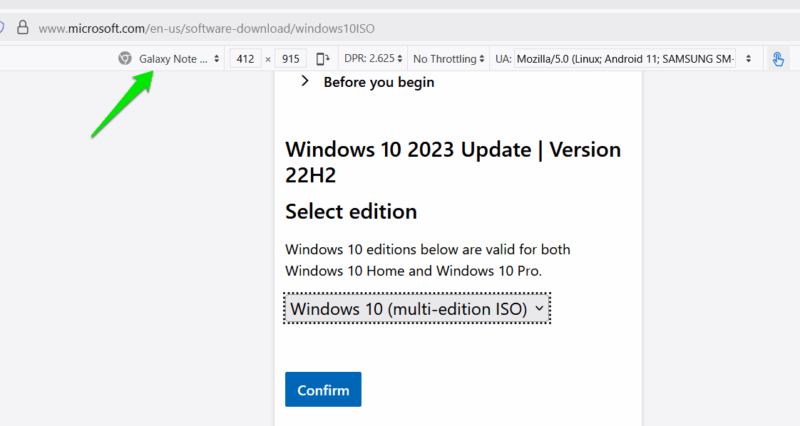
You can also use a browser extension to change user agents quickly. Chrome users can use User-Agent Switcher for Chrome and Firefox users can use User-Agent Switcher.
Use the Media Creation Tool to Download Windows 10 ISO
You can also use the Media Creation Tool of Windows 10 to download Windows 10 ISO without upgrading the current PC. Download it from the same Windows 10 download page by accessing it from a Windows PC without changing the user agent.
When you launch the tool, it will scan your PC and then give you the option to upgrade the PC or create installation media. Select the Create installation media option here.
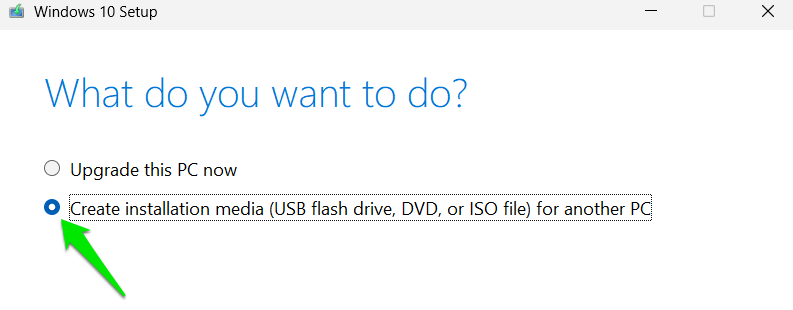
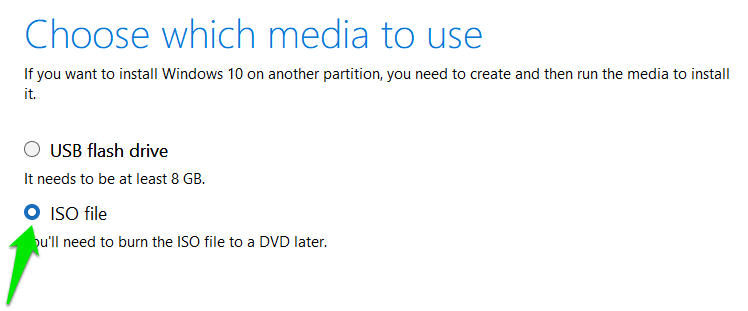
Next, select your language and architecture and click Next. It will then give you the option to create a USB flash drive or an ISO file; select ISO file here, and click Next. You can then choose a location on your PC to save the Windows 10 ISO.
Once you have the Windows 10 ISO, make sure you create a local and cloud backup of it, and use a reliable cloud storage provider. Once Microsoft takes down the Windows 10 Media Creation Tool, you can use a tool like Rufus to create USB installation media or recovery drivers using the ISO file.








