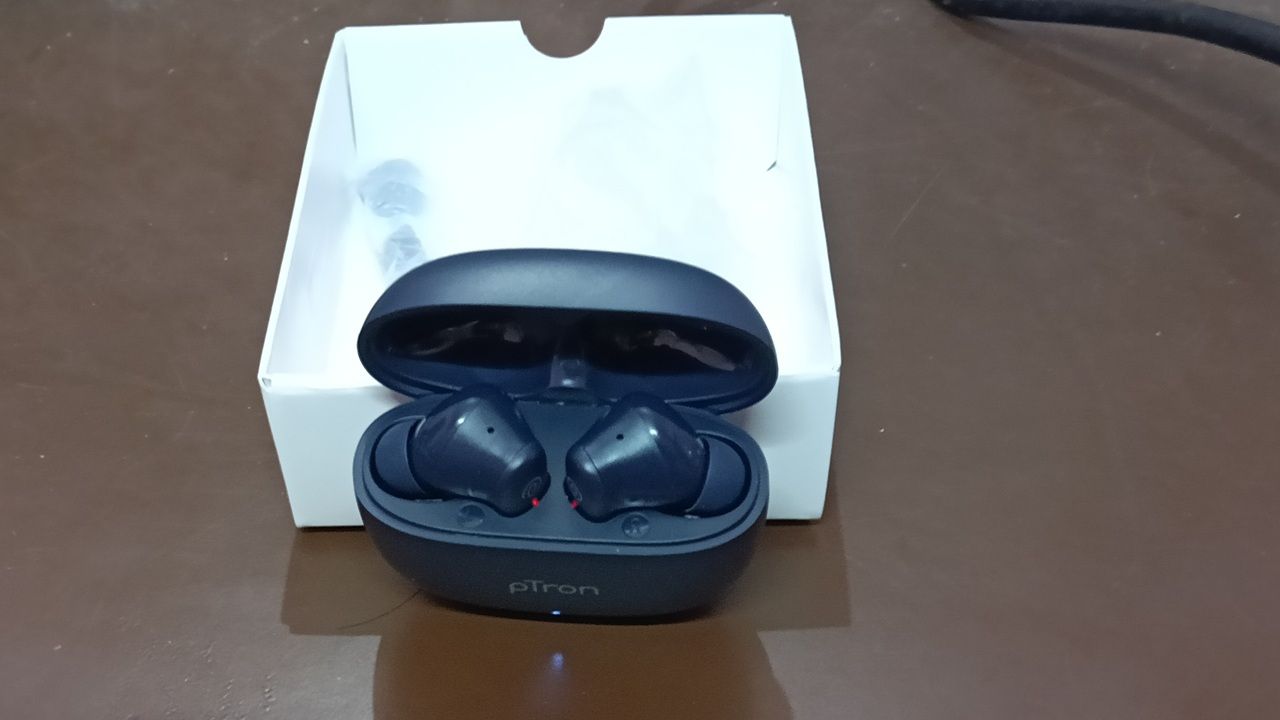
You can force your Android to use the best quality codecs instead of system defaults whenever it pairs with Bluetooth earbuds, headphones or speakers. This hidden tweak, available in Developer Options, switches your device to high-fidelity codecs instead of standard ones, ensuring a richer sound quality.
Why System Selection on Bluetooth Audio Codecs Isn’t Good Enough
Whenever two devices establish a Bluetooth pairing, information moves across a mini network called piconet. The information includes audio details if both the sender and receiving devices generate sound.
The challenge is that raw, uncompressed high quality sound takes up several megabytes of data to transfer over a narrow Bluetooth bandwidth. You need to compress this audio wirelessly (at the Android phone end). It will then decompress at the other end, such as wireless earbuds.
Such compression happens through Bluetooth audio codecs such as SBC, aptX, aptx HD, and LDAC. Each of them shrinks data by a great amount (4-10 times) while trying to keep as much of the original sound detail as possible. How much exactly depends on the range at which these Bluetooth codecs max out.
- SBC and basic Bluetooth codecs top out at around 328 kbps
- AAC does a similar transfer at a measly 320 kbps
- aptX HD sends data at 576 kbps
- LDAC offers the highest transfer rate at 990 kbps
Clearly, it is better to switch to something like LDAC instead of relying on the default system selection of audio codecs built into your devices. This way, you can squeeze a lot more data through the narrow Bluetooth bandwidth pipe for richer, clearer sounds.
Both your Android device and the earpiece need to be connected. Otherwise, you couldn’t view the full set of options for audio codecs.
How to Force the Highest Bluetooth Audio Codec
Depending on your device settings, you can force the highest Bluetooth audio codecs in Android’s Developer Options mode.
First, ensure that your pairing earset/headset device carries the matching highest codecs. You can find this information on various websites for technical specifications or check the user manual.
- Sony WF-1000XM5: this popular Sony earbud supports up to LDAC
- Google Pixel Buds Pro 2 mainly supports SBC, AAC, LE Audio/LC3 but no LDAC
- Samsung Galaxy Buds 3 Pro: supports SBC, AAC, LDAC, and Samsung Galaxy’s proprietary Seamless Codec (SSC) which is most compatible for Samsung users like me.
Next, turn on Bluetooth and pair both the Android phone and your connecting ear buds/headphones or speaker.
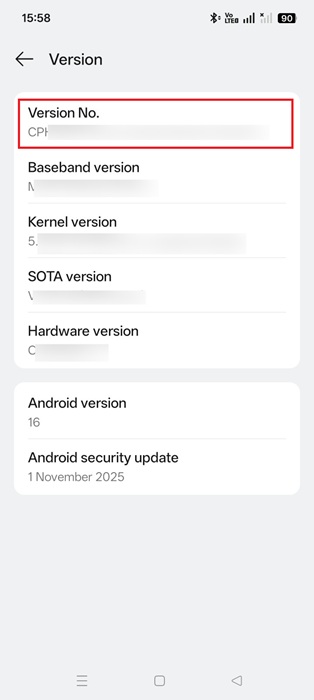
We also need to enable Developer mode on your Android device. For this, you have to go to About Device/Phone, and select Version. Click Version No. 7 times for the Developer mode to appear on-screen. This is common to most devices. On another of my Samsung Galaxy device, I had to select Build number.
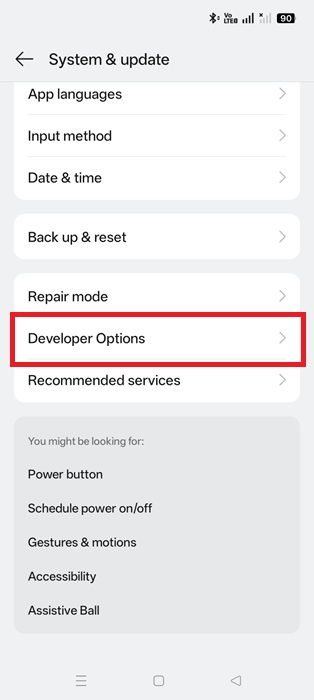
After this, go to Settings -> System & update, and you can find Developer Options as one of the menu items. Click here to go to the next page.
Scroll all the way down the page to view various Bluetooth options. Select the option called Bluetooth audio codec.
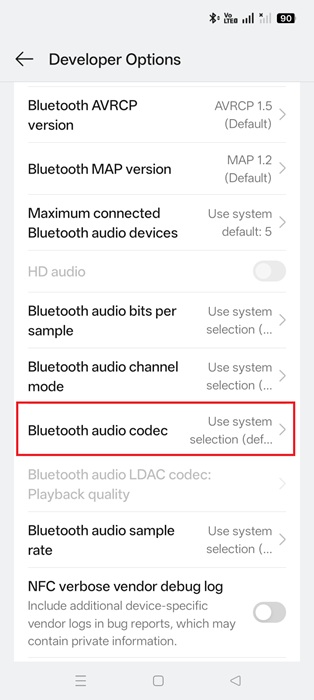
Here, you will always find a system selection value as default. Instead, switch to a more compatible codec supported on both devices, such as LDAC in this case.
Press backspace. Now you can do a few more changes if both devices support it otherwise they will appear in gray. The Bluetooth audio bits per sample can be maxed to 32. Audio channel mode can be set to “Stereo”.
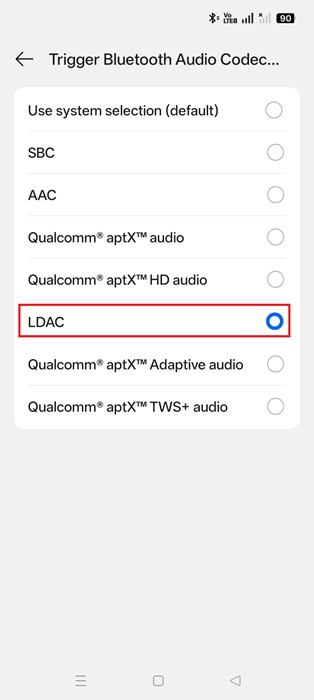
Whichever field you max out, the audio file is now bigger, but leads to an improvement in sound quality. This is based on how Bluetooth profiles work.
Why the Right Bluetooth Audio Codecs Produce Best Sound Quality
The superior quality of advanced Bluetooth codecs like LDAC or proprietary codecs like Samsung’s SSC stem from their better quality compression algorithms.
While all codecs are lossy transferring sounds, premium ones employ advanced psychoacoustic techniques. These are rooted in how the human auditory system perceives sound. So, if there are quieter tones near louder sounds, they are intelligently blended into the background for a softer impact.
Additionally, higher-bitrate codecs capture subtle harmonics and high-frequency airiness lost in lower-rate compression. This is what leads to a reduced distortion effect helping you hear each instrument separately, something audiophiles love.
I ran into an annoying limitation while forcing the highest Bluetooth audio codecs. Even though both my Android phone and the ear device supported the desired codecs, they got reset upon disconnect/reconnect, song changes, phone reboot, or even app switches. I had to manually reselect the matched codecs after this.
Apart from this minor flaw, the above hack is quite real and supports all Android devices starting from Oreo 8.0. You can easily reverse these changes if you want a different setting, and you don’t require rooting or third-party apps.








