Usually, app icons show up with no issues on your Roku’s home screen. But, app icons disappearing on Roku has become a common issue. While Roku’s admitted there’s a problem, the company hasn’t issued a fix. You do have several ways to fix it yourself, though.
What Causes Roku App Icons to Disappear
This issue appears in multiple ways. You may see a camera icon in place of the app icon, the app missing completely, a blank square, or even a flickering app icon. The causes vary, but the most common causes include:
- Loading glitch when Roku launches
- Problems with a system update
- Issues with an app update (most likely cause if it’s the same app(s) having the issue)
- System or app update currently in progress
- Older Roku device that’s not compatible with an app
Select the Blank Icon to See if It Loads
In most cases, when an app icon disappears on Roku, it’s a simple glitch during startup. Your app is still there, but the image itself didn’t load correctly.
Use your remote to hover over the icon. If the app name appears, select the app to load it. Let it stay loaded for a few minutes and exit the app.
It should reappear as usual on the home screen.
The downside I often have is another app icon disappears. So, it feels like a bad game of musical chairs.
Restart Your Roku
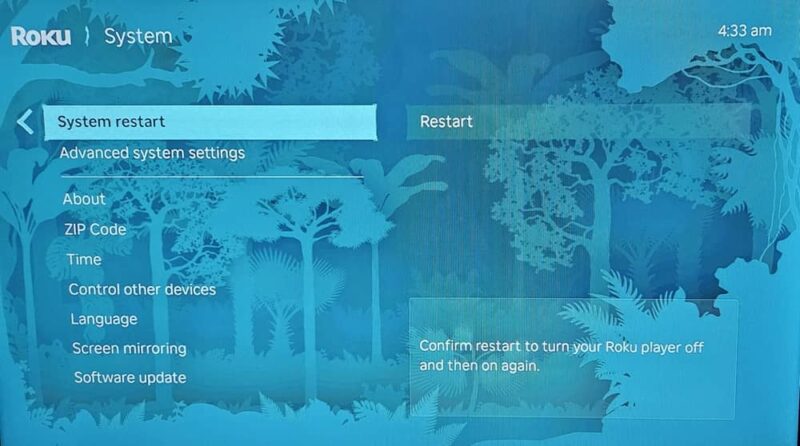
If you run into the issue of more app icons disappearing as soon as you get a missing one to load, the easiest fix is to restart your Roku. Simply turning your TV off isn’t enough, especially since your Roku often remains in standby mode. You need to perform a full restart.
You have several methods to do this:
- Unplug the power cable from your Roku device. Wait 10-30 seconds before plugging it back in. If you have an older device, wait up to two minutes.
- Use the secret remote button combo – Press Home five times -> Up arrow -> Rewind twice -> Fast forward twice. This doesn’t work on all Roku devices. It also doesn’t work with the mobile app remote, even though it can control your Roku.
- Use the Settings menu – From the Roku home screen, go to Settings -> System -> Power -> System Restart. Depending on your model, you may just see System Restart instead of the Power submenu. Make sure the Fast TV start (in the Power menu) option isn’t on or it won’t fully restart. The option is only available on certain Roku models.
Try Loading Another Menu
A strangely odd fix for app icons disappearing on Roku is navigating to another menu. In theory, it works because the Roku home screen refreshes each time you reload it.
From the home screen, scroll to the left with all the various menu options. Scroll down to another option, such as What to Watch or Search. What you choose really doesn’t matter.
Scroll to the right to interact with the new screen/menu. Then, press Home on your remote.
This should refresh the Roku home screen and let your app icons appear normally.
Check for System Updates
Your Roku is supposed to update automatically. In my case, it usually happens in the middle of browsing Netflix. But, sometimes, your Roku doesn’t update.
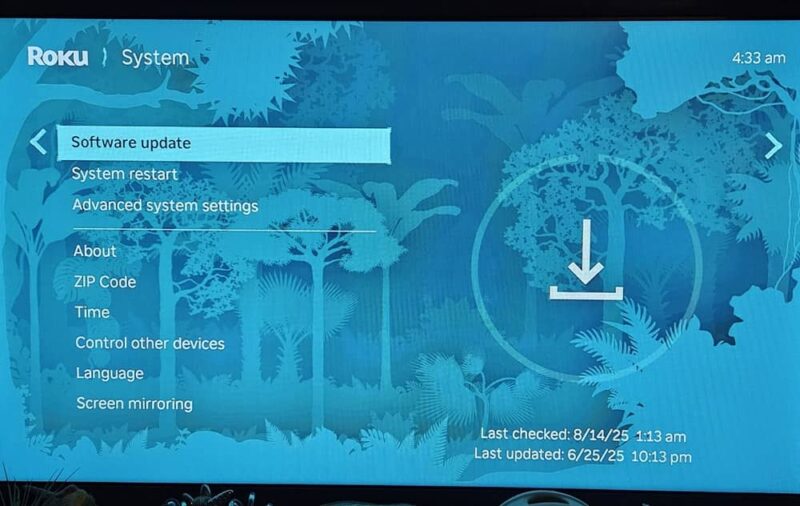
From the home screen, go to Settings -> System -> Software Update. It usually only takes a minute or two to check. If an update is available, it’ll install and your Roku restarts.
Check for App Updates
Many users don’t realize their apps update regularly as well. Once again, these updates don’t always happen like they should, so you need to give them a little push.
Navigate to your app icon, even if it’s just a blank placeholder. Press the asterisk (*) button on your remote and select Check for updates.
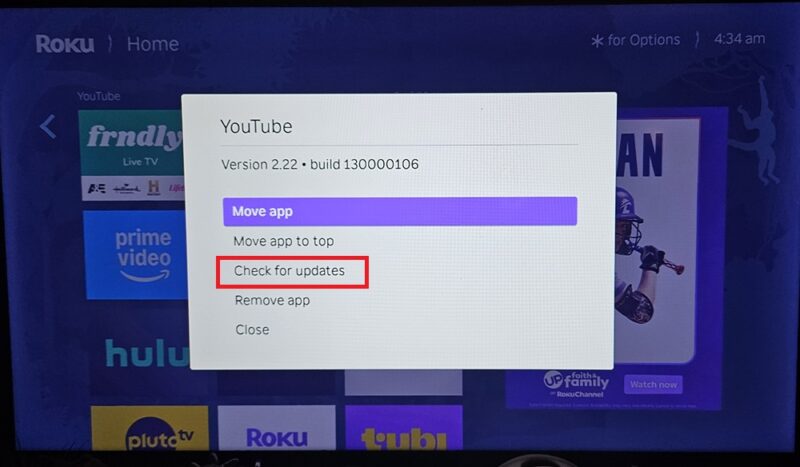
If an update is available, you might notice the app icon flicker as it updates. Then, it should reappear normally if this is the issue.
Remove and Reinstall App
I’ve only had to do this a few times. In this case, when you navigate to the blank icon, the name doesn’t appear. Or, if the name does appear, but the icon refuses to reappear after trying everything else, reinstalling is your best option.
If the app is still installed (name shows, but app icon disappears on Roku), press the asterisk (*) button on your remote and select Remove app. Restart your Roku when you’re done.
Then, go to the Search menu on the left side to search for and install the app again. You may need to log back in to your account on that app.
If the app is just gone, search for it and reinstall it.
Factory Reset Your Roku
Only do this as a last resort. I’ve personally never had to resort to this solution as all the other options have worked to restore my app icons.
If app icons disappearing on Roku happens constantly and it occurs with numerous icons, a factory reset may be needed. Take pictures of your home screen to help guide you on what to reinstall. Usually, your Roku account saves your apps to reinstall them for you, but this doesn’t always work correctly.
Go to the home screen and go to Settings -> System -> Advanced system settings -> Factory reset. Enter the code it shows on the screen.
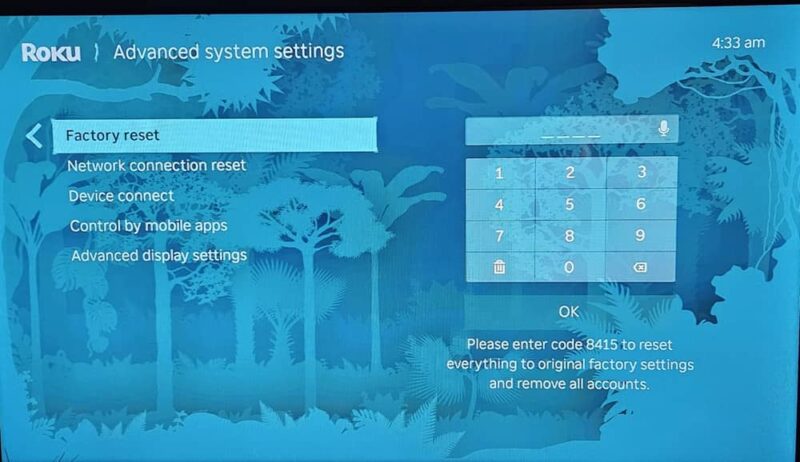
Once your Roku restarts, the home screen looks exactly like it did when you bought it. Login to your Roku account. Then, reinstall and reorganize your apps if they don’t automatically load.
If your app icon issue devolves into your Roku not responding at all, try these fixes to turn it on again. And, if you’ve recently gotten a new Roku remote that’s missing a pairing button, here’s now to pair it.








