Want to know how to find your lost or stolen Samsung phone? Thanks to Samsung Cloud, you can track its GPS location and even lock or ring it, whether it’s offline or in silent mode.
1. Create a Samsung Account
You need a Samsung account to track your missing Samsung Galaxy phone. If you don’t have one yet, create it via the Galaxy Store settings on your phone. Go to Settings and you’ll see Samsung account as the first option.
You can sign in later with a Google account, but without a password, you can’t sign out of Samsung apps. It works out better to create a unique password for Samsung.
While creating your Samsung account, verify your email with a code. To register your phone, you first need to add a valid phone number. Use a number on the Samsung device that you want to track, then go back to that device and continue with the next step.
2. Install the Samsung Find App
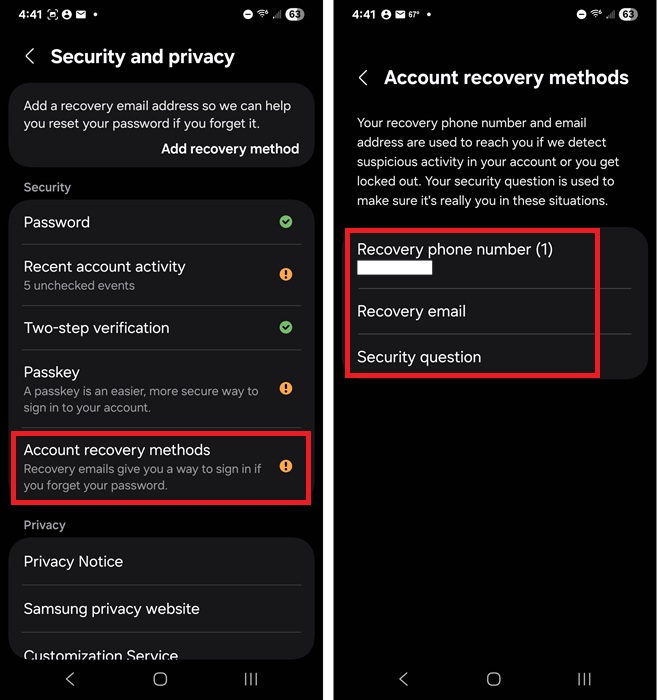
Once you’ve signed in to your Samsung account, go to Settings -> Samsung account -> Security and Privacy -> Account recovery methods. Login to confirm it’s you. This is just an extra security step to prevent an unauthorized user from accessing your settings.
Add a recovery email, phone number, and security question.
You now have two choices – download Samsung Find from the Galaxy Store (automatically connects your Samsung account to the app) or download it from the Play Store. Both options allow you to find a lost Samsung phone.
Download from Galaxy Store
Open the Galaxy Store app on your Samsung phone. If you’ve uninstalled it, you’ll need to re-install it from a trusted third-party app store.
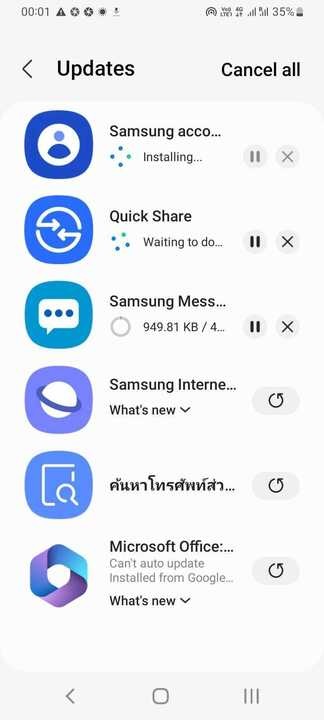
Search for Samsung Find and install the app, and finish any pending Store updates. Make sure to complete all previous verifications; otherwise, you may run into the following error when registering your device: Your phone hasn’t finished registering to your Samsung account yet. Try again later.
You can also use Google’s Find My Device with Samsung, but these devices are different from other Android phones, so Samsung Find works better.
Download from Play Store
The Samsung Find app in the Play Store is the same as the Galaxy Store. However, the Galaxy Store version gets updates first. You’ll also need to sign in and connect the app to your Samsung account after installing it.
3. Register Your Samsung Galaxy Device
Launch the Samsung Find app home screen and sign in if necessary. The app should connect with your phone automatically after setting up the required permissions. These include:
- Location – Allow all the time (otherwise, the app can’t track your device). Turn on precise location for more accurate tracking.
- Contacts
- Notifications – This lets you know if anyone’s tracked your device’s location. You can limit these if you want. If you want quiet notifications, just let your phone light up instead.
If it doesn’t register, tap Devices and tap the + sign to add a new device.
After a device is registered, tap the three-dot menu, followed by Settings -> Allow devices to be found. Tap Offline finding and toggle it on to ensure that the phone is reachable, even if it’s not connected to the Internet.
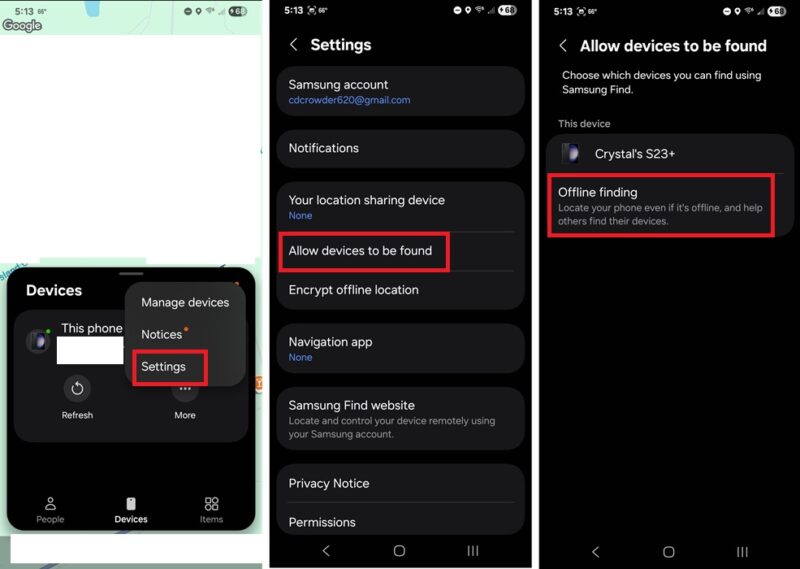
In Settings, tap Navigation app and turn on Google Maps. If you have other navigation apps installed, choose one of them instead, if Samsung Find supports it.
For added safety, tap Settings -> Your location sharing device so that family members who are also on a Samsung Find network can know your whereabouts. If you need more privacy, use Settings -> Encrypt offline location so that other Samsung Galaxy users would need a PIN to access your location.
4. Sign in to Another Device
After you’ve registered your phone in the Samsung Find app to Samsung Cloud, you need a way to track it from another device. Go to the Samsung Find site and sign in, landing on a dashboard. Besides your username and password, you may also need the PIN you used to register your phone.
You can use a PC, mobile browser, or even a Samsung Galaxy smart home speaker on the SmartThings network. If you sign out of the secondary device, the Samsung phone tracking continues.
5. Find a Lost Samsung Phone
As soon as you log in, you’ll see all active devices you’re authorized to track. To view your phone model and IMEI number, click My device -> Device information. Also, click on Settings at the bottom of the screen, and turn on Location information.
On the main dashboard, click Track Location to open a Track my phone pop-up window. Click Start, and the location of your lost device updates on this new device every 15 minutes.
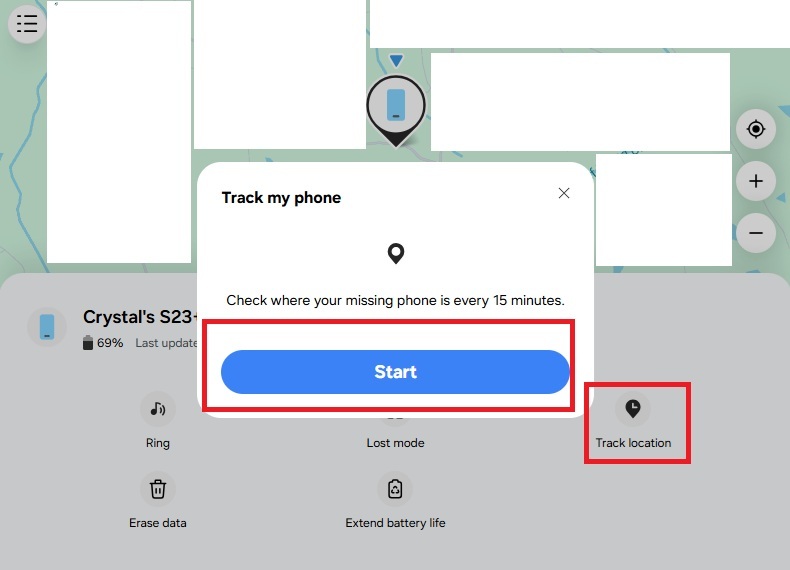
When you click Stop, you can no longer track the missing phone. Easily check your Samsung phone’s last location on the dashboard map, which also gives the date and time.
You can’t turn off tracking on your Samsung phone on the phone itself. You will need to go back to the secondary device. It annoyingly sends alerts on the phone every 15 minutes, but you can delay the notification to two hours.
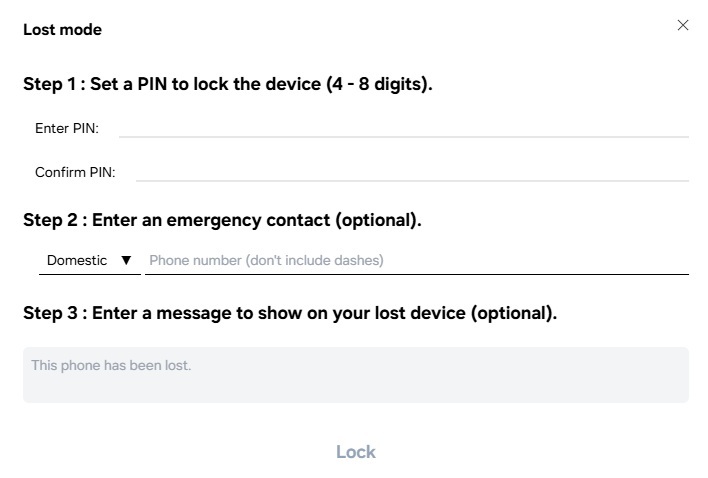
The SmartThings Find dashboard also lets you lock your phone remotely. Click Lost Mode, and a pop-up window shows it is currently Unlocked. Click Next to set a 4-8 digit PIN. Tap Lock to lock your phone. Don’t lose your PIN, or you won’t be able to unlock your phone. You can also add an emergency contact number and a message to help someone return your device if it is found.
One of the best features of Samsung SmartThings Find is that it can ring your phone from your dashboard. To do this, click Ring, then Start. Even if your Samsung phone is on vibrate or mute, it will ring at maximum volume for one minute straight. Anyone who has access to your missing device will see this alert: “SmartThings Find is trying to find this phone.”
If you’re worried your phone is going to die before it is found, click Extend battery life.
Want to delete everything so a thief can’t get into your device? Remotely wipe your Samsung phone by clicking Erase data. This deletes everything, including your Samsung Wallet, so only do this if absolutely necessary.
If you’re looking to track and recover a lost or stolen device other than a Samsung phone, iPhone, iPad and Mac users can use Apple’s Find My service, while Windows user can easily access a lost computer.








