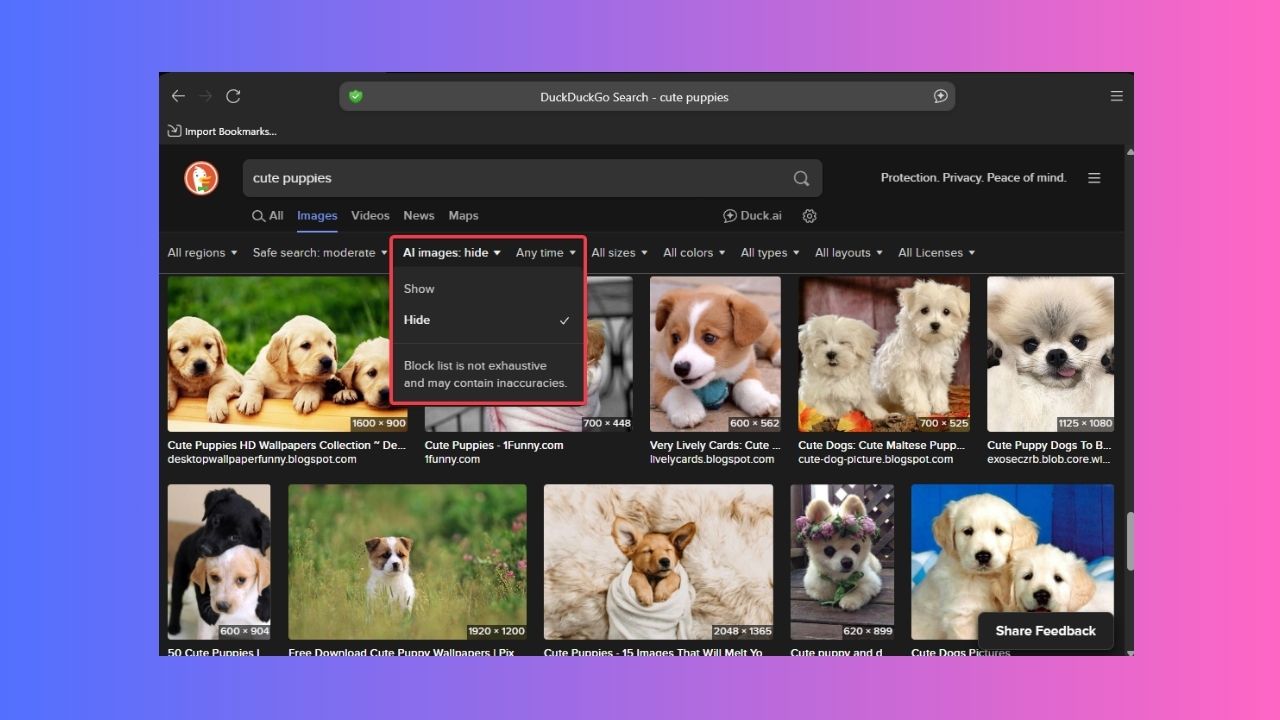
It’s annoying to search for a cool photo and get a bunch of fake, AI-generated junk instead. Since AI-generated images are everywhere, DuckDuckGo’s got your back with a new tool that lets you cut through the AI noise and find real images.
Why There is a Need to Filter AI-Generated Images?
The internet is flooded with AI Slop. AI tools create these weird images that appear somewhat real but aren’t, and they can bury the real photos you’re looking for.
Say you’re searching for “cute puppies”, and half the results you get are AI-made cartoons instead.
Here’s where DuckDuckGo comes in with a new feature rollout that allows you to filter AI-generated images in its browser, giving you more control.
This is great because you get actual, genuine photos, not fake stuff, and it keeps your search results clean and relevant. Hence, if you prioritize browsing privacy and are not big on AI, this feature is a big win for you.
Enable the AI Image Filter on DuckDuckGo
To filter AI-generated images in DuckDuckGo, launch the app and type in your search query like “cute puppies”, and hit Enter. Then, click the Images tab.
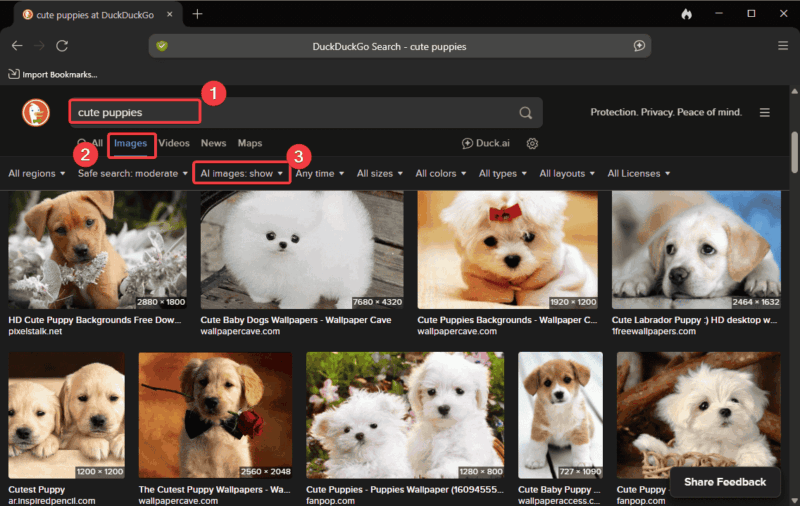
Now, locate the AI images drop-down near the top of the results, under the search bar.
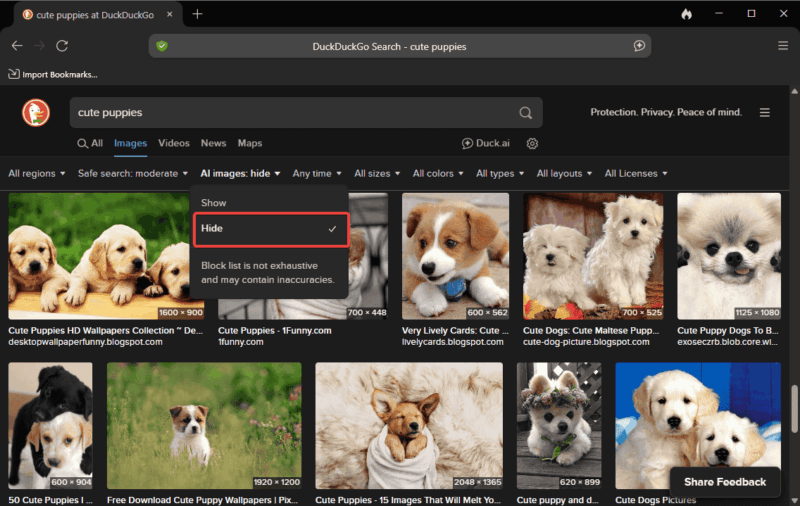
Click the drop-down and select Hide to filter AI-generated images in DuckDuckGo.
Disable AI Images via DuckDuckGo Settings
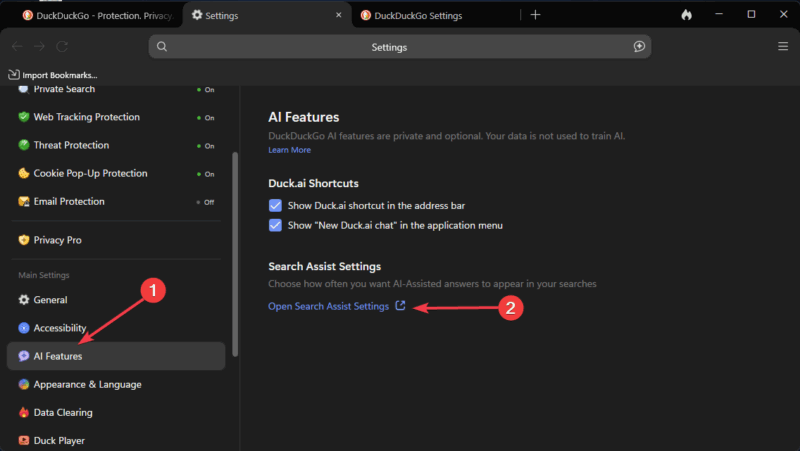
Alternatively, you can tweak your settings to make it permanent: Launch the app, click the options Menu -> Settings.
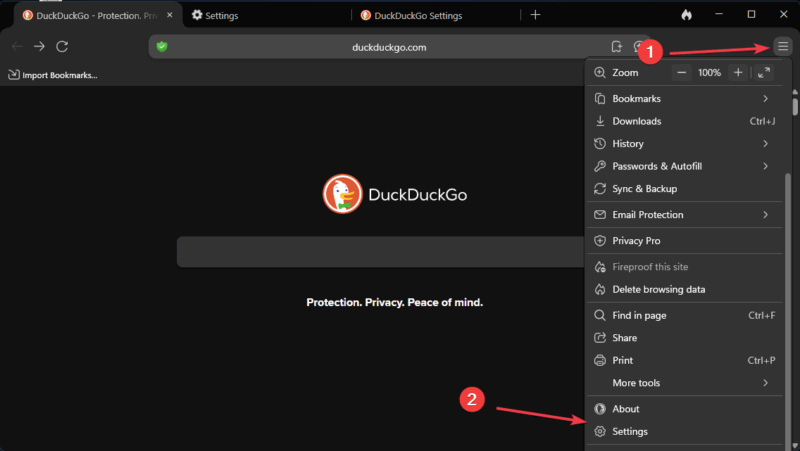
Click on AI features. Then, click Open Search Assist Settings.
Locate the Hide AI-generated Images option and turn it on. Now, click Save and exit to effect your changes.
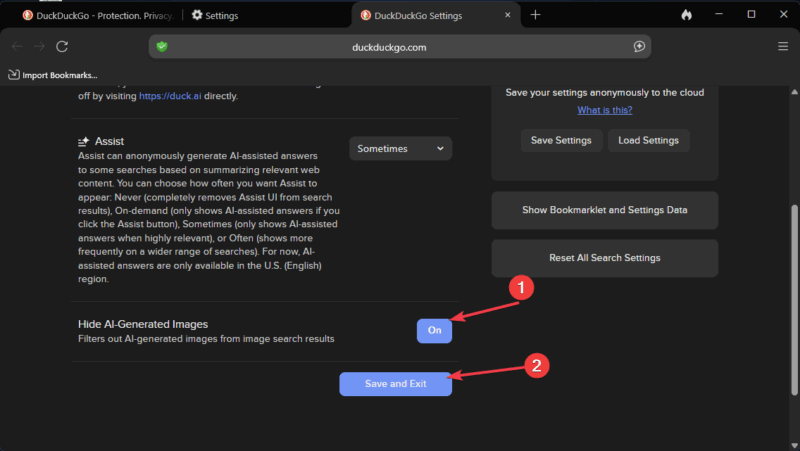
After this, you should stop seeing AI images in your searches.
If you want an even quicker solution, go to noai.duckduckgo.com on other browsers without needing to download the DuckDuckGo app.
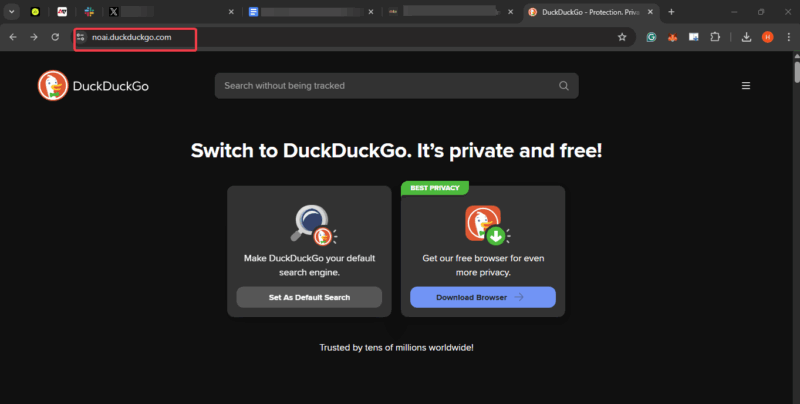
This subdomain automatically filters AI-generated images in DuckDuckGo and even disables AI text summaries for search results.
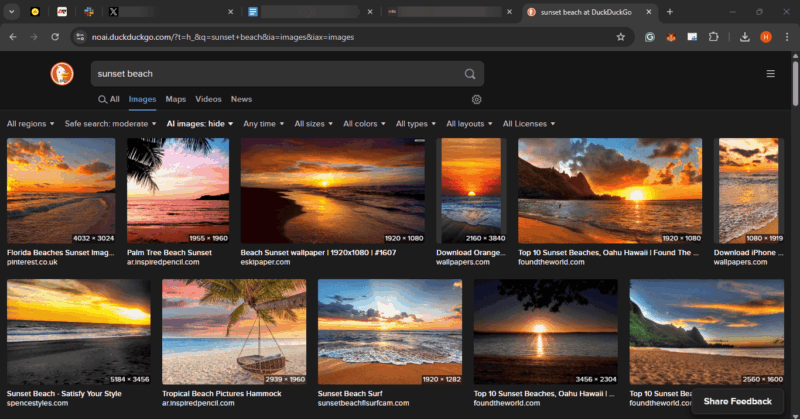
While the filter relies on open-source tools like uBockOrigin and uBlacklist, it’s not perfect and can miss a few AI images.
Hence, you can learn how to detect AI-generated images to spot fake images manually.
Tips for a Better Search Experience
To make the most of your DuckDuckGo browsing experience, do these:
- Bookmark noai.duckduckgo.com for instant AI-free searches.
- Pair DuckDuckGo extension with privacy-focused browsers or other privacy extensions like uBlock Origin to block Ads and pop-ups.
- Toggle the filter to show AI in the drop-down if you ever need a draft idea for something creative.
- Keep an eye out for more updates from DuckDuckGo as they plan to add more filters to improve your search experience.
If you’re fed up with AI in other Chromium browsers, you can use these steps to turn off Google’s AI search.
Filtering AI-generated images in DuckDuckGo is a breeze and makes your searches so much better. With just a few clicks, you can ditch the AI clutter and focus on real, useful results. Give it a try and let’s know how it’s going! For more tips, explore why Google is manually removing weird AI Overview answers.








