Finding the perfect Android email app feels like being stuck in the Goldilocks fairytale, but nothing’s ever just right. The open-source app FairEmail could be the perfect fit, even though you’ve likely never heard of it.
What is FairEmail?
After testing out dozens of Android email apps, FairEmail finally crossed my path. It’s completely open source and focuses on privacy. It also supports most email accounts, except for non-standard protocols like you’d find with Microsoft Exchange. It does work with Outlook, though there are several great Outlook alternatives available too.
Surprisingly, it’s free for unlimited accounts and offers numerous free features, including:
- Unified inbox
- Conversation threading
- Multiple themes in both light and dark varieties
- Encryption and decryption support
- Warning messages when messages can’t be authenticated
- Confirmation before opening links (can be turned off if you want)
- Zero ads
- Easy on your battery
- No tracking or analytics
- Backup
I realize some users may be put off by the design. It’s extremely minimal, but that’s part of the charm. You focus just on your messages. And, since it keeps things simple, you don’t have to worry about battery drain. This has been the best Android email app I’ve tried for battery life.
If you’re an iOS user, you’ll have to try out these email apps instead.
Setting Up Your First Email Account
When you first install FairEmail, it might feel overwhelming, but the Main tab walks you through adding your first account. You can stick with all the defaults, but I highly recommend taking the time to customize things. But, for the initial setup, tap Wizard and follow the prompts to add your account. Just below this is a manual option if you have any issues.
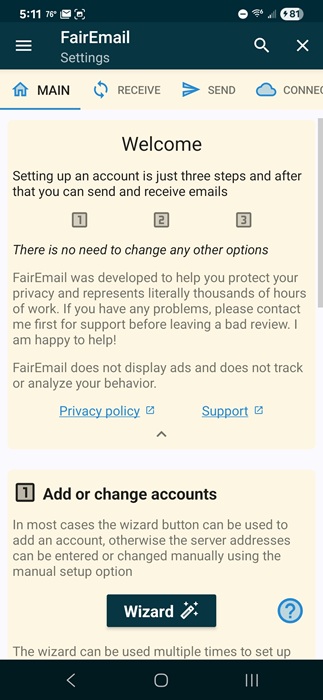
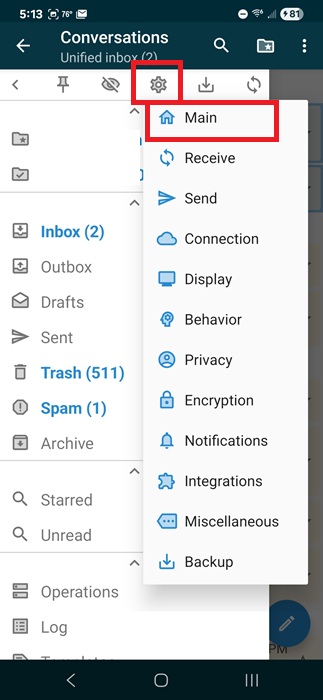
You can add more accounts at any time by tapping the hamburger menu at the top left, tapping Settings (gear icon), and selecting Main.
Once added, you’ll see a list of your latest emails. If you don’t see older messages, tap the three dot menu at the top right and select Fetch more messages.
Exploring Customization Settings
If you don’t like how FairEmail functions or looks, you can change almost anything in the app. Please note, there are a handful of premium features, but most customization options are free.
Go to the hamburger menu and tap Settings (either the cog at the top or Settings further down the list). Carefully go through each of the Settings tabs, including:
- Receive
- Send
- Connection
- Display
- Behavior
- Privacy
- Encryption
- Notifications
- Integrations
- Miscellaneous
- Backup
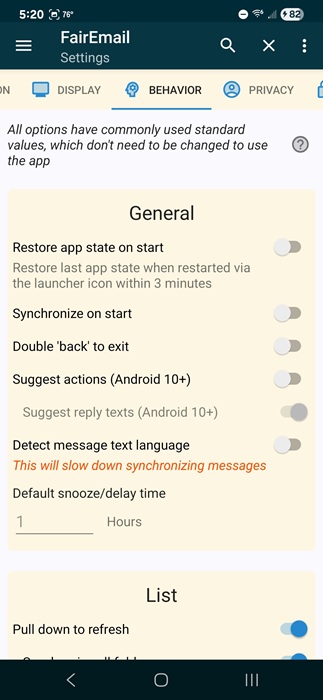
Yes, there are a ton of options under most of the tabs. So, take your time. This is one of the things I love and hate about FairEmail. It takes a while to customize, but once you do, it feels like the app was made specifically for you. That’s what sets it apart. Most Android email apps don’t offer nearly as many customizations, especially for free.
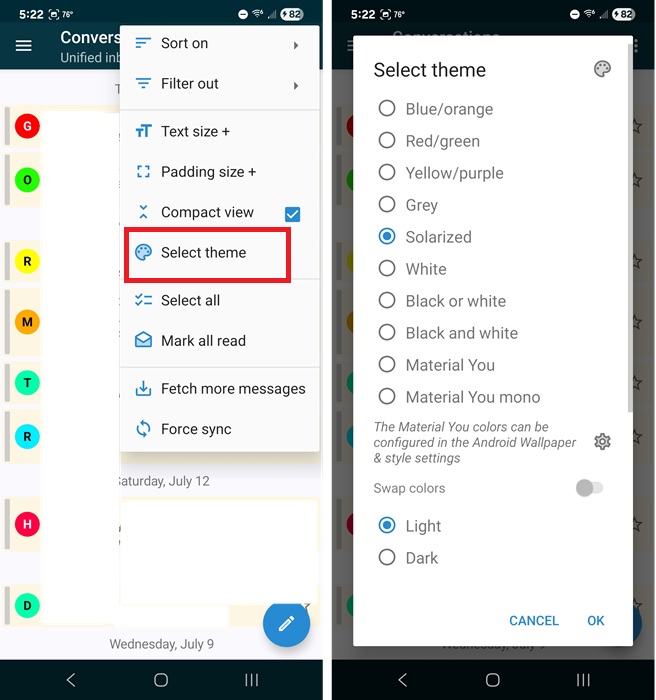
If you want to change your theme, open the main email list (either a single account or the Unified Inbox) and tap Select Theme.
Detailed Support and Feature Updates
If you’re used to apps like Gmail, you’re probably not used to having so many options thrown at you. FairEmail sets itself apart once again as the ultimate Android email app with its superior support.
Check out the Support page to view common questions, current issues, troubleshooting tips, and tutorials. During my first week using the app, I found answers to every question on this page. That includes a weird issue with Gmail accounts that show messages in both the Inbox and Archive folder.
If you scroll to the bottom, there’s a form to contact the developer about bugs or other issues.
Also, check out the Planned Features section of the page to see requested features that are in the works.
Free But Premium Upgrades Available
So far, I’ve only ran across one premium feature I wish was in the free version – color-coded email accounts. That’s just a personal preference after having the option in a prior app.
Unlike most Android apps, FairEmail lets you upgrade for a one-time fee of just $6.49. No subscription. If you choose to upgrade, you’ll get a growing list of features, such as:
- Folder colors and avatars
- Notification sounds per account (free lets you set one main sound only)
- Delayed message sending
- Reply templates
- Calendar features
- Set up filter rules
- Add biometric and PIN authentication
- Export options
- Message widget
None of these features are vital for using the app to send and receive messages. I do appreciate the one-time fee, which makes it feel more than worth it to support the development.
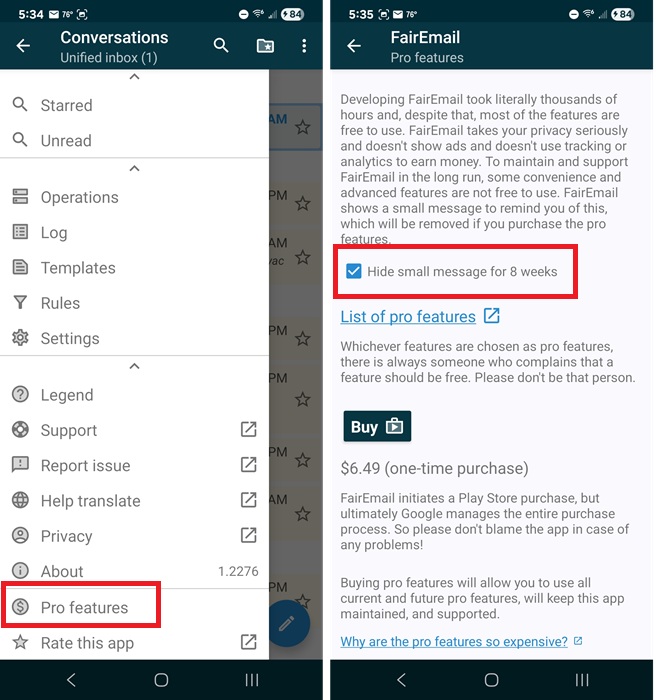
The free version is ad-free, but you will see a notification at the top of your messages about upgrading. Tap the hamburger menu, scroll down to Pro features, and check Hide small message for 8 weeks. Each time appears, tap it to hide it again. That’s the only ad you’ll ever see.
FairEmail is just a client, so you’ll have to bring your own email. If you want a more privacy-centric email provider, try these services. Or, if you just need something temporary, try a throwaway provider.








