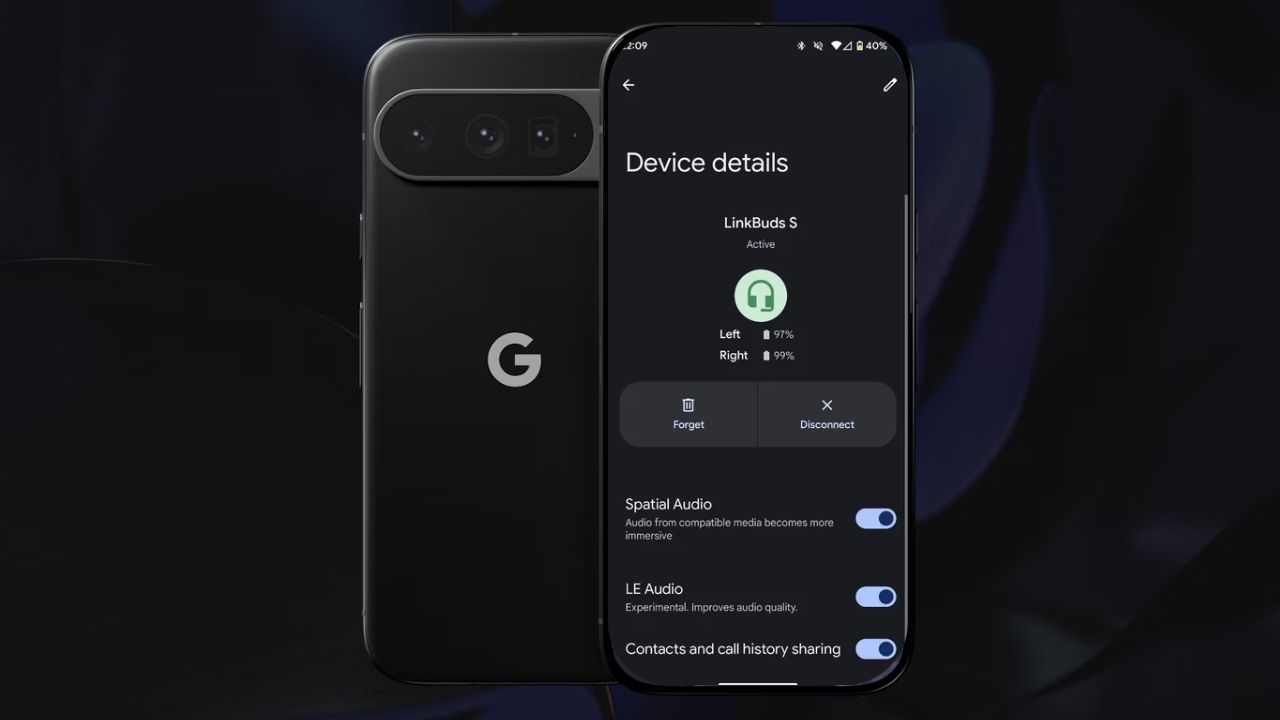
Imagine you want to share your playlist with your friends without passing around your earphones or even hearing clearly with hearing aids in a noisy environment. That’s where Auracast comes in to help you with audio sharing on Pixel like a mini radio station. In this guide, we’ll explore how to enable Auracast on Pixel phones, what you need, and the benefits of this feature.
What You Need to Enable Auracast
Before jumping in, here are the gears you’ll need to enable audio sharing on Pixel:
- Phone: You’ll need a Pixel 8, 8 Pro, 9, 9 Pro, 9 Pro XL, or 9 Pro Fold running Android 15 (the regular version) or Android 16 (Beta). Older Pixels such as 8a or 7 and below won’t work even if you have the latest Android update.
- Earbuds or Hearing aids: For smooth audio sharing, you need devices compatible with Auracast, such as Pixel Buds Pro 2, Galaxy Buds 3 Pro, or Bluetooth LE Audio hearing aids. If you’re unsure, you could check manually to see if your device supports it.
- For Android 16 Beta users: You’ll need to unlock Developer options for smooth audio sharing, as explained below.
FYI: Android 16 has some camera boosts should you want to give it a try.
Enable Audio Sharing on Pixel
Here’s how to enable audio sharing on Pixel without breaking a sweat:
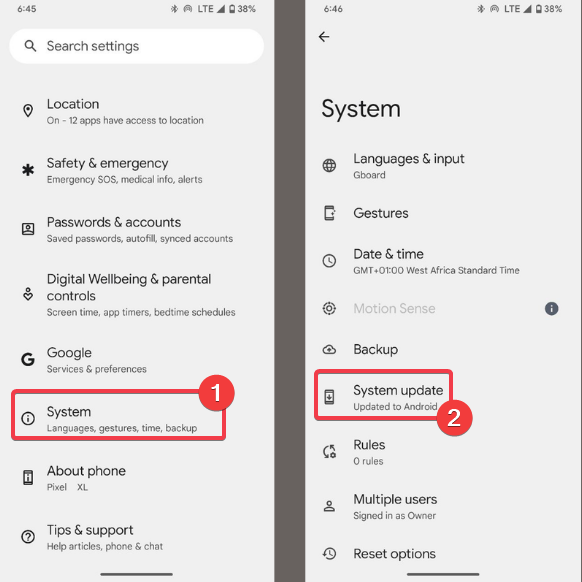
Before anything, you need to update your phone. So, navigate to Settings -> System -> System update to ensure you’re on Android 15 or 16 (beta).
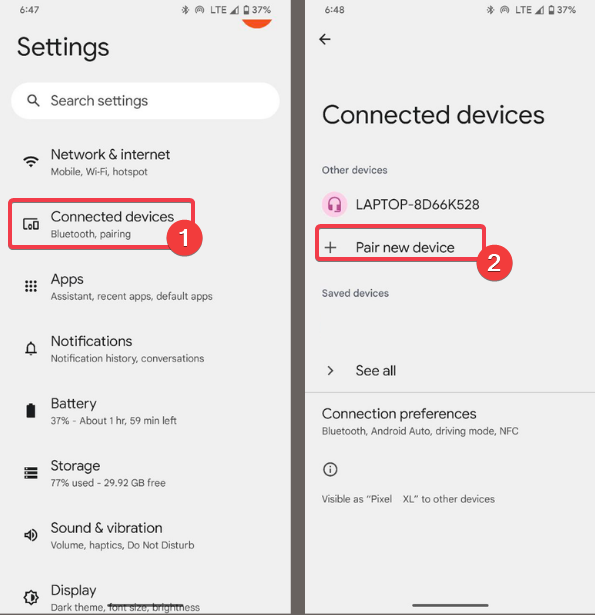
Then, pair your earbuds or hearing aid. Go to Settings -> Connected devices -> Pair new device to connect your Auracast-ready gear. Use these Android audio hacks for better sound quality.
Now, go to Settings -> Connected devices -> [your device name] and turn on Bluetooth LE Audio if you see it.
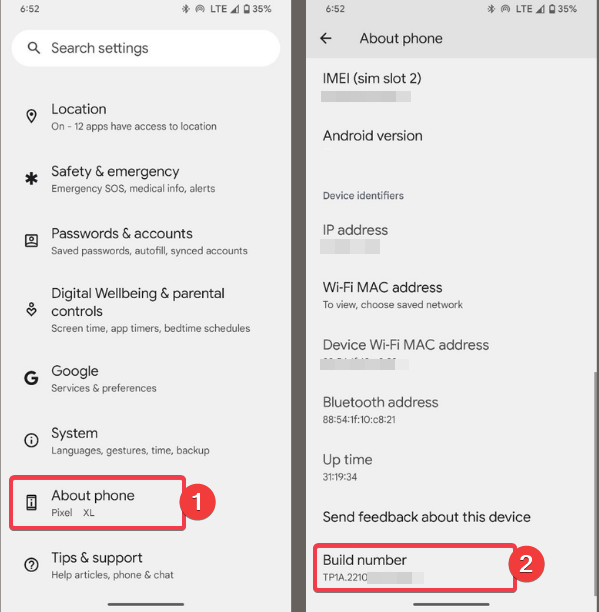
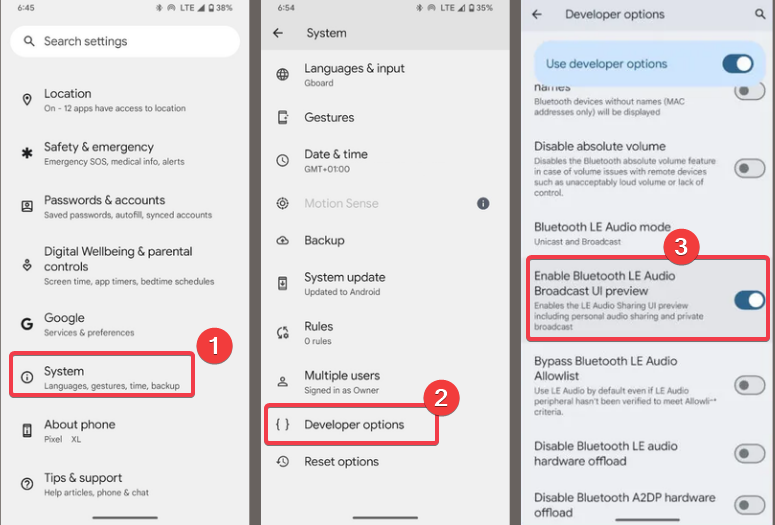
Option for Android 16 Beta Only: go to Settings -> About Phone, and tap the Build number 7 times to unlock Developer options.
Then hit Settings -> System -> Developer options and toggle on Enable Bluetooth LE Audio Broadcast UI preview.
Now, open audio sharing by navigating to Settings -> Connected devices -> Connection preferences -> Audio sharing. Then tap Share audio to broadcast or Find an audio stream to join a broadcast. Pixel 9 users can even scan QR codes for public streams.
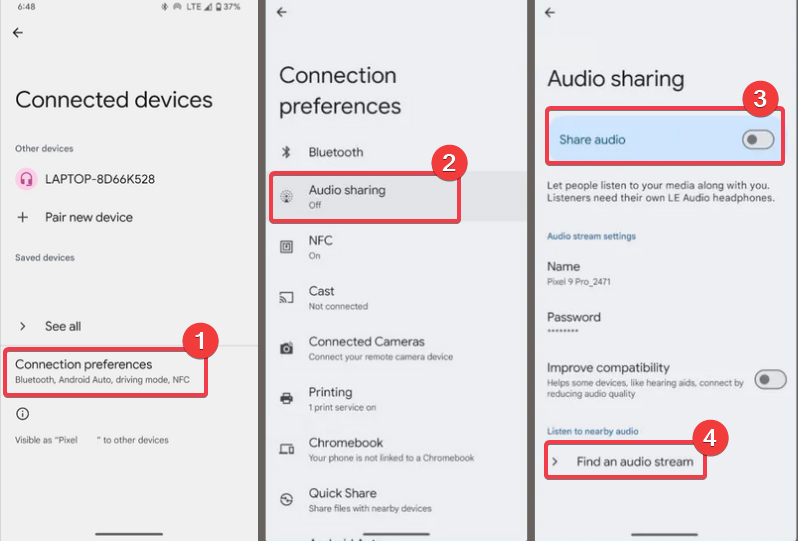
Although optional, you can add a password to keep your broadcast private. If you’re an iPhone user who loves multi-device audio setups, try these steps to connect multiple Bluetooth speakers on your iPhone.
Why Use Auracast?
Auracast is a total game-changer for anyone with hearing aids, making it easier to hear in loud places like concerts or train stations.
Besides, audio sharing on Pixel with friends becomes easy without hassle. No need to pair every device, just share the broadcast and everyone hops on the stream.
Pixel 9 even makes it cooler with the QR code scanning. And since more devices are adopting the Bluetooth LE Audio, using Auracast will only become better.
If you’re ready to use the audio-sharing feature, enable Auracast on Pixel. You can share your playlist, or join a stream with ease. Give it a try and tell us how it goes in the comments!








