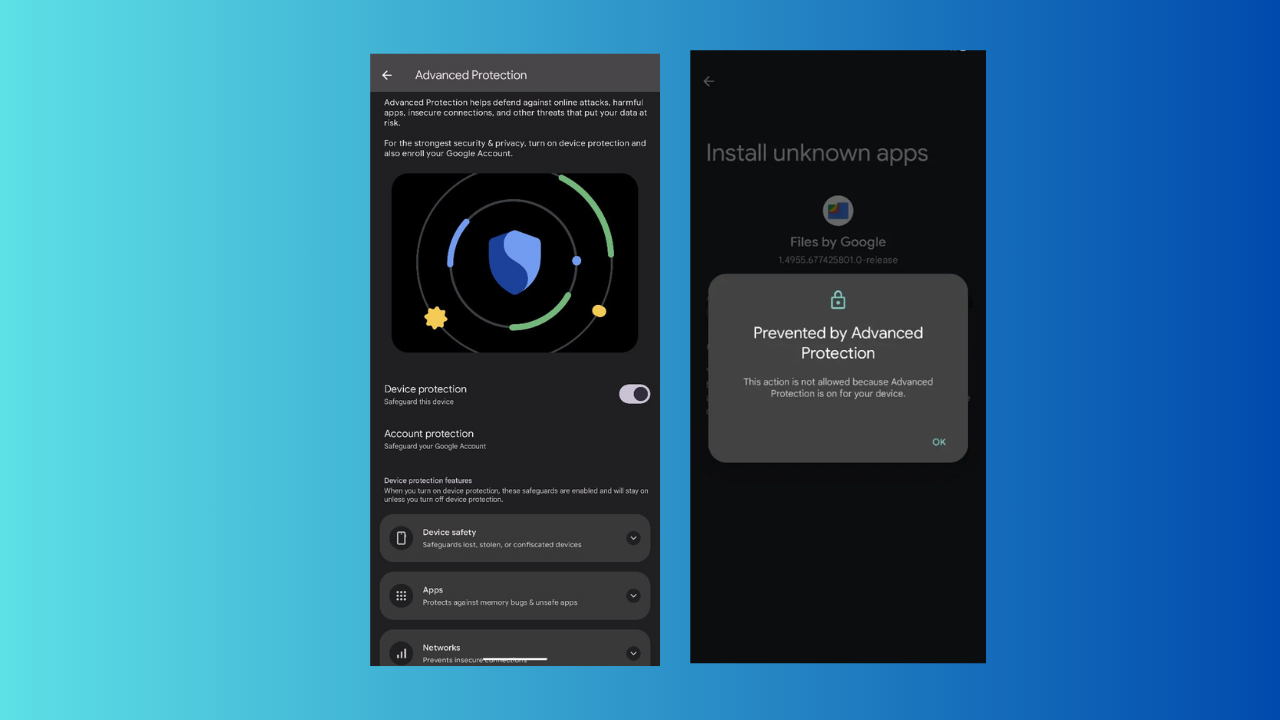
Google’s Advanced Protection is a newly added core security feature for Pixel and Android 16 devices. Think of it as Google’s toughest security feature yet, designed for anyone worried about hacks, malware, scams, or theft. You can now enable Advanced Protection on your Android 16 devices and turn your phone into a digital fortress.
What is Google’s Advanced Protection
Advanced Protection is a one-tap security mode in Android 16 that locks down your Google Pixel against threats. It’s like enabling these Android security features, but on steroids.
Once enabled, it blocks sideloading and prevents installing apps outside the Google Play Store. In addition, it turns off 2G to stop fake cell towers and uses Memory Tagging Extension (MTE) to fight malware.
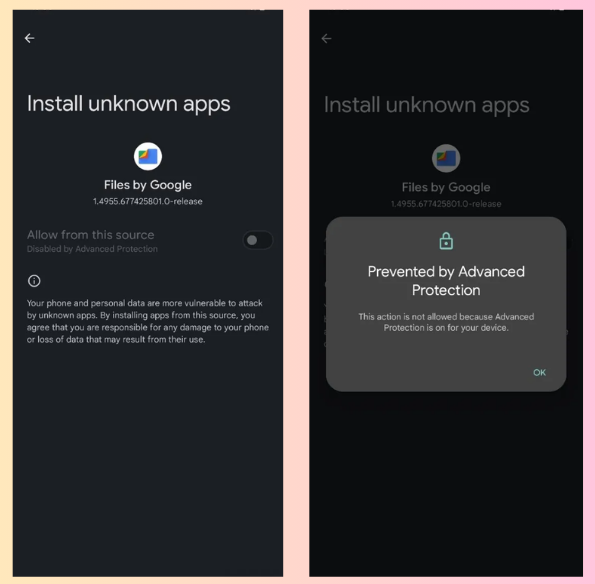
Also, all core security settings like Google Play Protect and Safe Browsing are locked, so hackers can’t mess with them.
Besides all these, you’ll also get cool perks like scam/spam filtering in Google Messages, theft detection, and blocked USB data transfers to keep your data safe.
You may, however, encounter constant website breaking due to disabled JavaScript optimizers. This is a trade-off for the security benefits you enjoy from enabling Advanced Protection on your Android 16 devices.
Requirements to Enable Advanced Protection
Here’s what you need to enable Advanced protection on Google Pixel:
- Google Pixel 7 Pro, 8 series, 9 series, or Android 16-compatible devices.
- You need a Google account with two-step verification (2SV) turned on. See our guide on setting up Google’s 2SV.
- Optional: Enroll in Google’s Advanced Protection Program for account-level security (security key or passkey required).
Enable Advanced Protection Now
To enable Advanced Protection on your Google Pixel or Android 16, open the Settings app. Navigate to Google -> Personal & device safety or Security & Privacy, depending on your device.
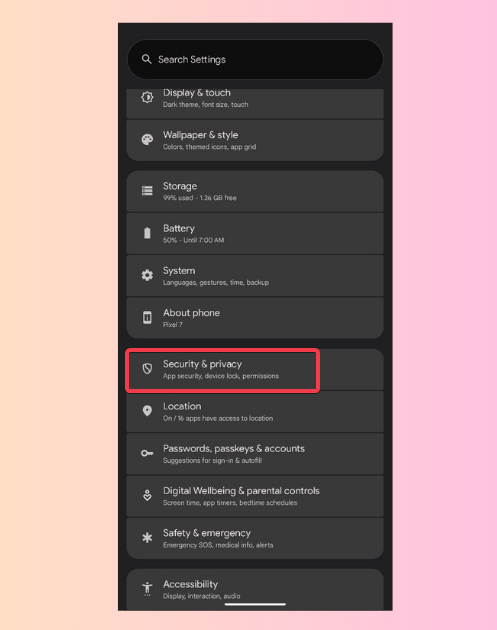
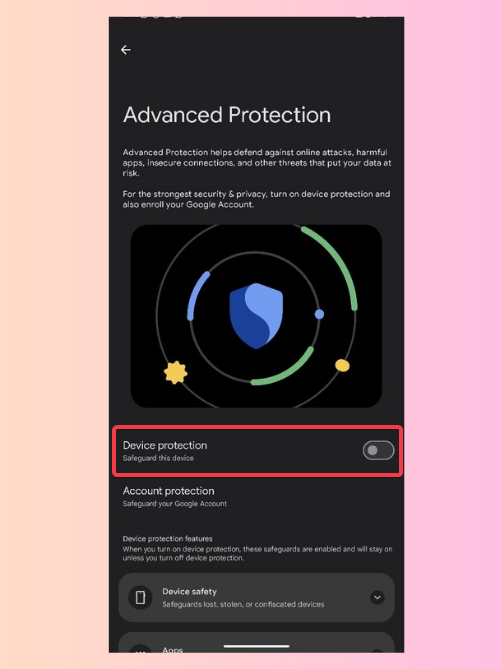
Tap Advanced Protection under Other settings. If you just updated to Android 16, tap See details first.
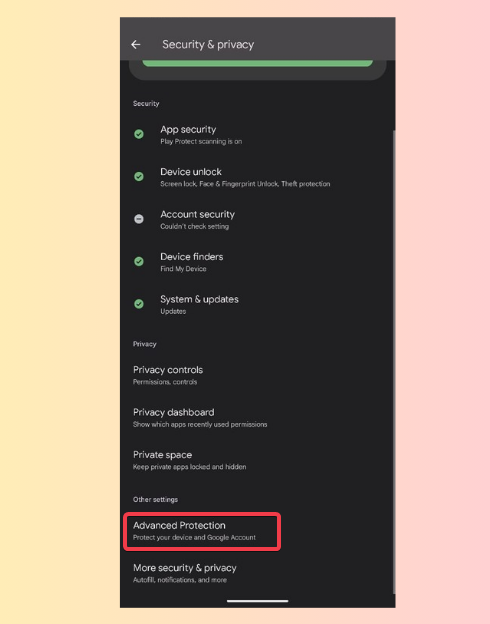
Toggle Device Protection to enable it. Note that you may need to verify your Google account. Then, restart your phone when prompted to apply settings.
Optional: Tap Account Protection to join Google’s Advanced Protection Program for extra account security. See more ways to protect your Android privacy here.
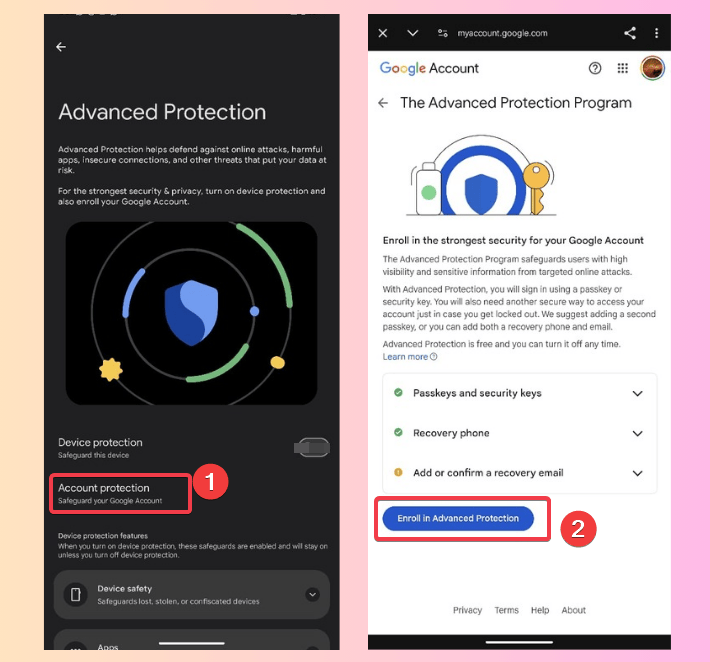
While your Pixel is now in high-security mode, we recommend you set up a recovery email in your Google account in case something goes wrong.
Things to Consider Before Enabling This Feature
Enabling Advanced Protection on Android 16 is awesome, but it’s not for everyone. If you’re a privacy buff, you’ll be delighted with perks like protection against hacks, scams, theft, and spam filtering.
However, if you like sideloading apps or on your browser most of the time surfing web, this may not be for you due to its restrictions. Also, 2G gets disabled among other things, so you may not get calls from hidden/unsaved numbers.
The good thing is, you can manually enable individual settings like Google Play Protect to reduce the restrictions. Also, you can disable Advanced Protection anytime in the same menu if it feels too strict.
Enabling Advanced Protection on Android 16 is a quick and easy way to boost your phone’s security, especially for high-risk individuals. With just a toggle, you can make your phone a digital fortress. If you’ve updated to Android 16, try this feature out and let us know how it goes in the comments!








