Unlike TikTok, X does not allow all users to download videos from the app. Regardless of whether you’re a free or paid X user, below you’ll find the best methods to save videos for later viewing.
1. Download Directly from the App (Premium Users Only)
If you’ve paid for a premium subscription on X, then downloading videos is straightforward from the mobile app or PC.
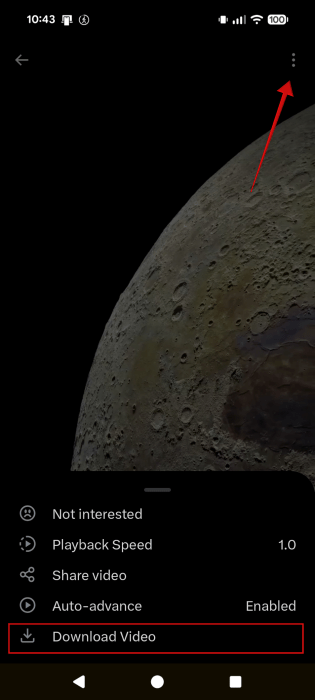
On mobile, tap on the video you wish to grab to open it in full page. Then press on the three-dot menu in the upper-right corner and select Download from the menu that pops up.
On PC, press the Share icon in the lower-right corner and select Download video.
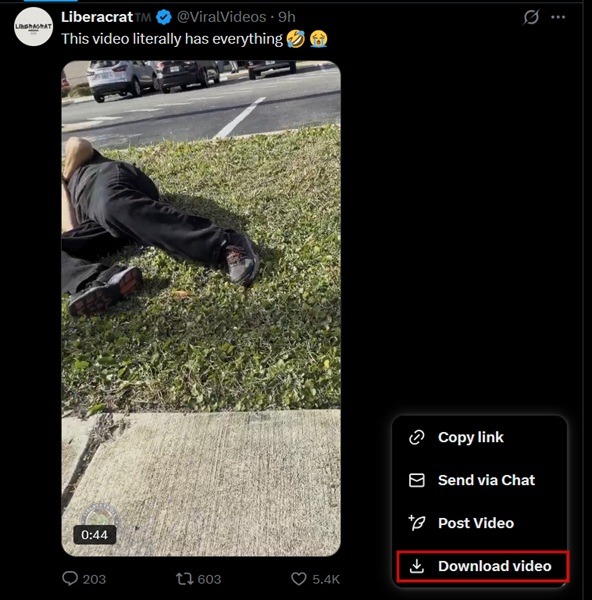
Keep in mind that the creator has to make the video available for sharing for the option to appear. If it isn’t visible, the creator has likely disabled sharing.
If you wish to browse X without having to sign up with an account, check this tool that let you do so anonymously.
2. Use an Online Download Tool (All Platforms)
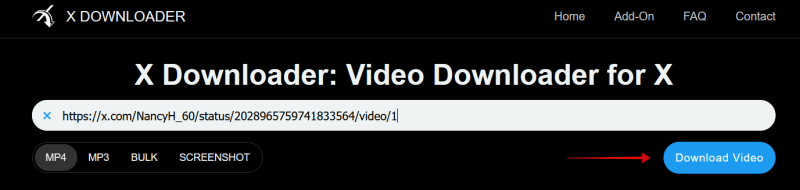
If you’re not a premium X subscriber, you’ll need to make use of a workaround to download videos from the platform. The easiest solution is to use an online download tool such as X Downloader, which you can access in your browser on your mobile phone or PC.
Note: check, as shown above, whether the video has been made available for download by its creator (even as a free user, you’ll be able to see the option). If the option isn’t available, the video might be under copyright, and so you should probably avoid downloading it unless you have been given permission by its creator.
All you have to do is paste the link to the video into the tool and press Download.
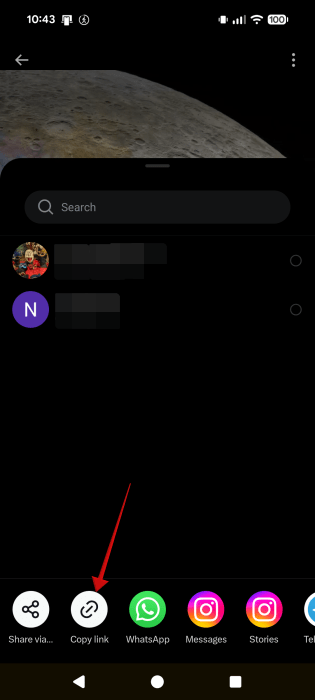
To get the link to an X post including a video on PC, click the Download icon in the bottom-right and select Copy link.

In the mobile app, tap the video to open it in full screen, then select the Share icon. Tap Copy link from the available options.
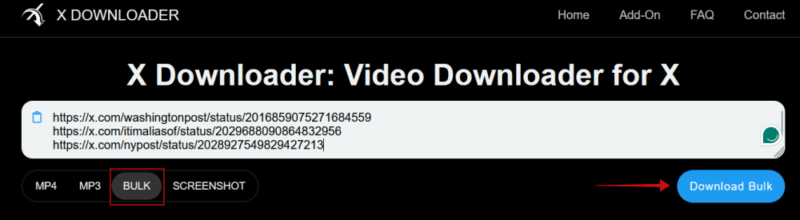
I’ve opted to include this tool in our list because it also lets you do bulk downloads. Just paste the links to all the videos you want to save. They will be available to download in the form of an archive.
3. Use a Shortcut (iOS)
If you have an iPhone, you can use a shortcut to easily download X videos on your phone. To be able to do so, you’ll need to get the pre-made shortcut from the TVDL webpage.
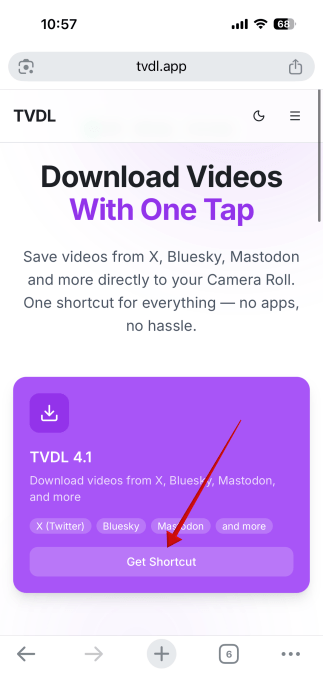
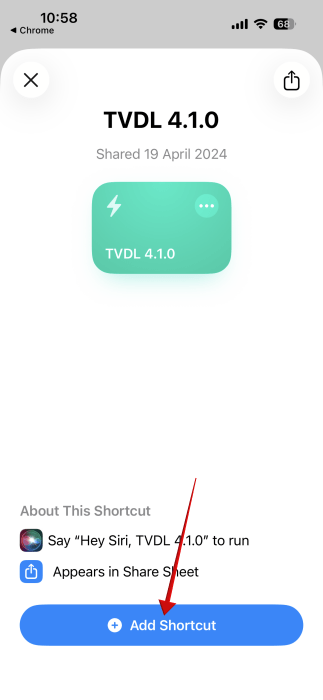
Input your email to receive the download link. Press the Add Shortcut button to add it to your Shortcuts app (which should be on your phone by default).
Now open the X app and find a video to download. Press the Share button and then select Share via. Find the TVDL 4.1.0 option in the list that appears below.
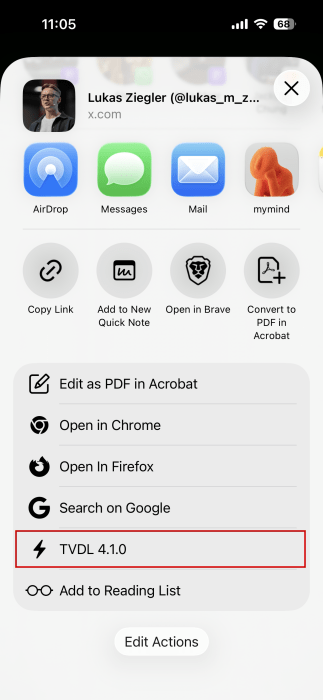
Give the necessary permissions in the pop-ups that will appear. That’s it. The videos will be saved to your Photos app.
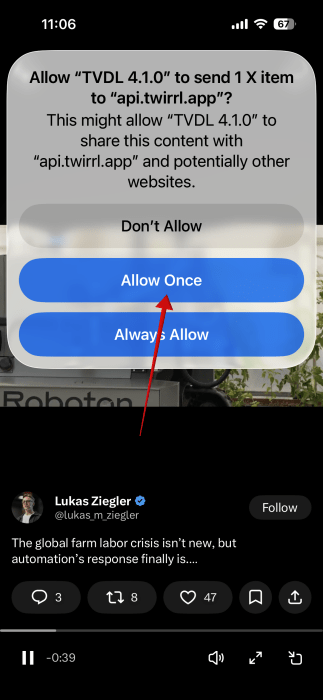
Note: the video will appear in the Photos app under the date the video was posted and not the day you downloaded it.
4. Use an Extension to Download Video (Web)
If you tend to browse X mostly on your PC, you can also install an extension to help you with video downloading. For instance, the X Video Downloader for Chrome. Add it to your browser and then pin it to the extensions bar for faster access.
Now locate the video you wish to download and access the poster’s profile. Switch to their Media section and find the video there. Click on it to open it in full screen, then press the extension icon in the toolbar. Go for the Download Post Video button that appears.
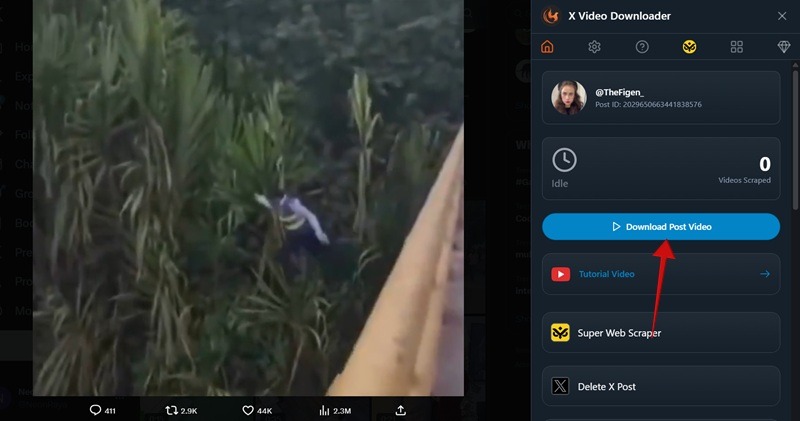
If you’re on Firefox, you can try the X Twitter Video Downloader add-on. Once installed, hover your mouse over a video on X, and you should notice a download icon.

Pressing it will take you to a page where you can select the preferred video quality.
As you can see downloading X videos quick and straightforward even for free users. If you wish to improve your X browsing experience, check our post on how to remove ads from the social app.