
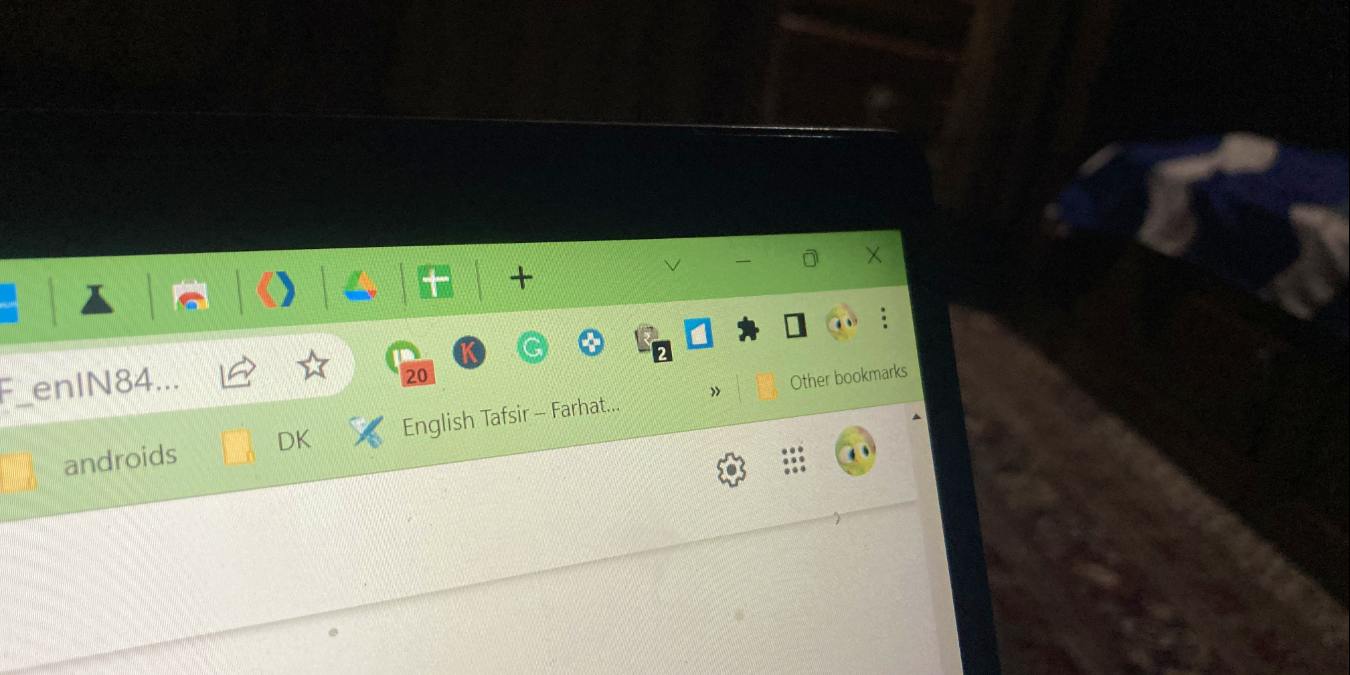

Chrome extensions are really helpful, allowing you to add more functionality to your browser. However, by default, any new extension that you install on Chrome will not show up on the toolbar. You will have to manually pin it. Let’s learn how to pin and unpin extensions from the Chrome toolbar.
Tip: power your browsing experience with Chrome keyboard shortcuts.
[mte_toc]How to Pin an Extension to the Chrome Toolbar
Follow the steps below to pin an extension to the Chrome toolbar. Please make sure you have the latest version of Chrome before you start.
- Open the Chrome browser.
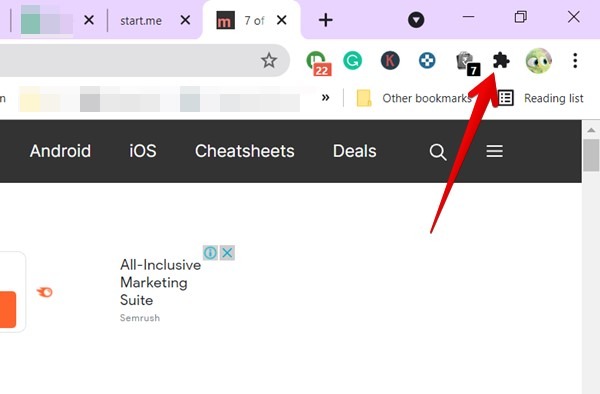
- Click on the “Extensions” button that looks like a jigsaw puzzle piece in the toolbar next to your profile avatar or the reading list icon.
- A drop-down menu will show you all the installed extensions that are enabled. In this list, you’ll see a “pushpin” icon next to each extension. Click on the pushpin icon next to the extension that you want to pin to the toolbar.
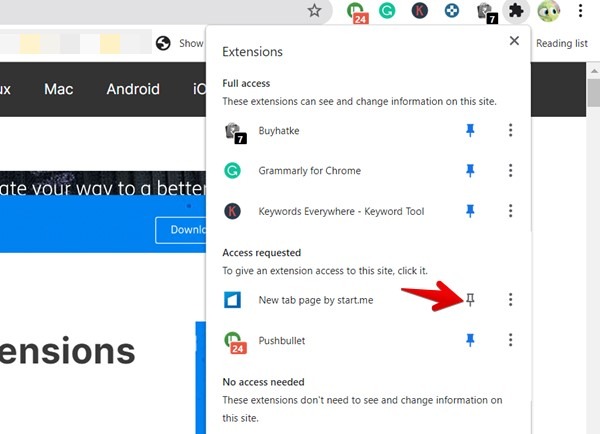
Note: the pushpin icon will either be blue or grey. If it’s blue, it means the extension is already pinned to the Chrome toolbar. If it’s white, it means the extension is not pinned.
Once you click on the extension to pin it, it will immediately show up in the Chrome toolbar, where you can access it quickly.
How to Unpin an Extension From the Chrome Toolbar
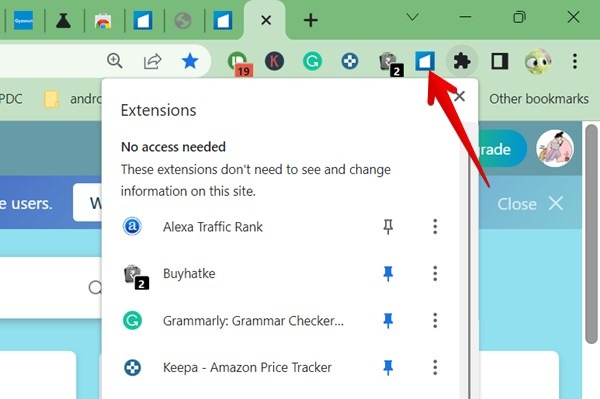
To remove a pinned extension from the Chrome toolbar, right-click on its icon in the toolbar, then select “Unpin” from the menu.
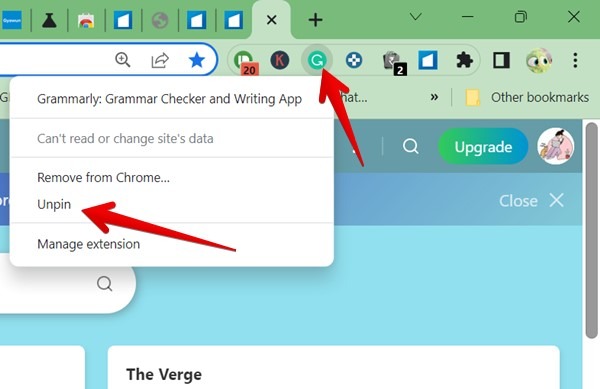
Alternatively, click on the “Extensions” button (jigsaw piece icon) to view the list of extensions, then click on the blue pushpin icon next to the extension you want to unpin.
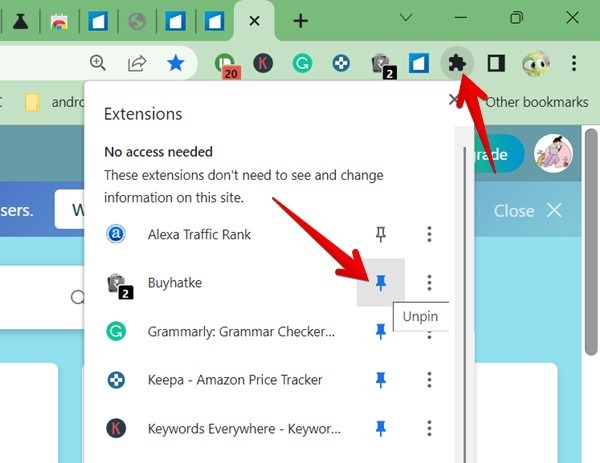
Note: unpinning an extension will not disable it. It will merely hide the extension from the main toolbar.
Fix: Chrome Extensions Disappeared From Toolbar
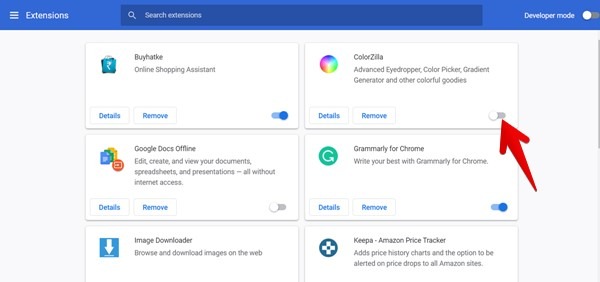
If your installed extensions are missing from the Extensions list, or you are unable to pin them, they might have been disabled. To re-enable and pin the extension, follow these steps:
- Go to chrome://extensions.
- Enable the toggle under the extension that you want to activate.
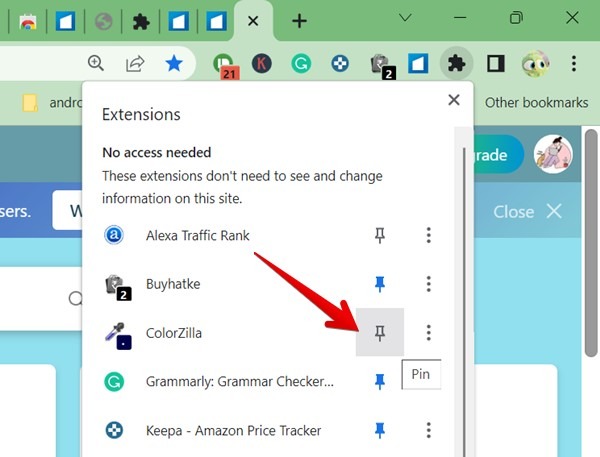
- Click on the “Extensions” (jigsaw piece) icon in the toolbar to see the active extensions. The extension you just enabled should show up here. Click on the pushpin icon next to this extension to pin it to the toolbar.
Tip: check out the best extensions to speed up the Chrome browser.
How to Disable the Extension Toolbar in Chrome
Earlier, it was possible to hide or disable the Extensions button with the help of Chrome flags. However, the functionality has been disabled.
However, as an alternative, you can simply unpin all of the extensions one by one, leaving only the jigsaw icon in the toolbar to give a cleaner look to your browser. You can still access all of the active extensions by clicking on the jigsaw icon.
Also read: How to Enable/Disable Google Chrome Print Preview Feature
Frequently Asked Questions
How can I access Chrome extension settings?
Open the extensions menu by clicking on the “Extensions” icon in the toolbar, then click on an extension to open its settings, if available. Alternatively, right-click a pinned extension in the toolbar and select “Options” from the menu to view the extension’s settings.
How can I rearrange Chrome extensions in the toolbar?
Once the extensions are pinned, you can click and drag the icons to change the order of the pinned extensions to your liking.
How can I sync extensions across my devices?
Your extensions will be synced to other devices automatically if you are signed in with your Google account in Chrome. You can enable or disable this behavior from “Chrome Settings -> Sync and Google services -> Manage what you sync -> Customize sync.” Enable “Extensions” to ensure your extensions are in sync across devices.
Does updating Chrome unpin extensions?
Updating Chrome will not affect or unpin your extensions. However, if you reset Chrome, it will disable extensions. You will have to re-enable them.
How can I automatically pin Chrome extensions?
It’s not possible to force pin a Chrome extension when it’s installed. You will need to manually pin the extension as shown above.
All screenshots and images by Mehvish Mushtaq.