
Once a one-swipe, one-tap action, switching to Do Not Disturb (DND) on Pixel phones has become unnecessarily complicated. Google’s decision to add extra steps left frequent users frustrated and looking for workarounds. The good news? A fix may be coming soon. Google is planning to bring back the simple DND tile. Until then, we’ll walk you through some handy shortcuts to make accessing DND less of a chore again
Good to know: push notifications on your Android not working? Here are some suggestions on what you can do about.
The Current DND Situation on Pixel Phones
The situation is currently affecting Pixel phones. If you own any other kind of Android phone, you should still find the DND toggle by swiping from the top of your screen.
However, for Pixel users, things changed with thee release of Android 15 QPR2 – the second quarterly platform update. Do Not Disturb is now tucked away under a new tile in Quick Settings labeled Modes.
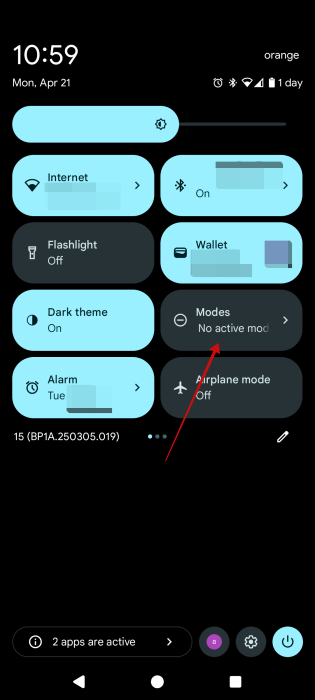
Getting to DND now involves tapping on the Modes toggle and selecting Do Not Disturb, then pressing Done.
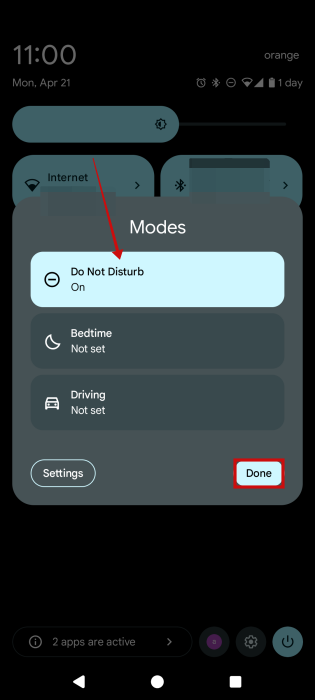
To turn off the mode, users will have to retrace the same steps, which adds at four extra taps in total. For people who are switching to DND and back several times a day this is a major inconvenience.
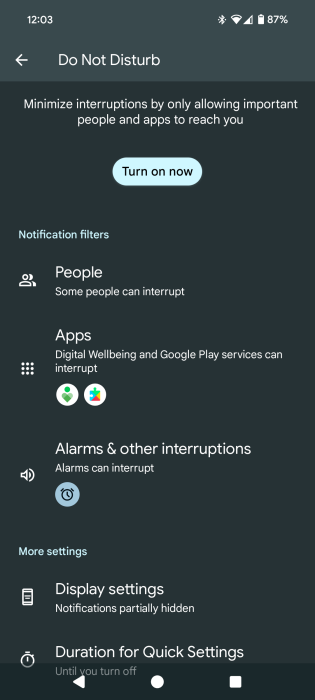
On the up side, the introduction of Modes allows you to create a highly customized DND experience. Head to Settings -> Modes -> Do Not Disturb and set it up according to your needs and preferences.
Tip: boost your Android privacy by removing the System SafetyCore app. Here’s how.
A Standalone DND Toggle Could Be Making a Comeback
The good news is that Google appears to have taken into consideration Pixel users’ frustration.
Evidence found in the fourth beta of Android 16 suggests that Google is testing a standalone Do Not Disturb toggle for Quick Settings. At this point, it looks like it’ll live alongside the Modes tiles, so users ca pick whichever suits their needs, or use both for that matter.
We don’t know exactly when Google is going to finally roll out this change, but while you wait, check out these workarounds.
How to Quickly Turn On DND Mode on Your Pixel
If you need a way to turn on DND mode on your Pixel quickly, try one of these options.
Add a DND shortcut on your lock screen
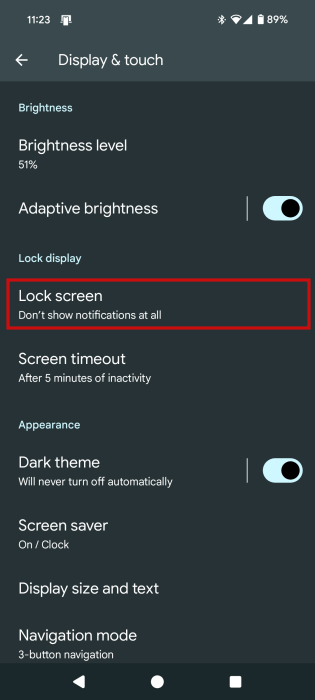
This has the potential to make accessing DND on your Pixel phone even easier. Open the Settings app and navigate to Display & touch.
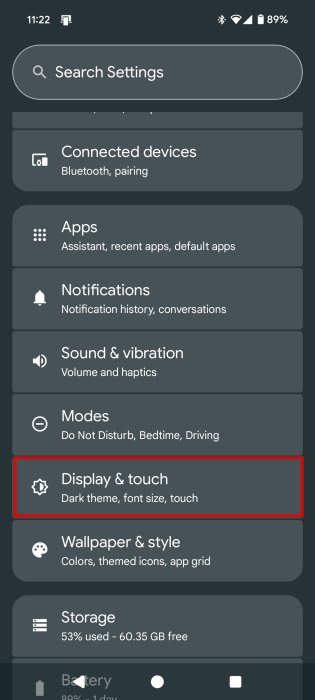
Select Lock screen next.
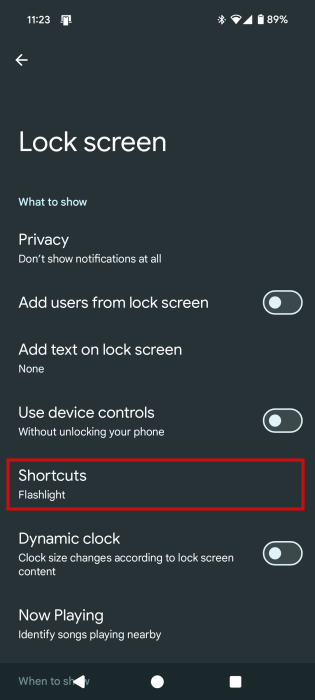
Go to Shortcuts.
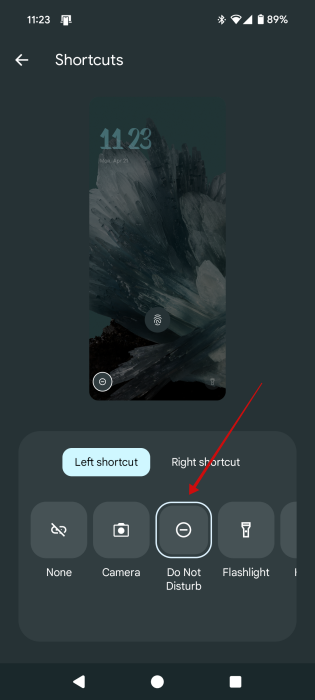
Select where you want the DND shortcut to be – left or right and select the Do Not Disturb option.
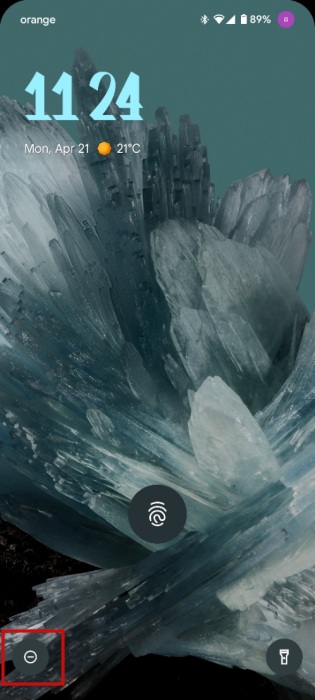
Now when you wake up your phone to lock screen, you should see the DND icon at the bottom. To activate it, touch and hold it. Super easy!
FYI: here are some suggestions on how to automate your Android phone with location-based rules.
Create a Rule
If you usually need to switch to DND when you’re at a certain location, then creating a Rule might help you solve the issue of smoothly transitioning to this mode.
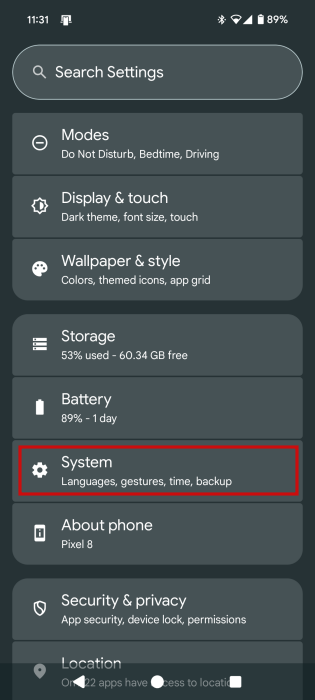
Open the Settings app on your phone and navigate to System.
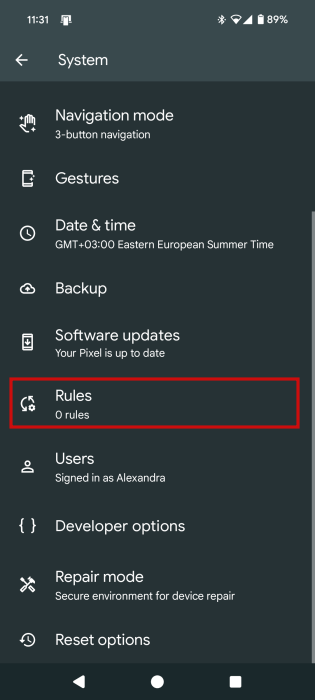
Find Rules here and access it.
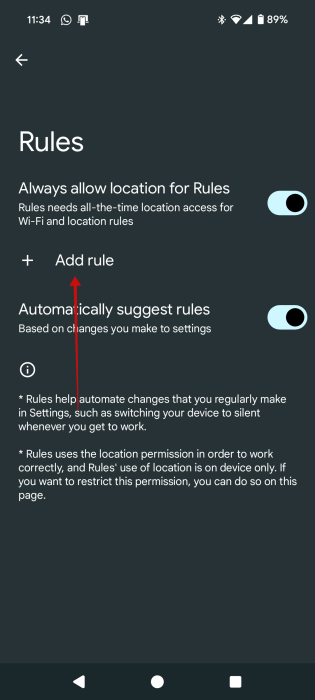
Select Add rule in the next screen.
At the top, press Add Wi-Fi network or location. If you’re not comfortable adding your location, you can simply select a Wi-Fi network (from the ones you’ve already saved.)
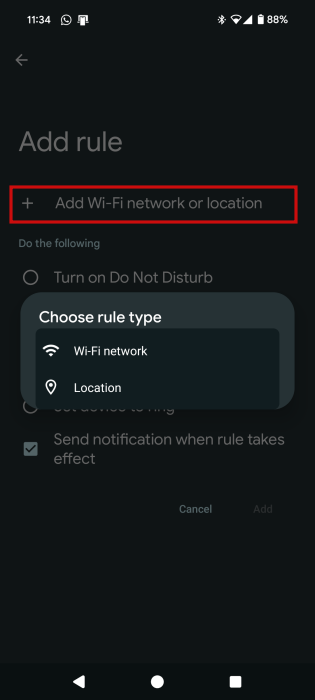
Up next, check the option to Turn on Do Not Disturb. Finally, press Add.
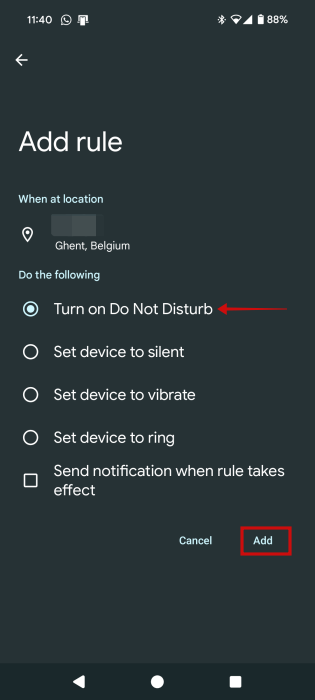
Now, whenever you arrive at the set location or you connect to the selected Wi-Fi, your phone will automatically switch to DND.
Re-add the tile with third-party app
Another workaround is to re-add the tile to your Quick Settings using the third-party app called Simple DND.
Install the app on your phone and give it the permission it asks for. Then return to its main screen.
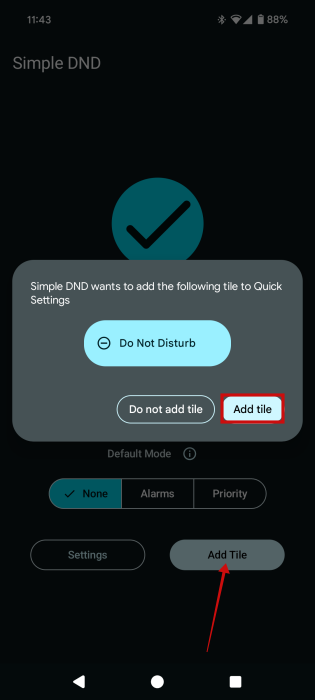
Press Add Tile and then again in the pop-up.
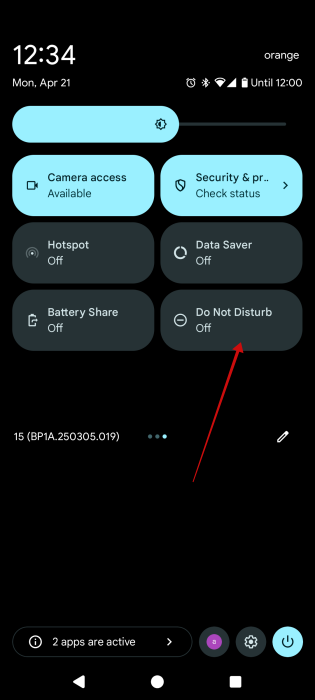
Now bring up your Quick Settings. Swipe through the tile panels until you find the DND tile (it should be the last one.) Tap on it to activate it. DND mode will now take effect. Once it does, the mode will appear active in the Modes tile as well.
DND mode can help you better focus on your tasks throughout the day. If you feel like you need to further detach from your smartphone, check out all the ways you can control your screen time on Android. At the same time, you might also be interested in learning about the best mental health podcasts to add to your playlist.








