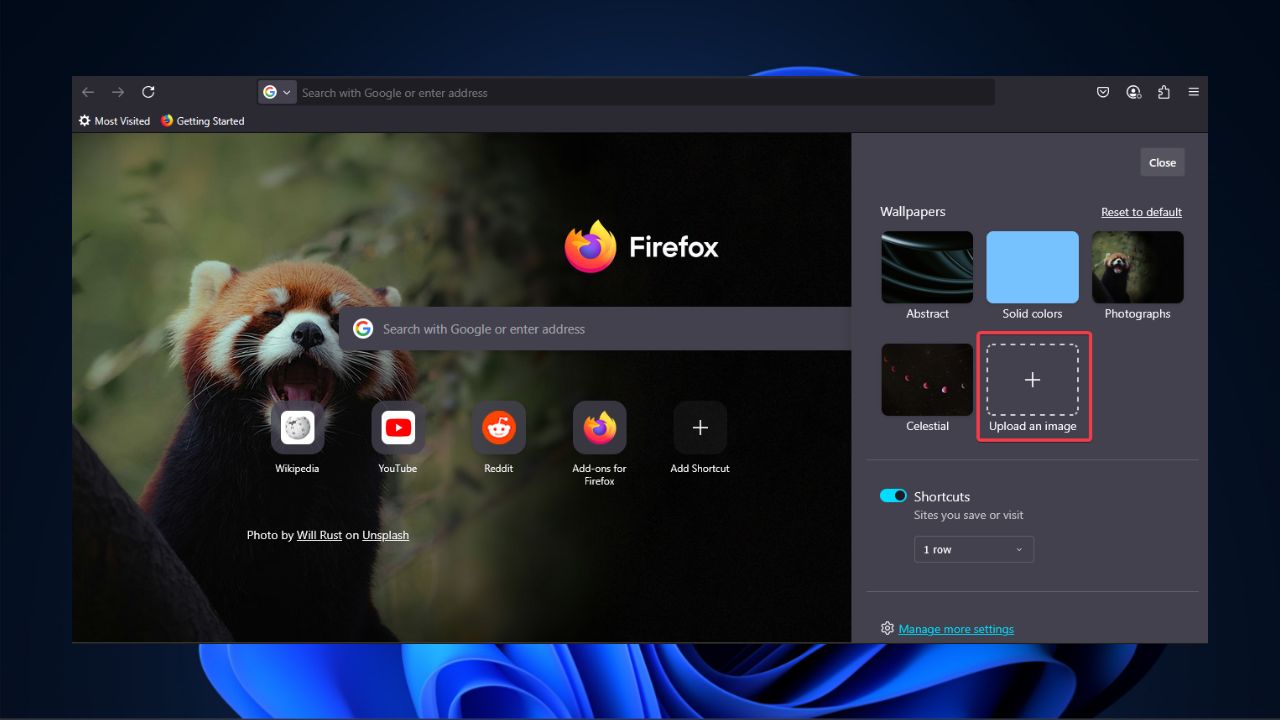
Do you want to make your Firefox browser feel more personal and unique? You can now set a custom new tab background in Firefox with your favorite images. With this new update, Firefox allows you to personalize your browsing experience without using extensions or extra tools. This guide will show you the steps to add background images or colors to your new tab in Firefox.
Why Customize Your Firefox New Tab?
Setting a custom new tab background can make Firefox feel fresh and personal. Unlike the usual blank and boring default look, you can use your favorite photos to make every tab feel better.
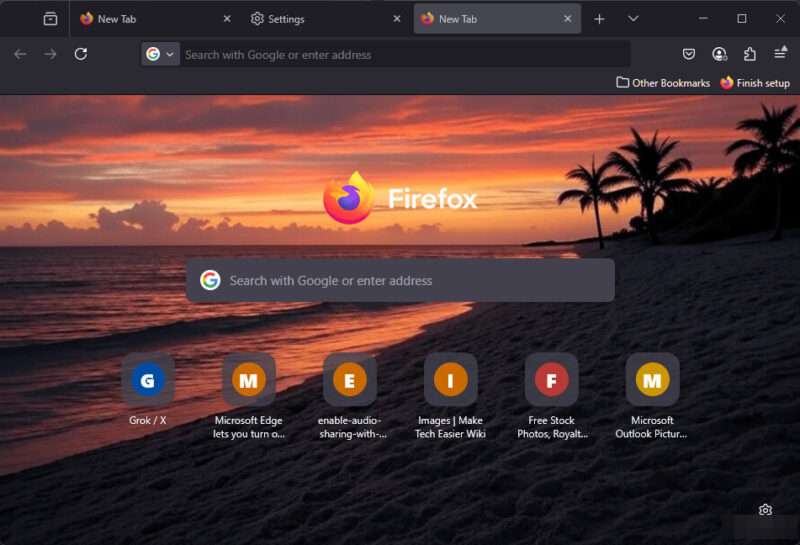
Imagine adding a photo of your dog, a scenic sunset at the beach, or a bird’s eye view of your home. All these create an inviting browsing environment while boosting your mood whenever you’re working.
If images aren’t your thing, but colors are, you can also set a custom background color without hassle. Besides, no extensions are needed since it’s in-built and easy to set up.
Note: Firefox’s custom new tab feature is only available on Firefox 138 or later.
If you want to further personalize your browser, try other ways to customize Firefox’s new tab page.
How to Set Custom New Tab Background in Firefox
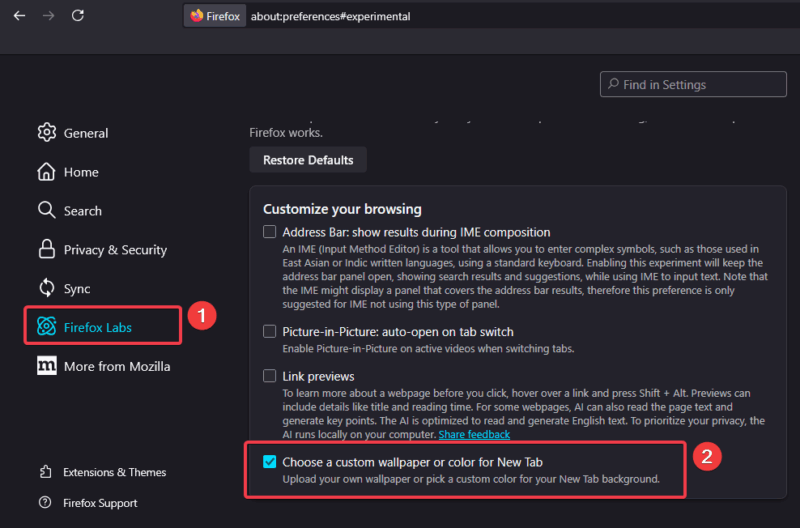
To set a custom new tab background in Firefox, navigate to Application menu -> Settings, click on Firefox Labs, and enable Choose a custom wallpaper or color for New Tab.
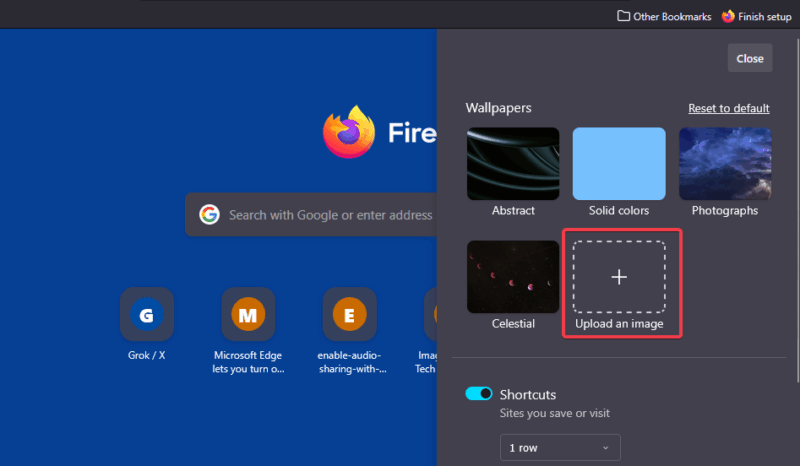
Now, click the + button or press Ctrl + T (Windows) or Cmd + T (Mac) to open a new default tab. Then click the Settings icon on the page to see wallpaper options. For images, choose Upload an image.
Select a JPEG or PNG from your computer. You can adjust the image positioning if needed.
Pro tip: Explore how to save multiple images in Firefox if you’re downloading them online.
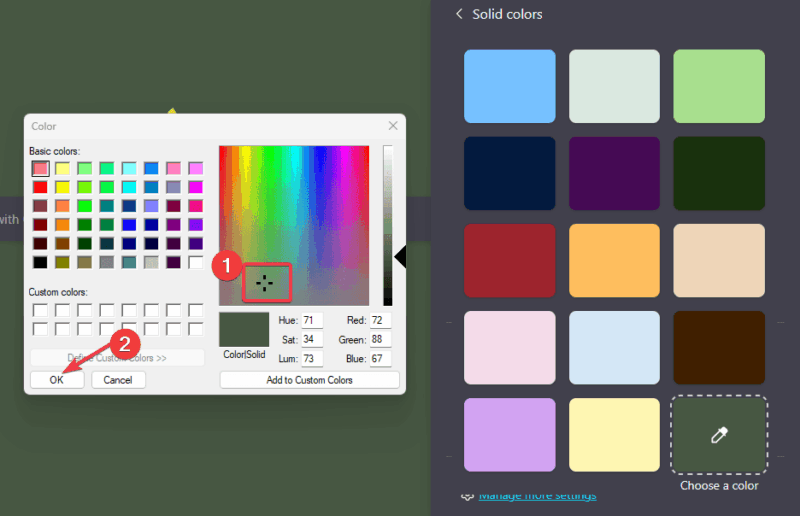
Alternatively, you can pick from the other wallpaper options or set a favorite solid color. To do that, simply click Solid colors, pick a color from the primary options on the prompt, or click Choose a color.
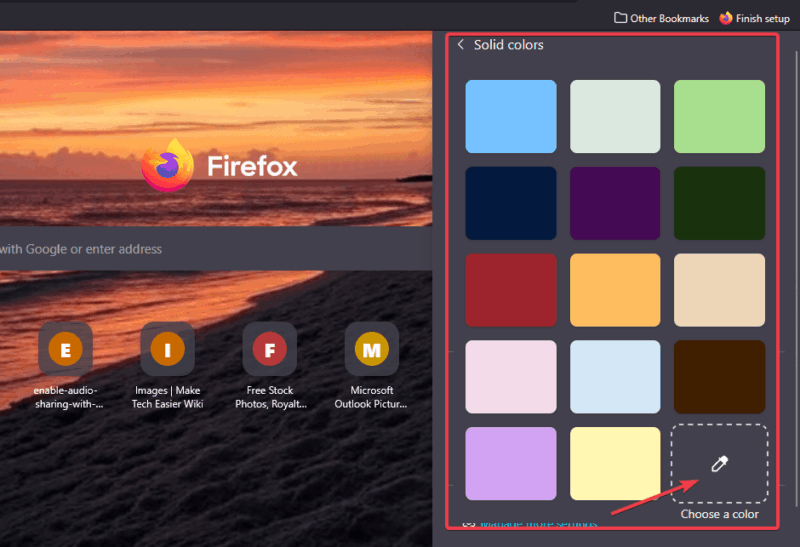
Now, drag the crosshair on the color palette till you get the right blend. Then, click the OK button to apply the changes.
If you want more fun tweaks or experiments, try editing websites live with Firefox’s developer tools.
Tips for Choosing the Perfect Background
To get the best results when setting a custom new tab background in Firefox, take note of these:
- Use a clear, high-resolution image to avoid blurriness.
- It’s advisable to use simple images without a busy background. This makes texts easier to read.
- Try to use images or colors that blend with Firefox’s interface.
Test different options to find out which works best for you. Also, you can take your edits a step further by learning how to change your Google background.
Setting a custom new tab background in Firefox is now a breeze, and it makes your browser uniquely you. Just give it a try and make every tab feel like home.








